Metric Views
You'll define a governed
franchise_sales_metricsmetric view and confirm it matches the query you saved in Query and explore in ~20 min.Prereqs: Query and explore, a serverless SQL warehouse, CREATE privileges on the target schema
The big picture
The Query and explore walkthrough proved daily franchise revenue with one saved query. A metric view promotes that logic into a governed object: define Total Sales, Order Count, and Avg Order Value once, and every dashboard, Genie Agent, and SQL client reads the same definition. Change the number in one place and every consumer picks it up on the next query.
The source is your silver layer. The output is starterjourney_catalog.bakehouse_gold.franchise_sales_metrics.
| Continuation of | What carries forward |
|---|---|
| Build the first ETL pipeline | The silver tables produced by that pipeline are the source for this metric view. |
Build the metric view
Create the gold schema, generate the metric view with Genie Code, then validate it against the saved query from Query and explore.
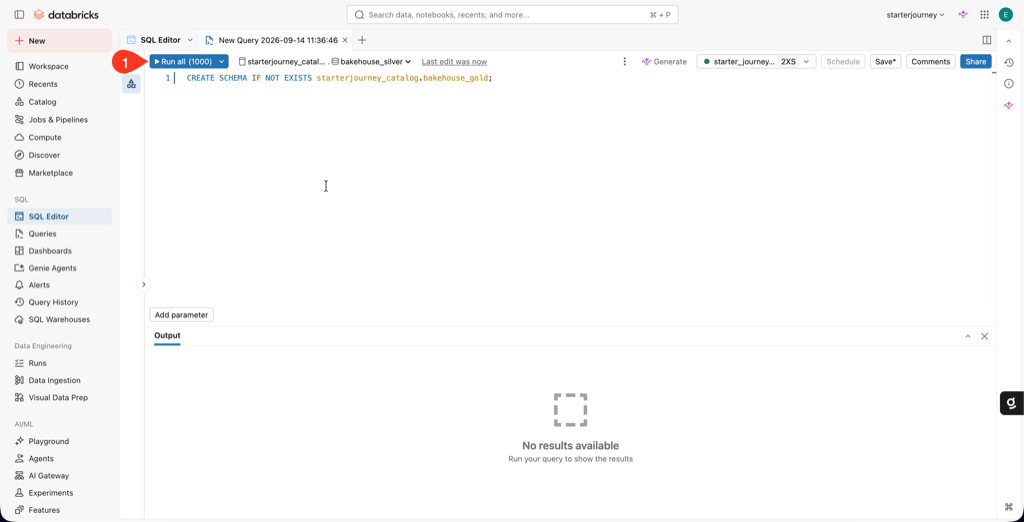
Create the destination schema if it does not exist yet. In a SQL editor on starter_journey_wh, run:
CREATE SCHEMA IF NOT EXISTS starterjourney_catalog.bakehouse_gold;
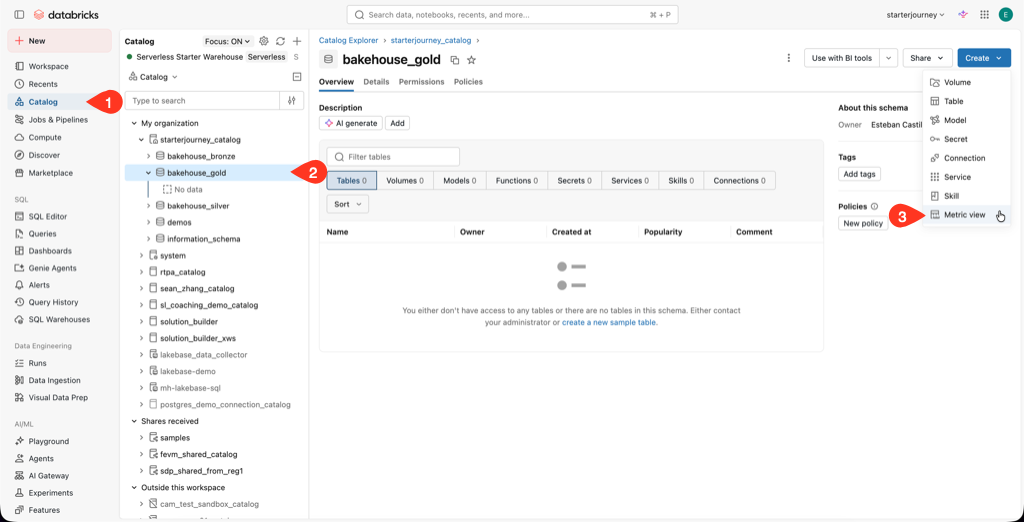
In Catalog Explorer, open the bakehouse_gold schema and click Create > Metric view (or open SQL Editor).
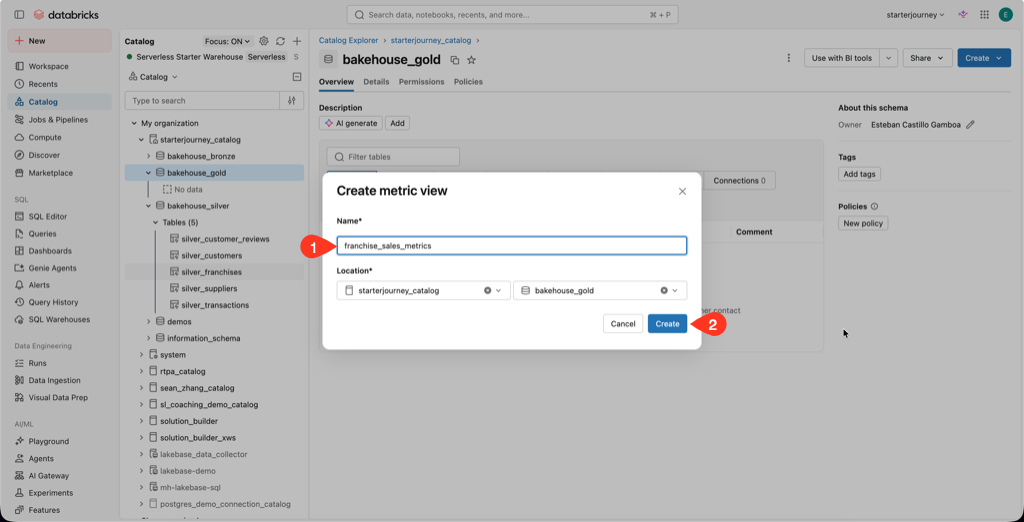
Enter the name franchise_sales_metrics, set the catalog to starterjourney_catalog and the schema to bakehouse_gold, then click Create.
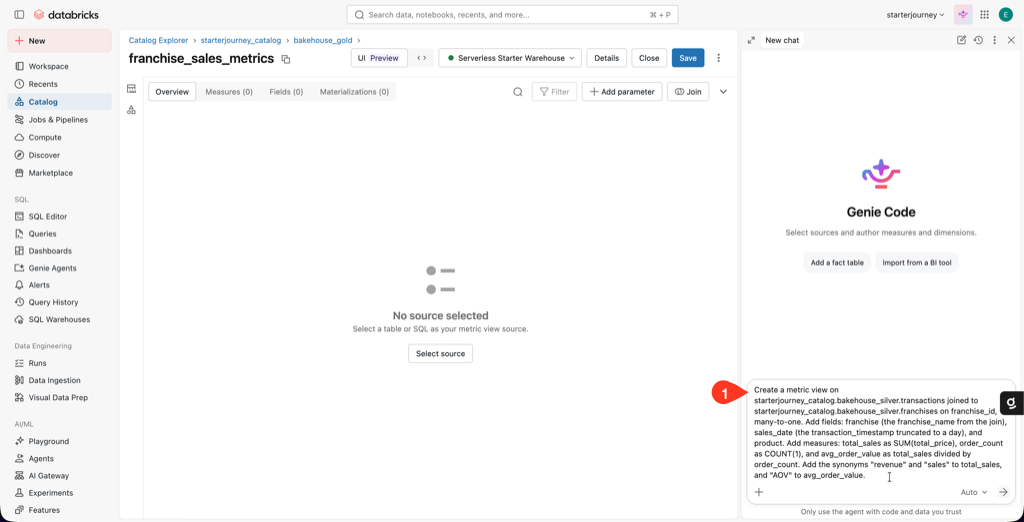
In the editor, open Genie Code from the button in the upper-right corner. Paste this prompt:
Create a metric view on starterjourney_catalog.bakehouse_silver.transactions joined to starterjourney_catalog.bakehouse_silver.franchises on franchise_id, many-to-one. Add fields: franchise (the franchise_name from the join), sales_date (the transaction_timestamp truncated to a day), and product. Add measures: total_sales as SUM(total_price), order_count as COUNT(1), and avg_order_value as total_sales divided by order_count. Add the synonyms "revenue" and "sales" to total_sales, and "AOV" to avg_order_value.
Review the generated definition against this checklist:
- Source is
bakehouse_silver.transactions, joined tobakehouse_silver.franchisesonfranchise_id, many-to-one. - Fields:
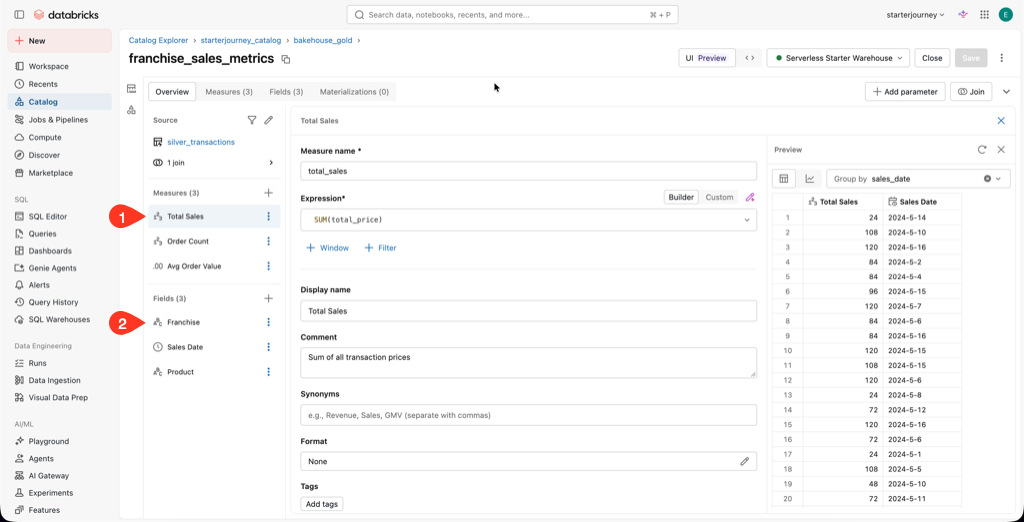
franchise,sales_date(day level),product. - Measures:
total_salesisSUM(total_price),order_countisCOUNT(1),avg_order_valueisMEASURE(total_sales) / MEASURE(order_count).
Use the fallback YAML
Open the YAML editor with the <> button and replace the definition with:
version: 1.1
comment: 'Franchise sales KPIs for the Bakehouse journey'
source: starterjourney_catalog.bakehouse_silver.transactions
joins:
  - name: franchise
    source: starterjourney_catalog.bakehouse_silver.franchises
    'on': source.franchise_id = franchise.franchise_id
    rely:
      at_most_one_match: true
fields:
  - name: franchise
    expr: franchise.franchise_name
    comment: 'Franchise name'
  - name: sales_date
    expr: DATE(source.transaction_timestamp)
    comment: 'Calendar day of the transaction'
  - name: product
    expr: source.product
    comment: 'Product sold'
measures:
  - name: total_sales
    expr: SUM(source.total_price)
    comment: 'Sum of transaction total price'
    synonyms: ['revenue', 'sales']
  - name: order_count
    expr: COUNT(1)
    comment: 'Number of transactions'
  - name: avg_order_value
    expr: MEASURE(total_sales) / MEASURE(order_count)
    comment: 'Average order value'
    synonyms: ['AOV']
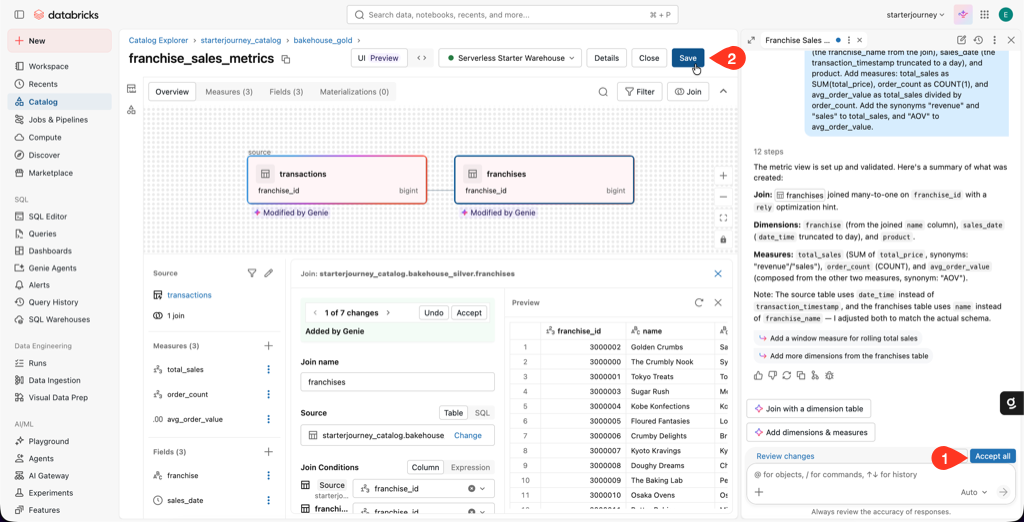
Preview the fields and measures panel, then click Save.
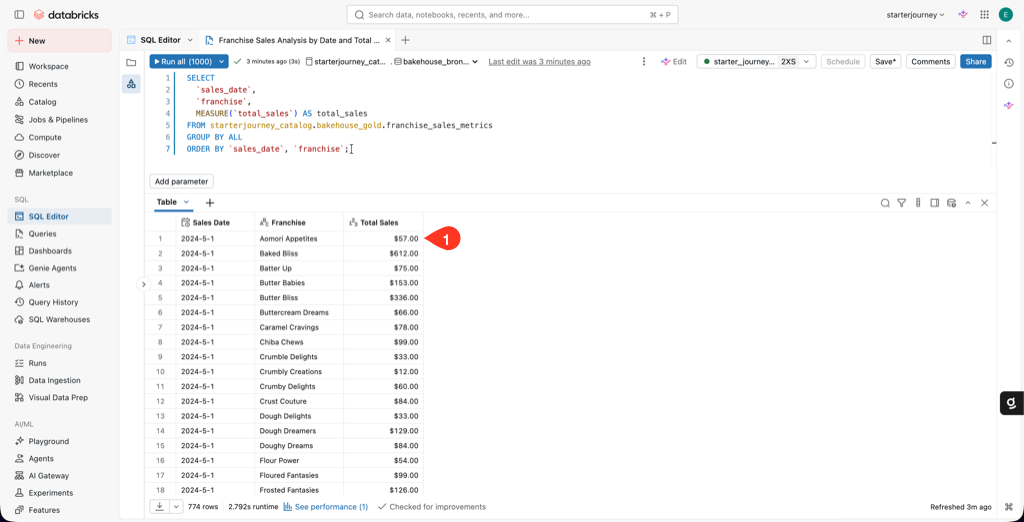
Validate against the saved query from Query and explore. In a SQL editor, run:
SELECT
  `sales_date`,
  `franchise`,
  MEASURE(`total_sales`) AS total_sales
FROM starterjourney_catalog.bakehouse_gold.franchise_sales_metrics
GROUP BY ALL
ORDER BY `sales_date`, `franchise`;
The daily totals per franchise should match the daily_franchise_revenue query you saved in Query and explore. If they don't, the join or a measure is off.
Reference: Create a metric view (Databricks docs)
Where people trip
Create > Metric view is disabled
Metric views need compute on Databricks Runtime 17.3 or above. Attach a serverless warehouse or a 17.3+ cluster.
Totals look inflated
The join is fanning out rows. Confirm the franchise join is many-to-one on franchise_id, not one-to-many.
Genie Code used different field names
The field names feed the dashboard and Genie prompts on the next pages. Rename them to franchise, sales_date, product, total_sales, order_count, and avg_order_value, or paste the fallback YAML.
Daily totals don't match the saved query
Check that sales_date truncates transaction_timestamp to a day and total_sales sums total_price. Reconcile any time zone difference.
Next
- Do next: Dashboards
- Learn why: Genie Ontology
- Reference: Create a metric view