Dashboards
You'll build and publish the Bakehouse Franchise Performance dashboard on your metric view in ~15 min.
Prereqs: Metric Views
The big picture
A dashboard is how most people see the data. This one reads the franchise_sales_metrics metric view, so its KPI cards and charts show the same numbers you validated on the previous page. No copied SQL, no second definition of revenue.
| Continuation of | What carries forward |
|---|---|
| Metric Views | The governed measures and fields on franchise_sales_metrics drive every widget on this dashboard. |
Build the dashboard
Create a dashboard on the metric view, let Genie Code build the widgets, then publish.
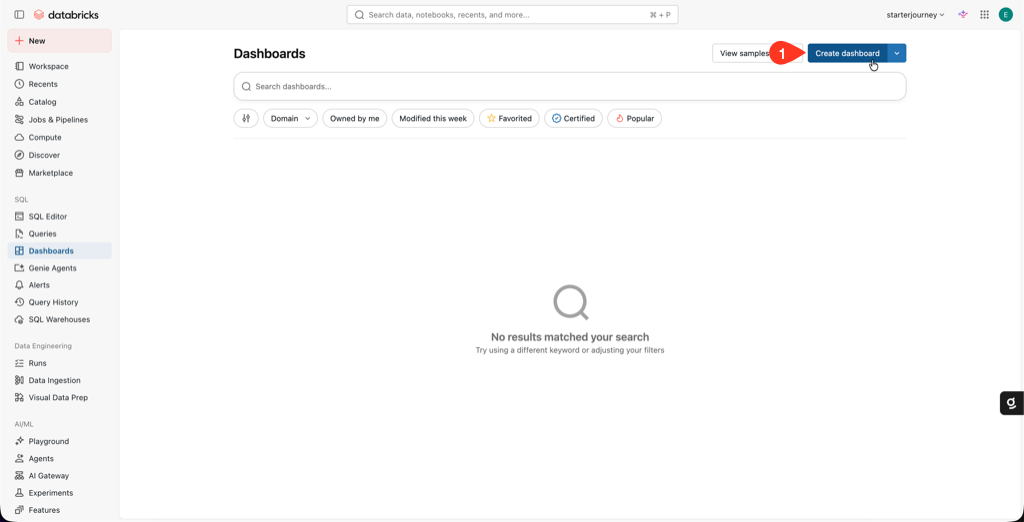
In the sidebar, click Dashboards, then click Create dashboard in the upper-right corner.
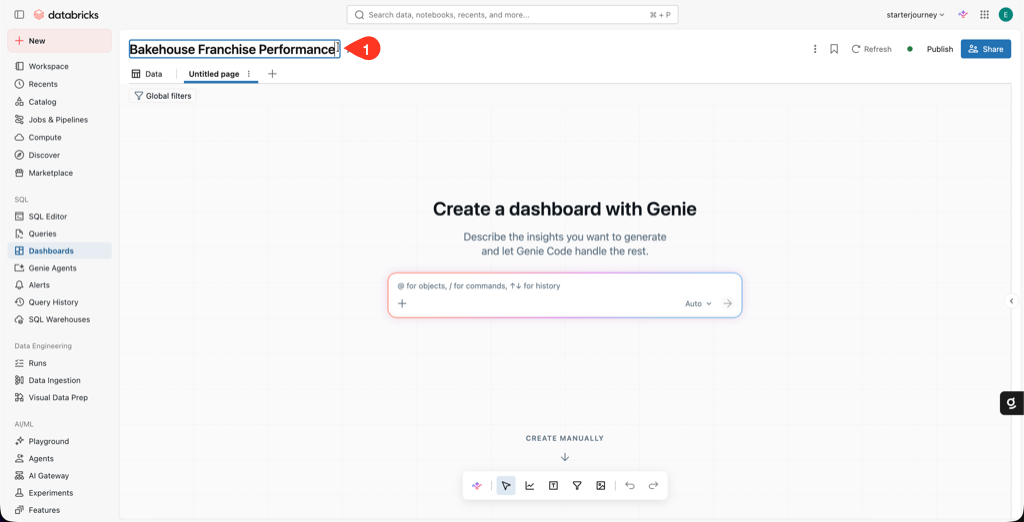
Rename the dashboard to Bakehouse Franchise Performance using the title field in the upper-left corner.
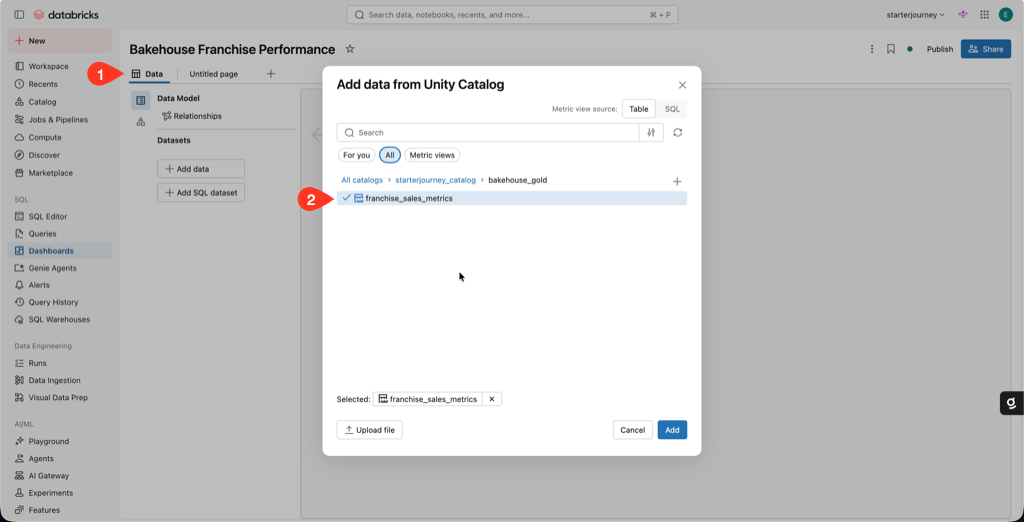
Open the Data tab and click Add data. In the Add data from Unity Catalog dialog, browse to starterjourney_catalog > bakehouse_gold, select franchise_sales_metrics, then click Add. The dataset picks up the measures and fields defined in the metric view.
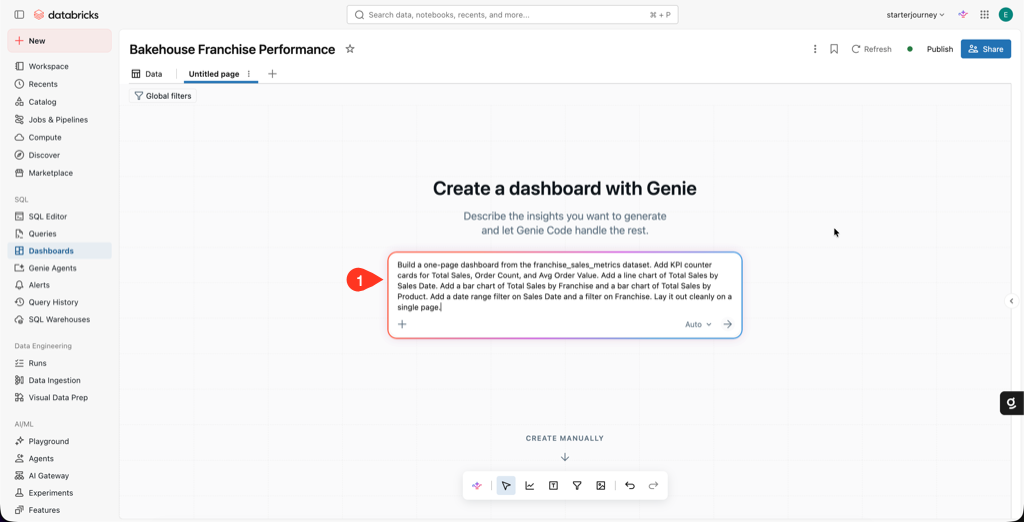
On the dashboard page, use the Create a dashboard with Genie prompt box. Paste this prompt:
Build a one-page dashboard from the franchise_sales_metrics dataset. Add KPI counter cards for Total Sales, Order Count, and Avg Order Value. Add a line chart of Total Sales by Sales Date. Add a bar chart of Total Sales by Franchise and a bar chart of Total Sales by Product. Add a date range filter on Sales Date and a filter on Franchise. Lay it out cleanly on a single page.
Review the widgets Genie Code generates. When it finishes, confirm every widget uses the franchise_sales_metrics dataset and the expected measure or field.
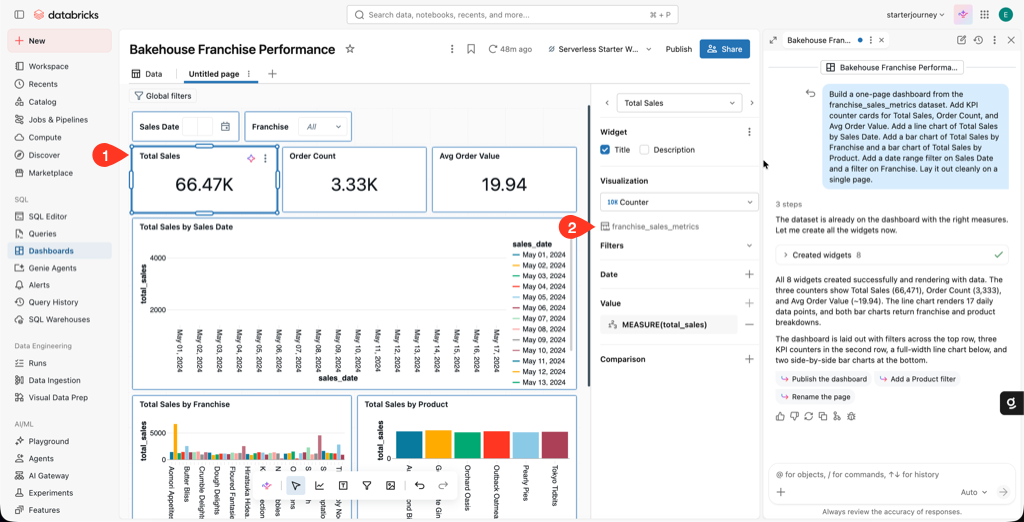
Adjust widget titles and layout if you want to.
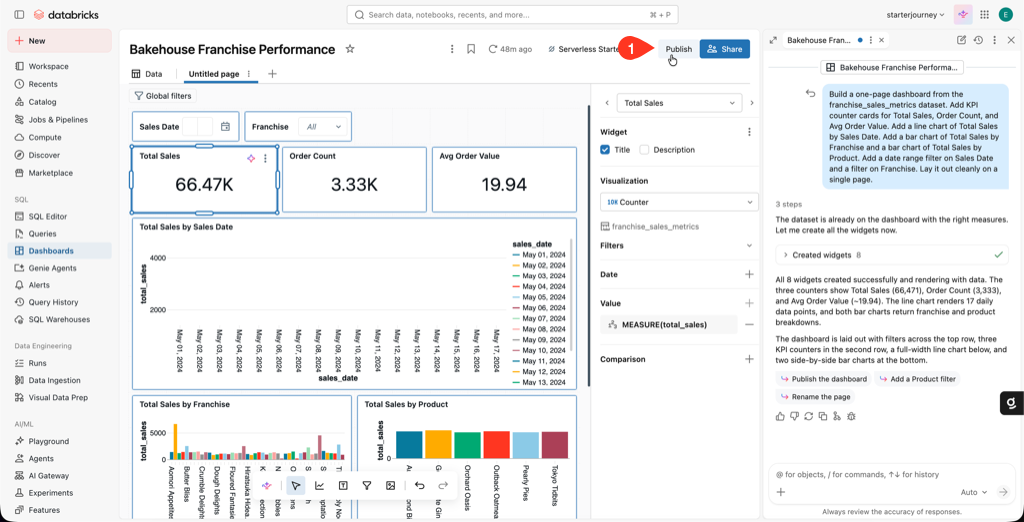
Click Publish in the upper-right corner to publish the dashboard.
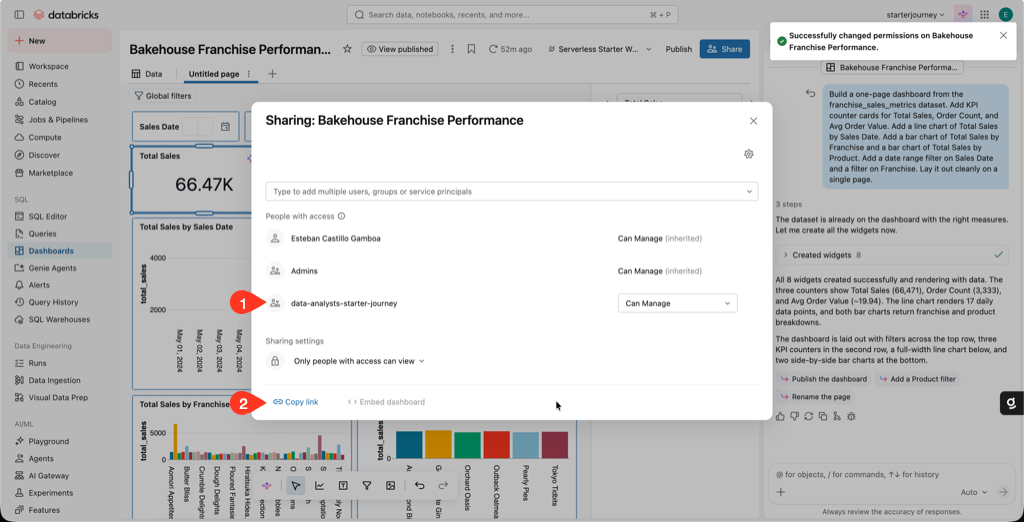
Open Share. Add your audience (for example the data-analysts-starter-journey group) with a permission level, then set Sharing settings to control whose credentials run the queries, and copy the link.
- Only people with access can view: each viewer sees data through their own Unity Catalog permissions. Use this when row or column rules must apply per viewer.
- Embed your credentials: viewers see data through your permissions. Use this only when the audience should not need direct access to the tables.
Embedding your credentials lets viewers see data you can see, even if they have no direct access to the underlying tables. Keep "Only people with access can view" when viewer-level access must be enforced.
Reference: Create a dashboard (Databricks docs)
Verify
- The Total Sales, Order Count, and Avg Order Value cards match the metric-view validation query from the previous page.
- The franchise bar chart's top franchise is the one you'll confirm with Genie next.
Where people trip
The Create a dashboard with Genie panel is missing
Genie Code needs partner-powered AI features enabled for the account and workspace. Without it, build the widgets manually from the dataset.
A widget runs its own SQL instead of the metric view
Open the widget's dataset. It should be franchise_sales_metrics, not an ad hoc SQL query. Rebind it so every widget reads the governed metric view.
Numbers disagree with the metric view
Check for a dashboard-level filter that narrows the data. Remove it or align it with the metric view's definition.
Next
- Do next: Genie Agents
- Learn why: Genie Ontology
- Reference: Use Genie Code for dashboard authoring