Azure serverless workspace creation
You'll create a serverless Databricks workspace on Azure in ~10 min.
Prereqs: Azure account
The big picture
A running Databricks workspace where Databricks manages the compute and the storage. There is no VNet to size, no IAM role to wire up, and no cross-subscription trust to configure. You fill in a short form in the Azure portal, wait a few minutes, and the workspace comes up ready to use. Start here for your first workspace on Azure and for most new serverless deployments.
YouTube tutorial
Prerequisites
- An Azure subscription with Contributor access at the subscription scope.
- A Databricks account with account-admin privileges.
- An Azure region where serverless workspaces are available. Deploy the workspace close to your data sources.
Steps
Follow along in the Azure portal. Every step links to itself, so you can send someone straight to the one they are stuck on.
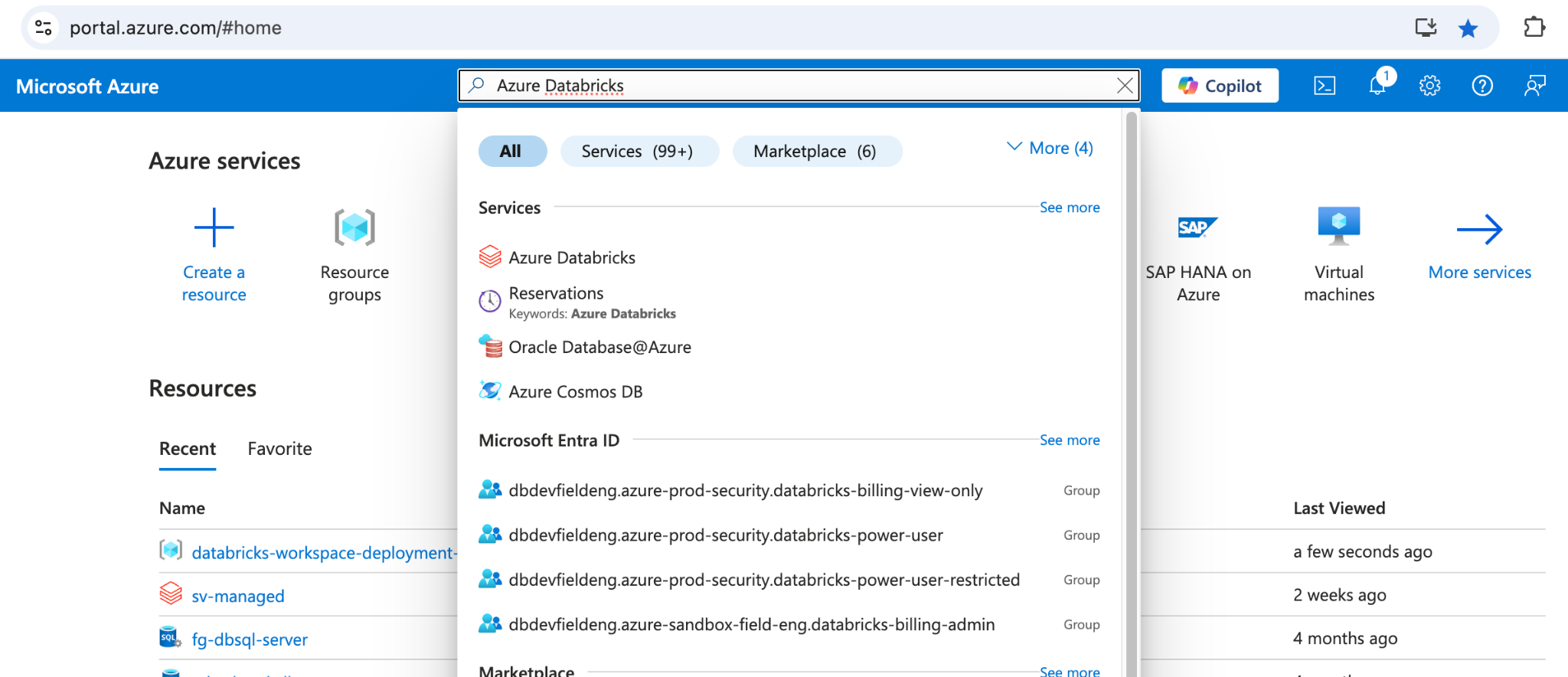
Go to the Azure portal and search for Azure Databricks in the top search bar. Click on Azure Databricks in the results. On the Azure Databricks service page, click + Create.
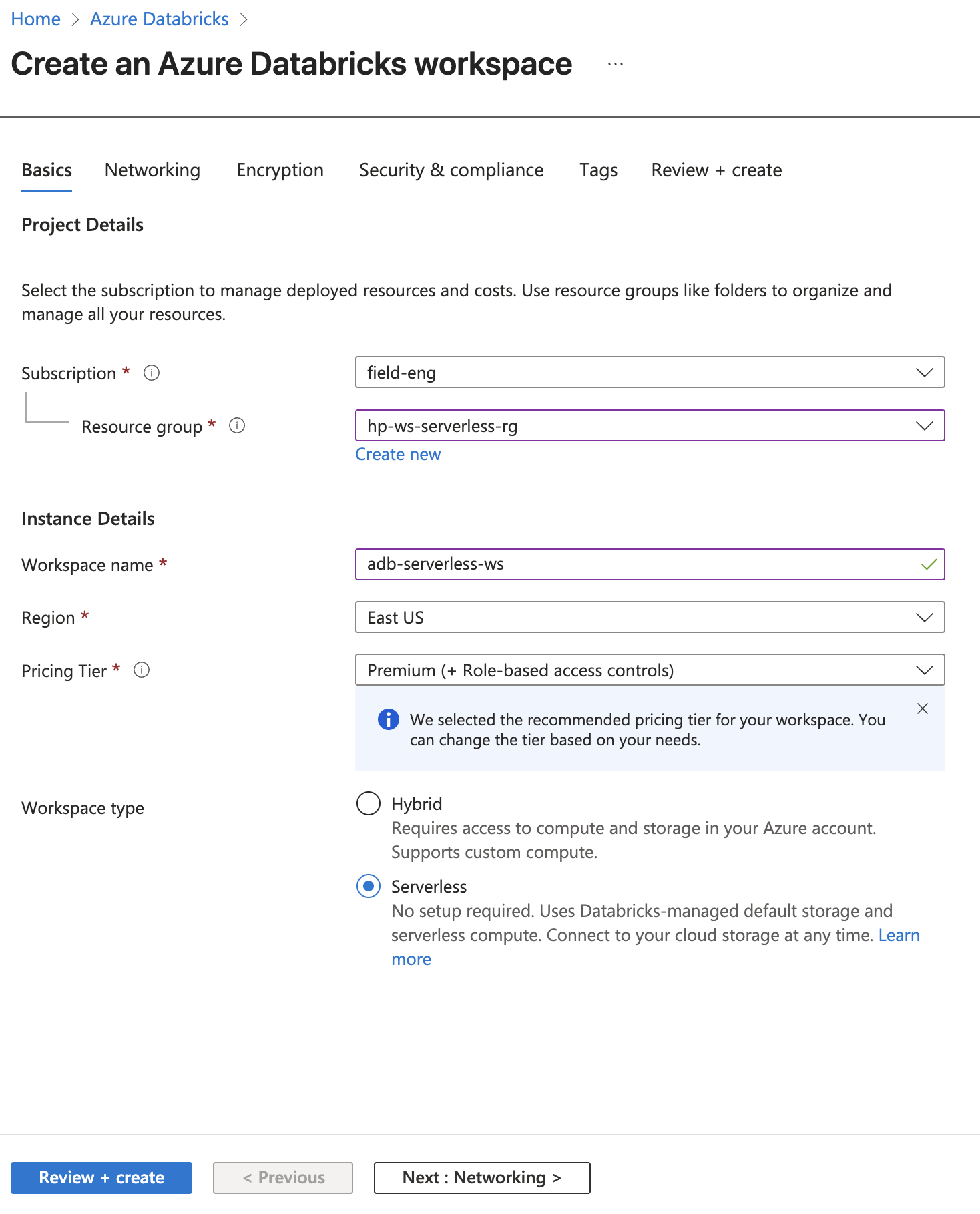
Fill in the workspace details on the Basics tab:
- Subscription - choose your Azure subscription.
- Resource group - choose an existing resource group or create a new one.
- Workspace name - provide a descriptive name. You cannot change this later.
- Region - choose the region to deploy into. Deploy close to your data sources.
- Pricing Tier - select Premium. Serverless requires Premium.
- Workspace type - select Serverless.
- Optionally add Tags.
Click Review + create.
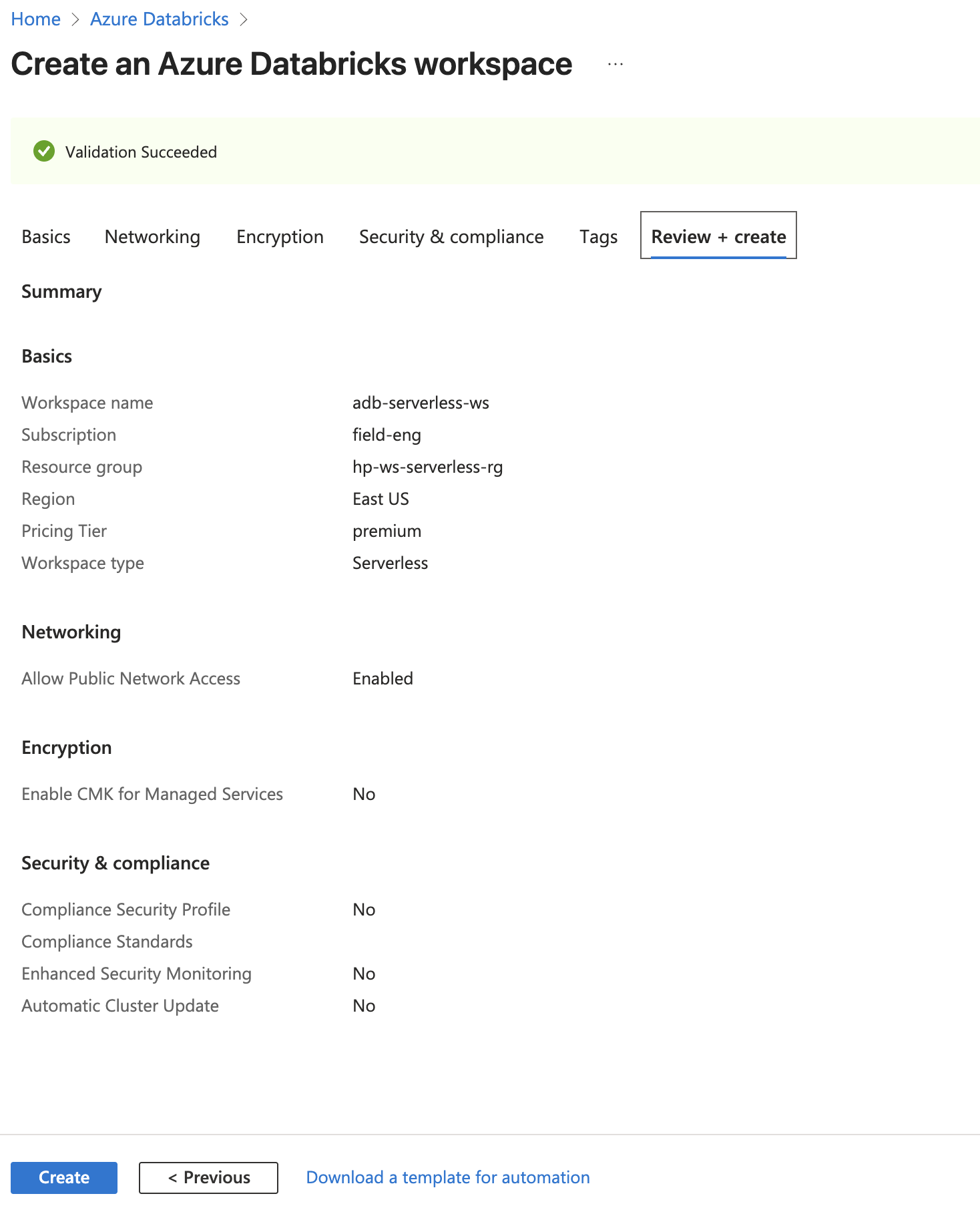
Wait for validation to complete. The banner at the top reads Validation Succeeded. Review the summary and confirm the Pricing Tier is premium and Workspace type is Serverless. Click Create.
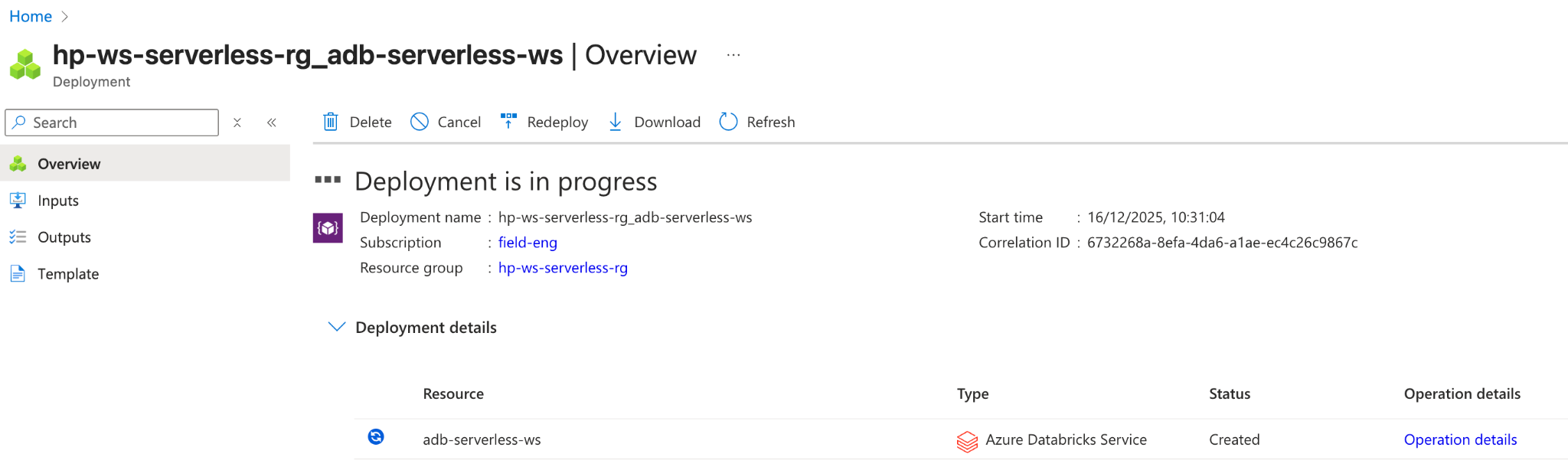
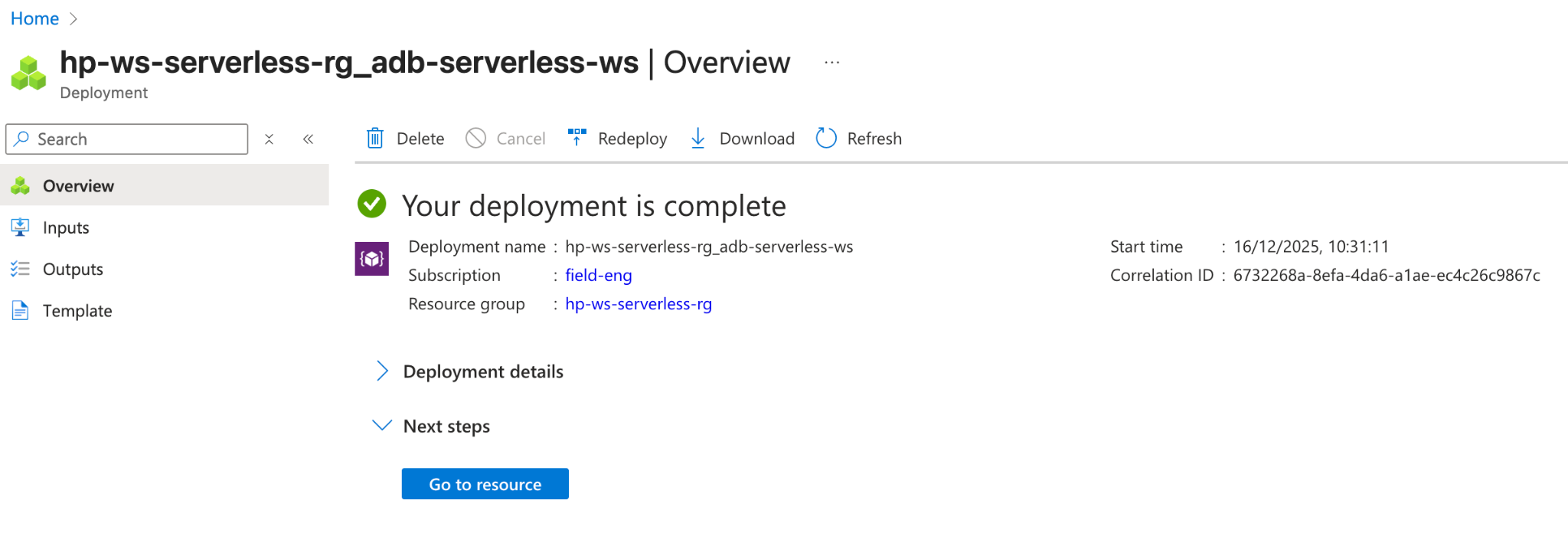
Azure starts the deployment. The page shows Deployment is in progress with your workspace listed under Deployment details. Wait until the deployment finishes - this usually takes a few seconds to a few minutes.
When the deployment completes, click Go to resource.
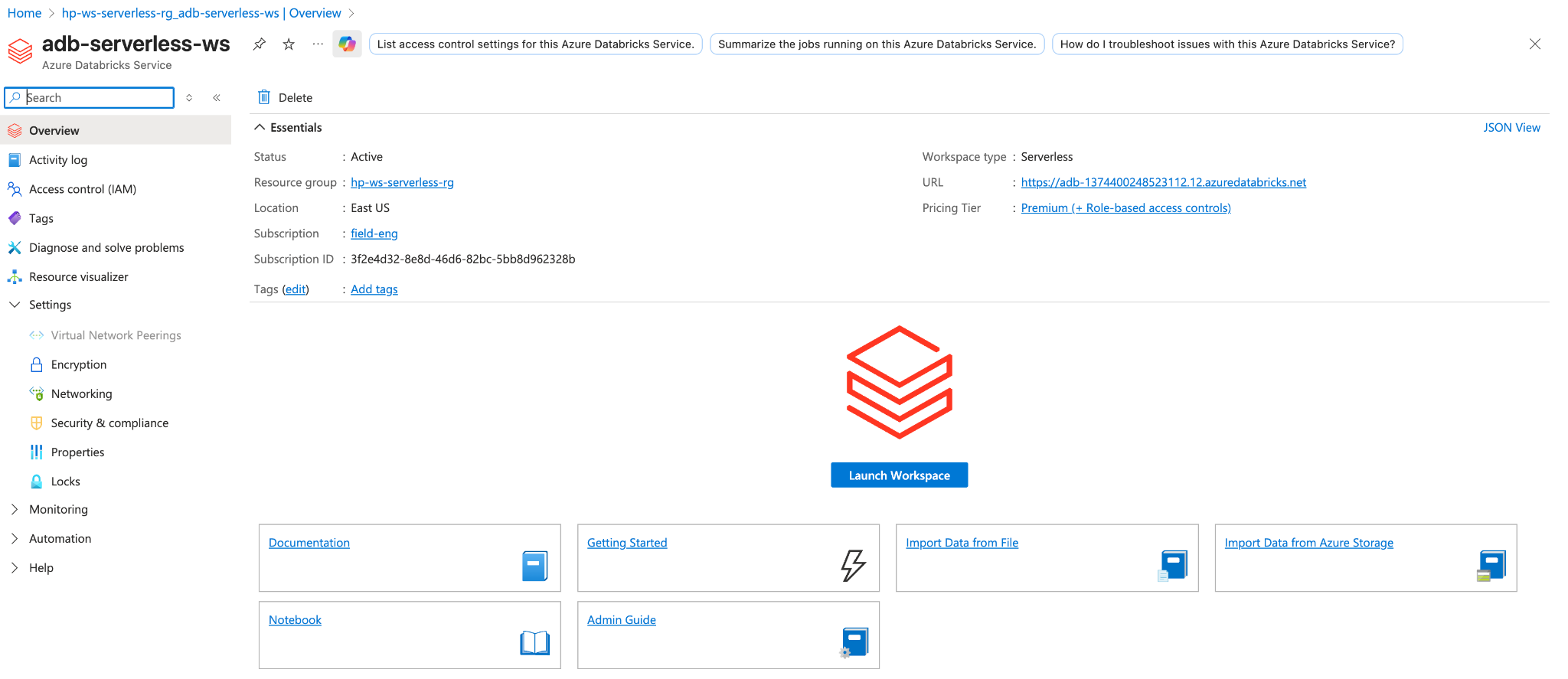
On the Azure Databricks resource page, click Launch Workspace.
Reference: Set up a Databricks workspace on Azure (Databricks docs)
Verify
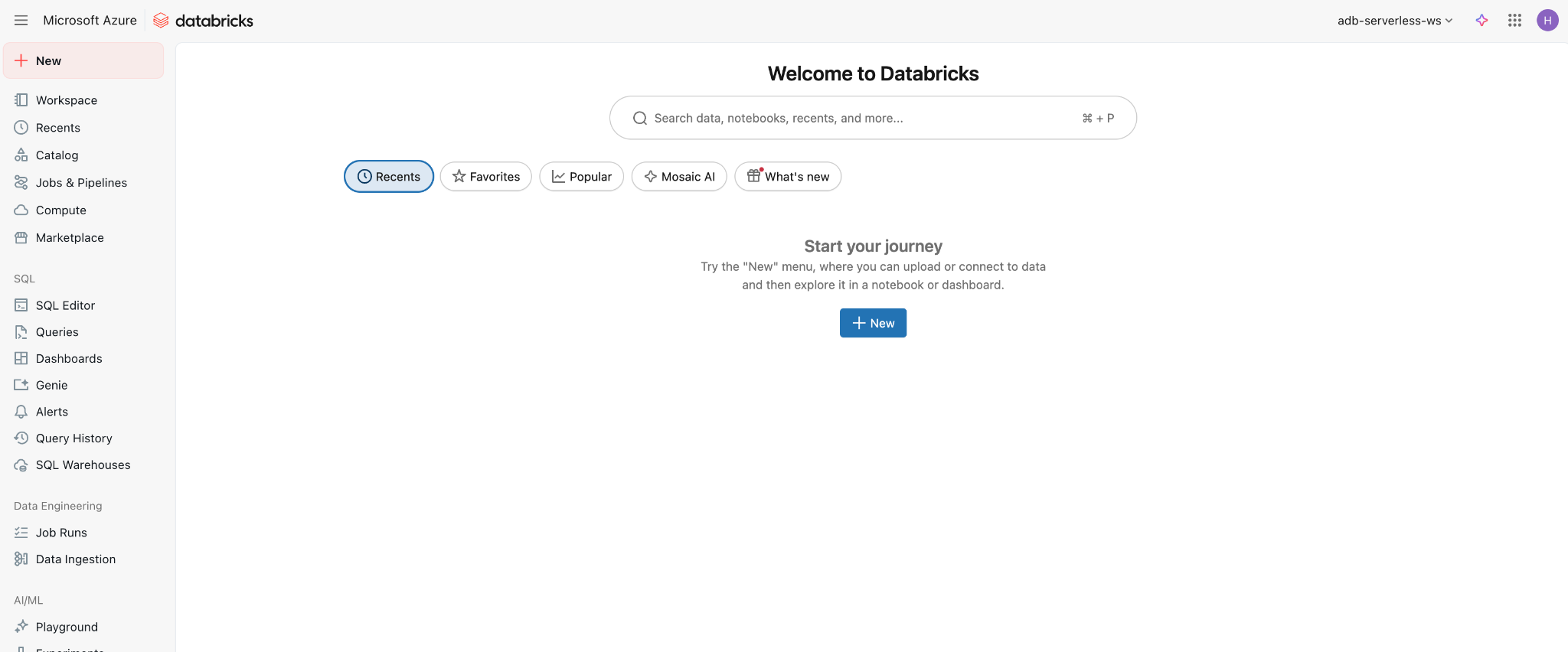
You land in the workspace itself, not the account console.
The Welcome to Databricks home loads with the left navigation for Workspace, Catalog, Compute, and SQL. Seeing this page means the workspace is deployed and ready.
Where people trip
The Workspace type field does not show "Serverless"
Serverless workspace type only appears when Premium is selected as the Pricing Tier. Switch the Pricing Tier to Premium first - the Workspace type dropdown then shows the Serverless option. If Premium is not available in your subscription, contact your Azure account team.
Validation fails with a permissions error
Databricks creates a managed resource group during workspace deployment. This requires Contributor access at the subscription scope, not just the resource group level. Confirm your role assignment in the Azure portal under Subscriptions > Access control (IAM).
Deployment completes but Launch Workspace shows an error
Give the workspace a minute after the Azure deployment finishes before clicking Launch Workspace. If the error persists, open the Databricks account console at accounts.azuredatabricks.net and confirm the workspace shows Running there. If it shows an error state, delete the workspace and redeploy.
Next
- Do next: Add Users
- Learn why: Unity Catalog foundations
- Reference: Set up a Databricks workspace on Azure