Set the metastore admin group
You'll transfer metastore ownership to a dedicated admin group in ~5 min.
Prereqs: Plan your groups, with a metastore admin group already created (for example
metastore-admins)
The big picture
The metastore is the top-level container for everything in Unity Catalog. Whoever owns it can manage privileges and transfer ownership of any object inside it. Give that ownership to a group, not a person, and it survives anyone leaving.
Prerequisites
- Account-admin access to the Databricks account console.
- A metastore admin group already created (see Plan your groups).
The metastore owner must be a group. Assign an individual or a service principal, and the day that person leaves or that principal is deleted, governance operations stop.
Steps
Follow along in the account console. Every step links to itself, so you can send someone straight to the one they are stuck on.
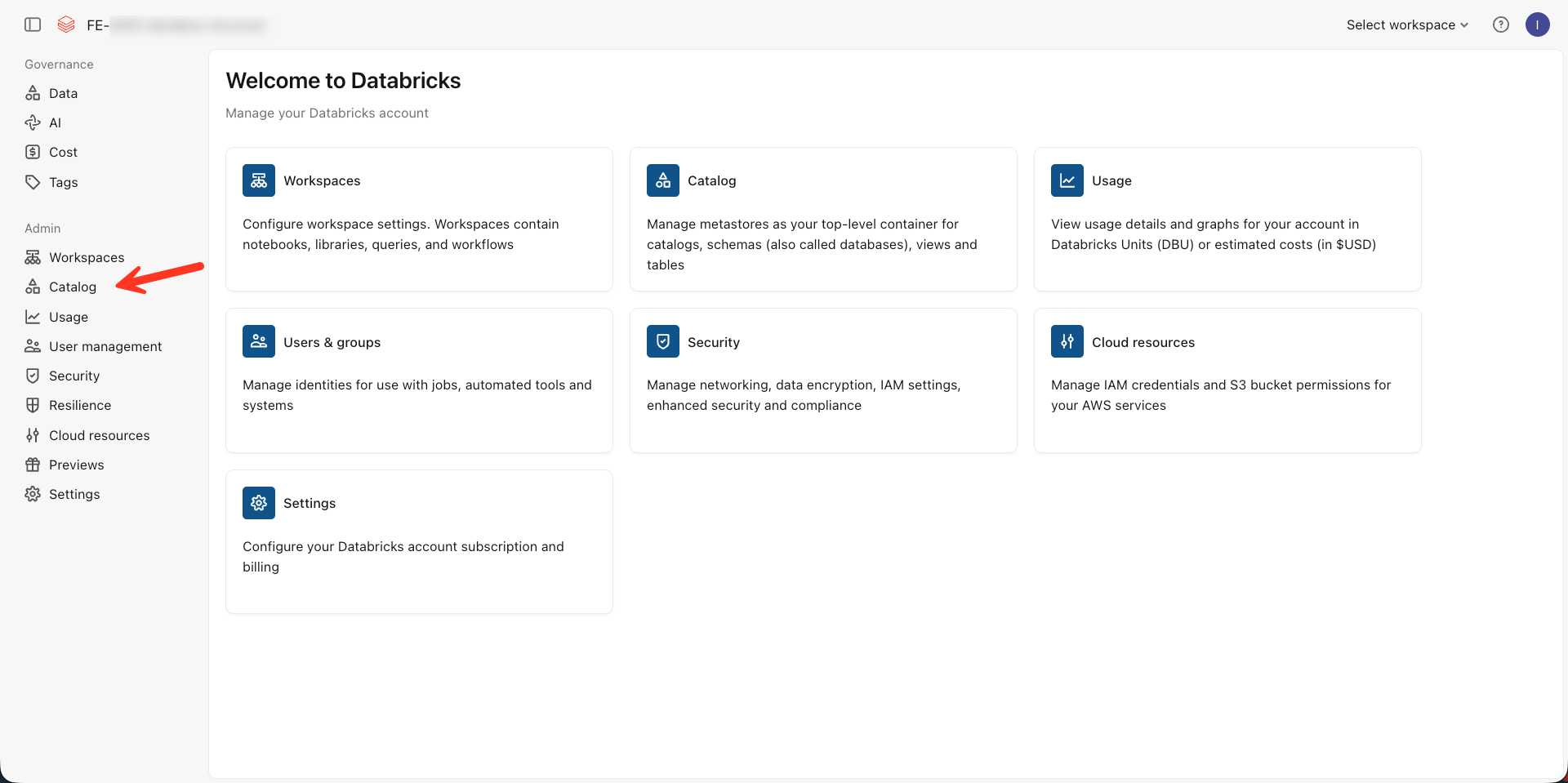
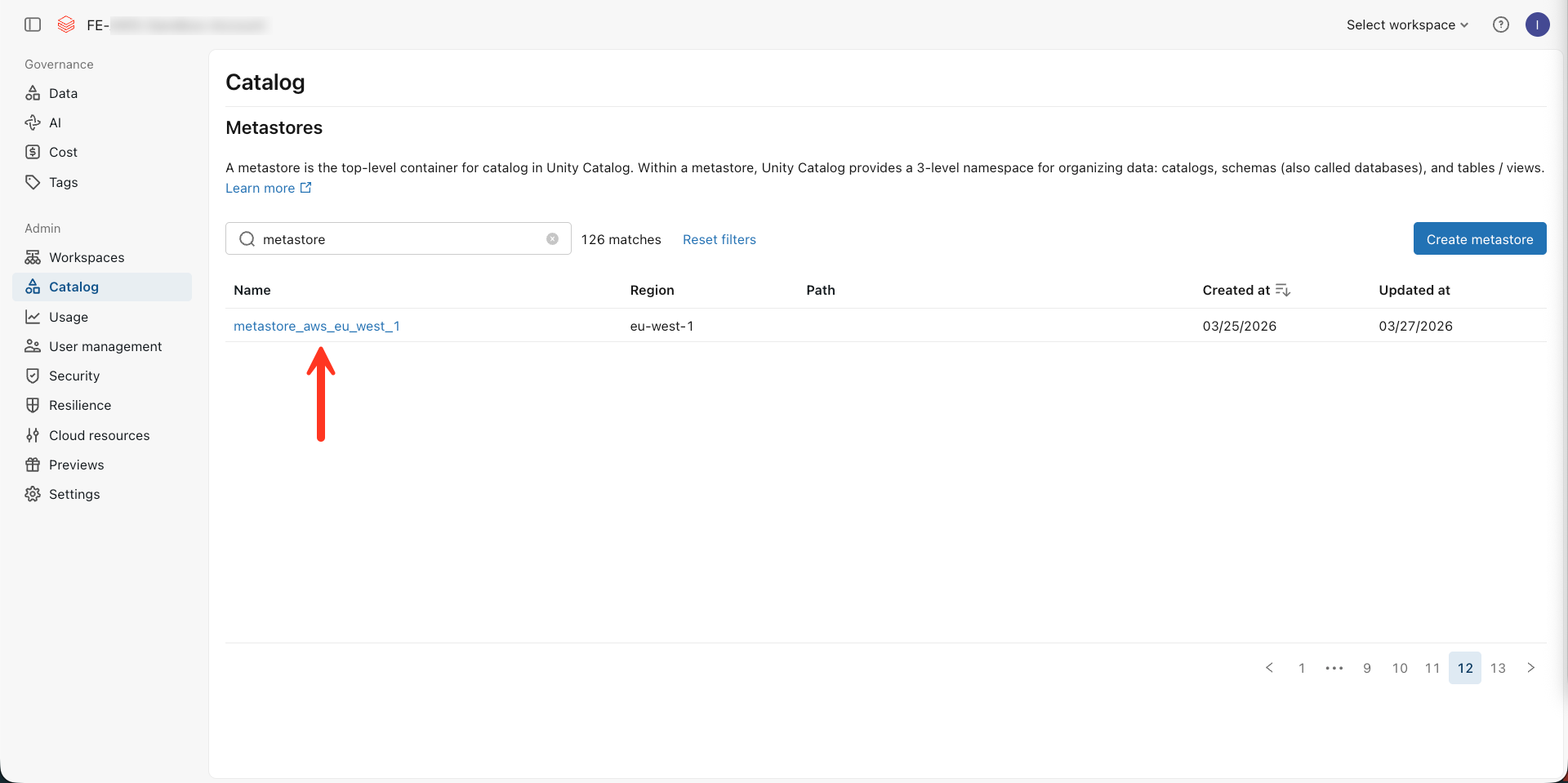
Your metastores are listed by region. Click the one you want to change.
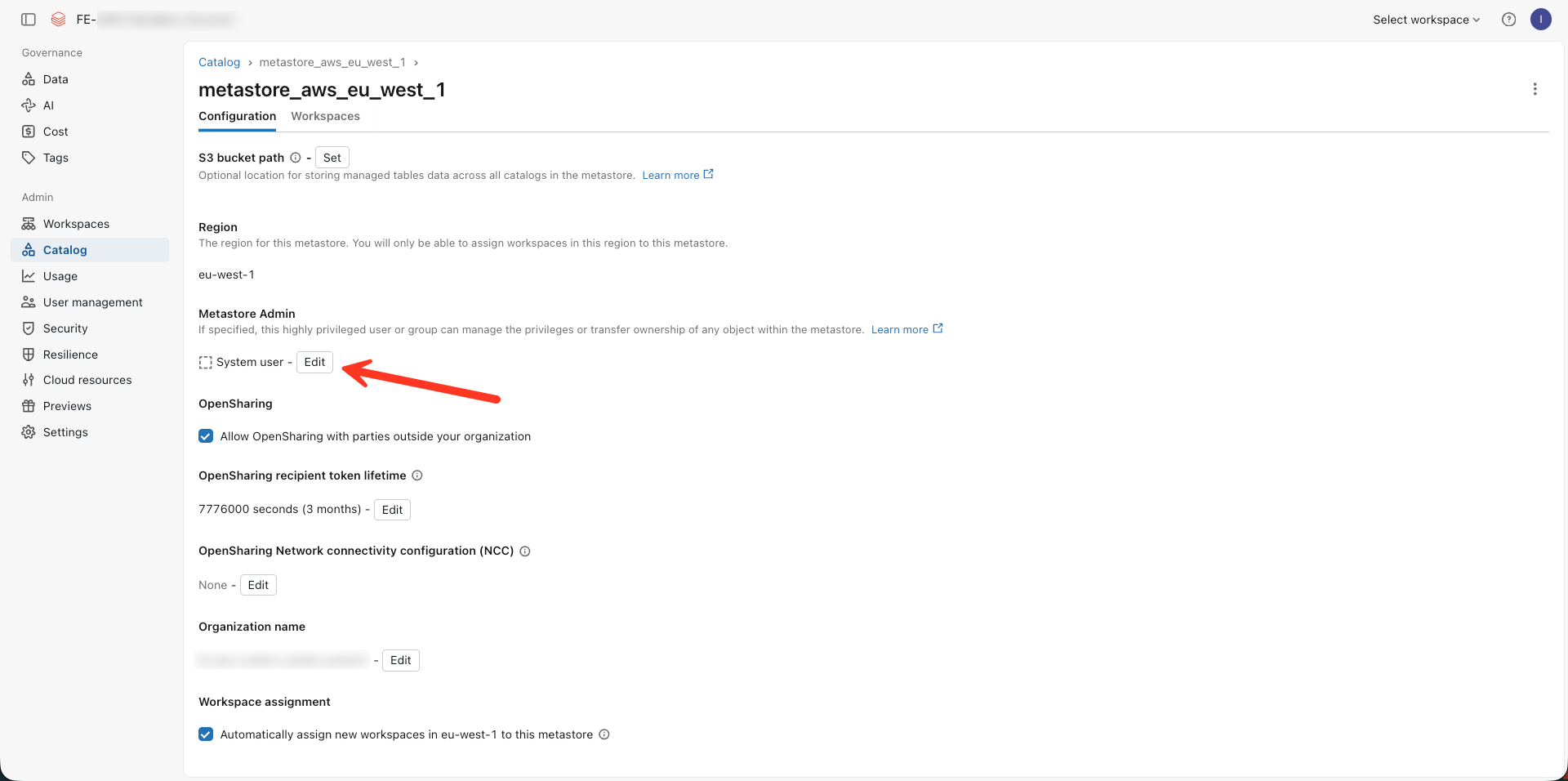
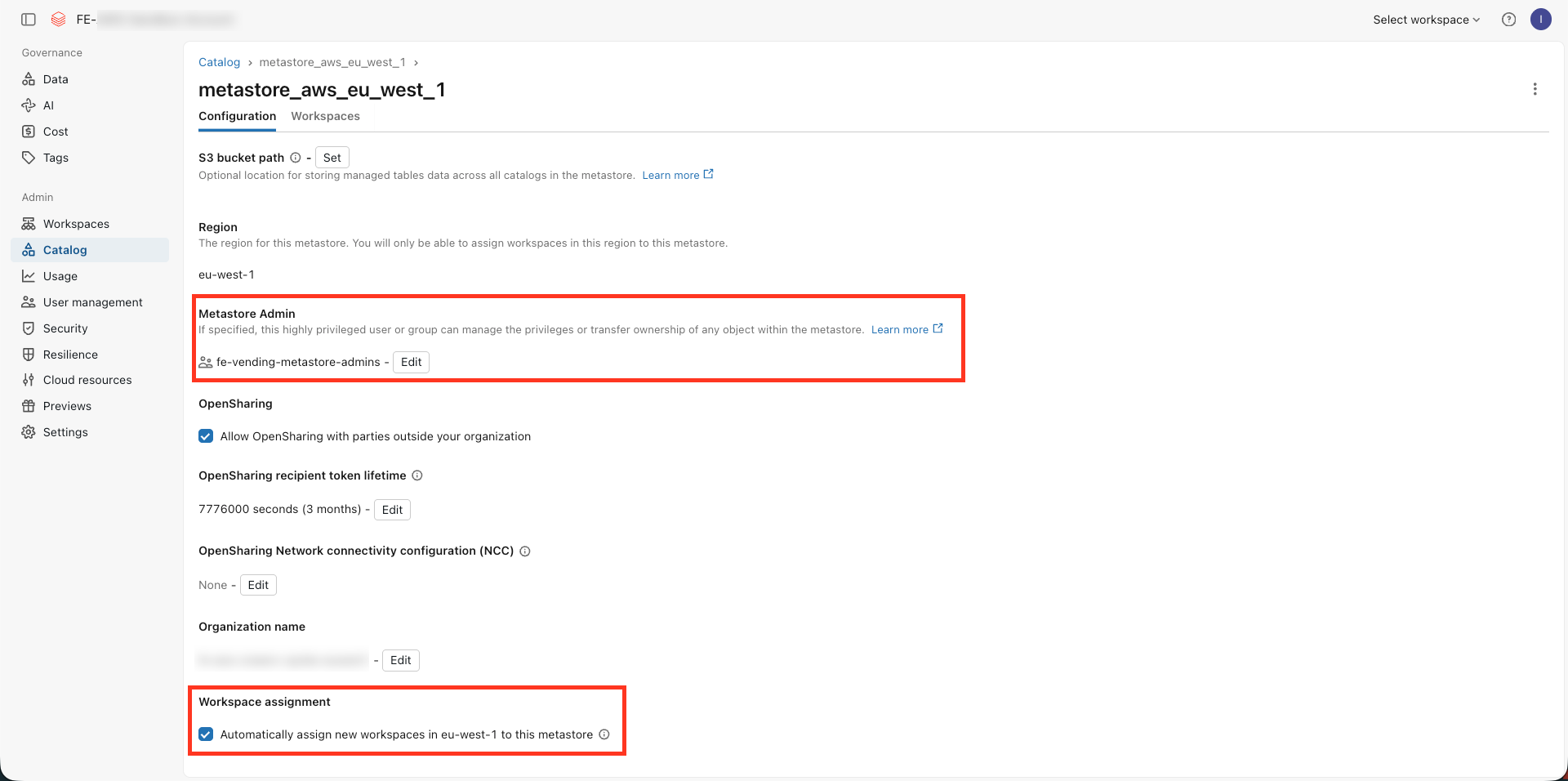
On the Configuration tab, find the Metastore Admin section. It probably shows a system user or one person today. Click Edit.
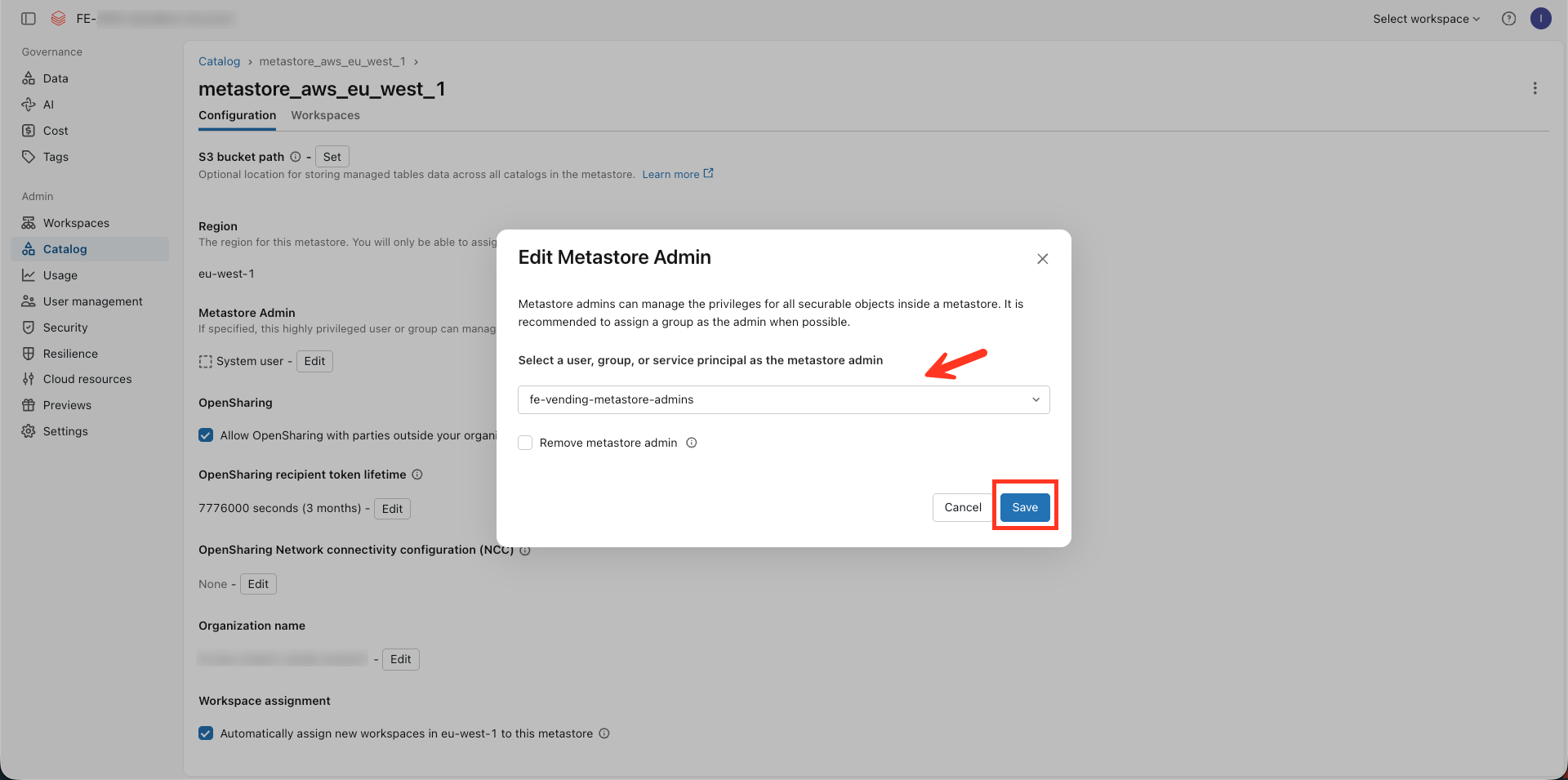
In the dialog, select your metastore admin group (for example metastore-admins) as the admin.
Click Save.
Back on the Configuration tab, confirm Metastore Admin now shows your group. Under Workspace assignment, turn on automatic assignment so new workspaces in this region attach to the metastore automatically.
Verify
Verification happens in a workspace, not the account console.
- Open a workspace attached to the metastore.
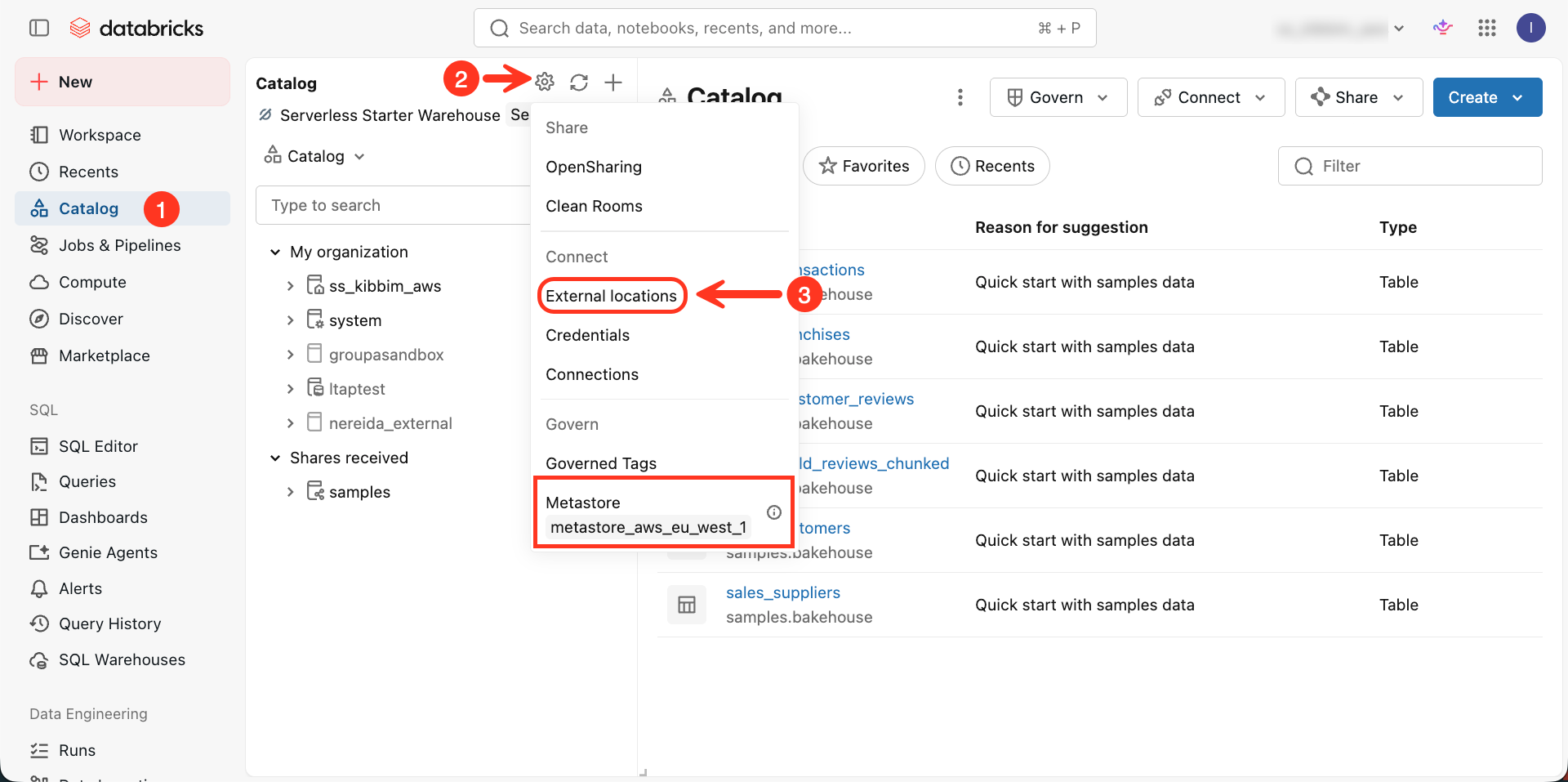
- In the left sidebar, click Catalog, then the gear icon.
- Confirm the metastore name shows at the bottom of the menu, and open External locations.
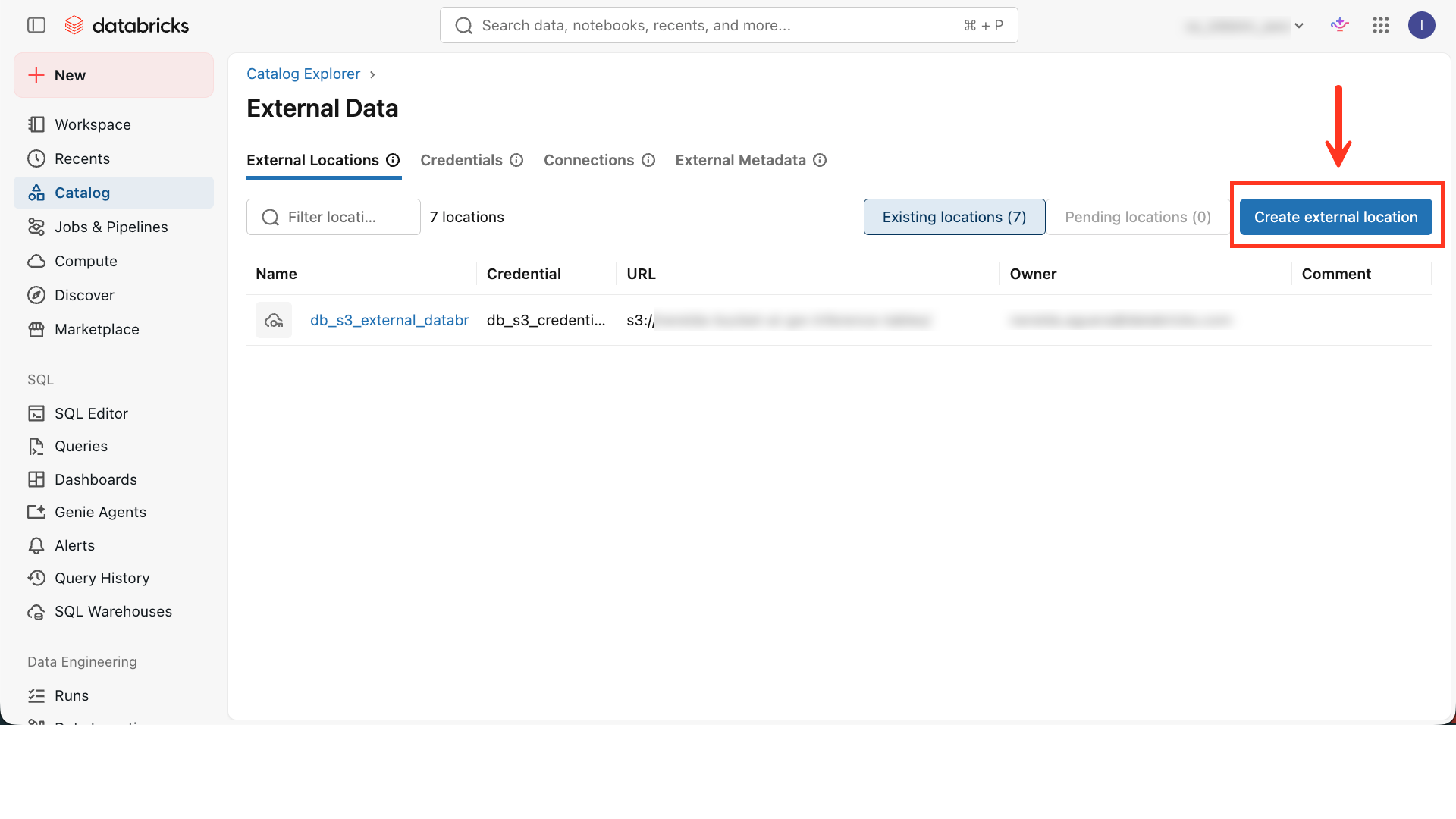
The Create external location button is active, and you can see existing external locations, credentials, and connections. That confirms your group has metastore admin rights.
Where people trip
Cannot change the metastore owner
Only the current owner or an account admin can transfer ownership. Confirm you have account-admin privileges. If the current owner already left the organization, contact Databricks support.
External locations tab is empty
An empty External locations or Credentials tab almost always means you are not a member of the metastore admin group. Check your group membership before going further.
Next
- Do next: Data access and ETL
- Learn why: Unity Catalog foundations
- Reference: Manage metastore privileges