AWS serverless workspace creation
You'll create a serverless Databricks workspace on AWS in ~10 min.
Prereqs: AWS account, Databricks account console
The big picture
A running Databricks workspace where Databricks manages the compute and the storage. There is no VPC to size, no IAM role to wire up, and no cross-account trust to configure. You turn on a preview, fill in a short dialog, and the workspace comes up ready to use. Start here for your first workspace and for most new deployments.
YouTube tutorial
Prerequisites
- A Databricks account with account-admin privileges.
- An AWS region where serverless workspaces are available. Deploy the workspace close to your data sources.
Steps
Follow along in the account console. Every step links to itself, so you can send someone straight to the one they are stuck on.
Go to the Databricks account console and log in. Check the account name in the top left and confirm you are in the account you mean to deploy into.
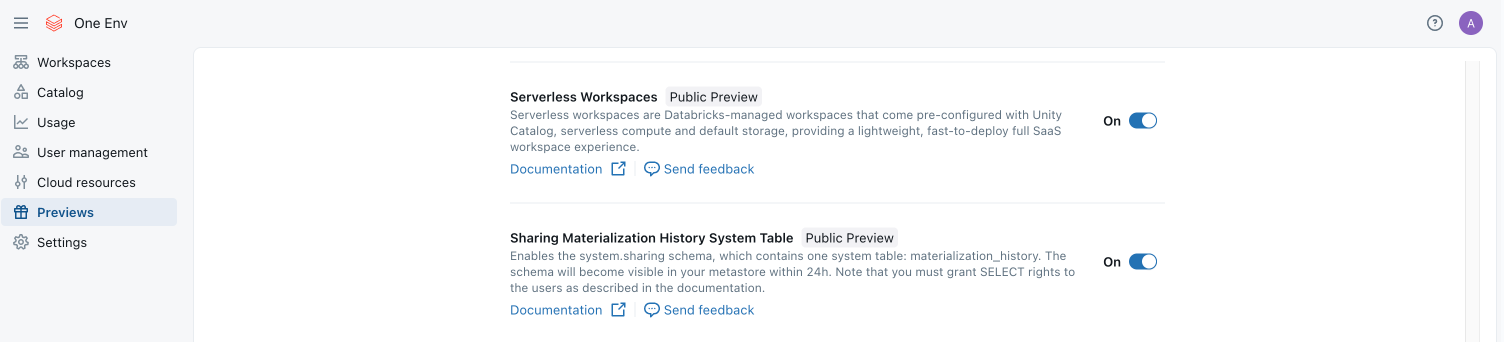
In the left sidebar, open Previews. Find Serverless Workspaces and turn its toggle to On.
This is what makes the serverless option appear in the create dialog.
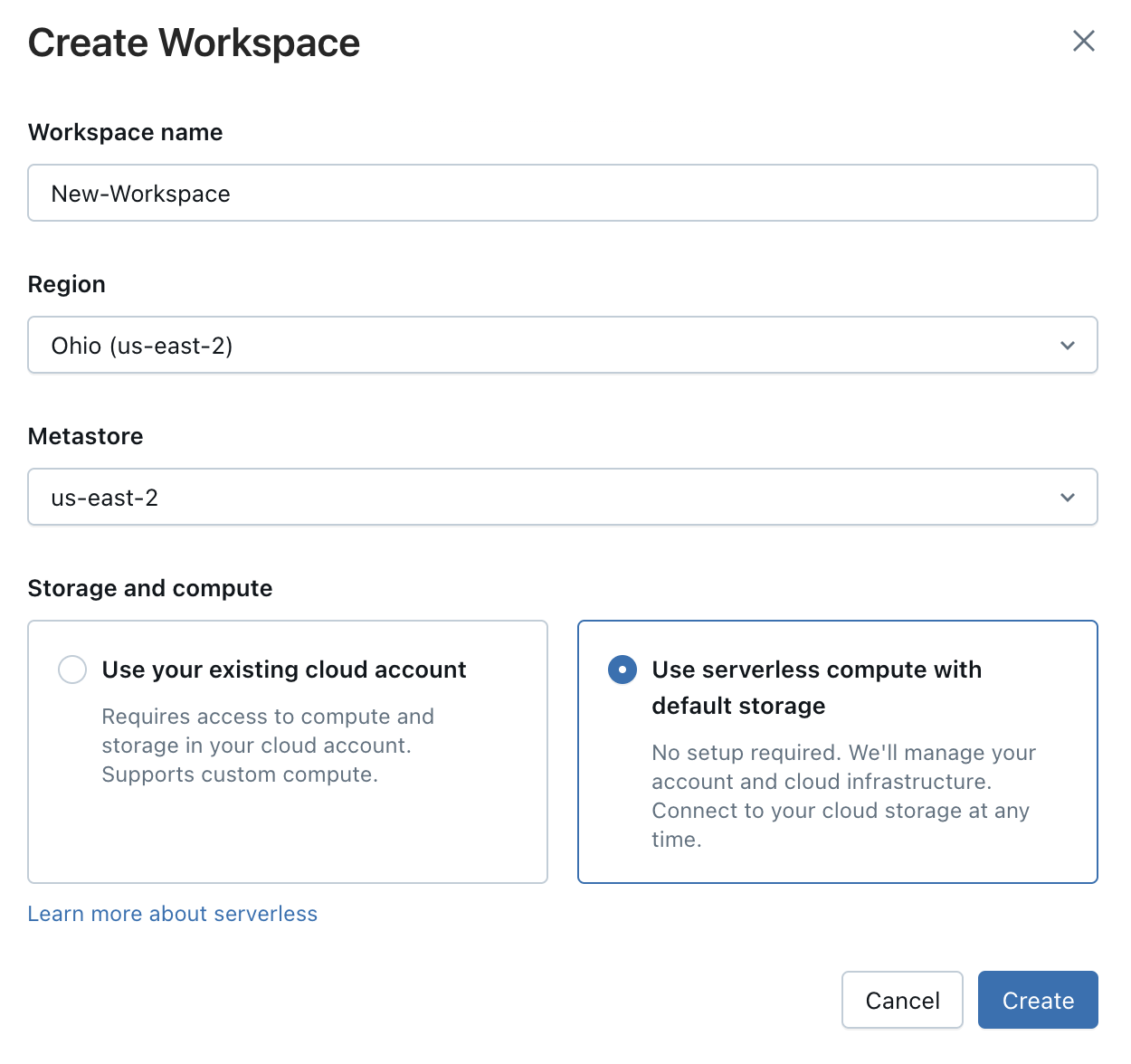
In the left sidebar, open Workspaces. Click Create workspace in the top right.

In the Create Workspace dialog:
- Enter a Workspace name.
- Pick the Region to deploy into. You cannot change this later.
- Under Storage and compute, select Use serverless compute with default storage.
- Choose a Metastore if one already exists in that region. This is optional.
- Click Create.
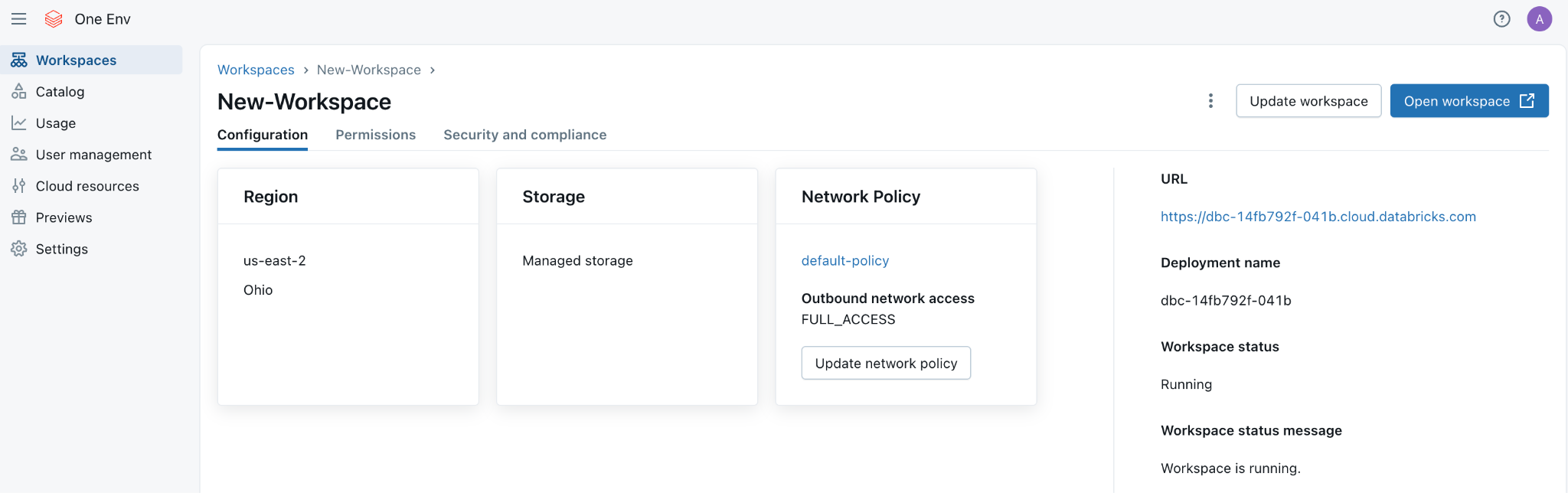
The workspace configuration page opens and the status moves to Running. Storage shows as managed, and the network policy is attached automatically. Click Open workspace.
Reference: Databricks workspace administration (Databricks docs)
Verify
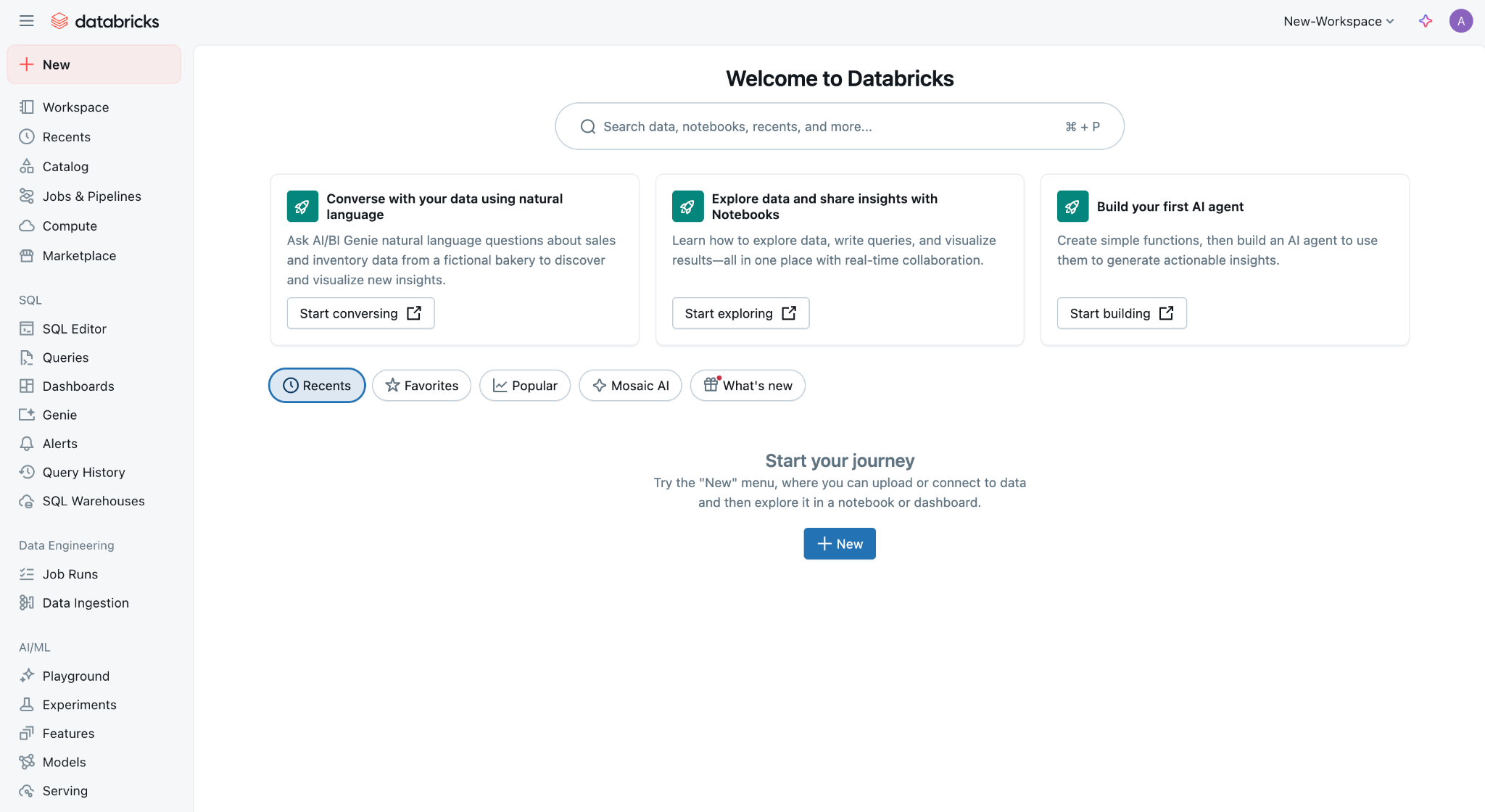
You land in the workspace itself, not the account console.
The Welcome to Databricks home loads with the left navigation for Workspace, Catalog, Compute, and SQL. Seeing this page means the workspace is deployed and ready.
Where people trip
Serverless Workspaces is not in the Previews list
The preview toggle only shows for account admins. Confirm you have account-admin privileges on the account console. If it is still missing, serverless workspaces may not be available yet in your account or region.
The Metastore dropdown is empty
The metastore is optional at creation time. Leave it blank if no metastore exists in that region, then attach one later. See Set the metastore admin group for managing metastore ownership.
Picked the wrong region
A workspace cannot move regions once created. Delete the workspace and create a new one in the correct region. Deploy in the region that hosts your data sources to avoid cross-region egress fees.
Next
- Do next: Add Users
- Learn why: Unity Catalog foundations
- Reference: Databricks workspace administration