Set Admin Group
You'll transfer metastore ownership to a dedicated admin group in ~5 min.
Prereqs: Add Groups, a metastore admin group created (e.g.,
metastore-admins)
What you'll build
A metastore owned by a group, not by one person or service principal. Ownership then survives anyone leaving, and the responsibility is shared.
Prerequisites
- Account-admin access to the Databricks account console.
- A metastore admin group already created (see Add Groups).
The metastore owner must be a group. If you assign an individual or a service principal and that person leaves or that principal is deleted, governance operations stop.
Steps
1. Open the account console
Go to the account console for your cloud provider:
2. Navigate to the metastore
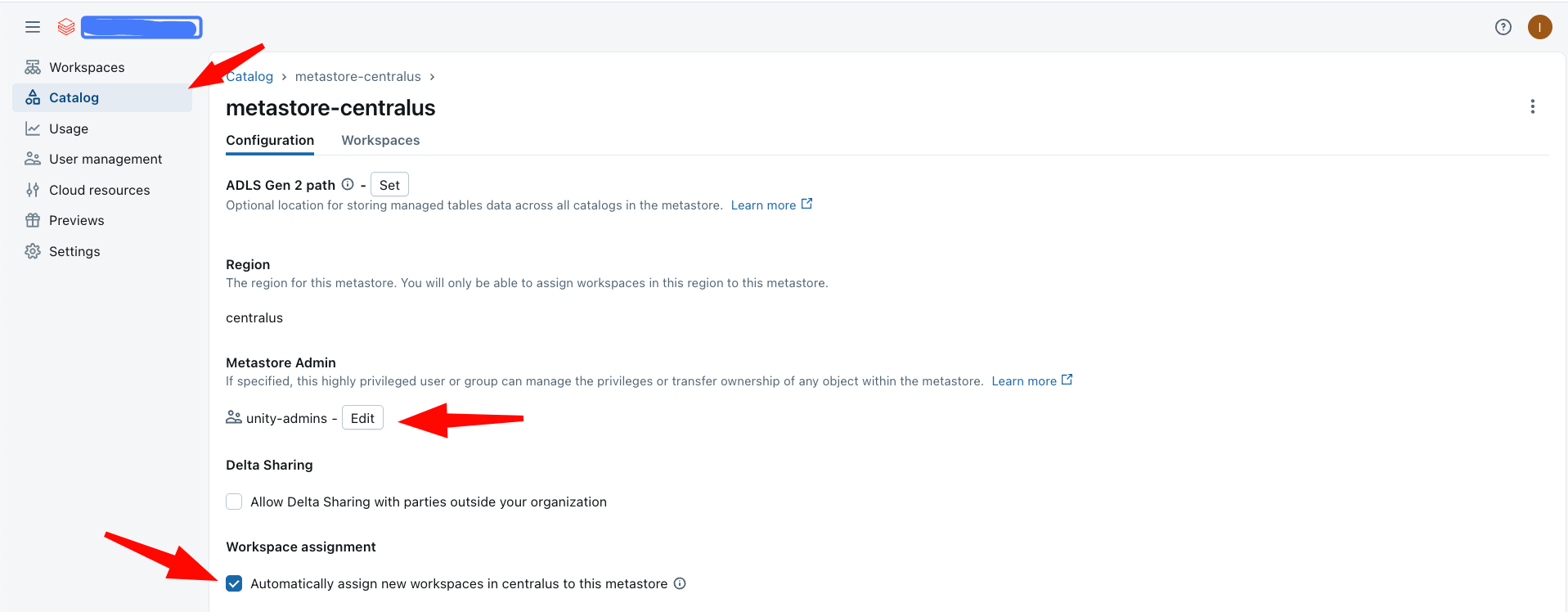
- On the left panel, click Catalog.
- Click on the available metastore.
3. Check the current owner
Look at who owns the metastore now. If it is already a group (for example metastore-admins), you are done, skip the next step.
4. Transfer ownership
If the owner is a user or service principal:
- Click the owner field to edit it.
- Set the metastore admin group (for example
metastore-adminsorunity-admins) as the new owner.
5. Configure metastore settings
- Turn on auto-assignment for new workspaces if you want the metastore attached to them automatically.
- Activate Delta Sharing if your projects need it. This one is optional.
Verify
- In the account console, open Catalog and click the metastore.
- Confirm the Owner field shows the admin group name, not a person.
Where people trip
Cannot change the metastore owner
Only the current owner or an account admin can transfer ownership. Confirm you have account-admin privileges. If the current owner already left the organization, contact Databricks support.
Next
- Do next: UC assets ownership
- Learn why: Unity Catalog foundations
- Reference: Manage metastore privileges