Add Groups
You'll understand how to structure Databricks groups by data persona and create them in ~10 min.
Prereqs: Add Users
Why this matters
Grant access to groups, not to people. Per-user permissions feel fine on day one and turn into a mess by month three: every new hire means re-granting the same twenty things, and every leaver means hunting down what they could touch. Assign access to a role once (Data Engineer, Data Analyst, and so on), then the only thing you ever change is who is in the group.
How it works
Standard data personas
These groups cover the roles on most Databricks projects. Rename them to match your house conventions, but keep the boundaries between roles. The lines are where access control happens.
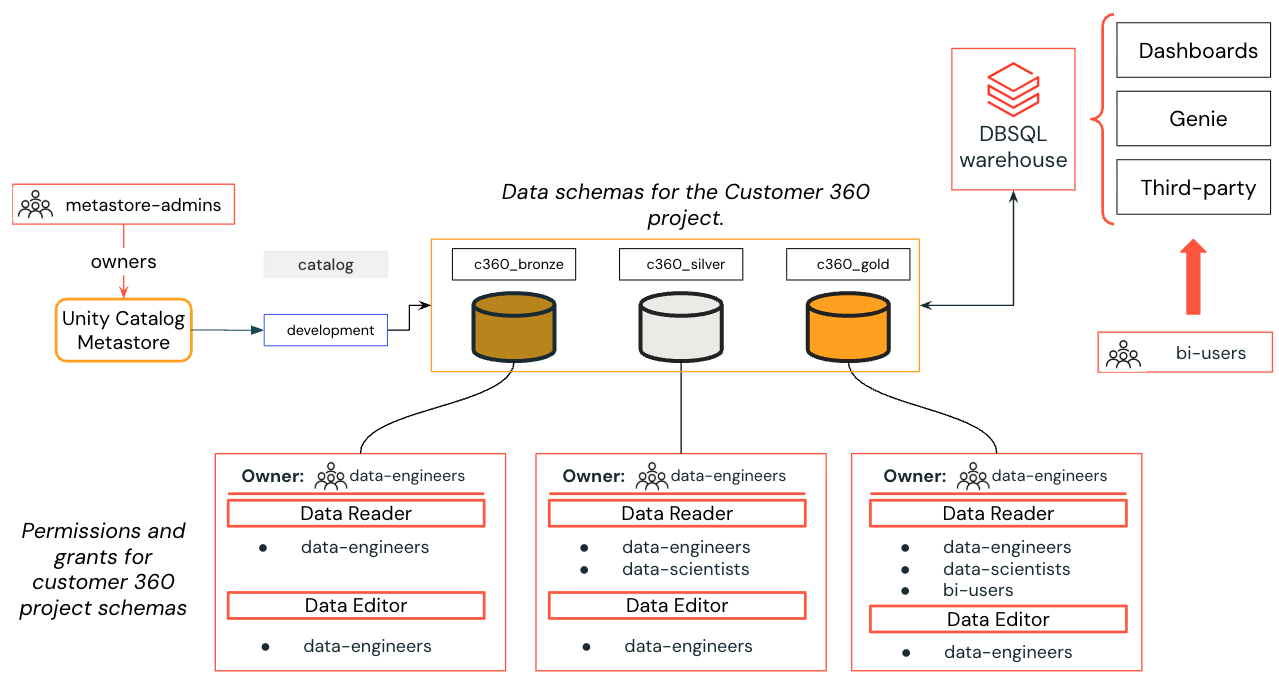
Example: Customer 360 project for the marketing business unit with multiple permission levels on data and AI/BI assets.
| Group | Role | Typical toolstack |
|---|---|---|
| Metastore Admins / Unity Admins | Administer the Unity Catalog metastore. Approve new catalogs, external locations, and connections. | Governance framework, SCIM, SSO |
| Workspace Admins | Manage access, settings, and permissions within a single workspace. | Cloud administration |
| Data Engineers | Build and maintain transformation pipelines. Read and write access on project schemas and tables. | Python, Spark, SQL, Dashboards, CI/CD |
| Data Scientists | Train and deploy ML models and GenAI agents. Read-only access on specific schemas and tables. | Python, Pandas, MLflow, ML/GenAI frameworks |
| Data Analysts | Build business metrics, analytics, and dashboards. Read-only data access. | SQL, Dashboards, Visualizations |
| Business Users | View dashboards and Genie spaces. View-only access, and usually they never log into a workspace directly. | Excel, embedded dashboards |
Workspace admin groups
Give each workspace its own admin group:
dev-ws-adminsfor the development workspace.stg-ws-adminsfor staging.prod-ws-adminsfor production.
That way no single group holds the keys to every environment, and an accidental grant in dev does not reach prod.
When you need more granularity
At a small company, one Data Engineers group is plenty. Once different teams need different data, that flat group stops working: everyone in it can see everything any engineer can see. Prefix groups with the business unit or project name before you hit that wall:
[bu-or-project]-data-engineers[bu-or-project]-data-scientists[bu-or-project]-data-analysts[bu-or-project]-bi-users
Now you can hand each project its own slice of data through Unity Catalog, and group membership stays readable.
Common pitfalls
One flat group for all engineers
A single Data Engineers group is fine until two teams need to be walled off from each other's data, and by then splitting it is a migration with permissions to re-grant and people to re-sort. Plan for project-level groups before you need them.
Creating groups inside workspaces
A group made at the workspace level stays at that workspace. It does not reach other workspaces and it does not show up in Unity Catalog. Create groups at the account level or through SCIM so they exist everywhere you might want to grant against them.
Create the groups
- Manual: add groups through the account console UI.
- SCIM: automate group provisioning from your identity provider.
Next
- Do next: Add Groups: Manual
- Learn why: Unity Catalog foundations
- Reference: Manage groups