Change data capture (CDC)
You'll ingest database tables into Unity Catalog with a CDC gateway and ingestion pipeline in ~15 min.
Prereqs: Databases and SaaS ingestion, managed database connector requirements
The big picture
This walkthrough creates the standard CDC architecture. A gateway runs continuously on classic compute and writes source changes to a Unity Catalog staging volume. A scheduled serverless ingestion pipeline applies those changes to destination streaming tables.
The screenshots show a SQL Server setup. Other supported CDC database connectors follow the same overall workflow, but source preparation, authentication methods, and available settings vary by connector. Follow the source setup documentation for your database.
Before you start
You need:
- A supported source database configured for CDC according to its connector documentation.
- A network path from classic compute in the workspace to the source database.
- Permission to create a Unity Catalog connection, or
USE CONNECTIONon an existing one. - Permission to create the gateway compute, destination tables, and staging volume.
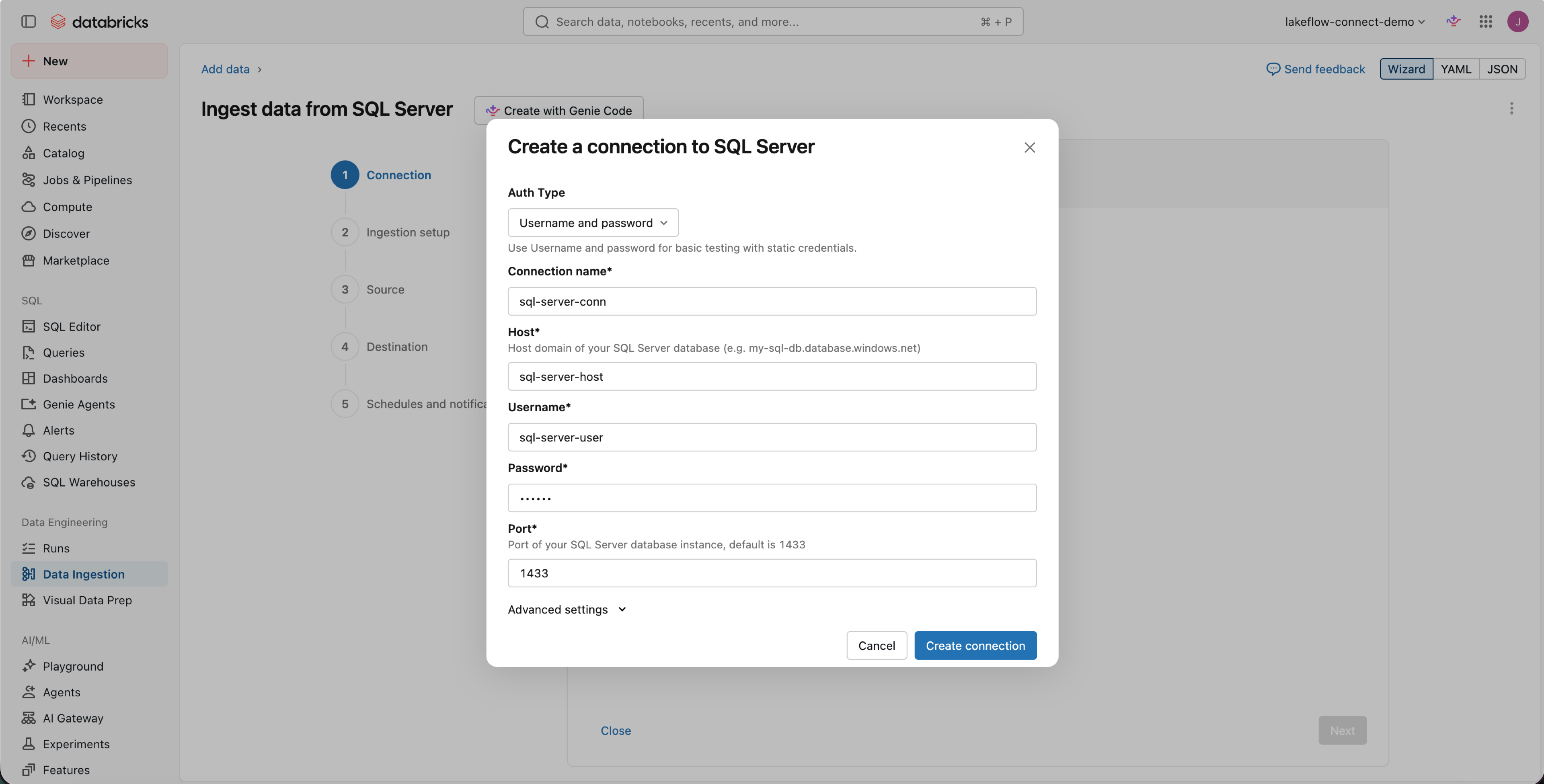
Choose an authentication method supported by your database. The screenshots use a username and password. Use an existing connection instead if your organization manages source credentials centrally.
Create the CDC pipeline
Create the connection, gateway, and ingestion pipeline, then choose the source and destination.
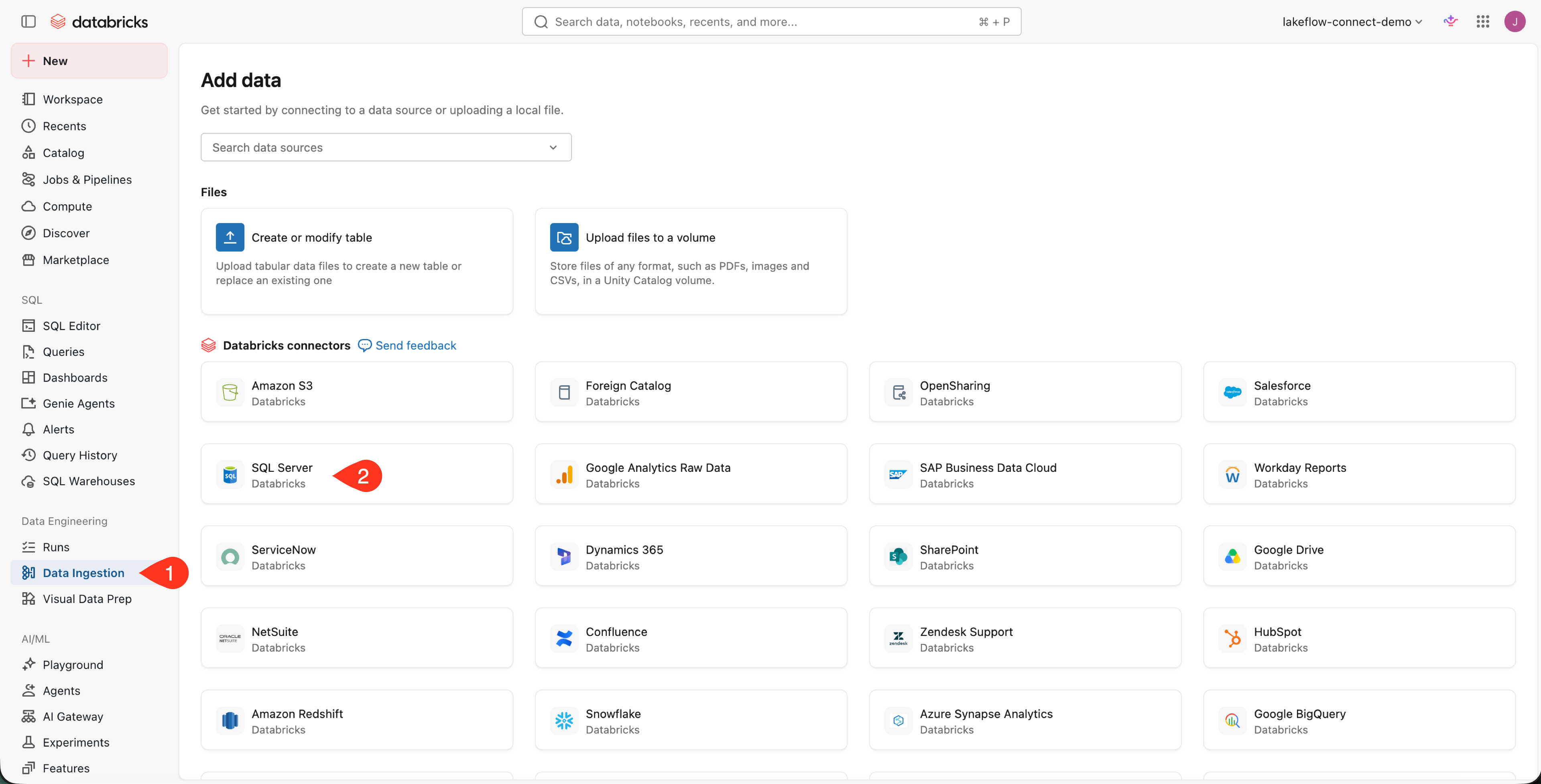
In the Databricks workspace, open Data Ingestion, then select your database source under Databricks connectors. This example selects SQL Server.
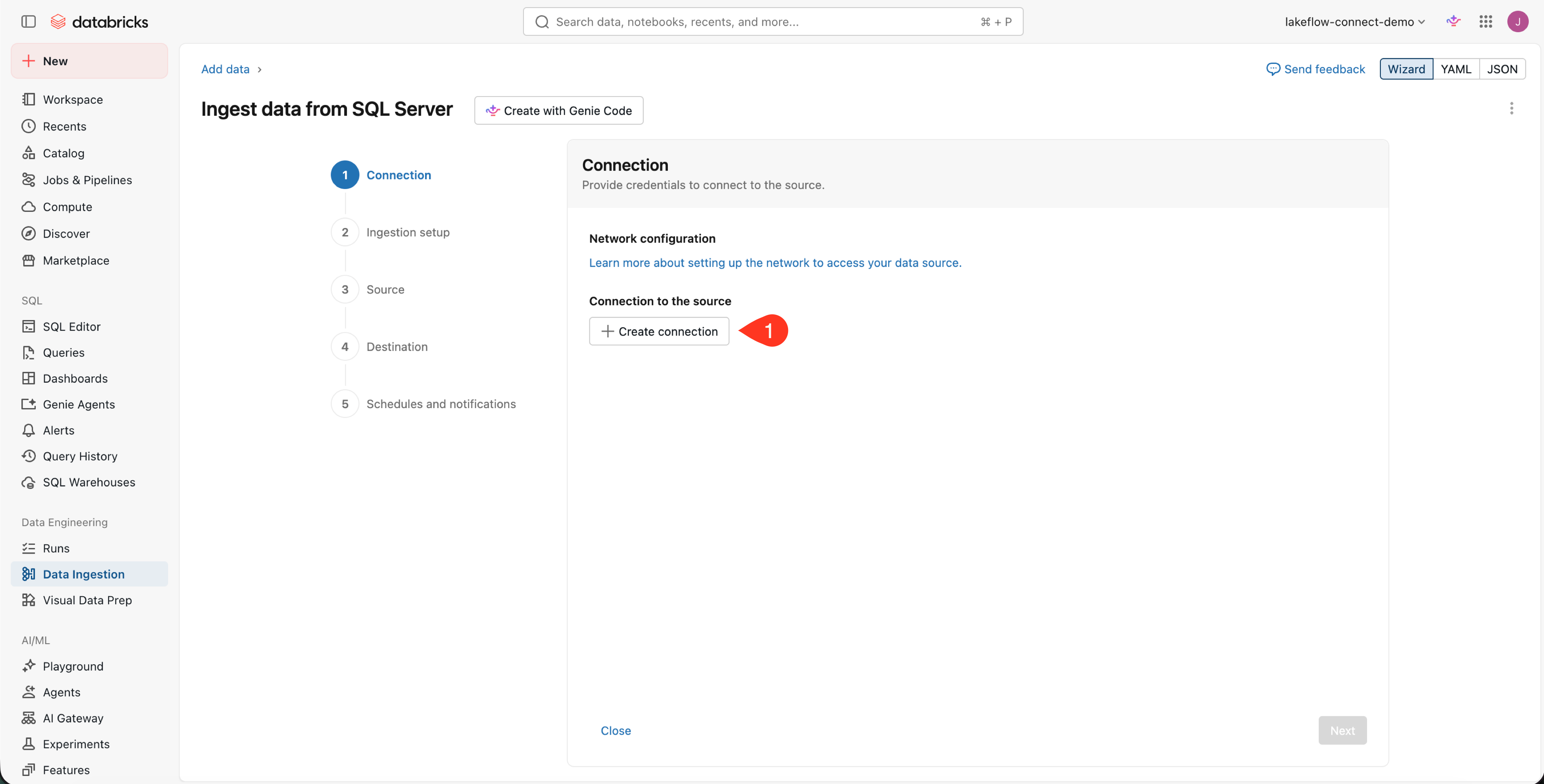
On the Connection page, click Create connection.
Choose an authentication method and enter the required connection details. This example uses Username and password for SQL Server. Click Create connection.
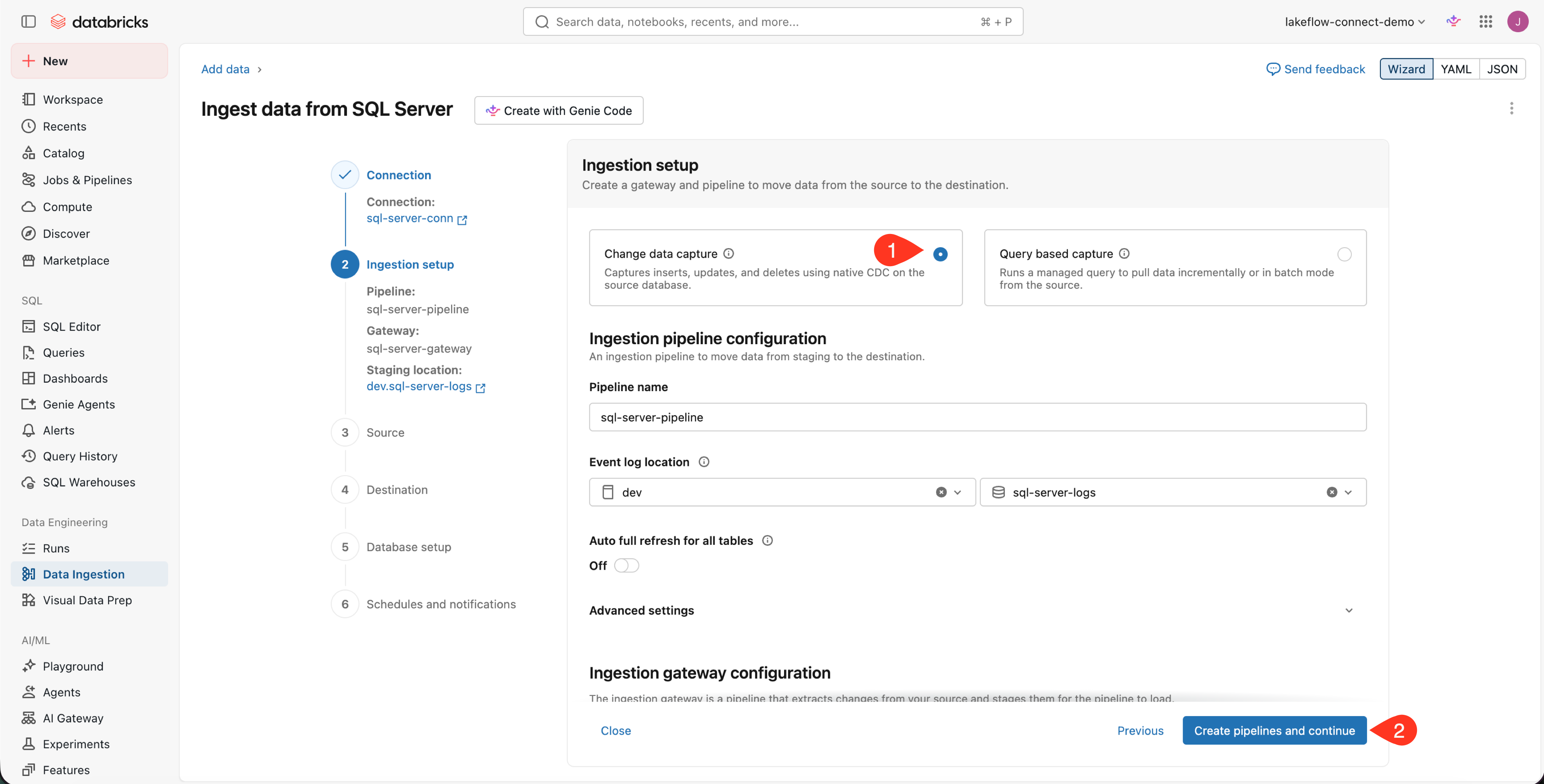
Select Change data capture. Name the ingestion pipeline and choose an event log catalog and schema. Name the ingestion gateway and choose its staging catalog and schema, then click Create pipelines and continue.
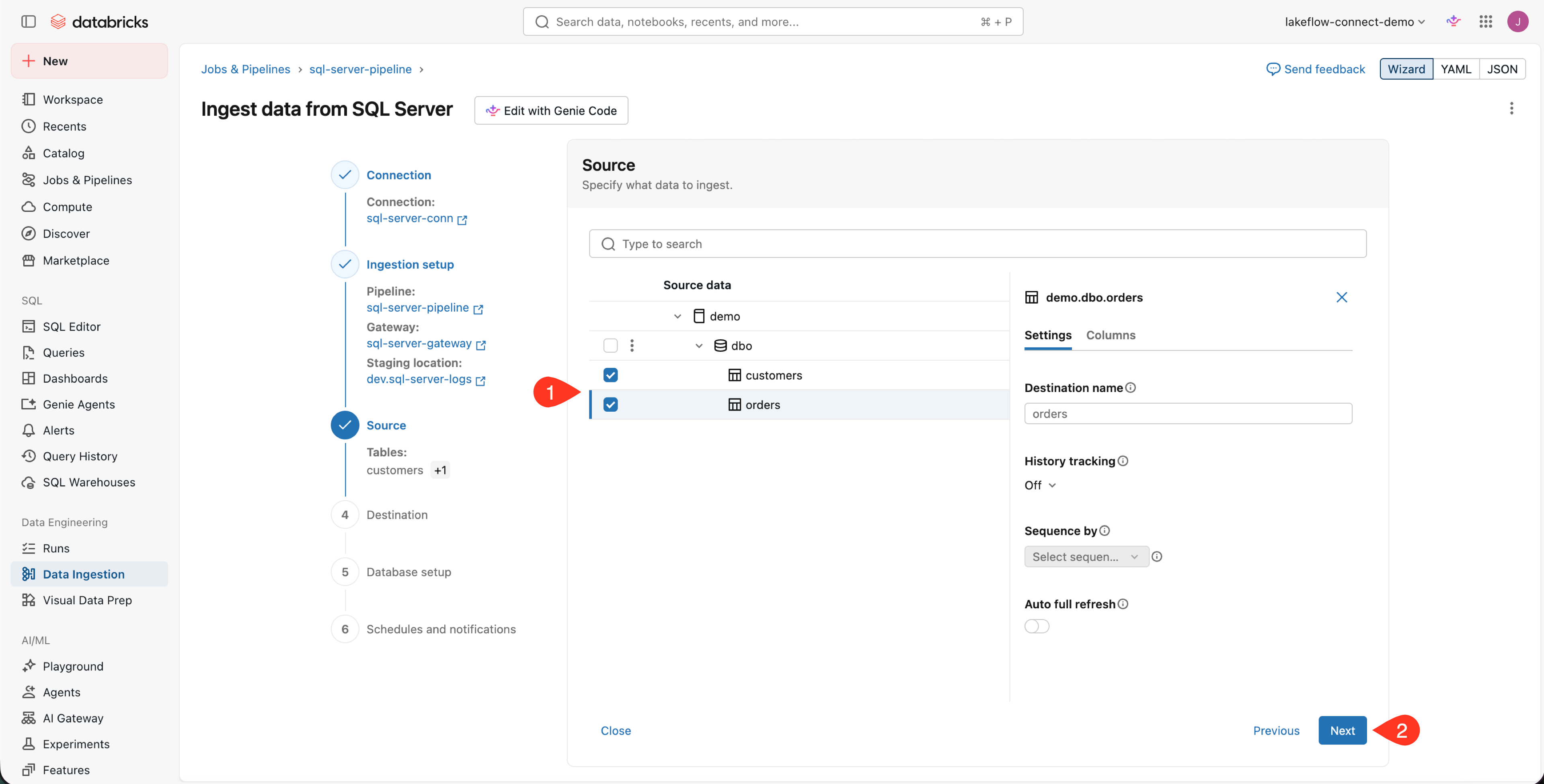
Expand the source database and schema. Select the tables that you want to ingest, then click Next.
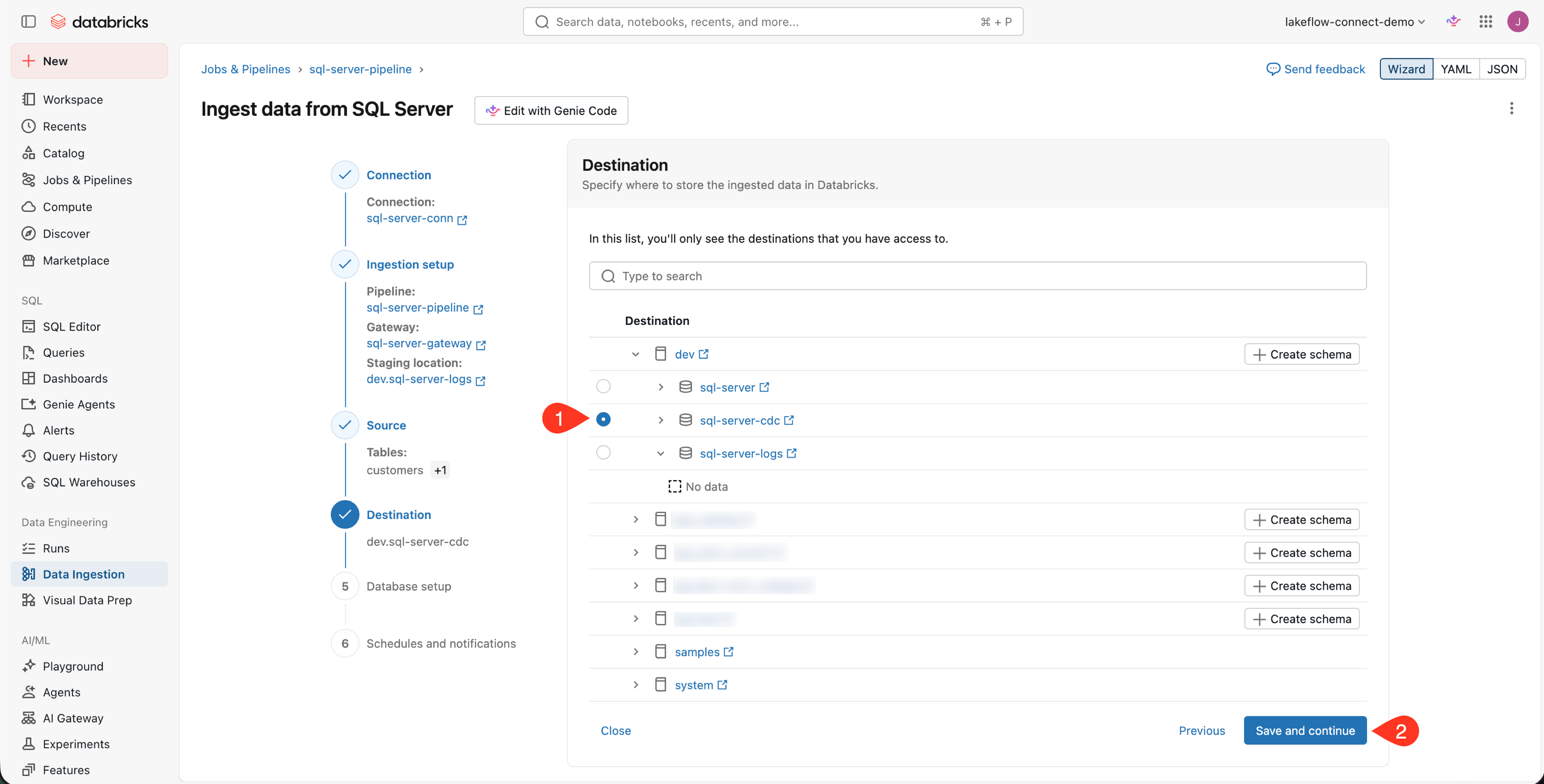
Select the destination catalog and schema, then click Save and continue.
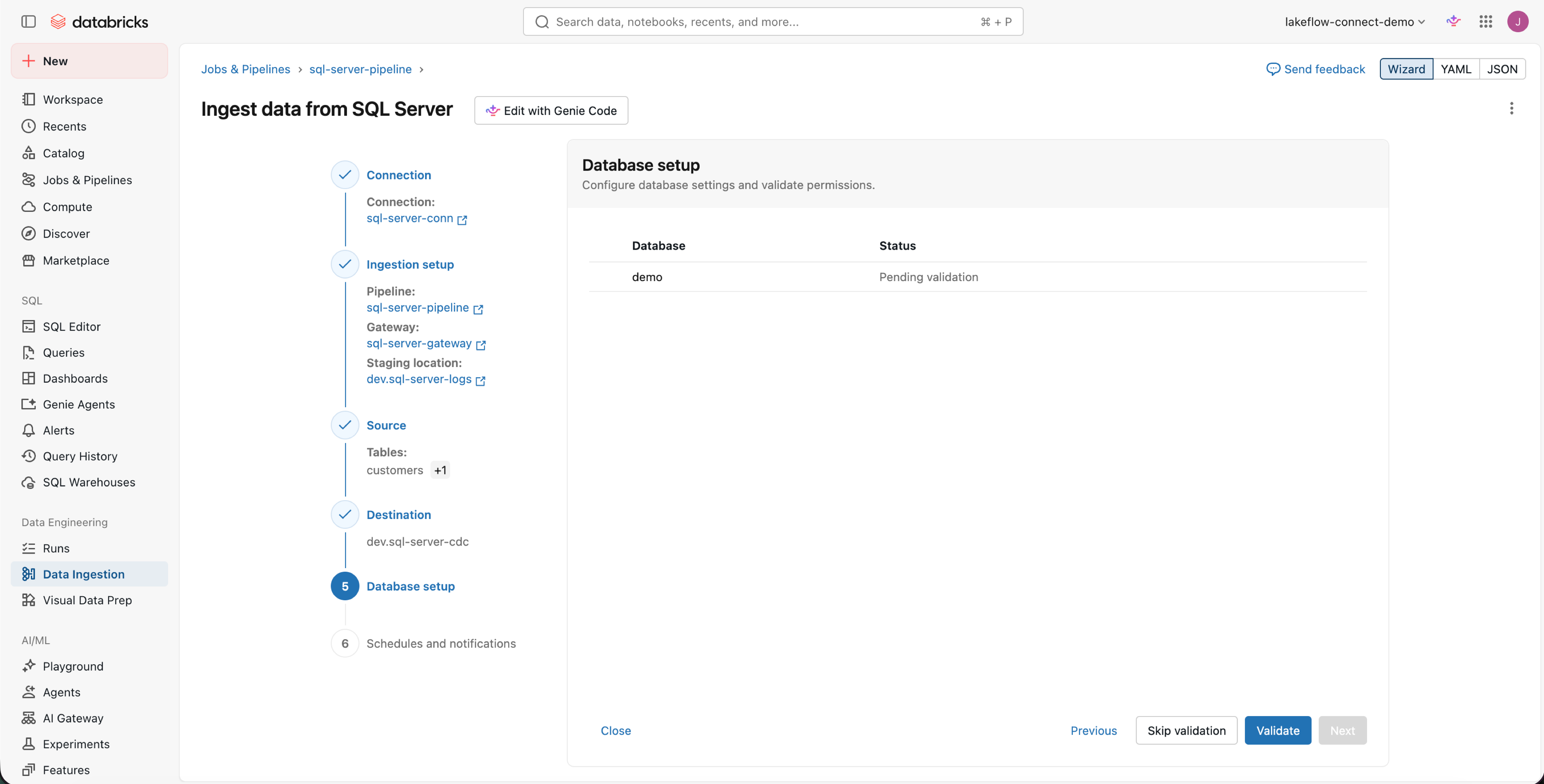
On Database setup, click Validate. This checks the source support objects, CDC configuration, and connector permissions.
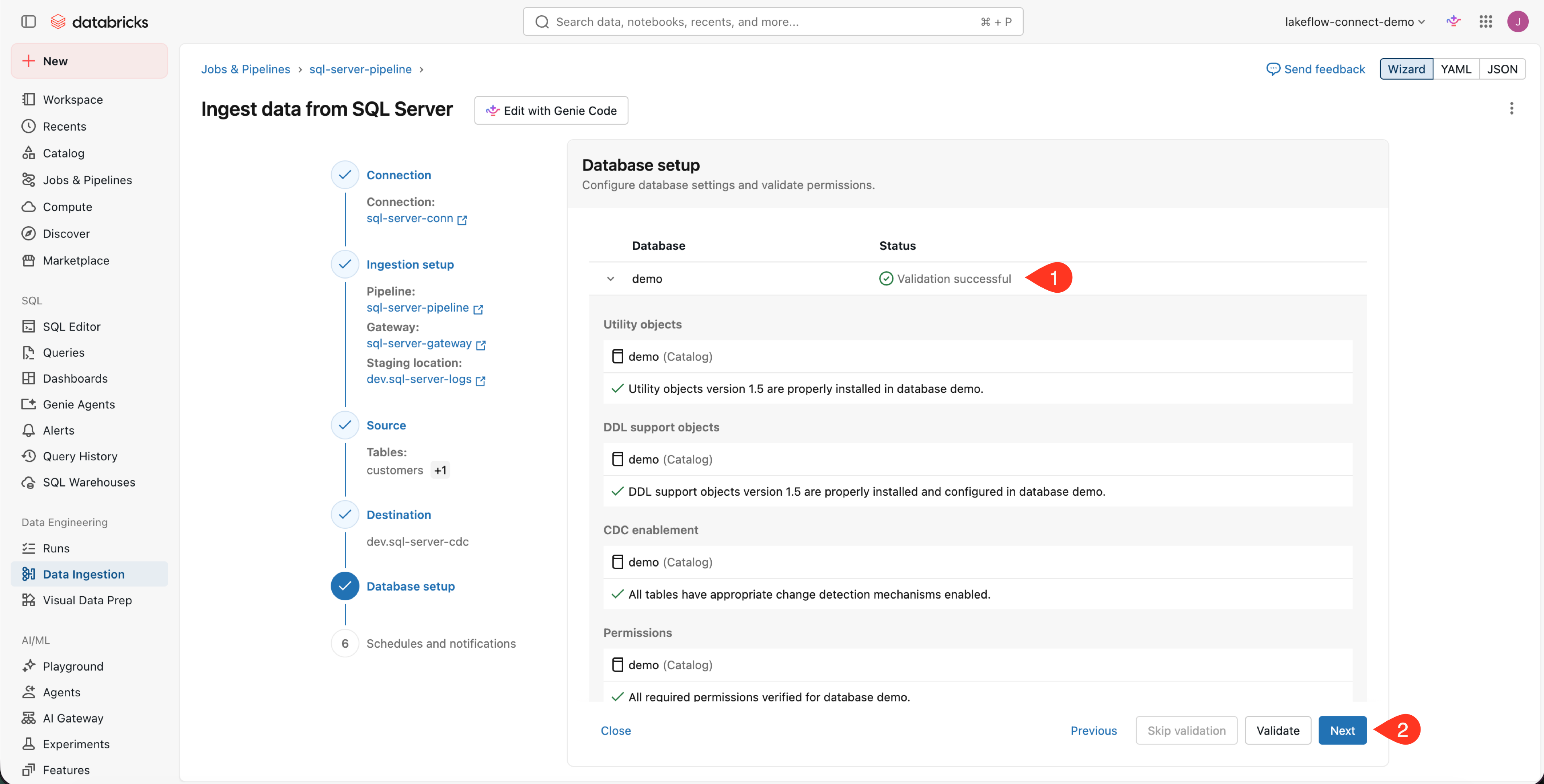
Confirm that every check passes and the database reports Validation successful, then click Next.
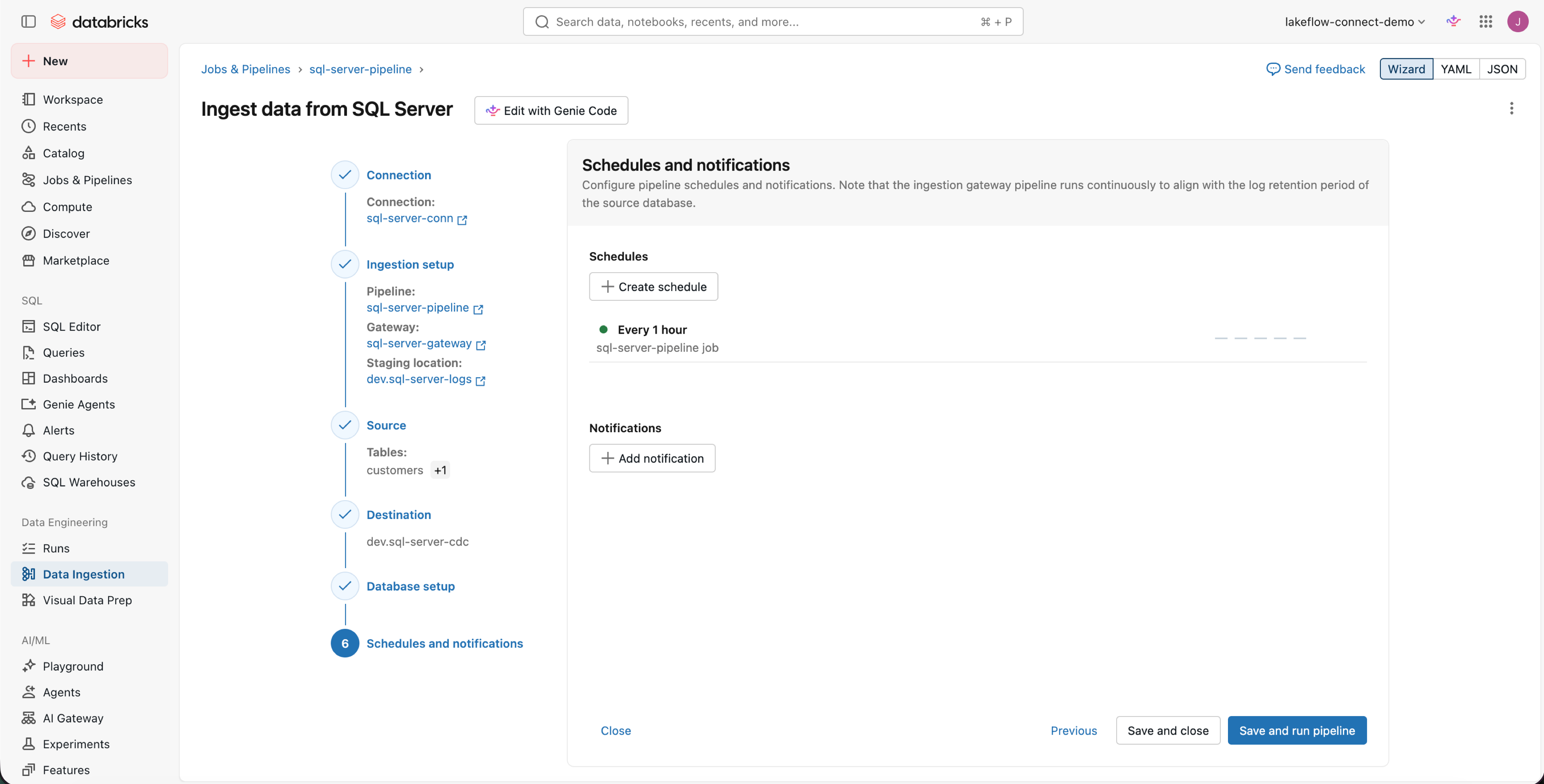
Create a schedule for the ingestion pipeline based on your data freshness requirements. Add notifications if needed, then click Save and run pipeline.
The schedule controls the ingestion pipeline. Do not stop the gateway. It must run continuously so it captures changes before the source removes them.
Verify
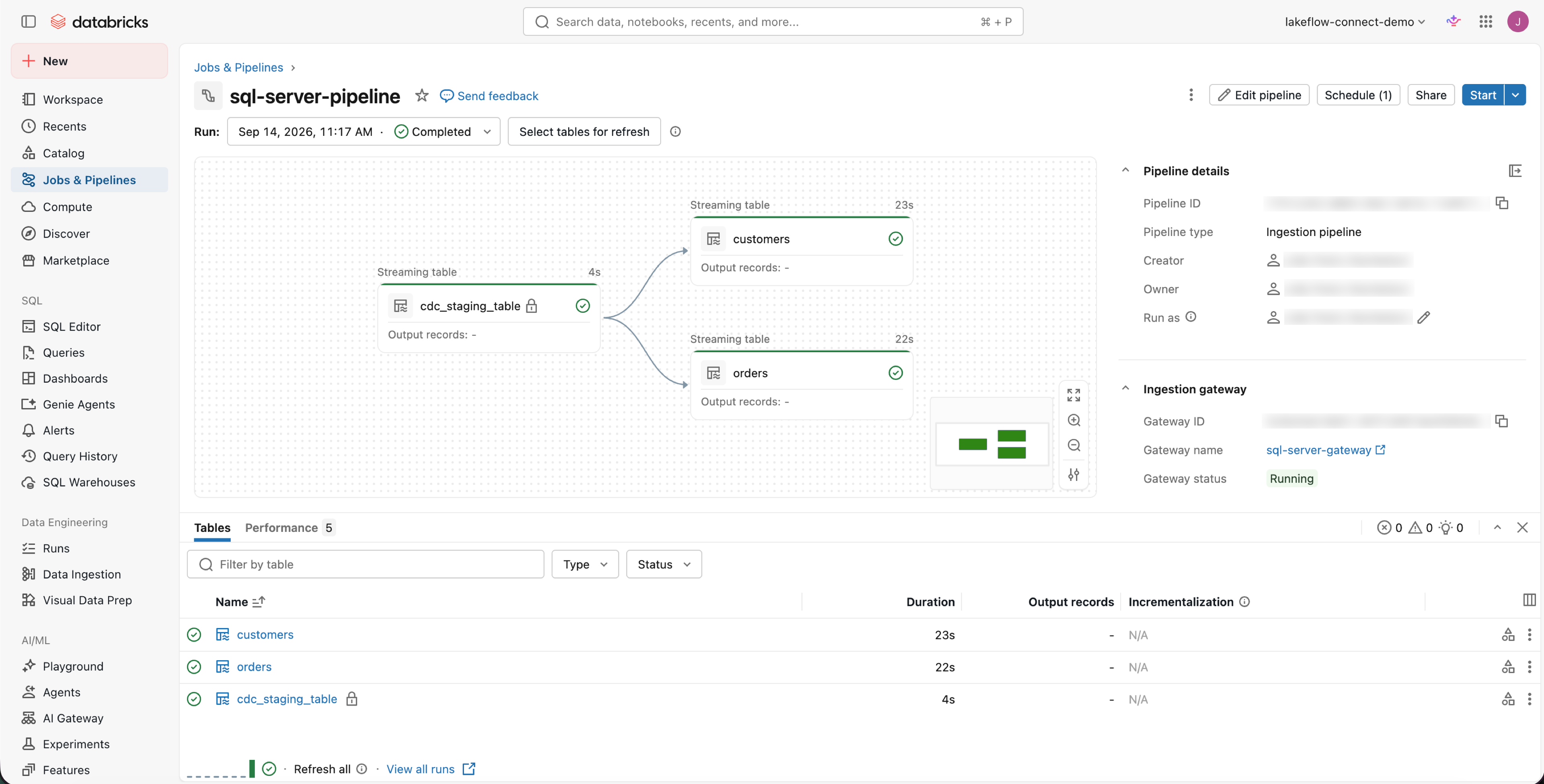
Confirm the first ingestion update completed and the gateway is still running.
Open the ingestion pipeline in Jobs & Pipelines. Confirm the run is Completed, the selected streaming tables have green status indicators, and Gateway status is Running.
Where people trip
Database validation fails
Expand the failed validation group and use Complete configuration to see what the source is missing. Common causes include missing support objects, CDC or change tracking that is not enabled, and insufficient permissions for the connection user. The exact checks depend on the connector.
The gateway cannot reach the source database
The gateway runs on classic compute in the workspace network. Check routing, private connectivity, firewall rules, and the database port before changing pipeline settings.
The gateway was stopped
Restarting the gateway does not recover change data that the source already removed. If the source retention window passed, run a full refresh for the affected tables after the gateway is healthy.
Next
- Do next: Query-based ingestion
- Learn why: Databases and SaaS ingestion
- Reference: Managed database connectors