GCP GCS
You'll create a Unity Catalog storage credential (a GCP service account Databricks manages for you), grant that service account access to a GCS bucket, then create an external location that points Databricks at it in ~10 min. Need file events? Add the optional part. Need a bucket first? See the bonus at the end.
Prereqs: Cloud Object Storage overview, a GCP project with permission to grant IAM roles on the bucket, and a Databricks metastore admin or account admin
Existing or new bucket
Unity Catalog reaches Google Cloud Storage through an external location — a named object that points at a gs:// path through a storage credential (a GCP service account Databricks authenticates as). There are two reasons to create one:
- Access an existing GCS bucket with data. When a bucket already holds data, point an external location at it so Unity Catalog can read (and optionally write) that data in place — usually to ingest it into Databricks. Mark the location read-only if you only need to read from it.
- Use a new bucket for Unity Catalog managed data. Create a fresh GCS bucket for Unity Catalog to store managed tables and volumes, then point an external location (or a catalog's managed storage) at it.
Either way, the setup below is the same. This page assumes the bucket already exists; if it doesn't, create one first with the bonus.
The big picture
A GCS bucket Databricks reaches through a Unity Catalog storage credential and external location. Unlike AWS, you don't approve an automatic role hand-off: Databricks generates a GCP service account when you create the storage credential, and you grant that service account access to the bucket in the Google Cloud console. If you want file events, you also create a custom Pub/Sub role and let the Cloud Storage service agent publish notifications.
Permissions you need
Check these before you start.
GCP
- Ability to sign in to the GCP project that owns the bucket and grant IAM roles on the bucket (for example Storage Admin or Owner). Granting roles on the bucket is what lets Databricks' service account read and write.
- To enable file events, you also need permission to create a custom IAM role and grant project-level roles (Owner or IAM Admin).
Databricks
You need these Unity Catalog privileges. Metastore admins and account admins already have them. Workspace admin is not enough on its own.
| Privilege | On | Why you need it |
|---|---|---|
CREATE STORAGE CREDENTIAL | Metastore | Create the credential that wraps the GCP service account. |
CREATE EXTERNAL LOCATION | Metastore | Create the path object. |
If you are not a metastore admin, ask one to grant your group:
GRANT CREATE STORAGE CREDENTIAL, CREATE EXTERNAL LOCATION ON METASTORE TO `your-group`;
Create a storage credential
The storage credential is the Unity Catalog object that holds a Databricks-managed GCP service account. Create it first, because you grant that service account access to the bucket in the next section.
Create a GCP service account storage credential in Databricks and copy its service account email.
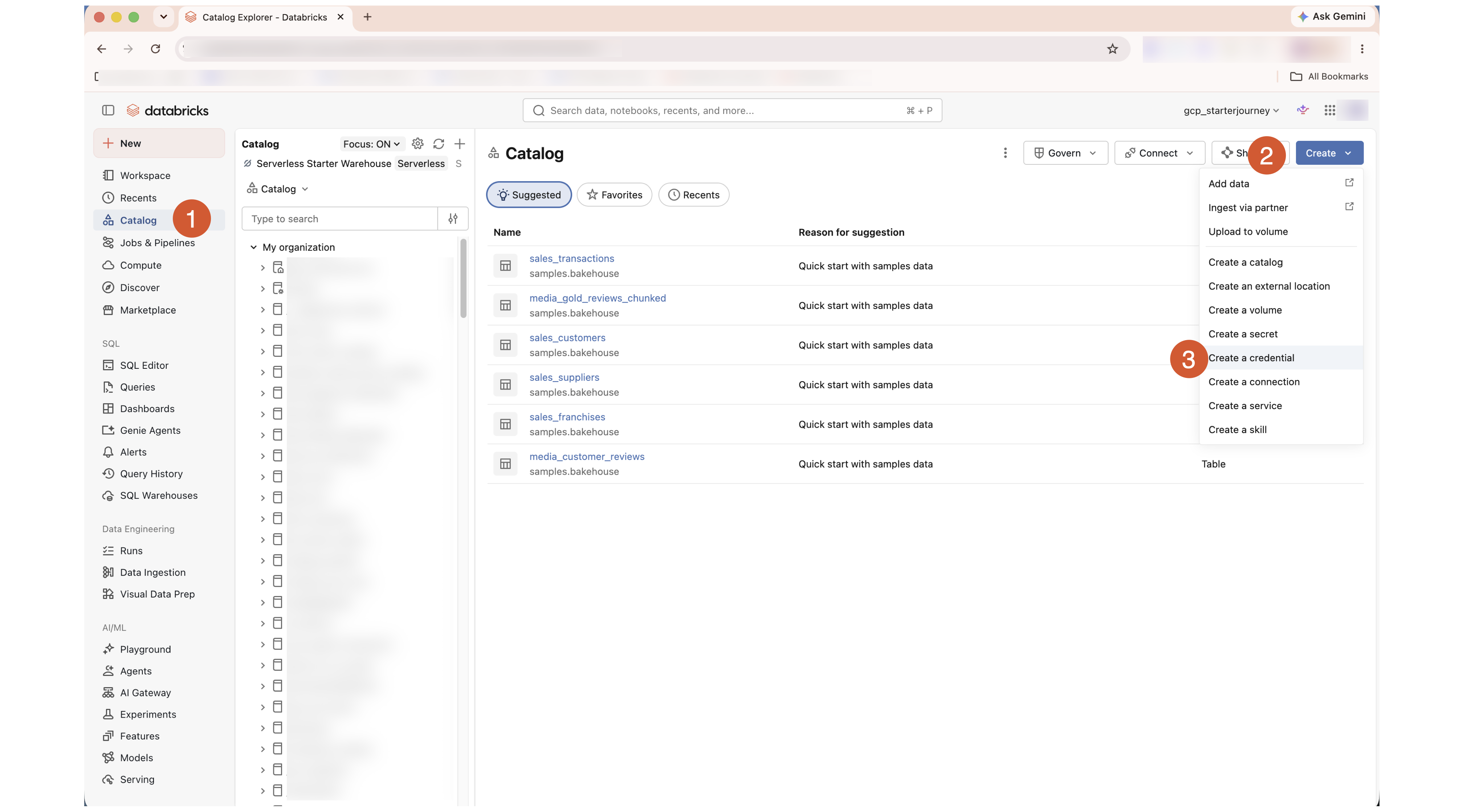
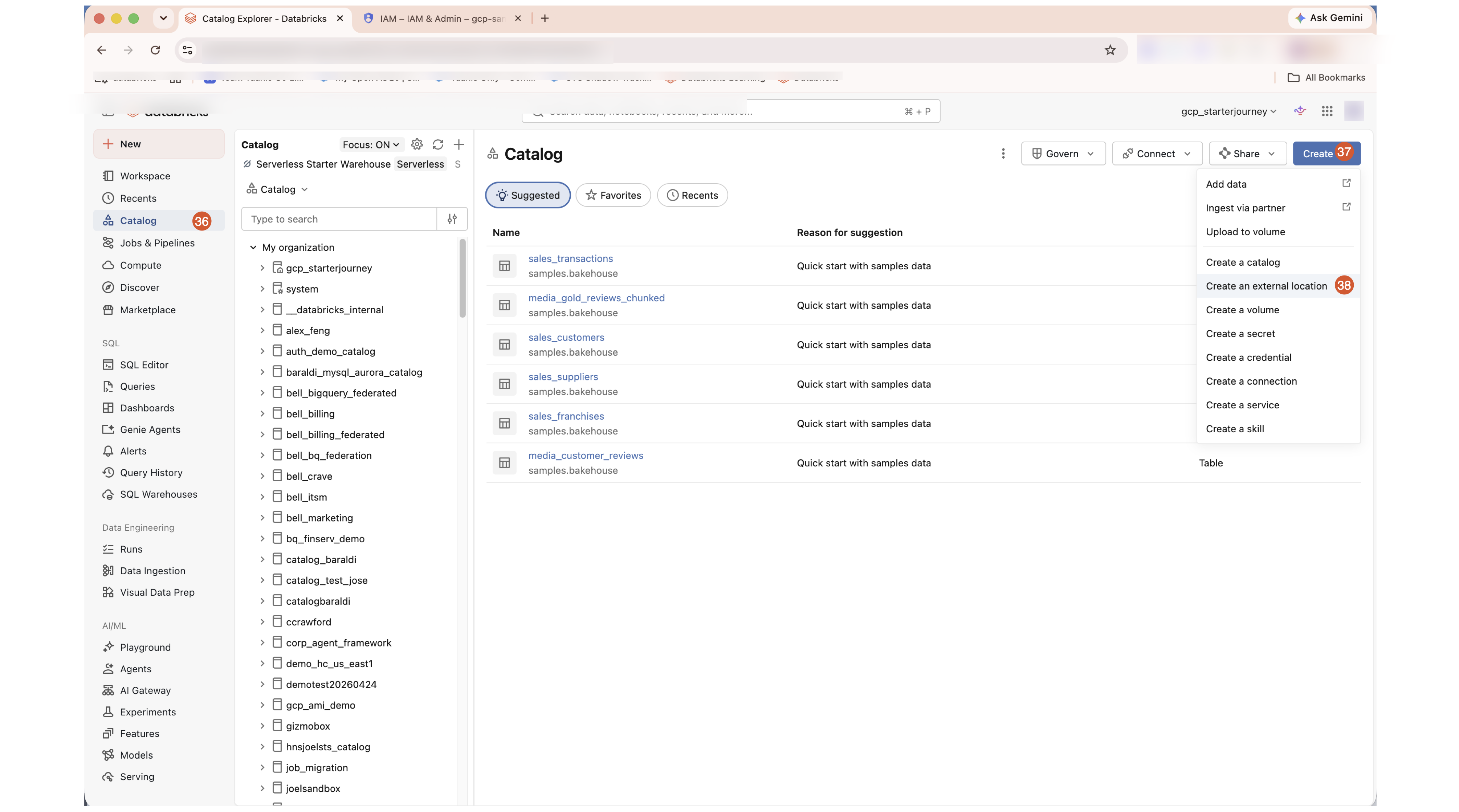
In the Databricks workspace, click Catalog in the left sidebar, then click Create > Create a credential.
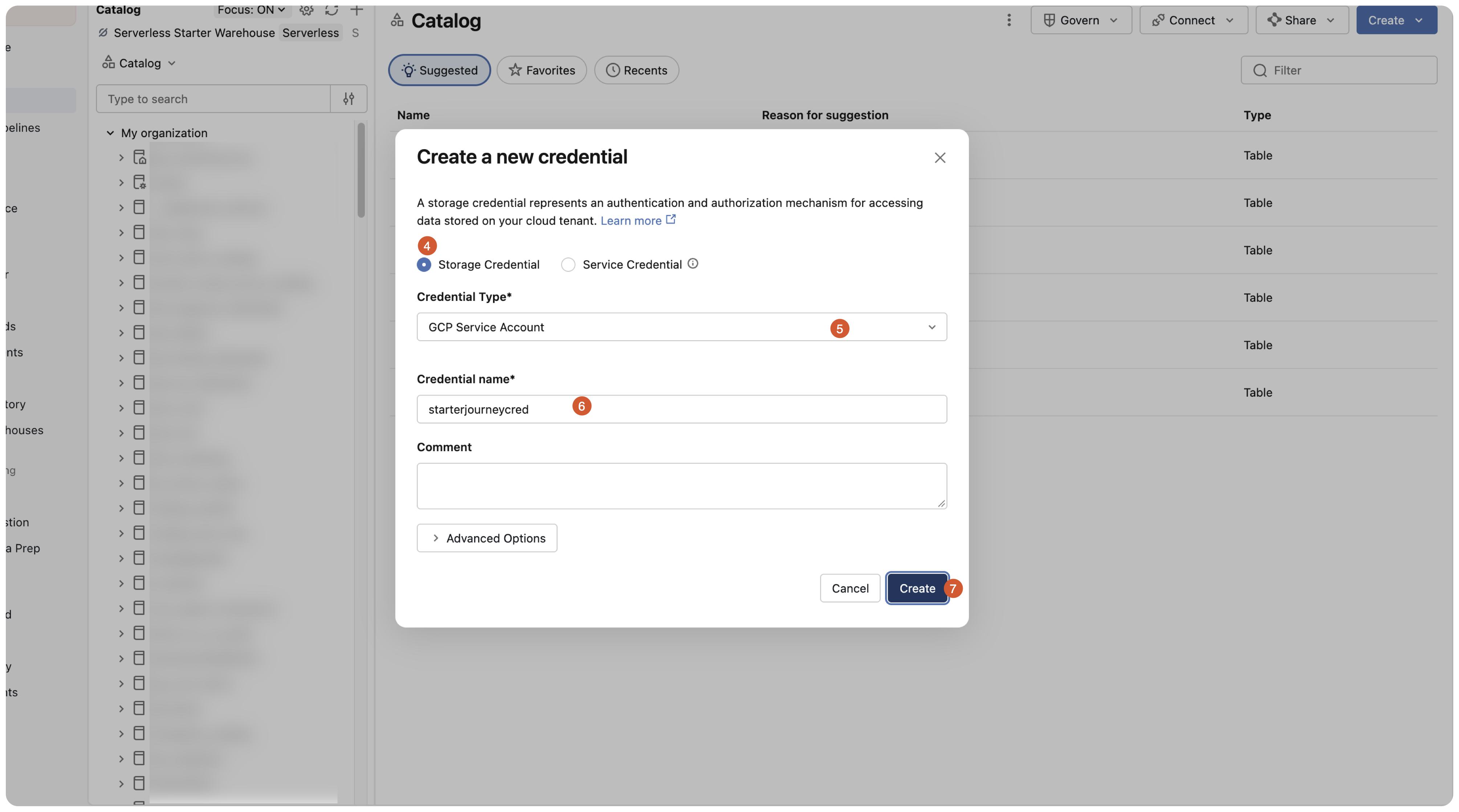
On Create a new credential, keep Storage Credential selected, set Credential Type to GCP Service Account, give the credential a name (for example starterjourneycred), then click Create.
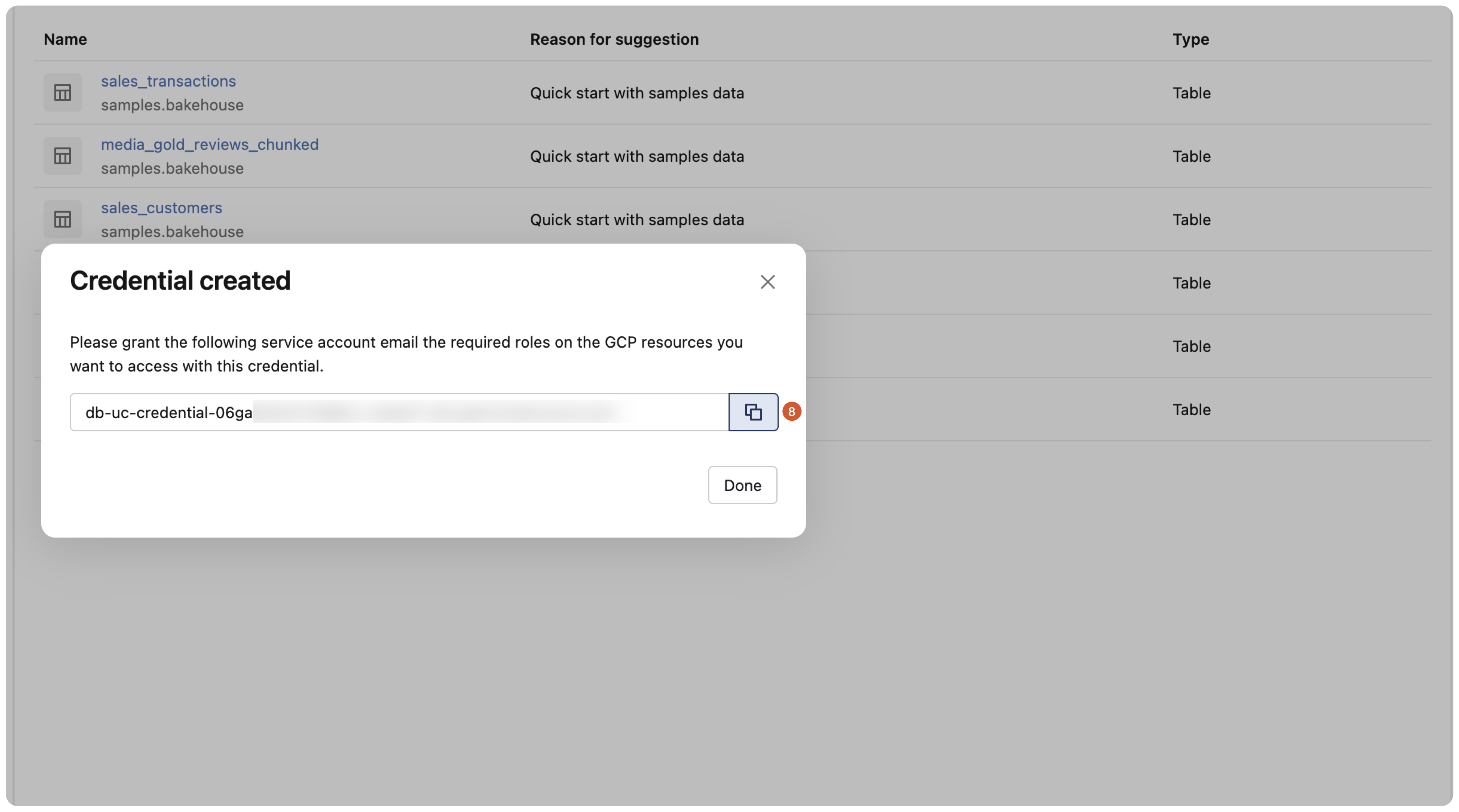
Databricks generates a service account for the credential. Copy the service account email (it starts with db-uc-credential-) — you grant it access to the bucket next — then click Done.
Grant the service account access to the bucket
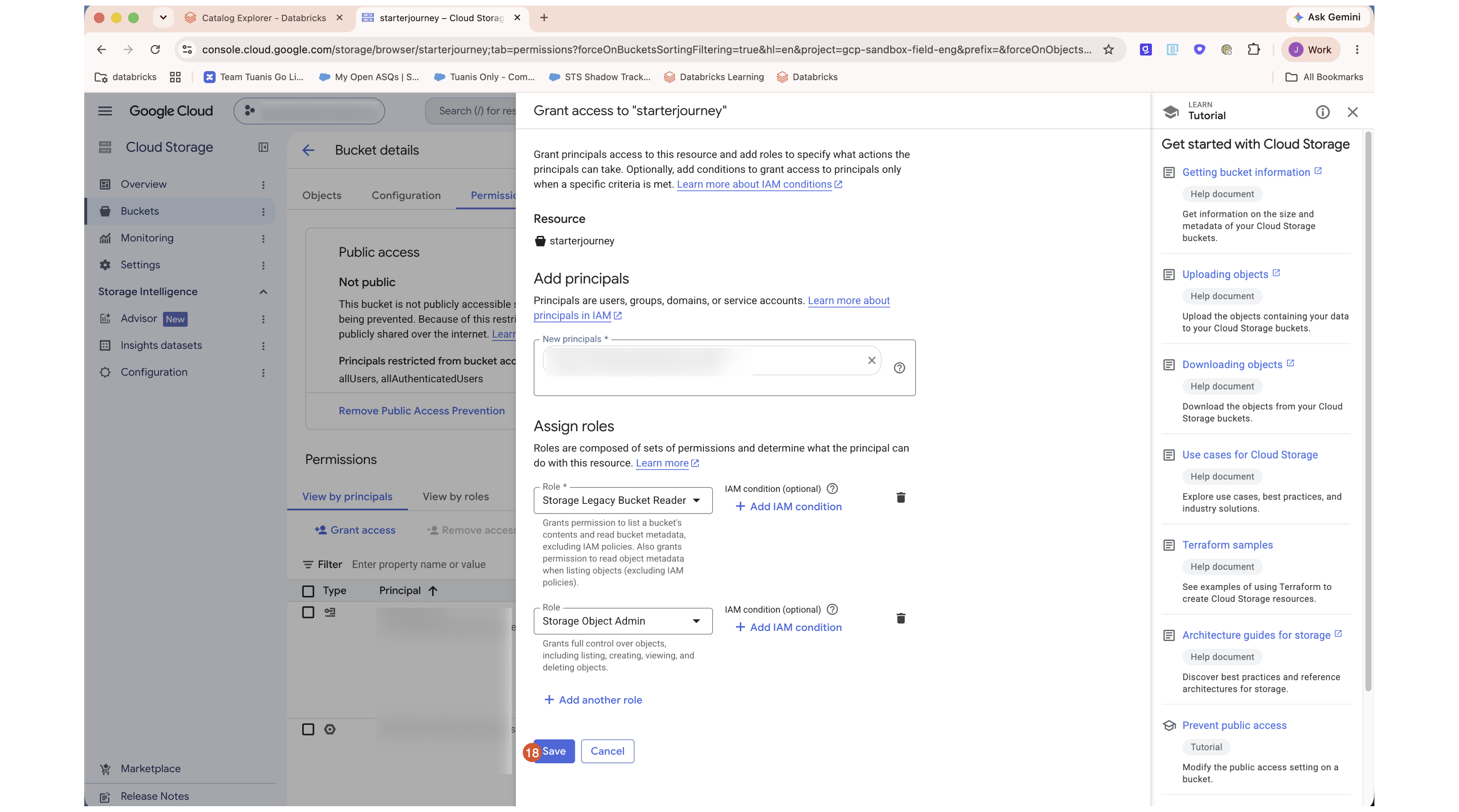
The service account has no access to the bucket yet. Grant it two roles on the bucket in the Google Cloud console — Storage Legacy Bucket Reader (list the bucket) and Storage Object Admin (read and write objects) — or the connection test at the end fails.
Grant the credential's service account Storage Legacy Bucket Reader and Storage Object Admin on the GCS bucket.
In the Google Cloud console, open the bucket in Cloud Storage > Buckets, then open its Permissions tab.
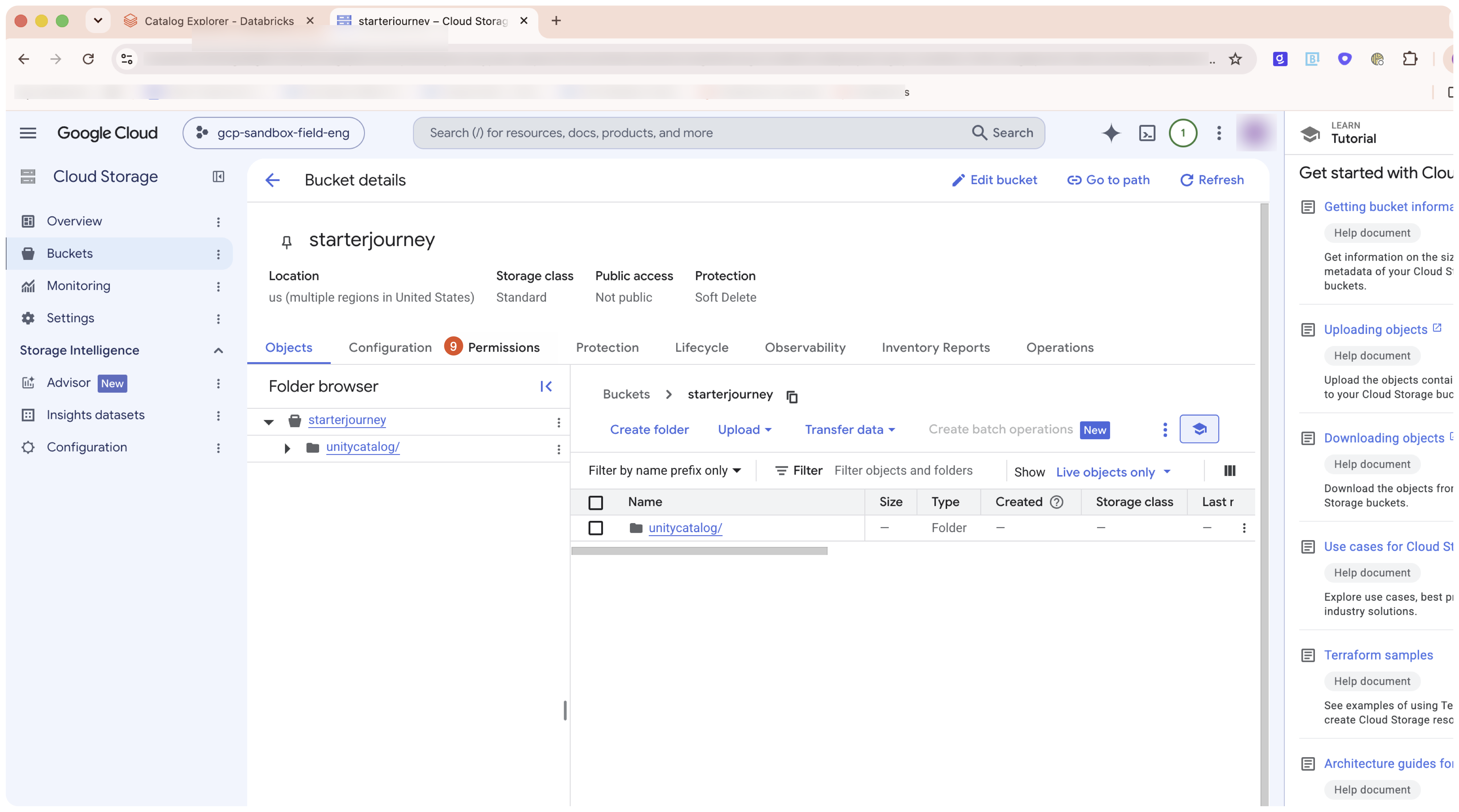
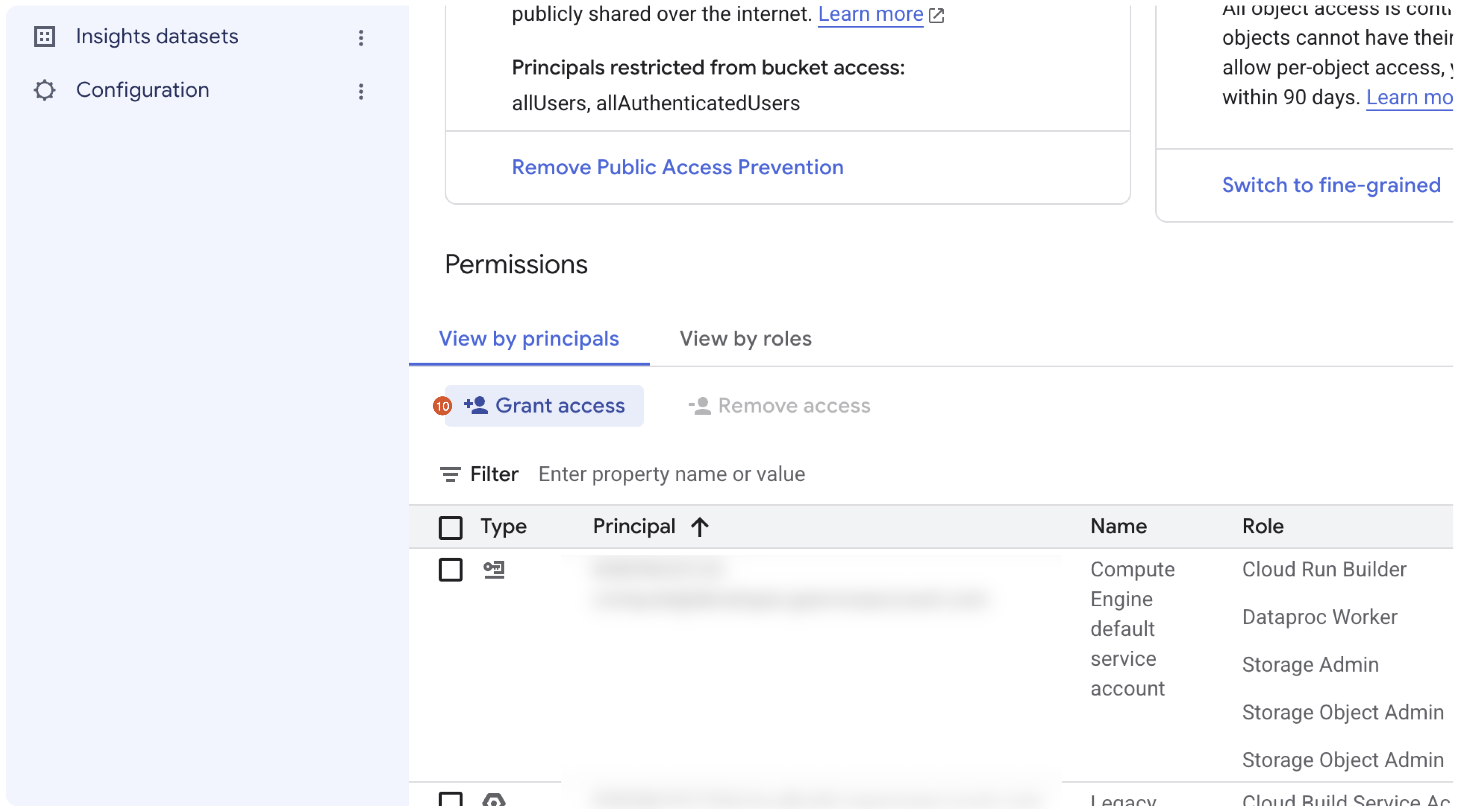
Under Permissions, click Grant access, then paste the service account email you copied from Databricks into New principals.
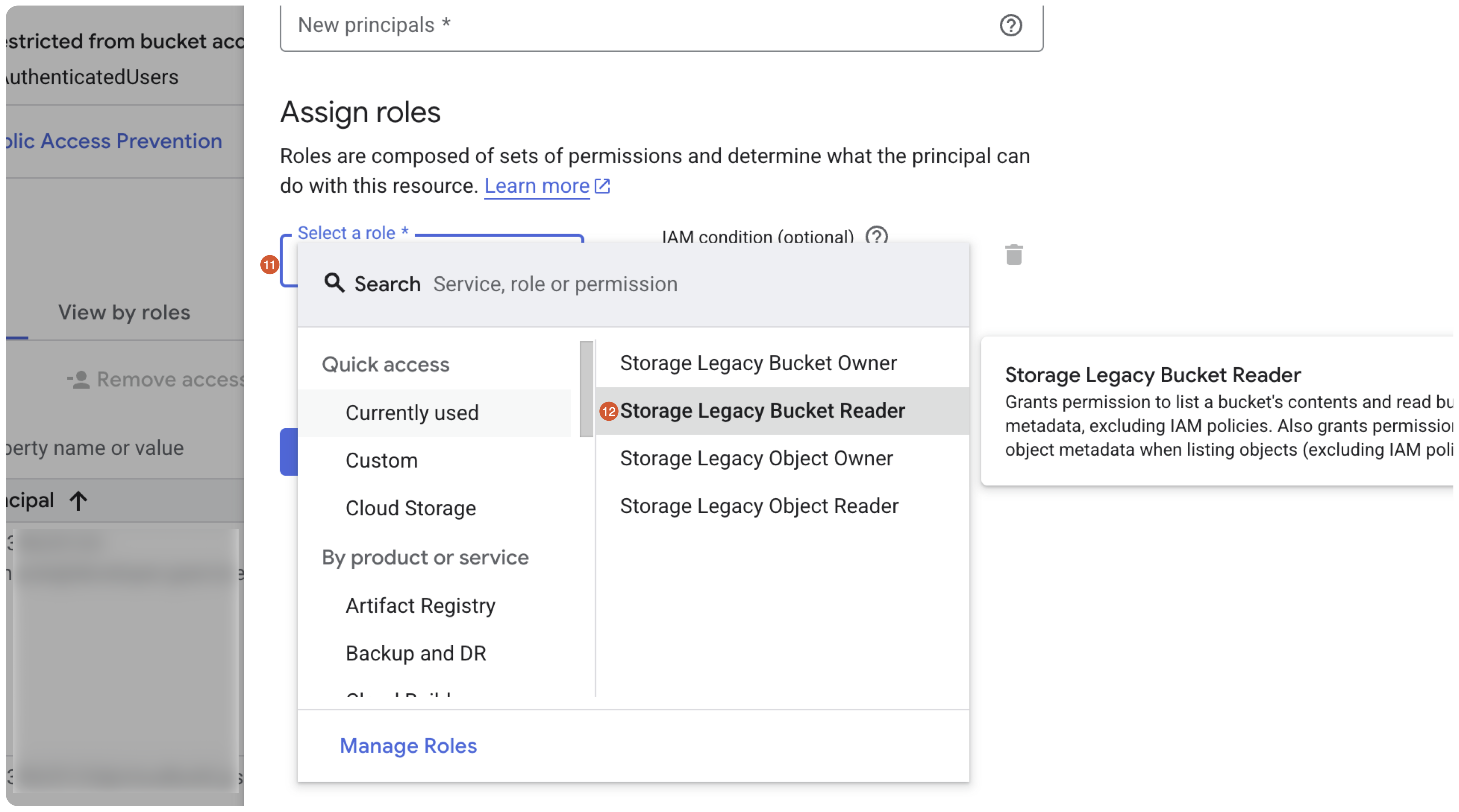
Under Assign roles, open Select a role and choose Storage Legacy Bucket Reader.
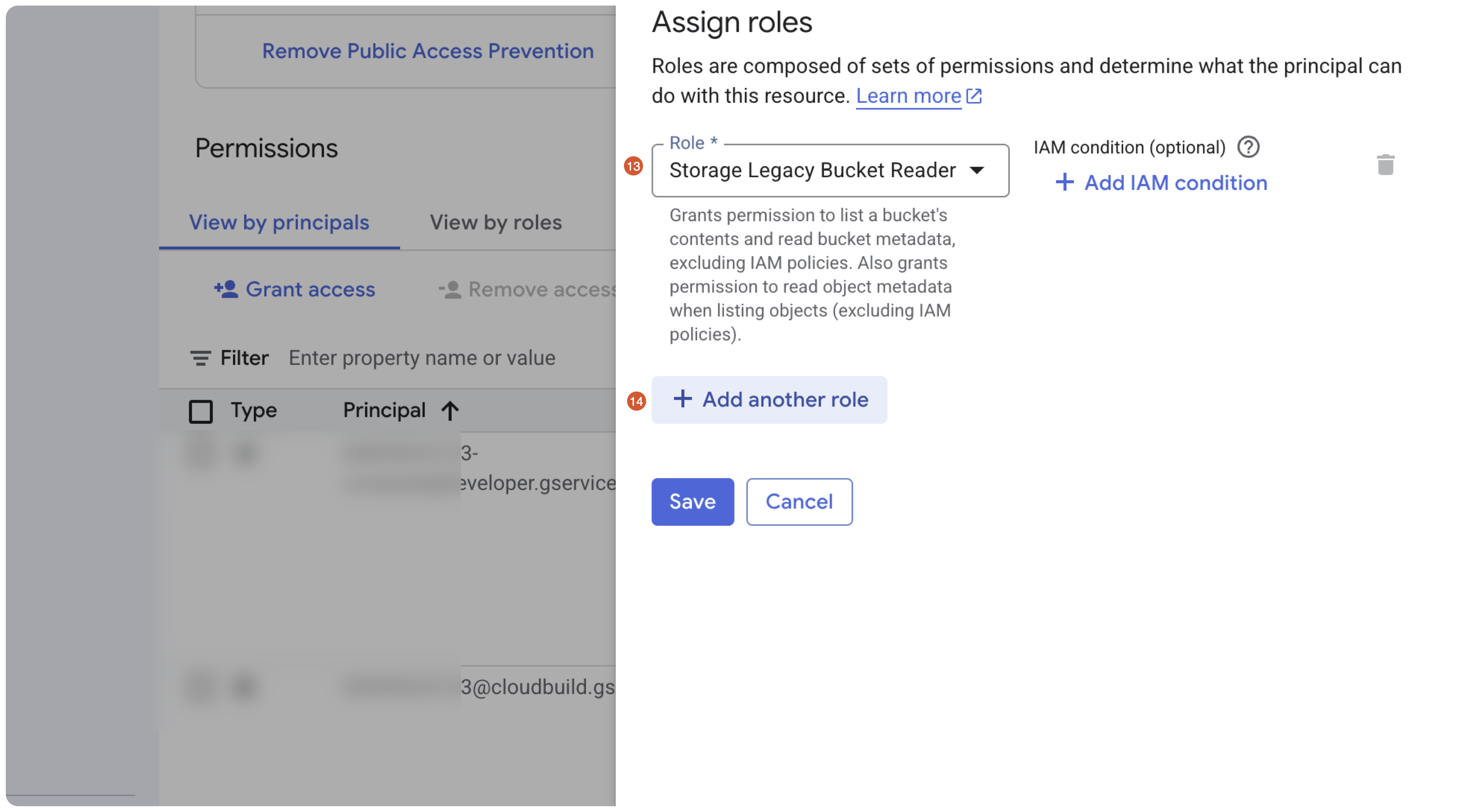
With Storage Legacy Bucket Reader set, click Add another role.
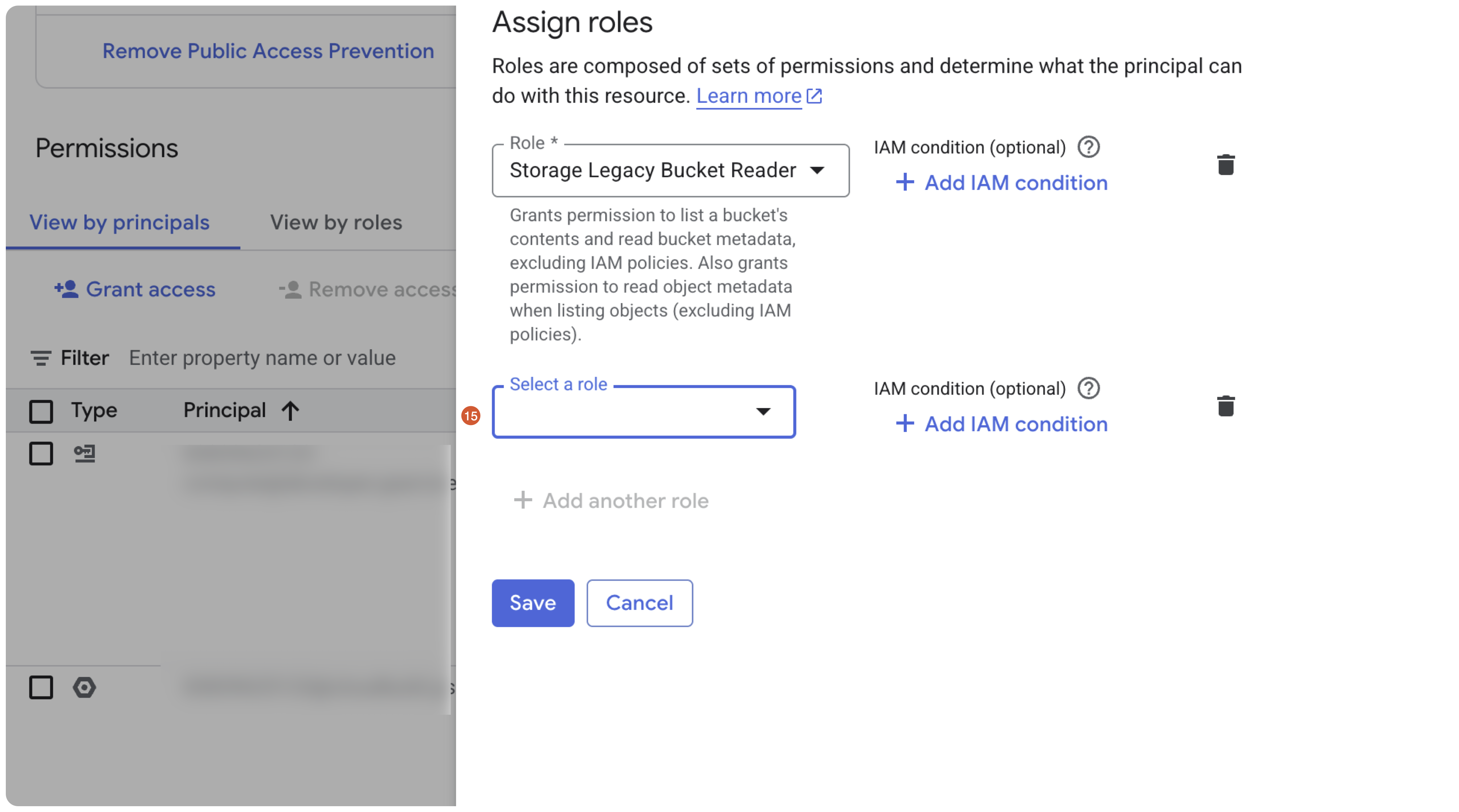
Open the second Select a role dropdown.
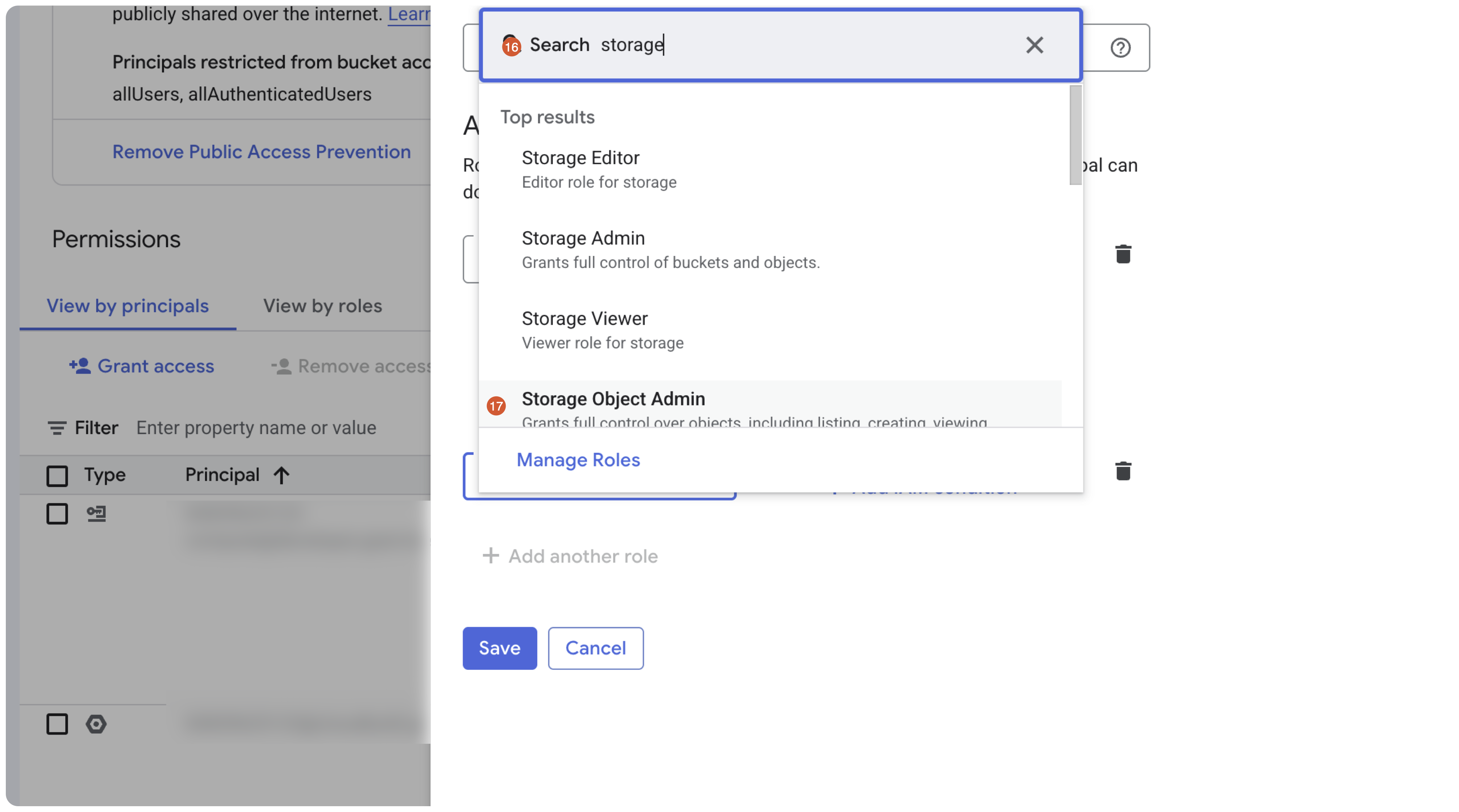
Search for storage and select Storage Object Admin.
Confirm the service account is the principal and both Storage Legacy Bucket Reader and Storage Object Admin are assigned, then click Save.
Reference: Connect to GCS external locations (Databricks docs)
Enable file events (optional)
This part is optional. File events let Unity Catalog use bucket notifications (for example, for Auto Loader file notification mode and managed ingestion) instead of listing the bucket. Skip it if you only need to read and write the location. You can add it later.
File events need two grants: a custom Pub/Sub role on the credential's service account (so Databricks can manage the topic and subscription), and the Pub/Sub Publisher role on the project's Cloud Storage service agent (so GCS can publish object notifications).
Create a custom Pub/Sub role, grant it to the credential service account, and let the Cloud Storage service agent publish notifications.
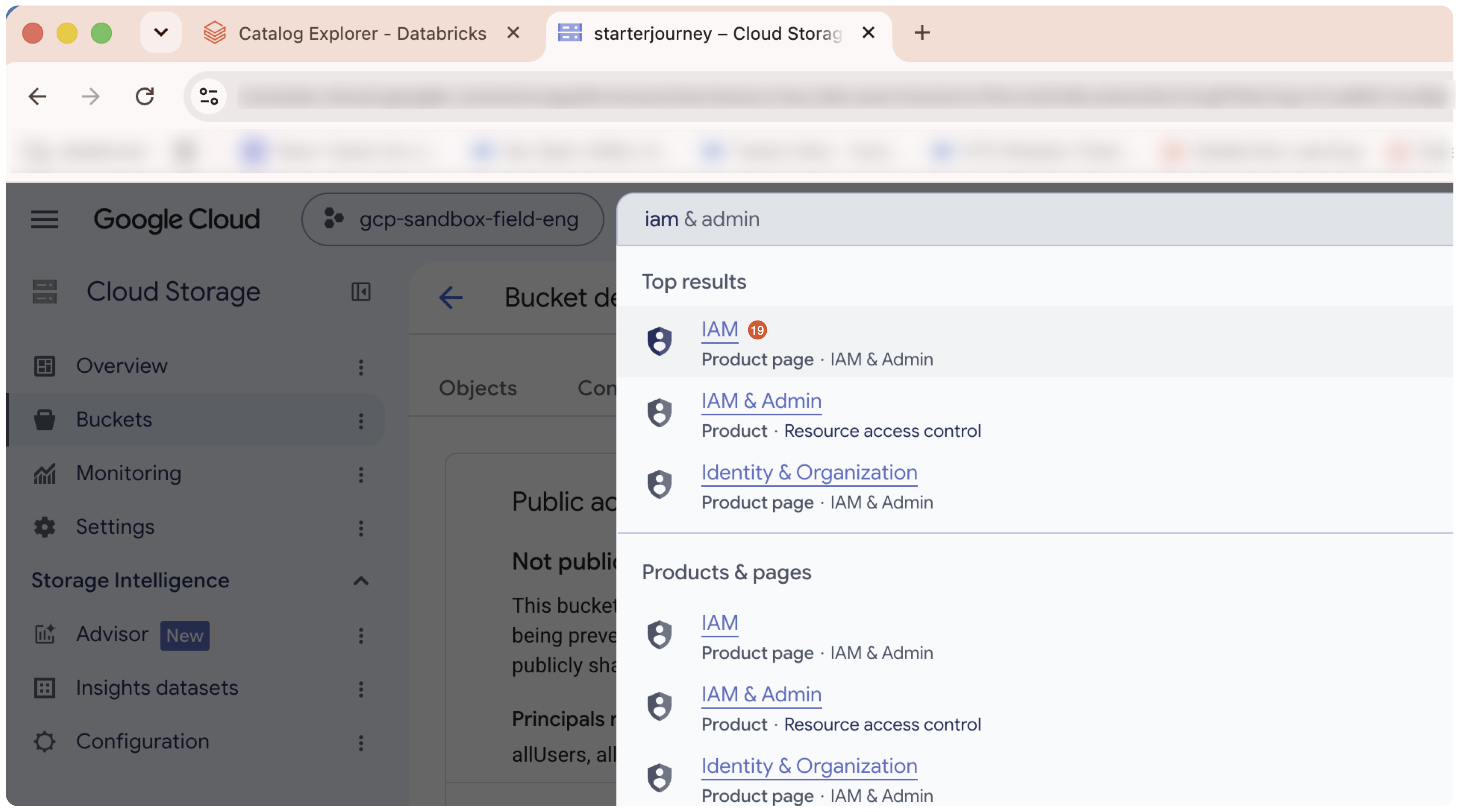
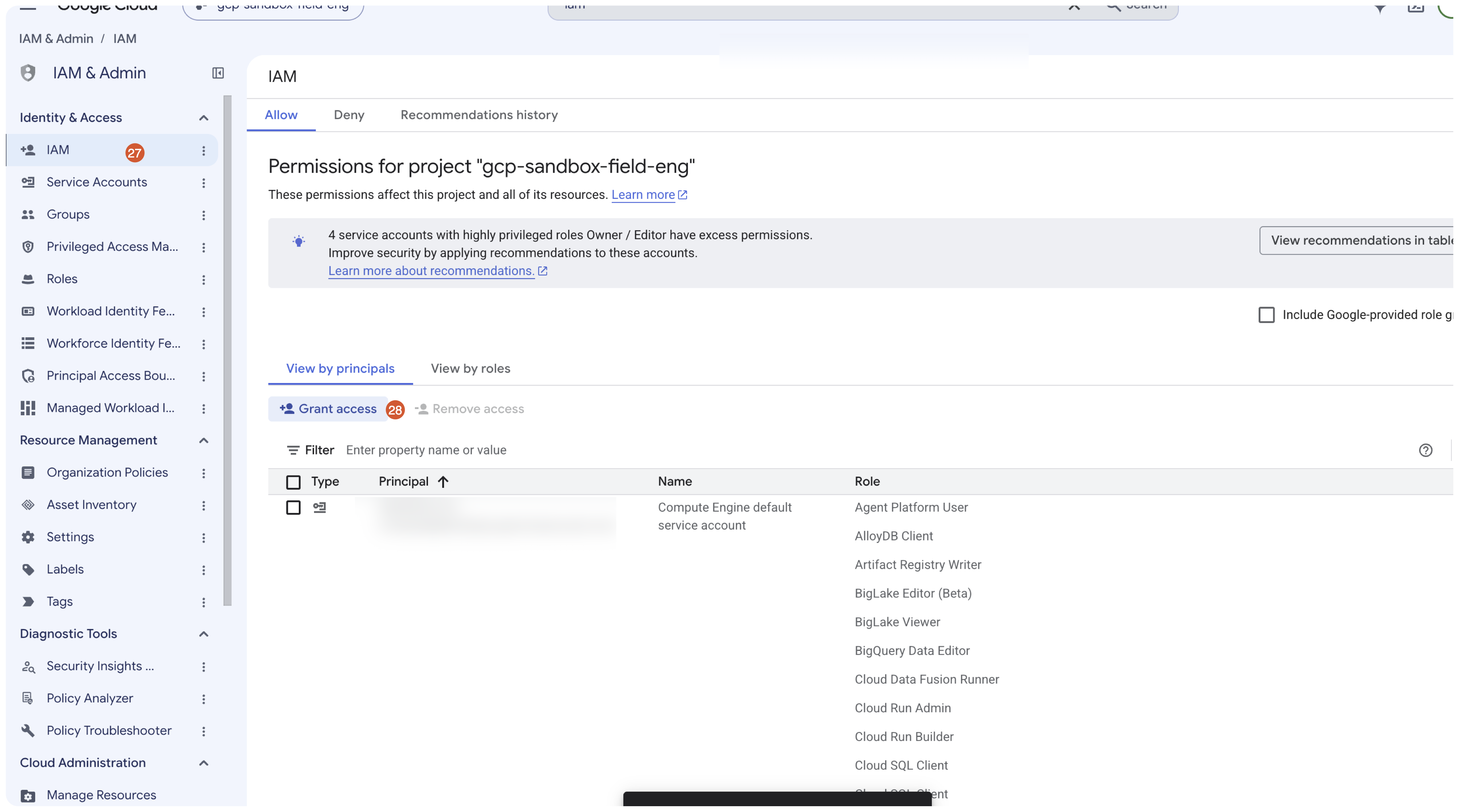
In the Google Cloud console, search for and open IAM & Admin > IAM.
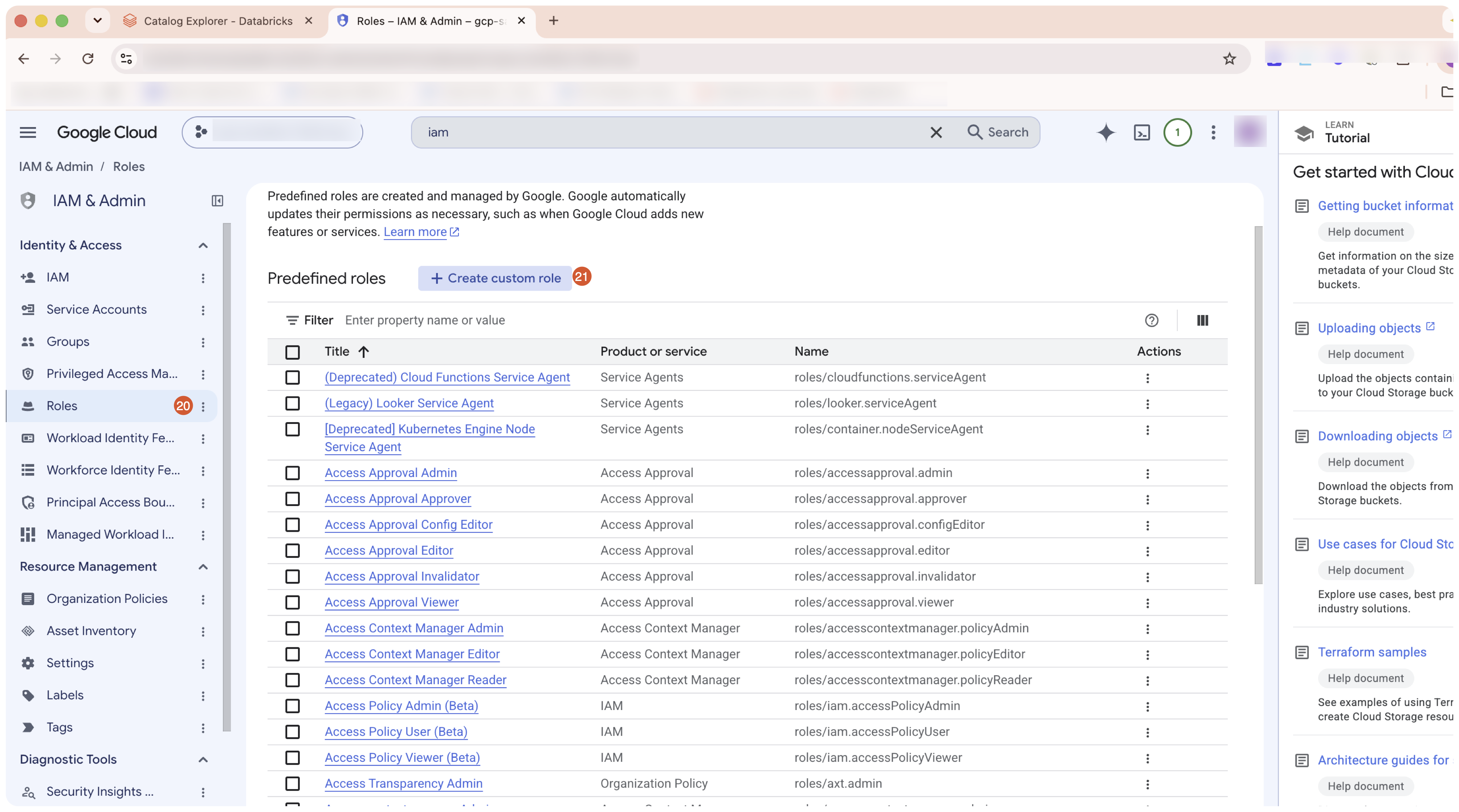
Go to Roles and click Create custom role.
Give the role a title (for example starterjourney-file-events) and ID, then click Add permissions.
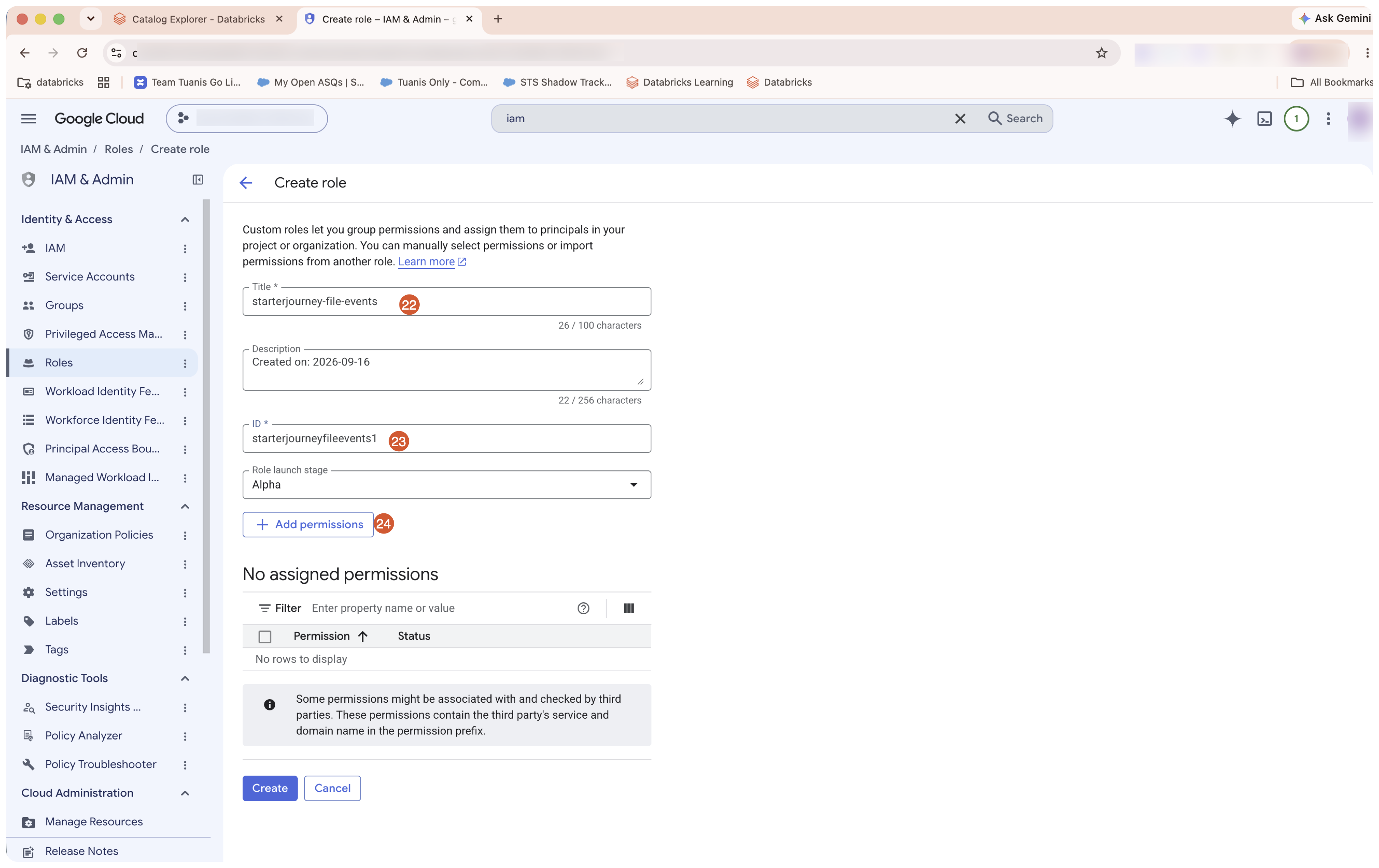
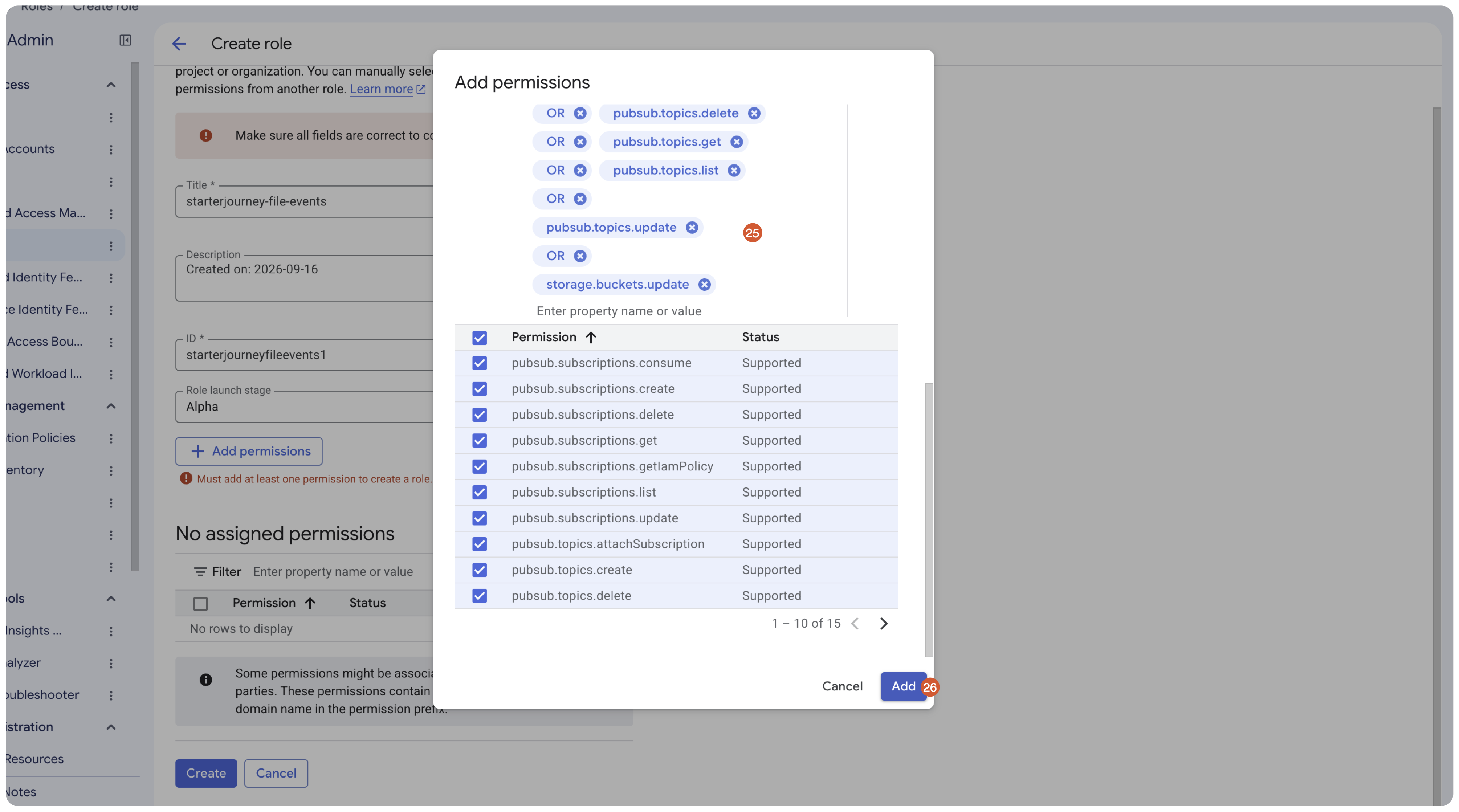
Add these permissions, click Add, then Create the role:
pubsub.subscriptions.consume
pubsub.subscriptions.create
pubsub.subscriptions.delete
pubsub.subscriptions.get
pubsub.subscriptions.list
pubsub.subscriptions.update
pubsub.topics.attachSubscription
pubsub.topics.detachSubscription
pubsub.topics.create
pubsub.topics.delete
pubsub.topics.get
pubsub.topics.list
pubsub.topics.update
storage.buckets.update
Back on IAM, click Grant access.
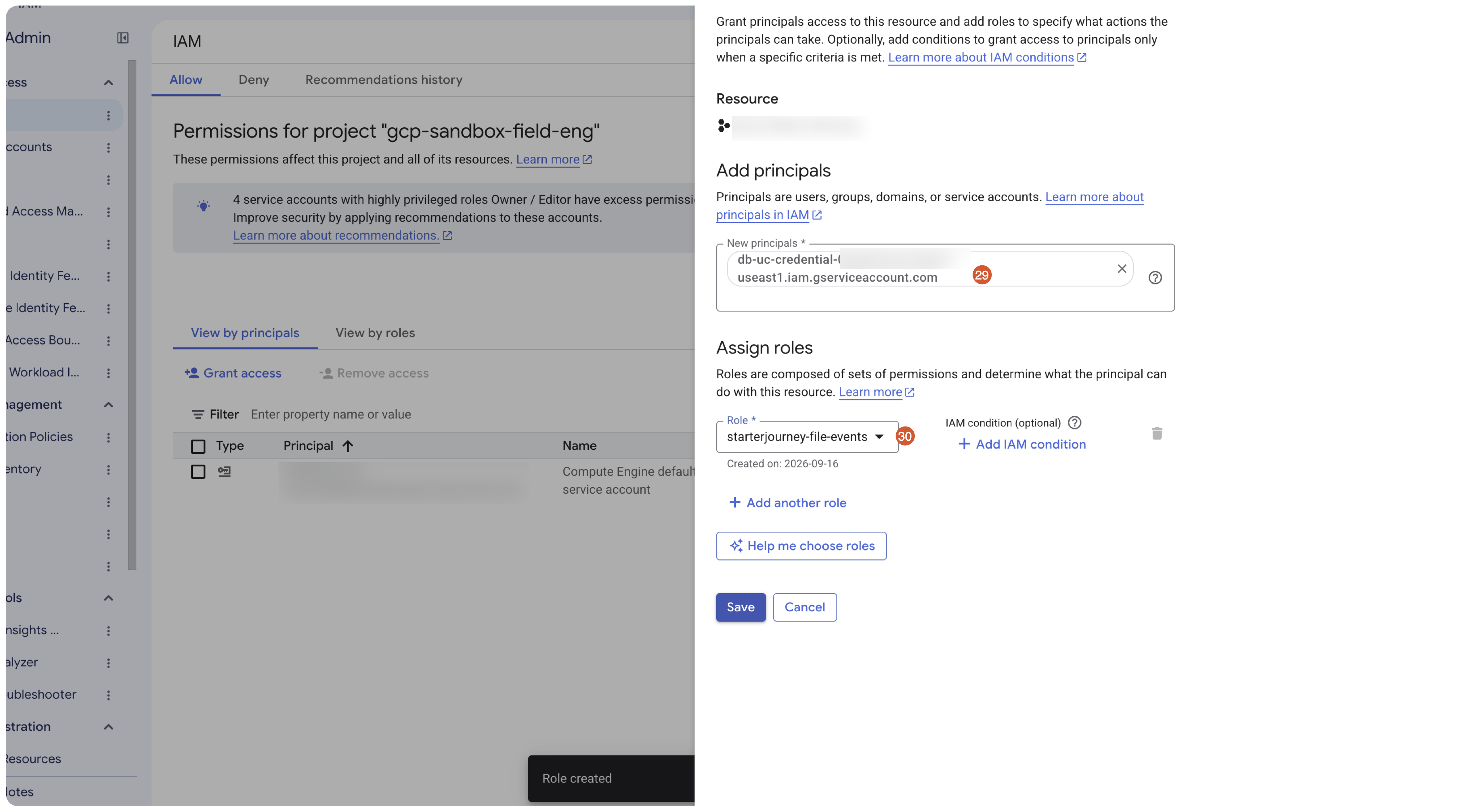
In New principals, paste the credential's service account email (the db-uc-credential- one). In Assign roles, select the custom role you just created, then click Save.
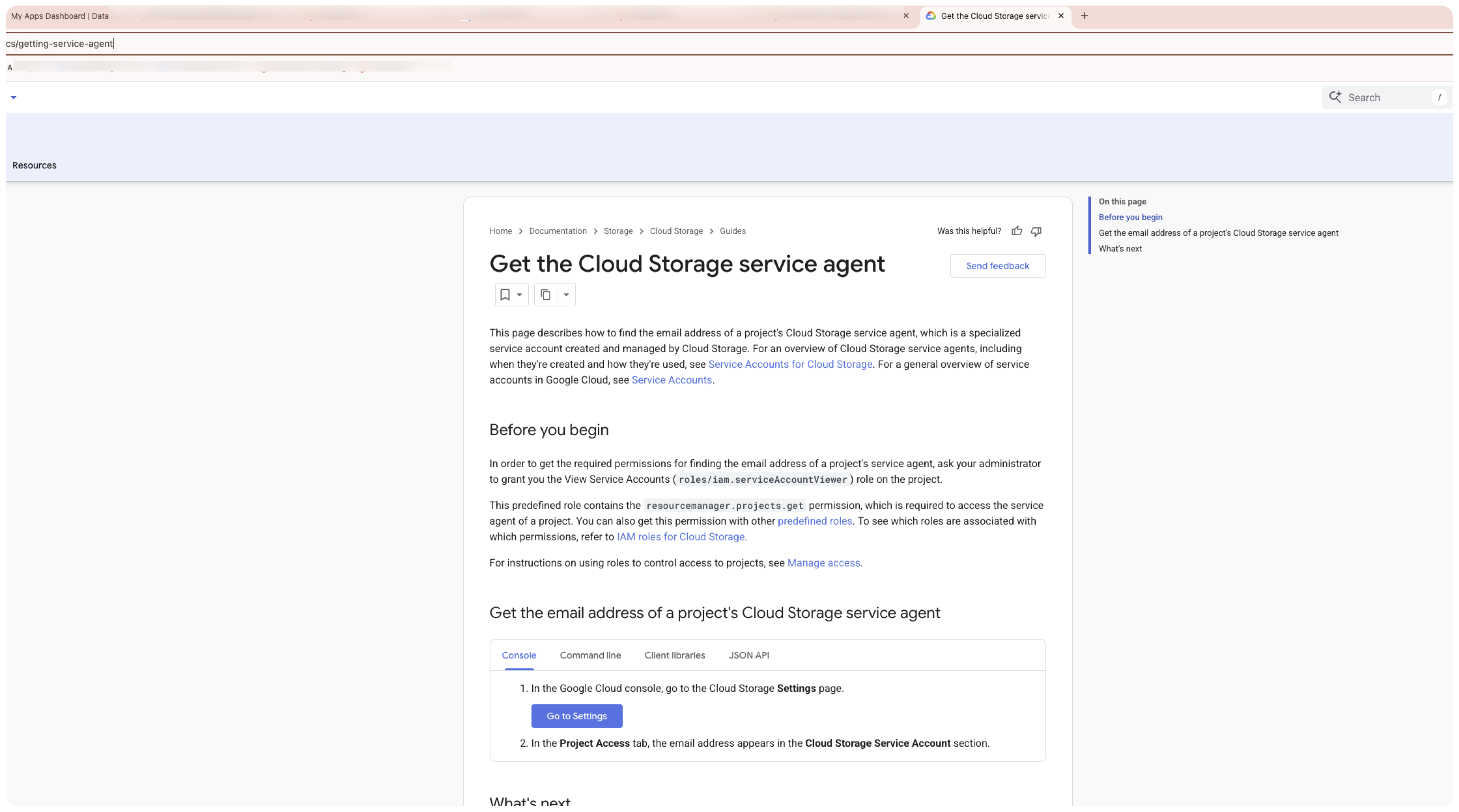
Now find the project's Cloud Storage service agent — a Google-managed account that publishes notifications. See the Google guide, Get the Cloud Storage service agent.
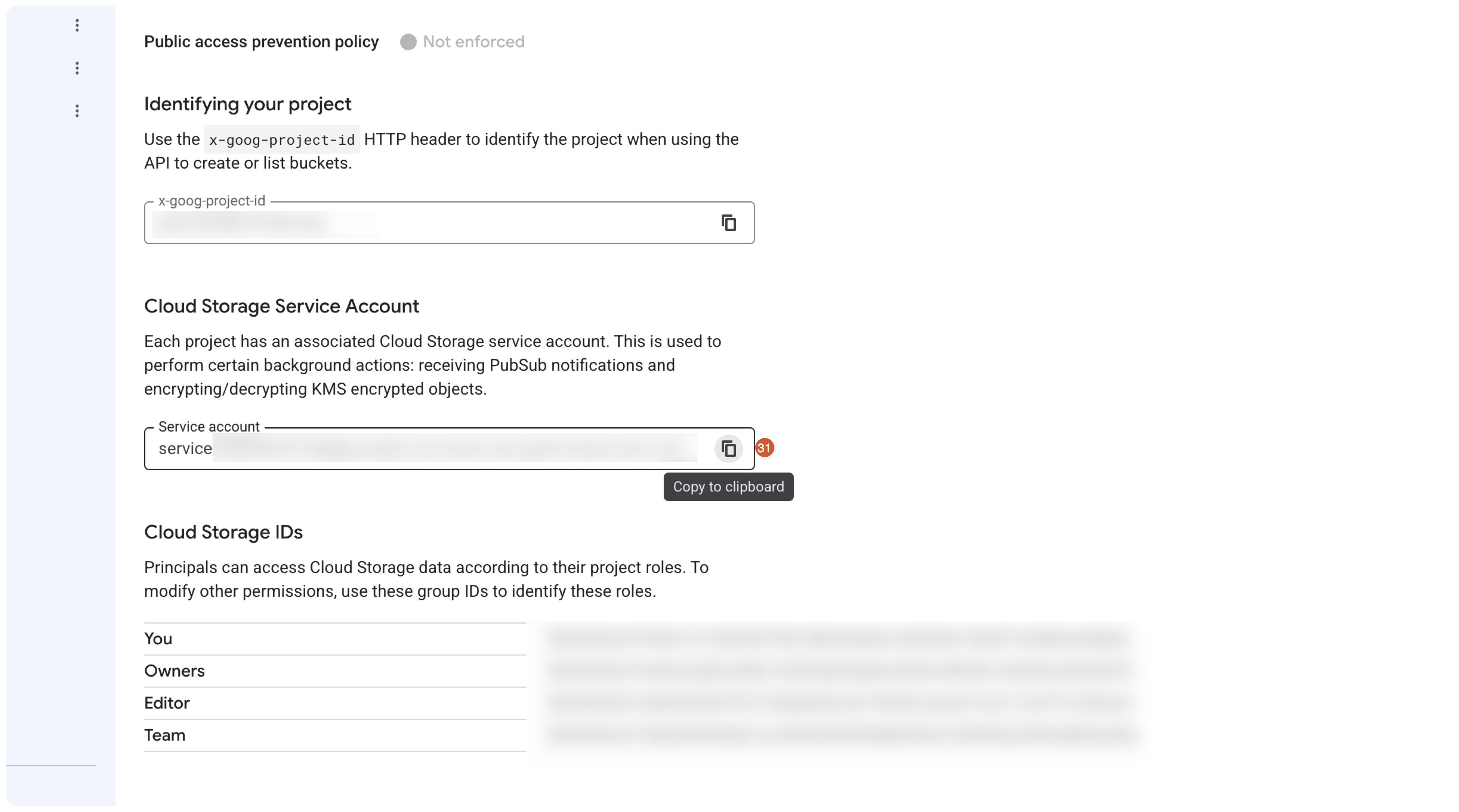
In Cloud Storage > Settings, copy the Cloud Storage Service Account email.
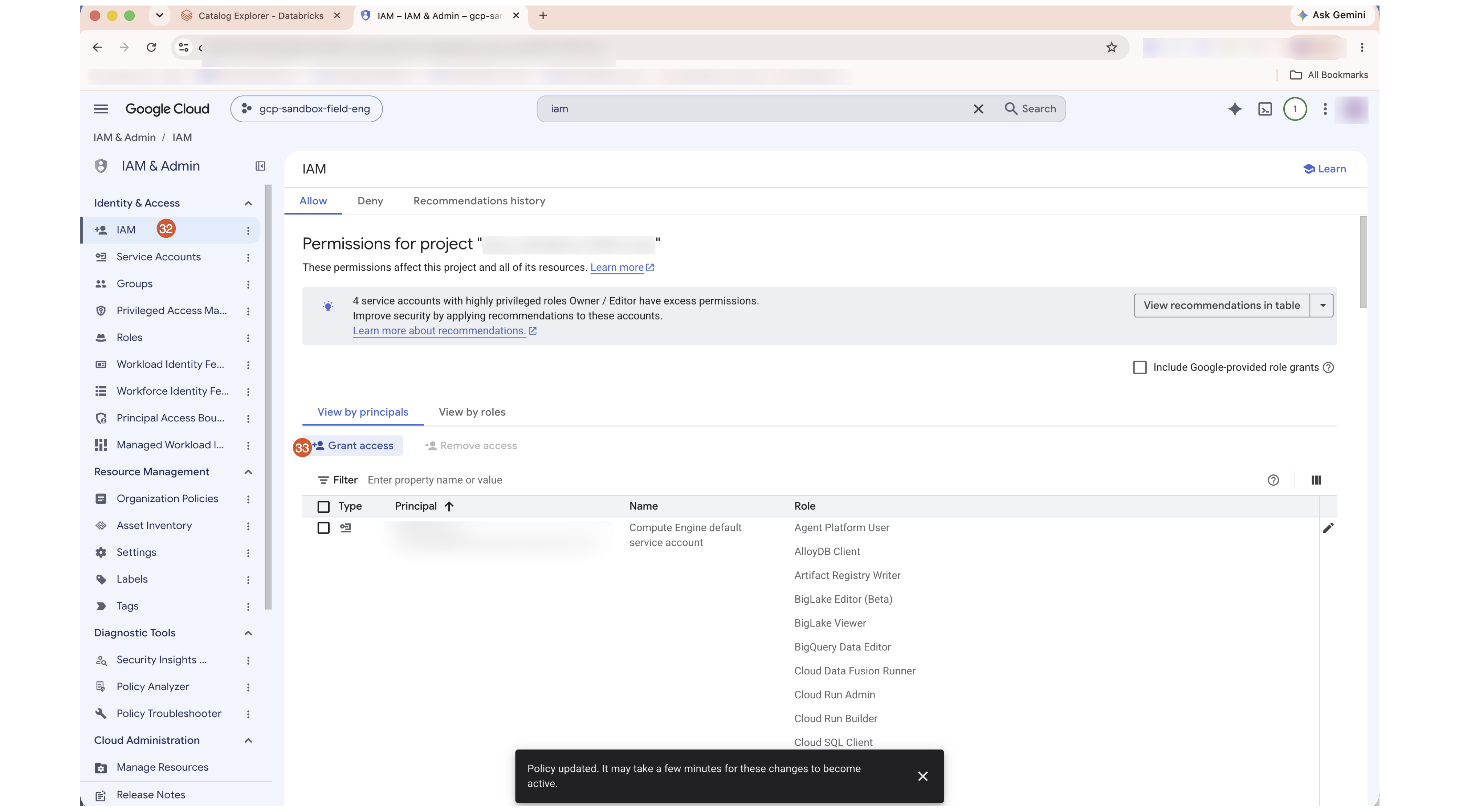
Back on IAM, click Grant access again.
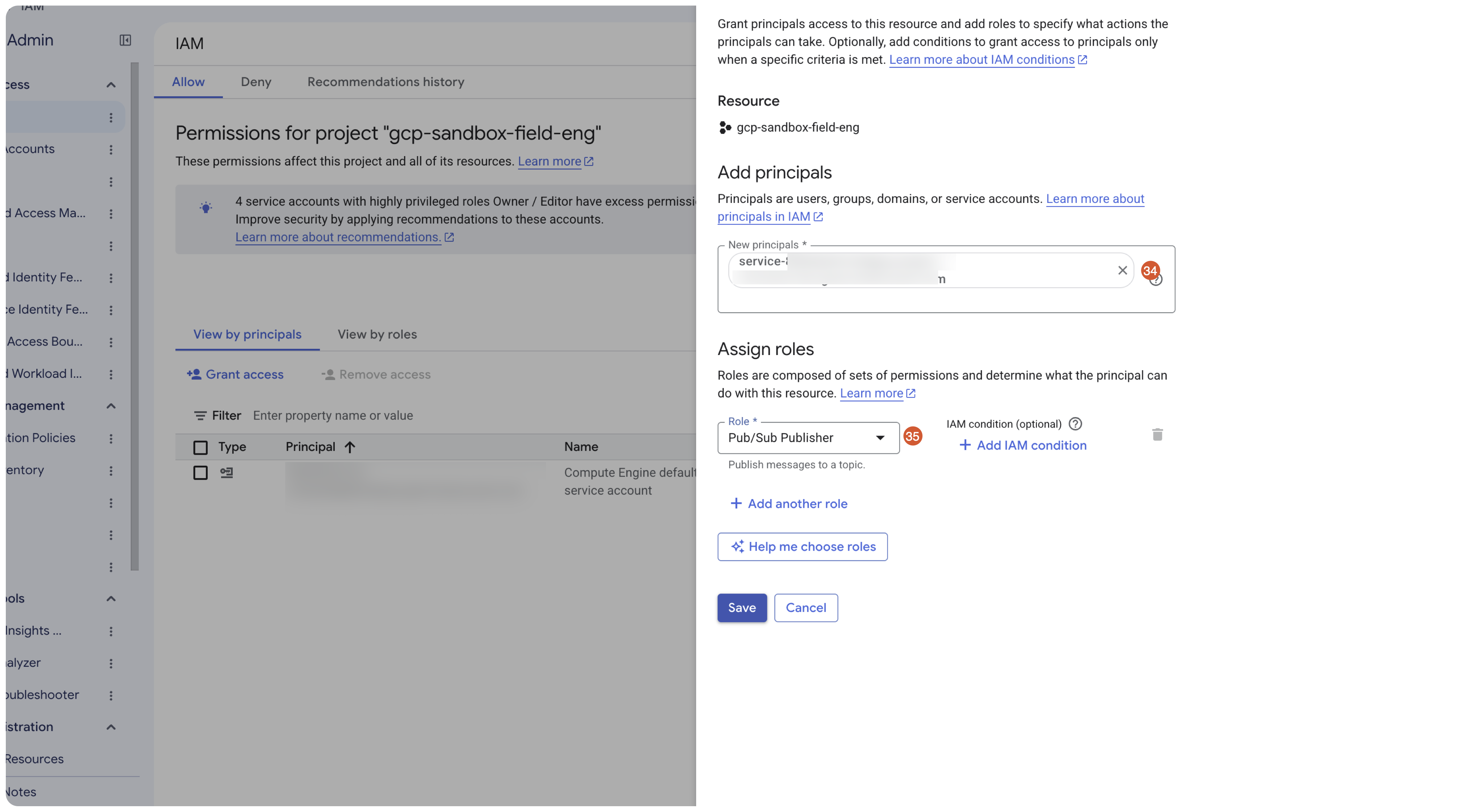
Paste the Cloud Storage service agent email into New principals, assign the Pub/Sub Publisher role, then click Save.
Reference: Enable file events (Databricks docs)
Create an external location
The external location is the Unity Catalog object that points at the GCS bucket path through the storage credential you created.
Create an external location that points at the GCS path through your storage credential.
In the Databricks workspace, click Catalog, then click Create > Create an external location.
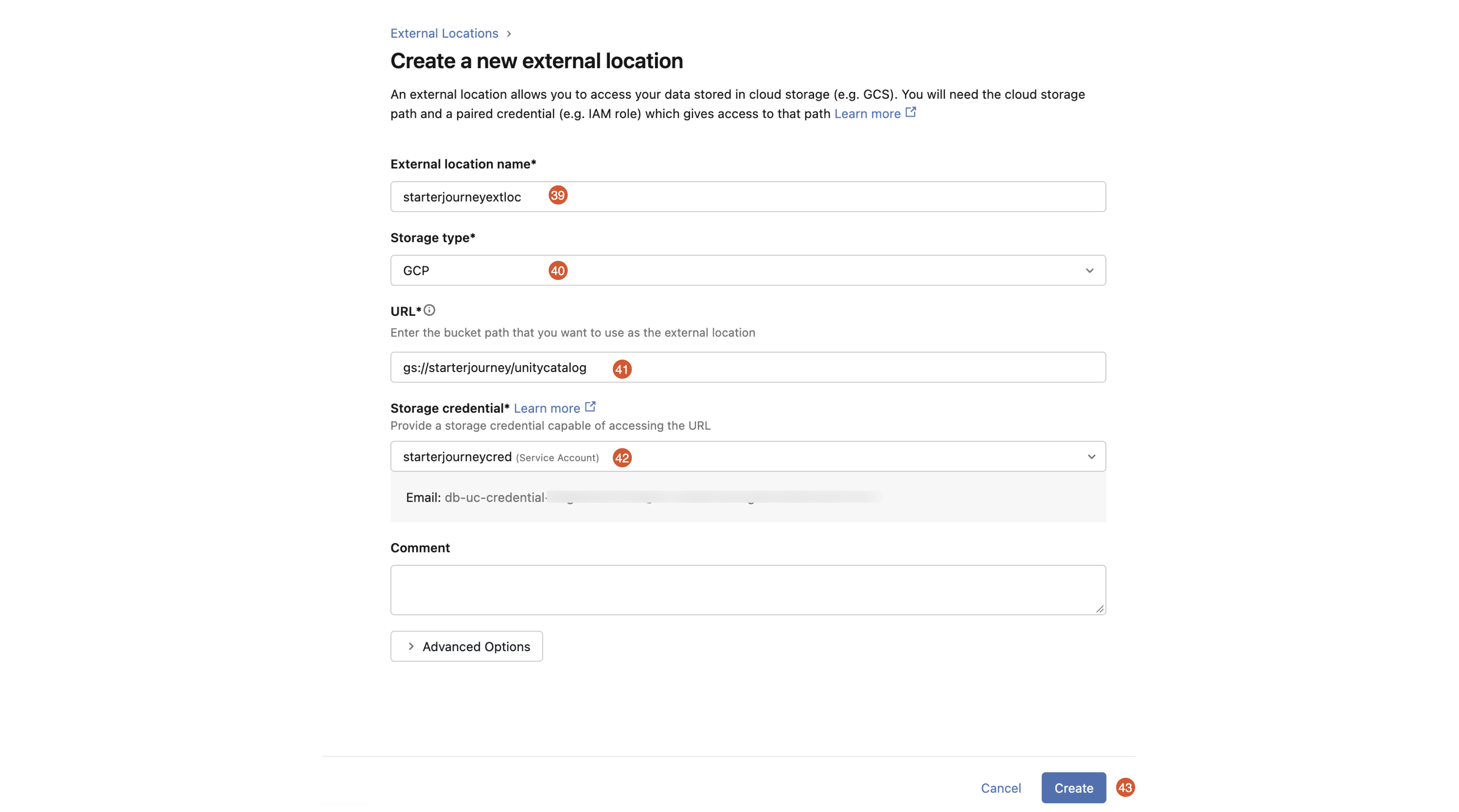
Fill in the form:
- External location name: a descriptive name (for example
starterjourneyextloc). - Storage type: GCP.
- URL: the bucket path,
gs://<bucket-name>/<directory>(for examplegs://starterjourney/unitycatalog). - Storage credential: the credential you created earlier.
Click Create.
If this location holds source data you only read from, mark it read-only afterward so a stray job cannot overwrite it. Follow Mark an external location as read-only.
Verify
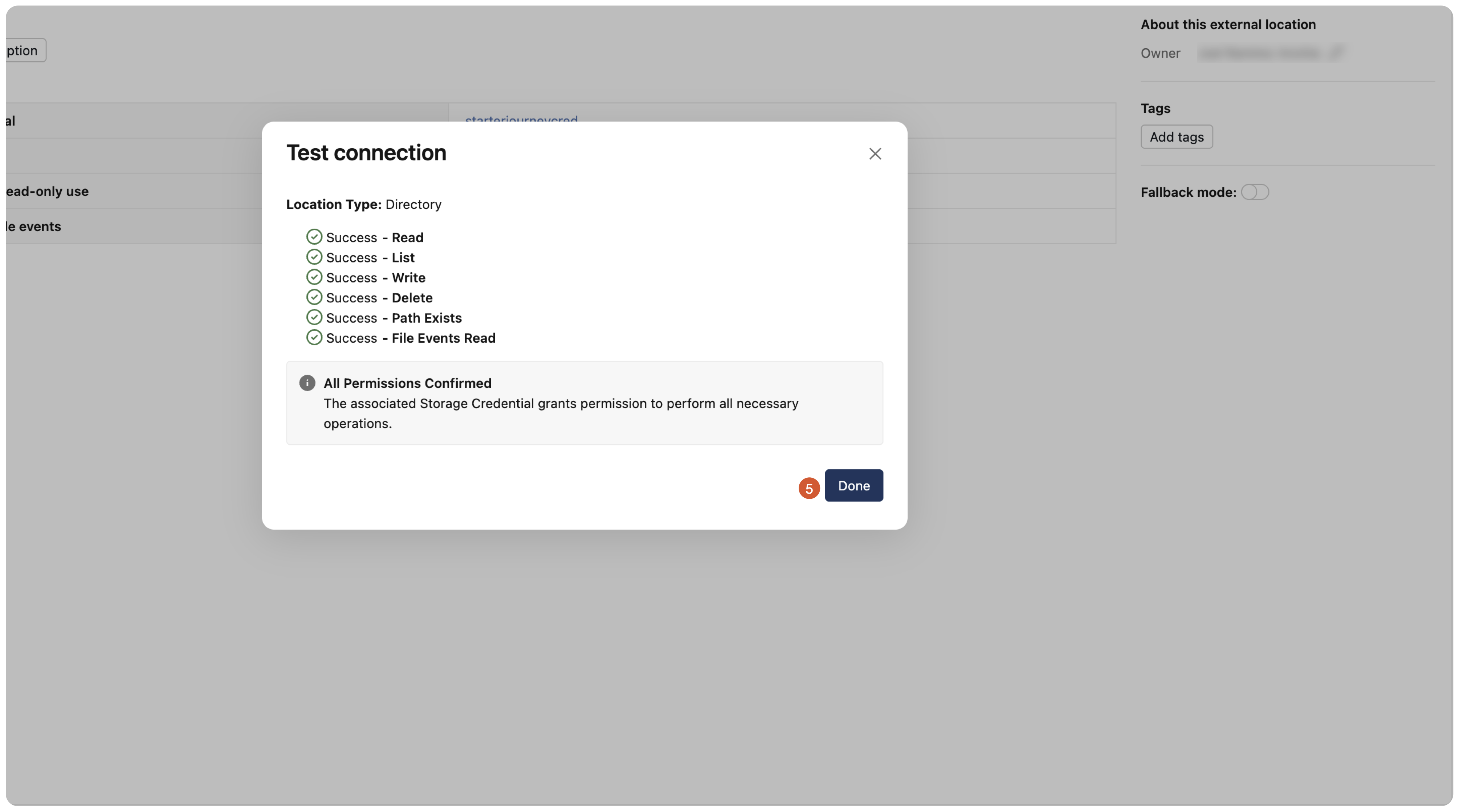
Test the external location's connection to confirm everything is wired up. A green success status means the service account, its bucket roles, the storage credential, and the external location all line up.
Test the external location's connection from Unity Catalog and confirm every check passes.
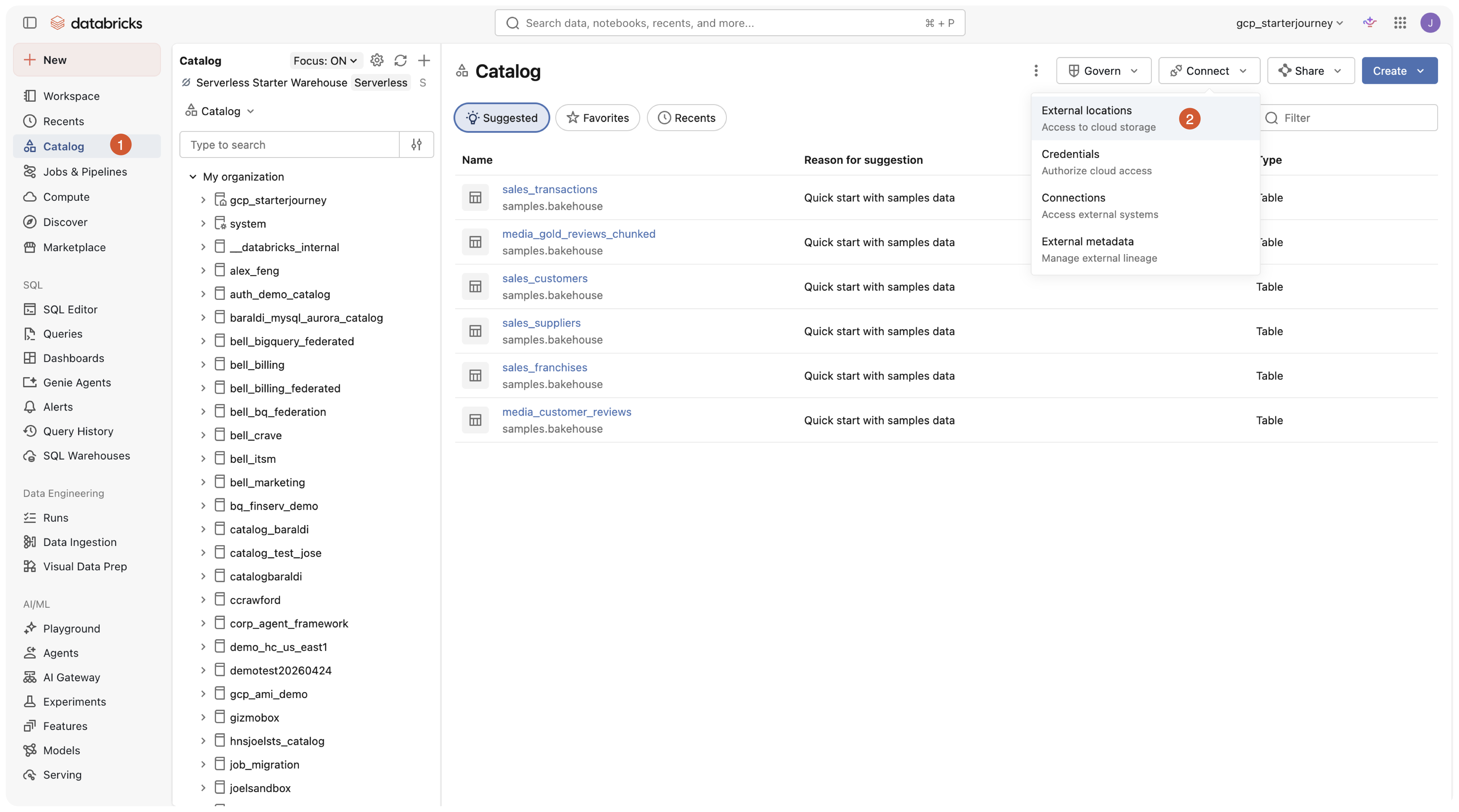
In the Databricks workspace, open Catalog, then click Connect > External locations to open the External Data page.
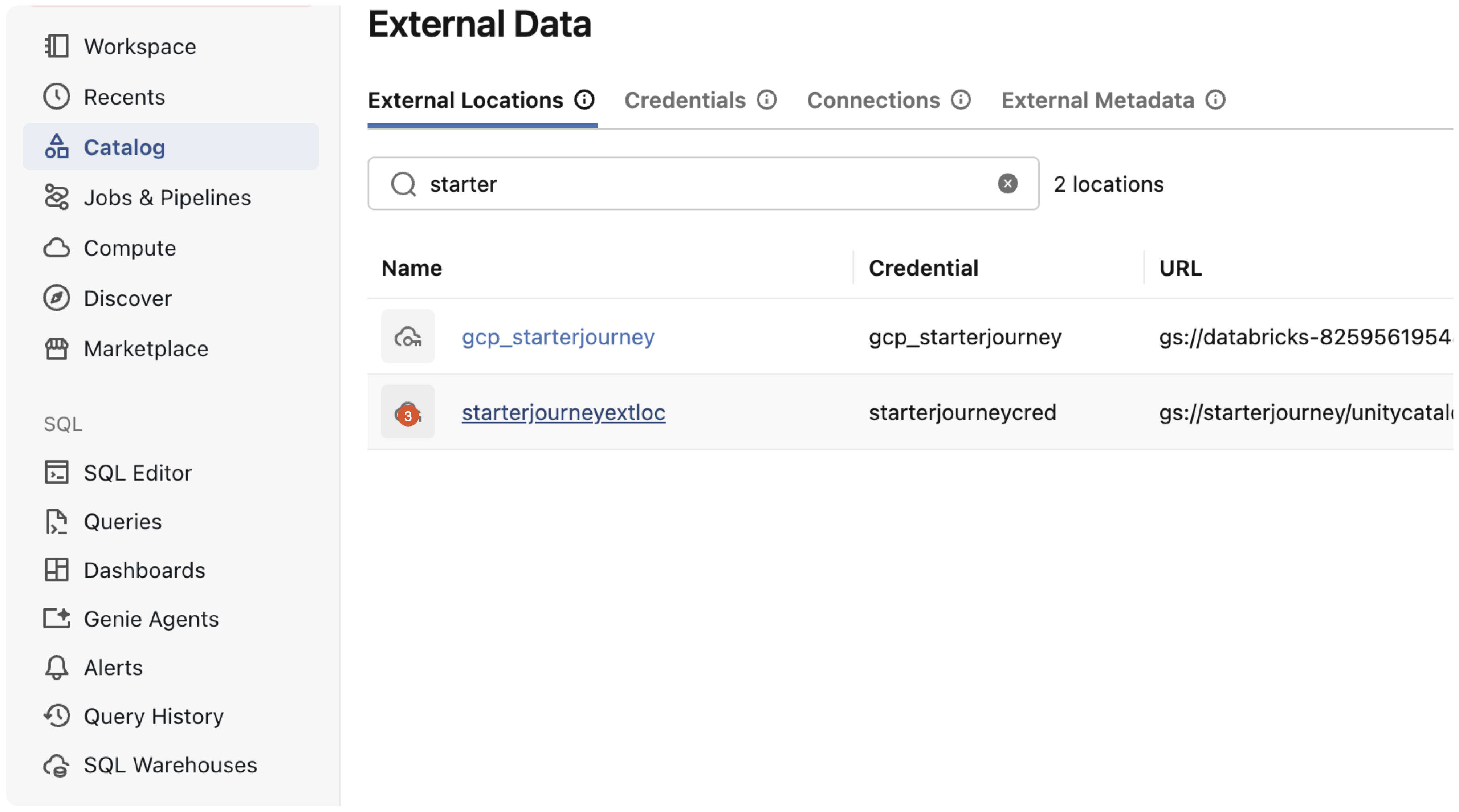
On the External Locations tab, click the external location you created.
On the location's Overview tab, click Test connection in the top-right corner.
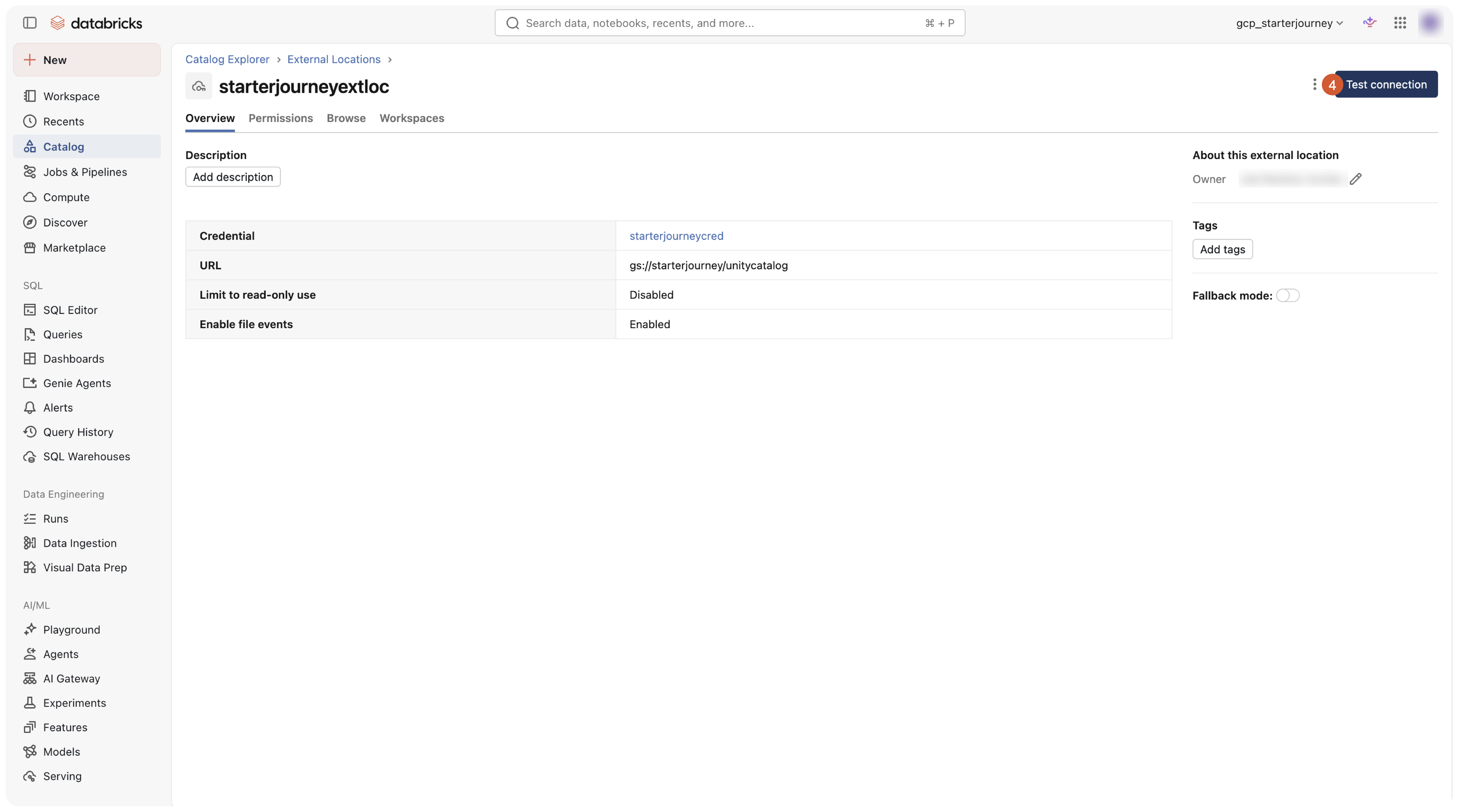
Confirm the dialog reports a success status for every check (read, list, write, delete, and path), then click Done.
Reference: Manage external locations (Databricks docs)
Where people trip
Test connection fails with permission denied
The service account behind the storage credential is missing a role on the bucket. Confirm both Storage Legacy Bucket Reader and Storage Object Admin are granted to the db-uc-credential- service account on the bucket's Permissions tab, then test again.
External location creation fails with invalid URL
The URL has to be gs://<bucket-name>/<directory>. Confirm the bucket exists and the name is spelled correctly.
File events don't fire
File events need both grants: the custom Pub/Sub role on the credential's service account, and Pub/Sub Publisher on the project's Cloud Storage service agent. Re-check the Enable file events grants — the service agent grant is the most common one to miss.
Bonus: Create a GCS bucket
If you don't already have a GCS bucket, create one here first, then go back to Create a storage credential and point the external location at the new bucket.
Create a GCS bucket to use as a landing zone or as Unity Catalog storage.
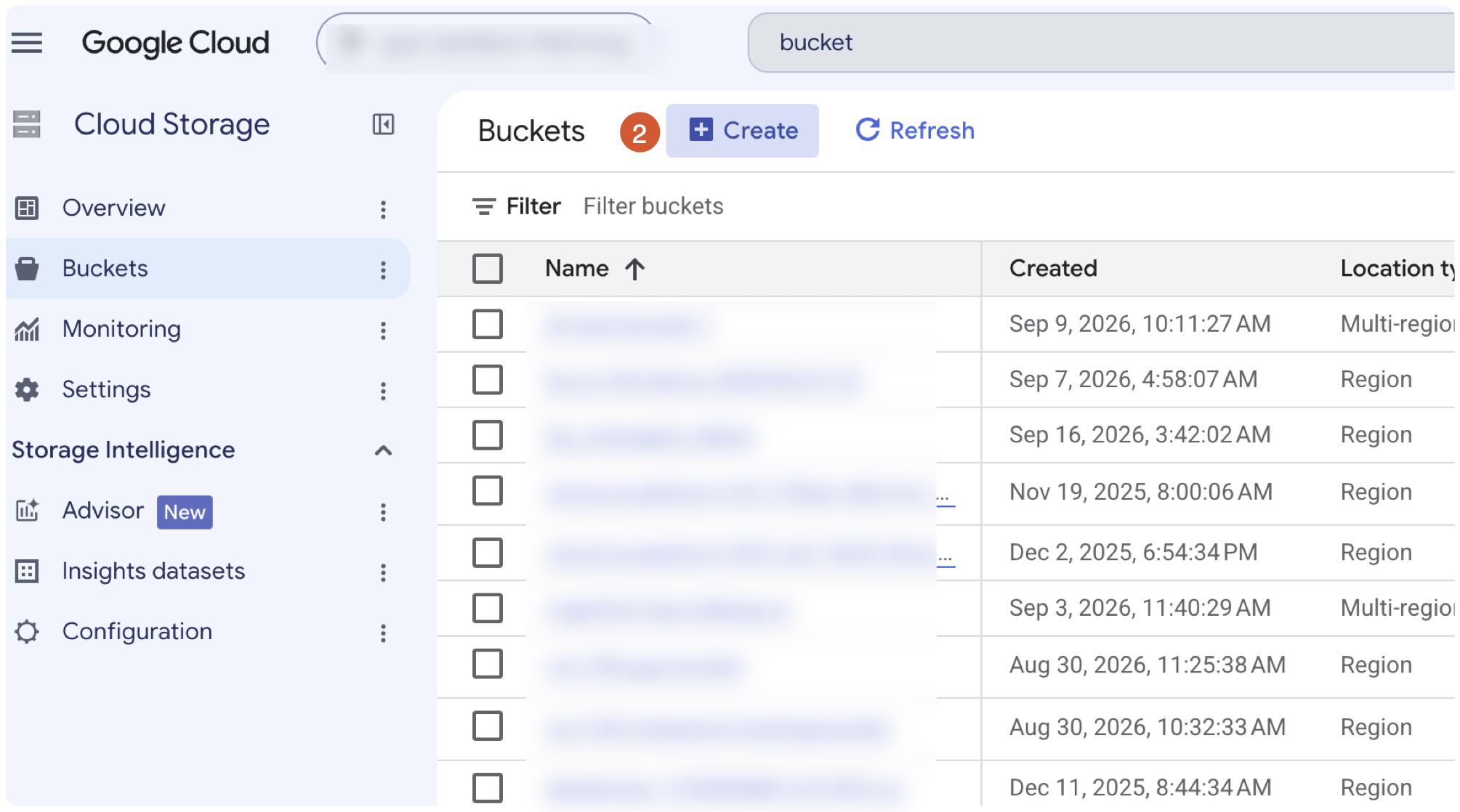
In the Google Cloud console, open Cloud Storage > Buckets and click Create.
Under Get started, enter a globally unique name (for example starterjourney), then continue through the wizard.
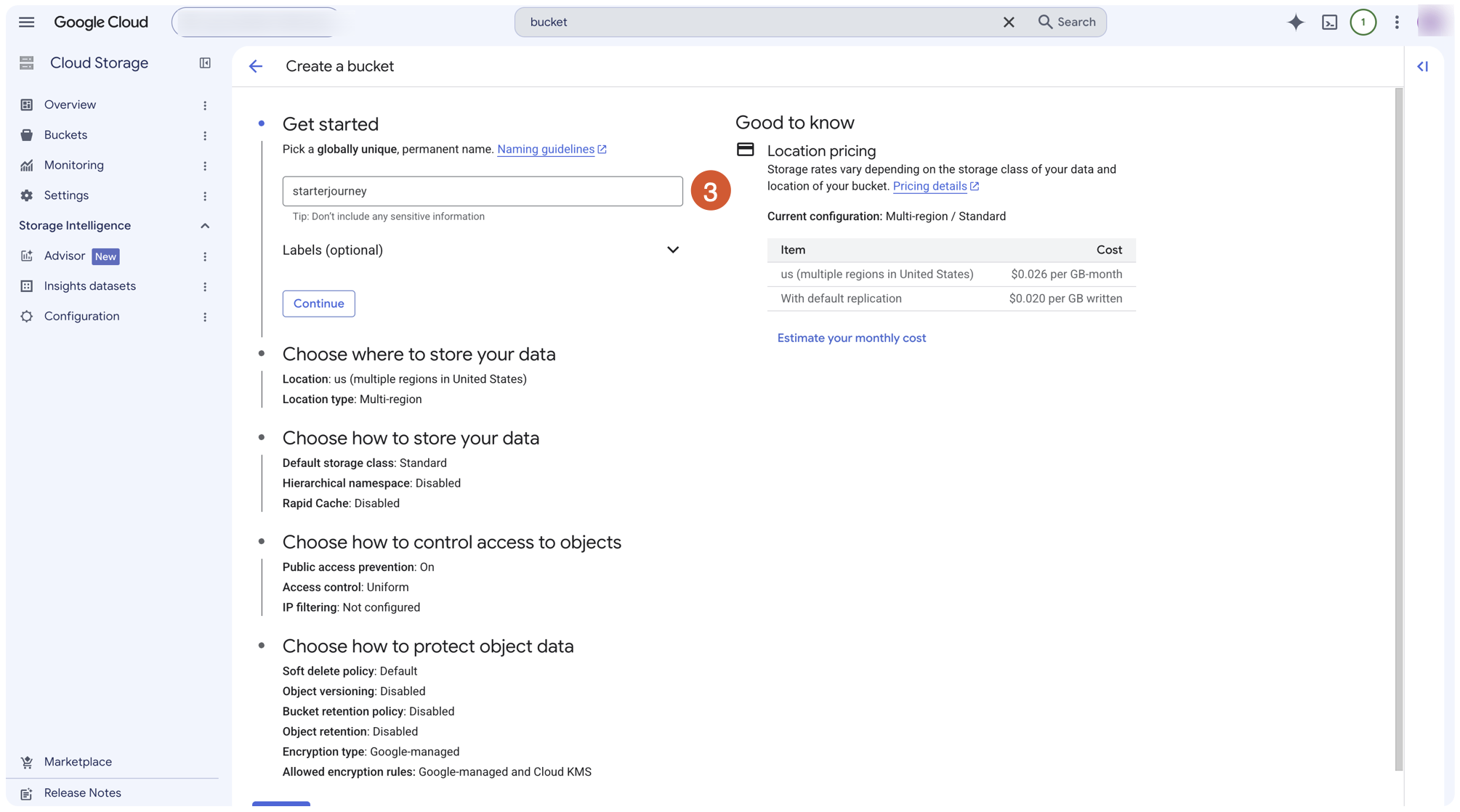
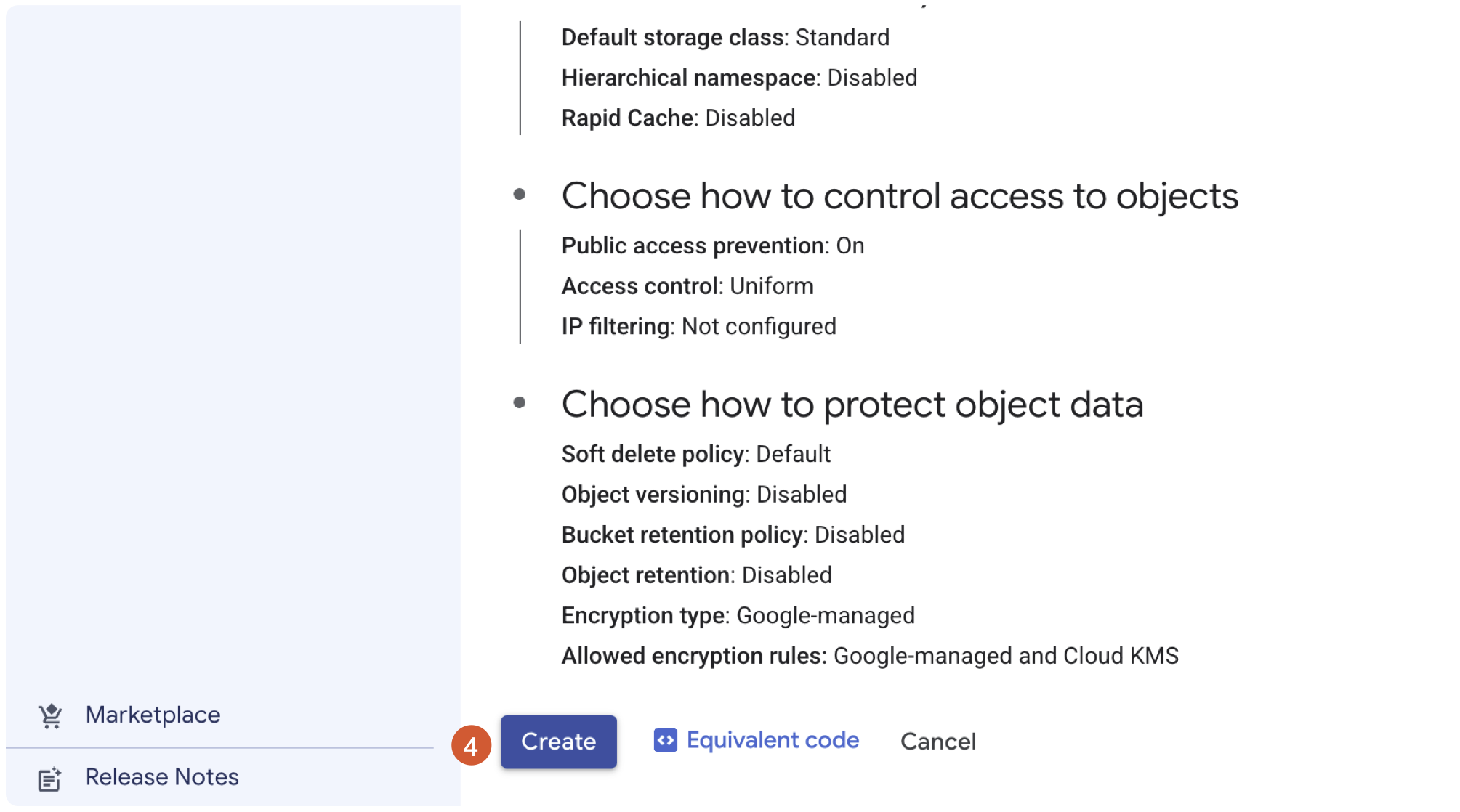
Review the configuration — Standard storage class, uniform access control, public access prevention on — and click Create.
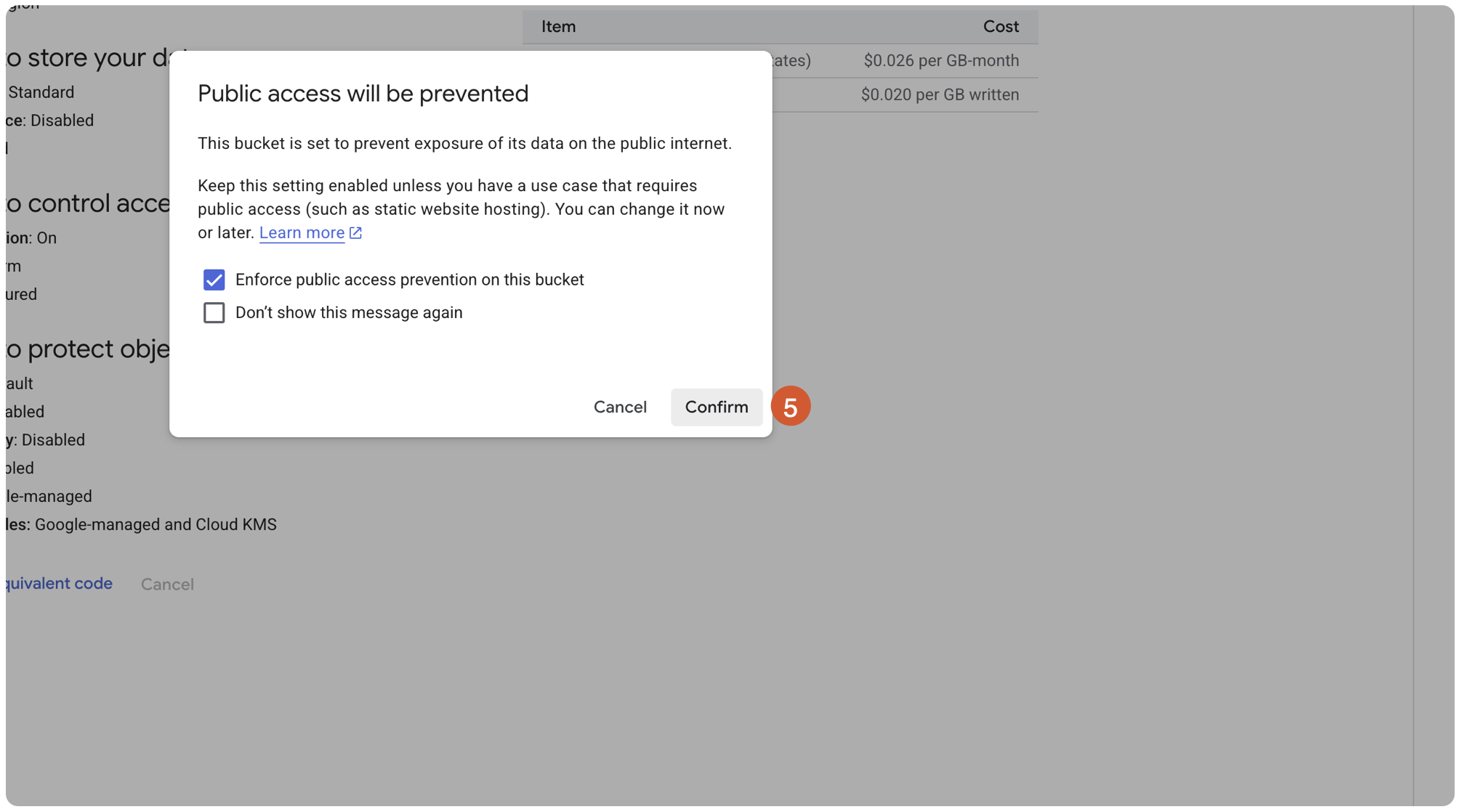
On the Public access will be prevented dialog, keep Enforce public access prevention on this bucket checked and click Confirm.
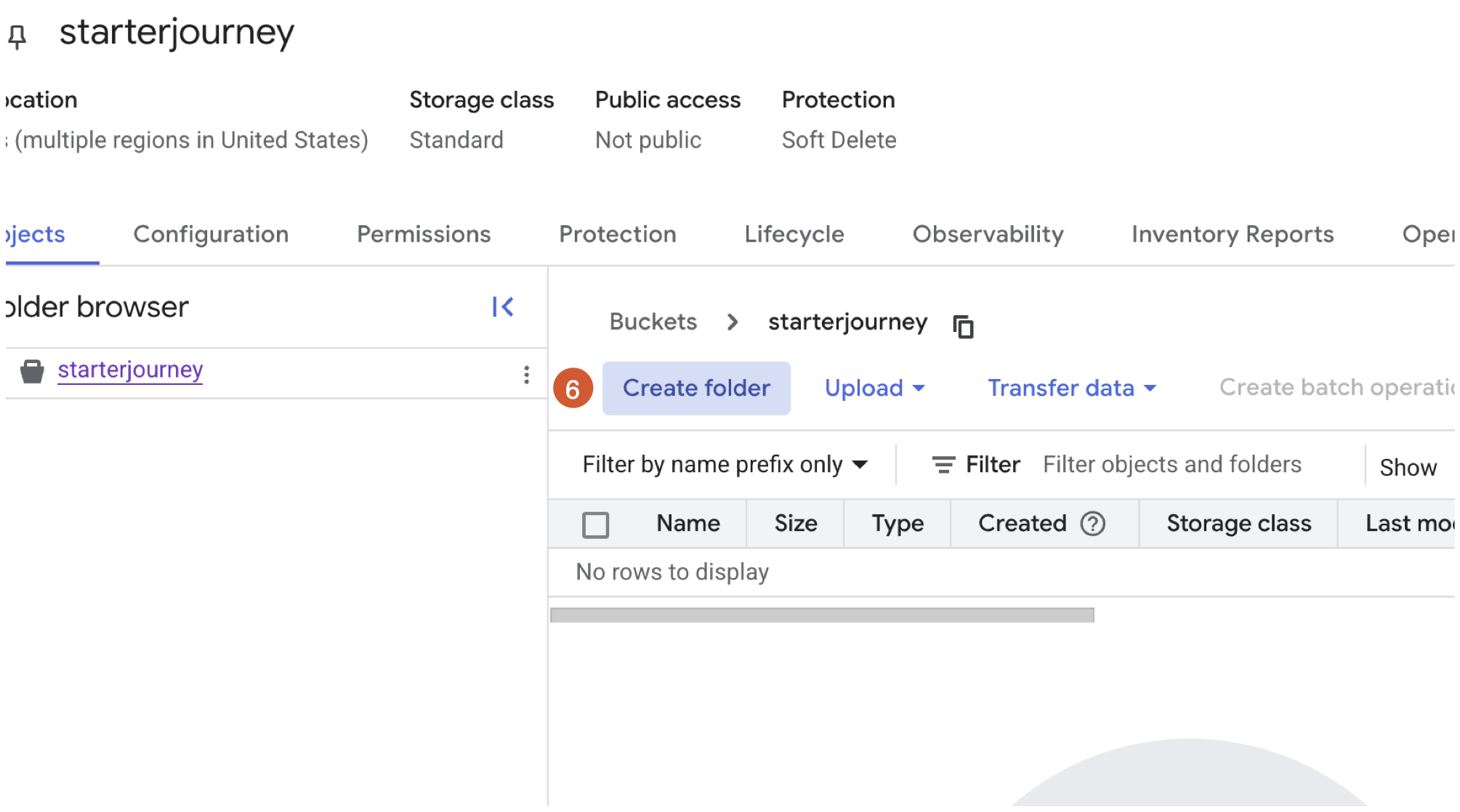
On the new bucket's Objects tab, click Create folder to add a directory for Unity Catalog.
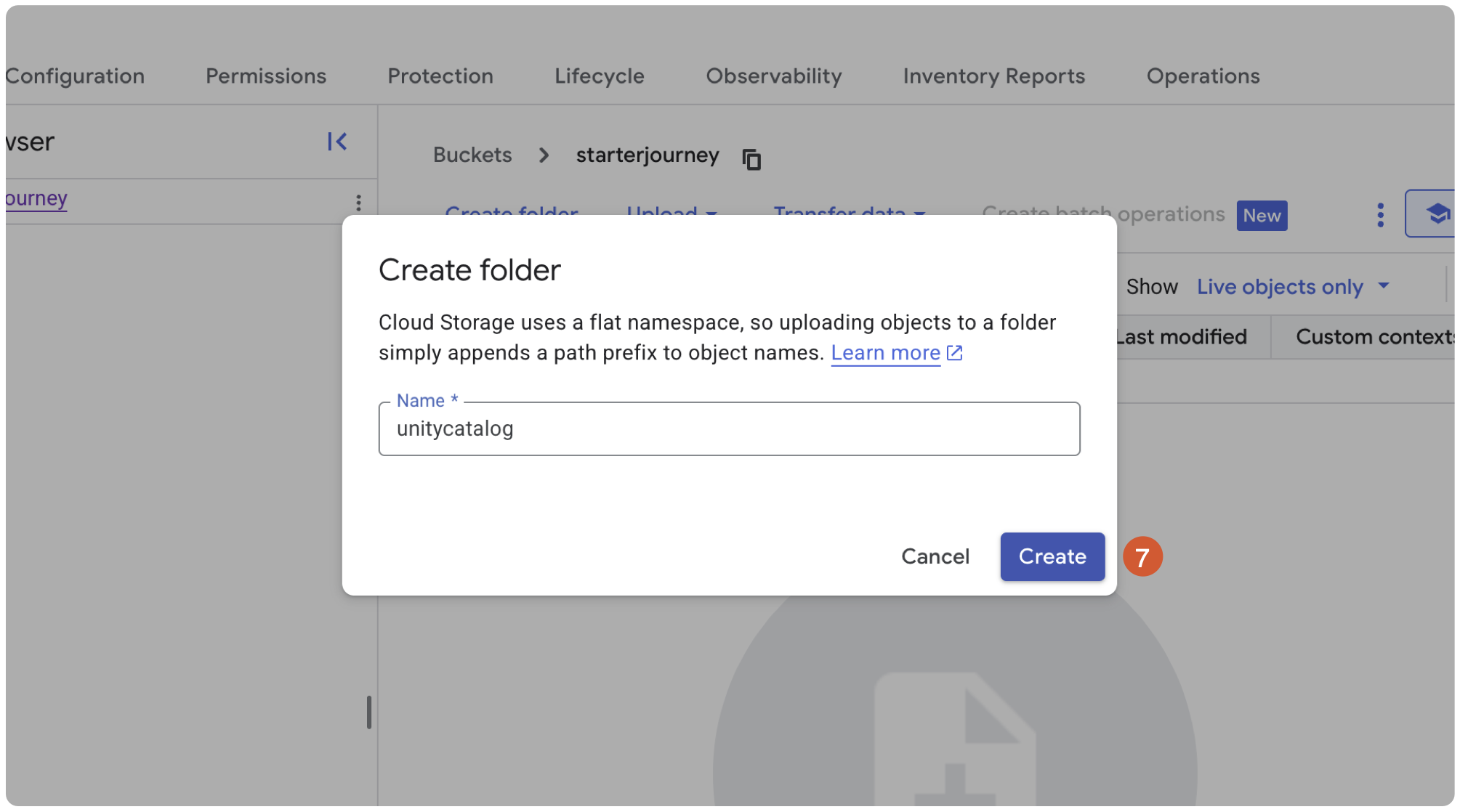
Name the folder (for example unitycatalog) and click Create. Use gs://<bucket-name>/<folder> as the external location URL.
Reference: Create a bucket (Google Cloud docs)
Next
- Do next: Managed connectors
- Learn why: Unity Catalog foundations
- Reference: Connect to a Google Cloud Storage (GCS) external location