AWS S3
You'll create an external location that points Databricks at an S3 bucket using the automatic setup option (Databricks provisions the IAM role and storage credential for you) in ~10 min. Need private connectivity from serverless? Add a network connectivity configuration. Need a bucket first? See the bonus at the end.
Prereqs: Cloud Object Storage overview, AWS account with IAM and S3 permissions, and a Databricks metastore admin or account admin
Existing or new bucket
Unity Catalog reaches S3 through an external location — a named object that points at an s3:// path through a storage credential (an IAM role Databricks assumes). There are two reasons to create one:
- Access an existing S3 bucket with data. When a bucket already holds data, point an external location at it so Unity Catalog can read (and optionally write) that data in place — usually to ingest it into Databricks. Mark the location read-only if you only need to read from it.
- Use a new bucket for Unity Catalog managed data. Create a fresh S3 bucket for Unity Catalog to store managed tables and volumes, then point an external location (or a catalog's managed storage) at it.
Either way, the setup below is the same. This page assumes the bucket already exists; if it doesn't, create one first with the bonus.
The big picture
An S3 bucket Databricks reaches through a Unity Catalog storage credential and external location. You will not hand-write an IAM policy: the Set up Automatically option connects to your AWS account, provisions the IAM role and storage credential for you, and you approve the role creation in AWS. If your workspace uses serverless private networking, the optional NCC part gives serverless compute a private endpoint to reach the bucket.
Permissions you need
Check these before you start.
AWS
- Ability to sign in to the AWS account that owns the bucket and create IAM roles. If you cannot create roles, the automatic setup offers a Request approval path so an AWS administrator can approve the role creation for you.
Databricks
You need these Unity Catalog privileges. Metastore admins and account admins already have them. Workspace admin is not enough on its own.
| Privilege | On | Why you need it |
|---|---|---|
CREATE STORAGE CREDENTIAL | Metastore | The automatic setup creates the credential that wraps the IAM role. |
CREATE EXTERNAL LOCATION | Metastore | Create the path object. |
If you are not a metastore admin, ask one to grant your group:
GRANT CREATE STORAGE CREDENTIAL, CREATE EXTERNAL LOCATION ON METASTORE TO `your-group`;
Creating a network connectivity configuration and attaching it to a workspace also needs account admin.
Create an external location
The external location is the Unity Catalog object that points at the S3 bucket. The automatic setup provisions the IAM role and storage credential for you, so you only approve the role creation in AWS.
Create an external location with the automatic setup option and approve the IAM role in AWS.
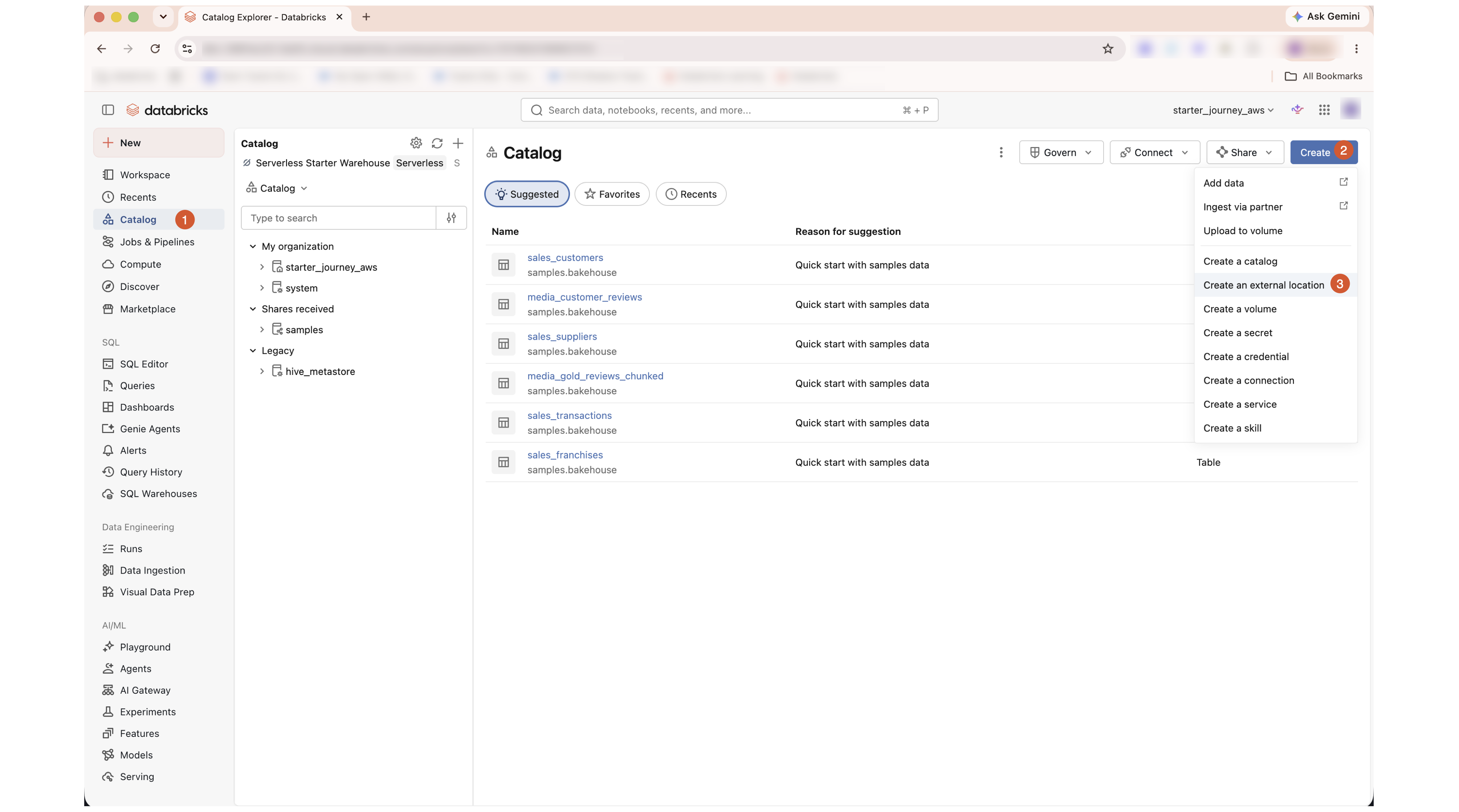
In the Databricks workspace, click Catalog in the left sidebar, then click Create > Create an external location.
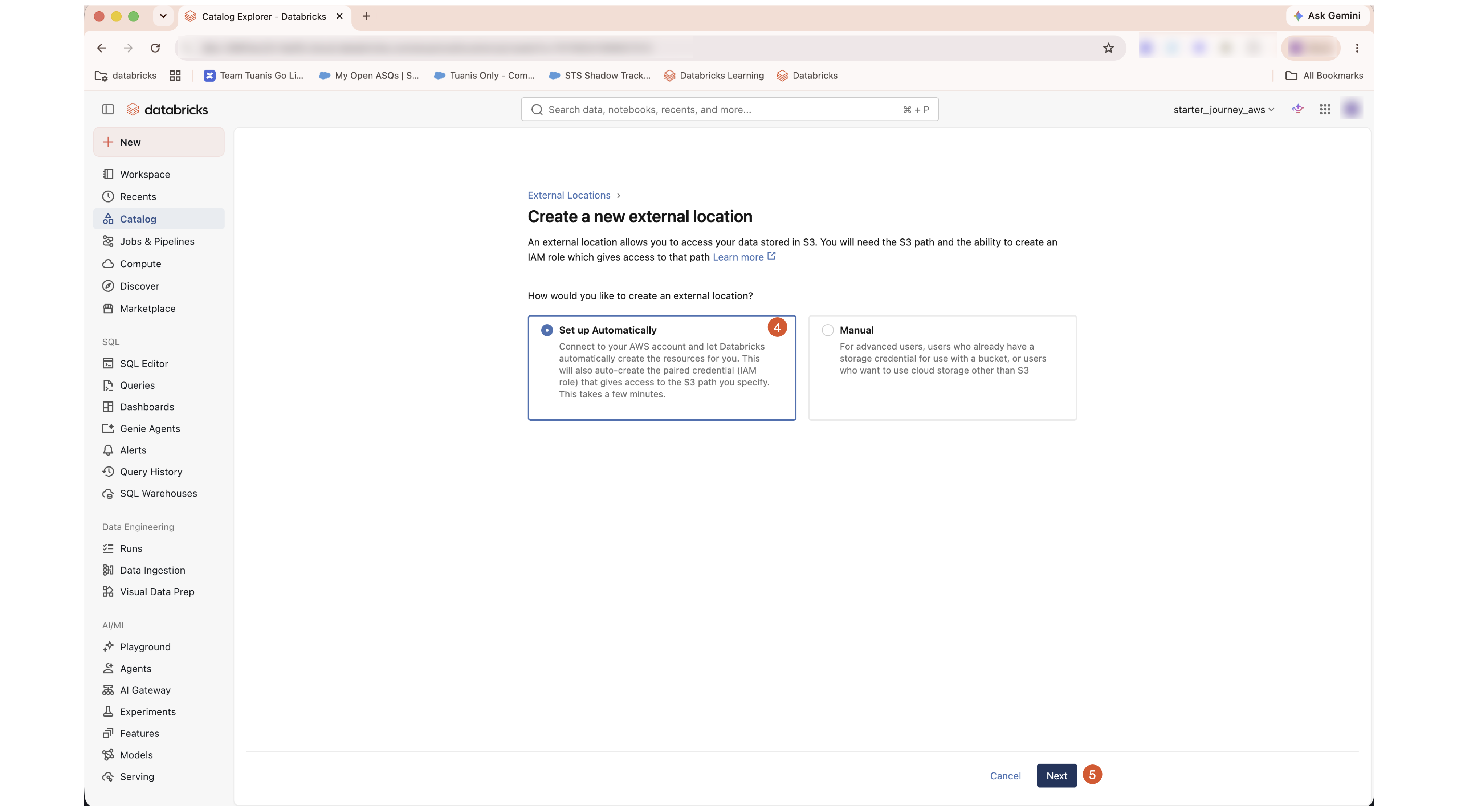
On Create a new external location, select Set up Automatically and click Next. This connects to your AWS account and auto-creates the paired credential (IAM role) that gives access to the S3 path. (Manual is for advanced users who already have a storage credential or use non-S3 storage.)
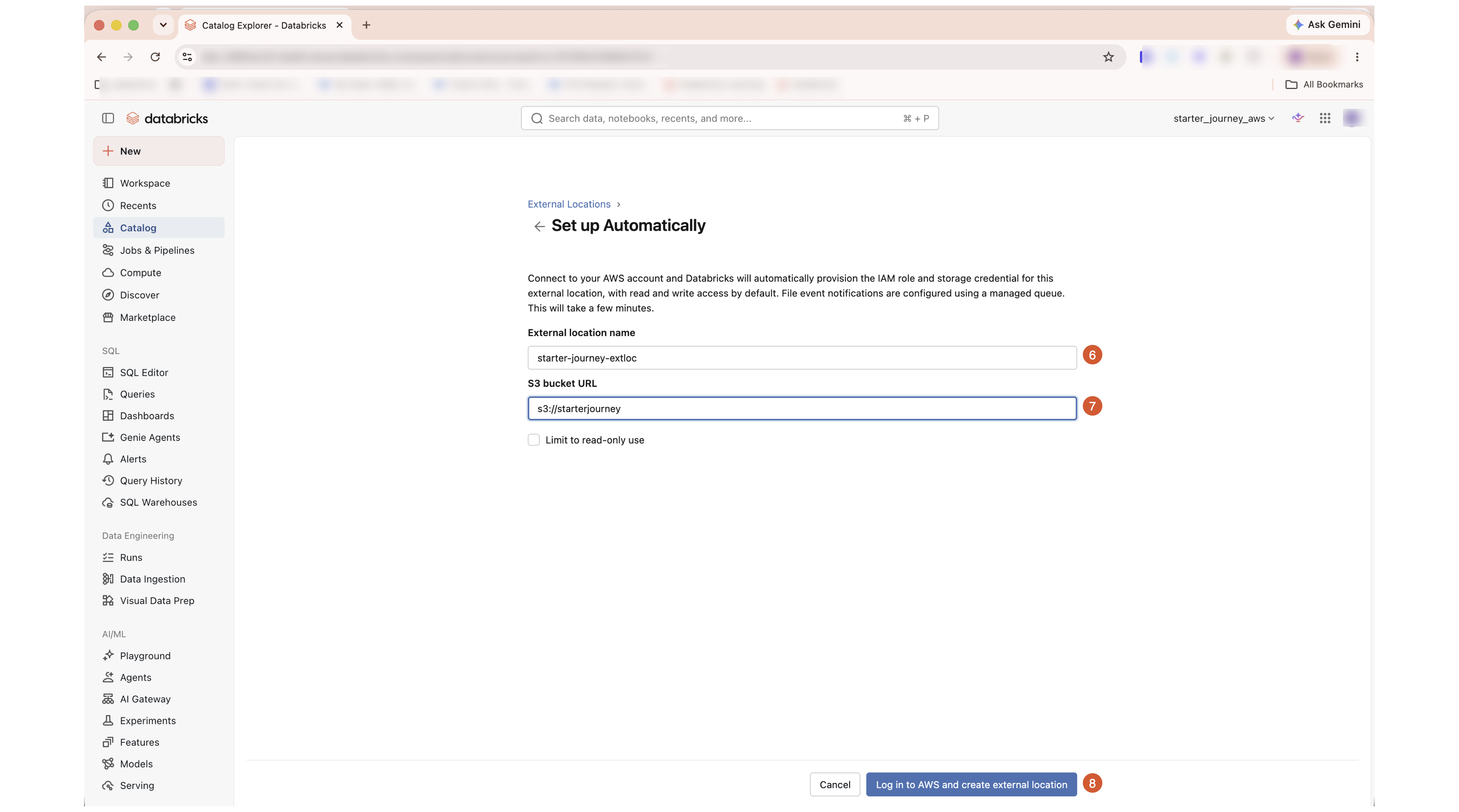
Give the external location a name, enter the S3 bucket URL (s3://<bucket-name>), and optionally check Limit to read-only use if this is source data you only read from. Click Log in to AWS and create external location.
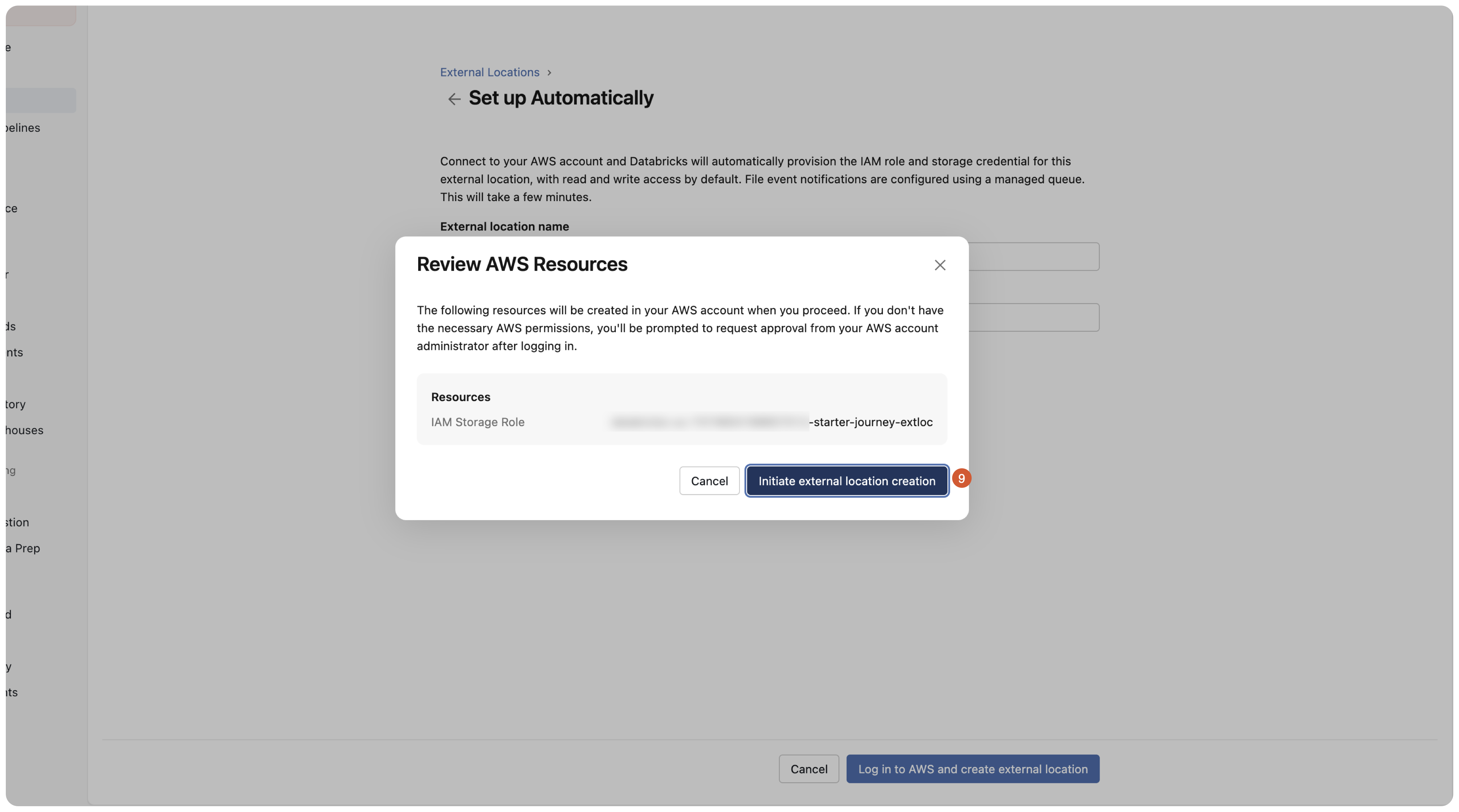
Review the AWS resources Databricks will create (the IAM storage role) and click Initiate external location creation.
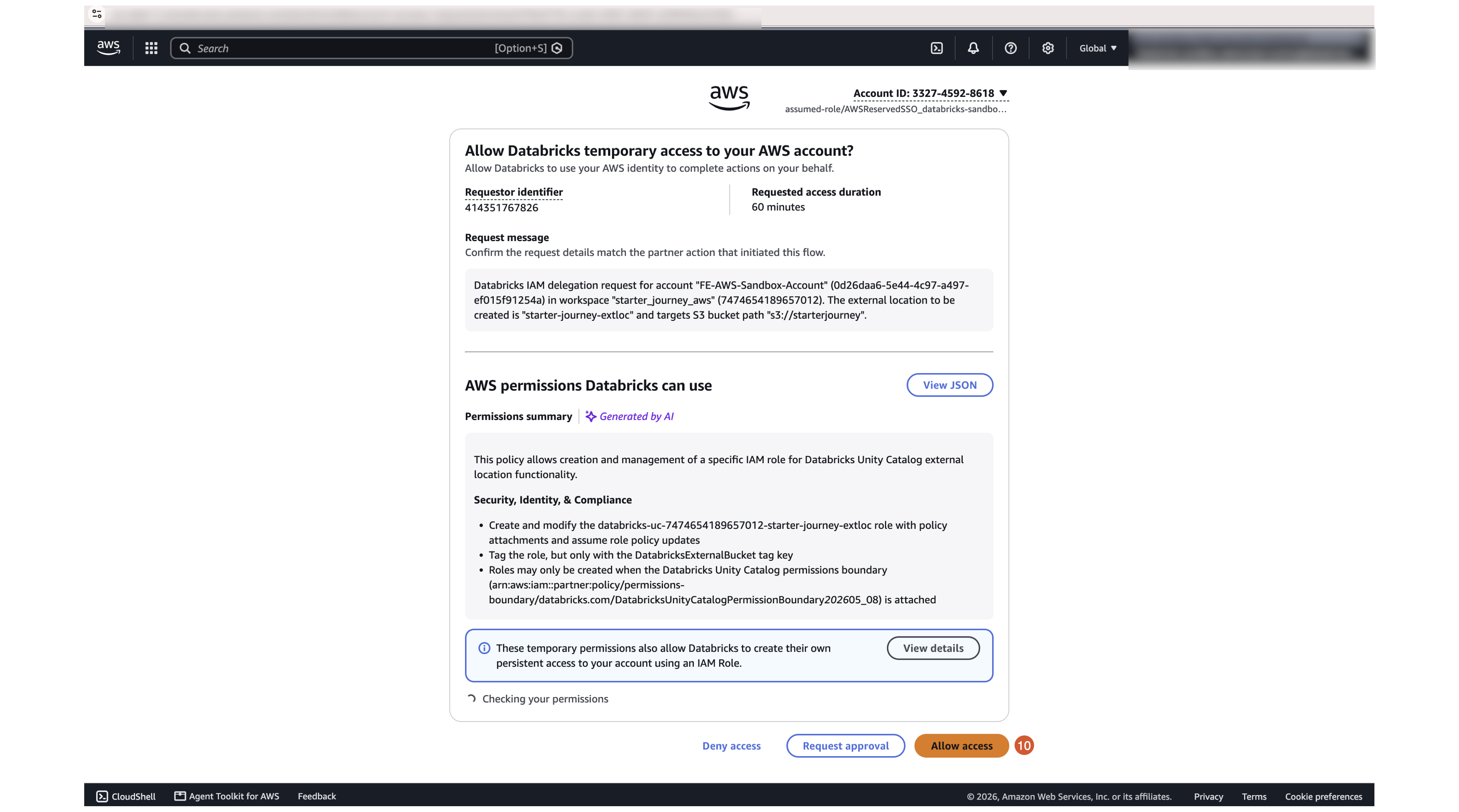
On the AWS sign-in page, review the delegation request and click Allow access. If you don't have permission to create IAM roles, click Request approval to send the request to your AWS administrator instead. Databricks then provisions the role and returns you to the new external location.
If this location holds source data you only read from and you didn't check Limit to read-only use during setup, mark it read-only afterward so a stray job cannot overwrite it. Follow Mark an external location as read-only.
Configure network connectivity (NCC) for S3
This part is optional. You only need it when private connectivity from serverless is required — that is, the bucket is not open to the public internet and serverless compute must reach it over a private network. If your bucket allows access over the public internet, skip to Verify.
A network connectivity configuration (NCC) gives serverless compute an AWS PrivateLink endpoint to the S3 bucket. You create the NCC, add an S3 private endpoint rule, then attach the NCC to your workspace.
Create a network connectivity configuration with an S3 private endpoint rule and attach it to your workspace.
In the account console, open Security.
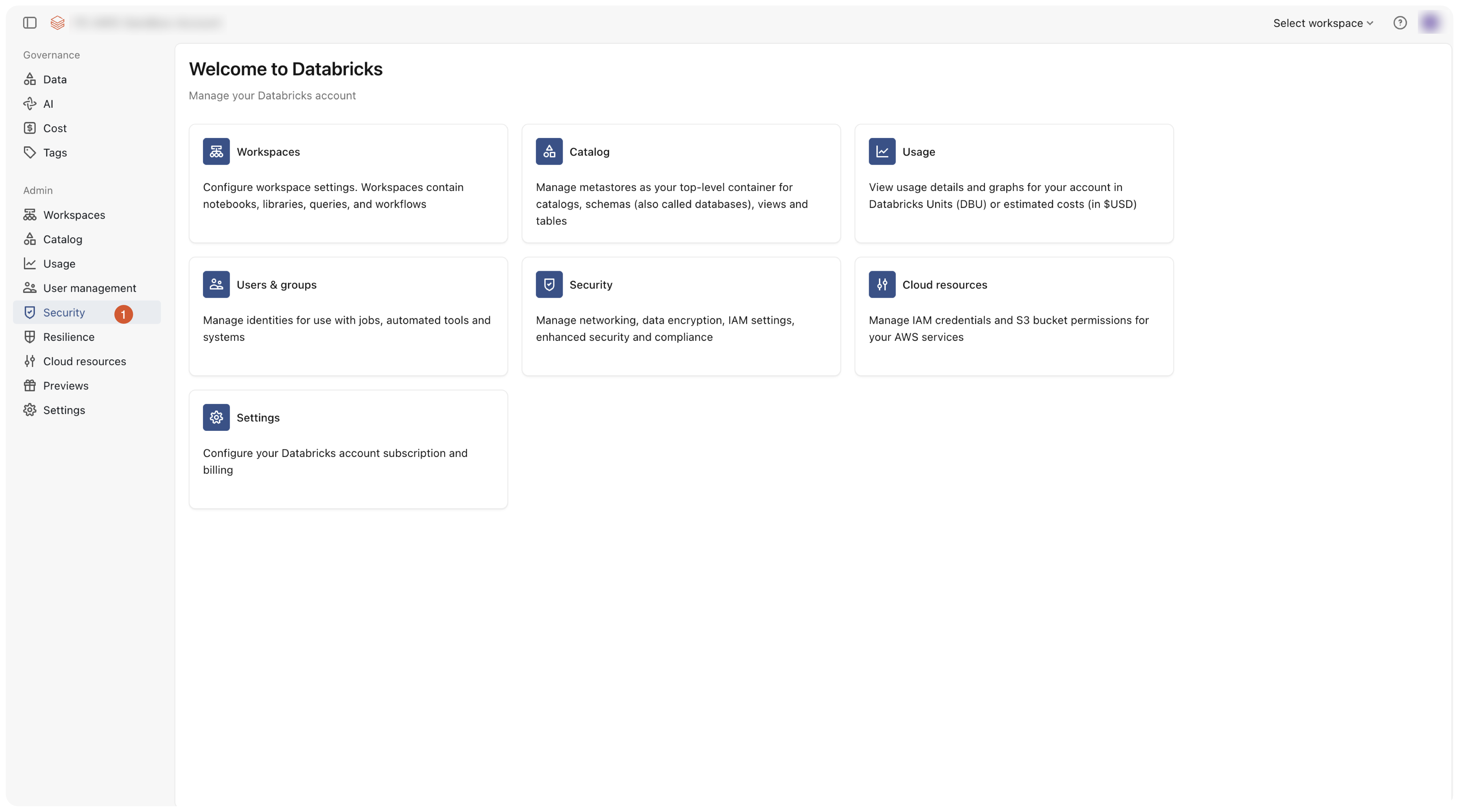
On the Networking tab, open Network connectivity configurations.
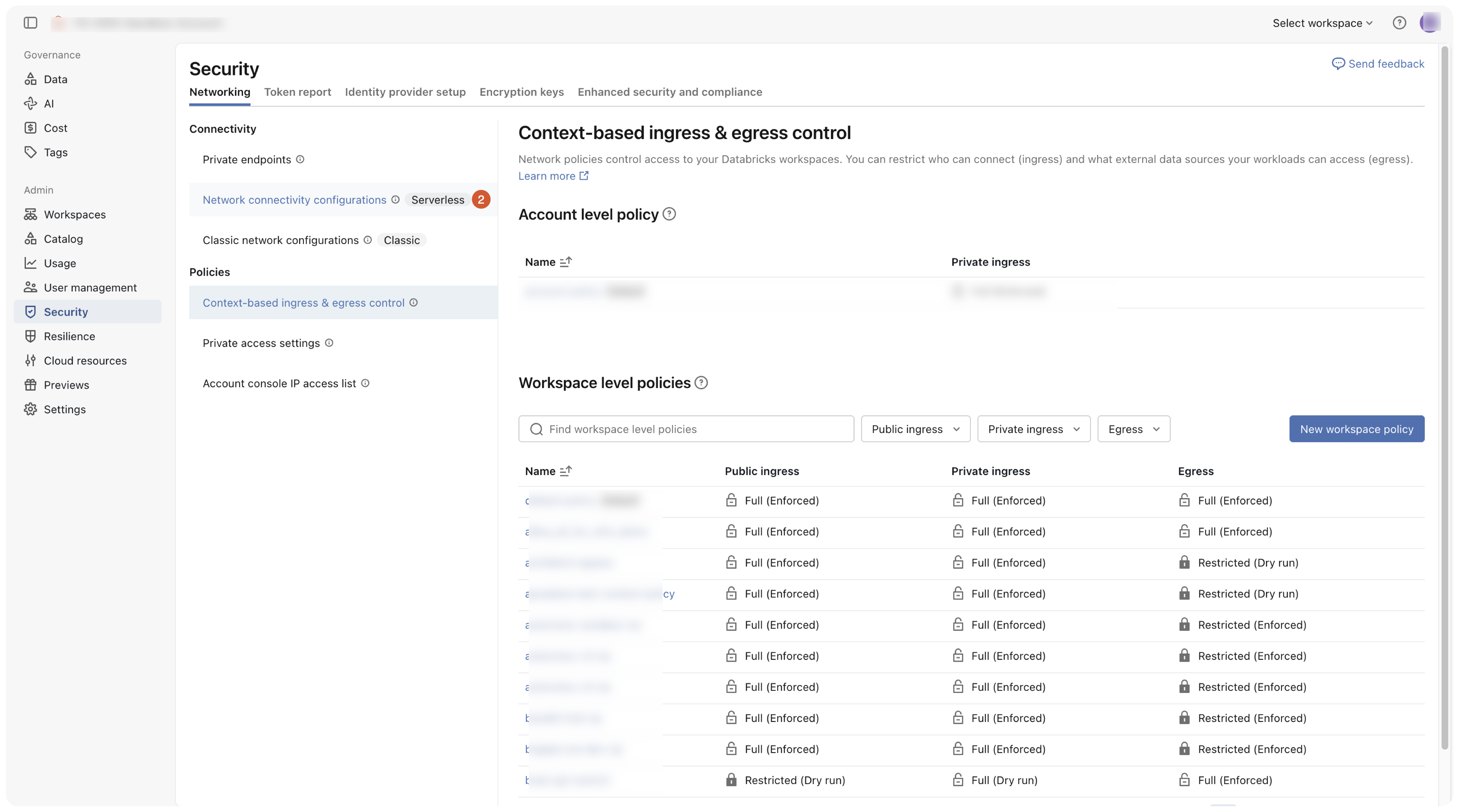
Click Add Network Connectivity Configuration. Give it a name, choose the region (the same region as your workspace), then click Add.
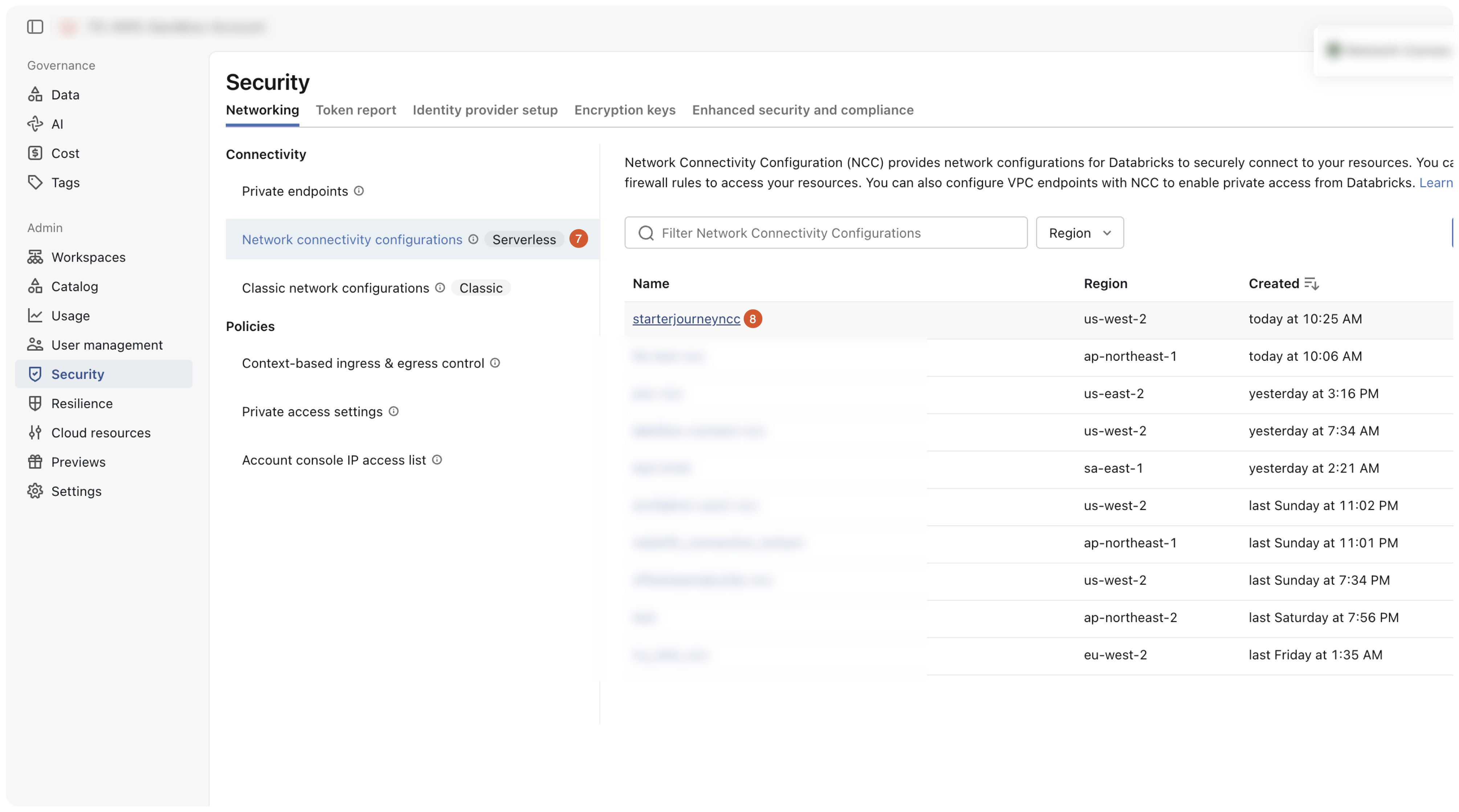
The new NCC appears in the list. Click it to open it.
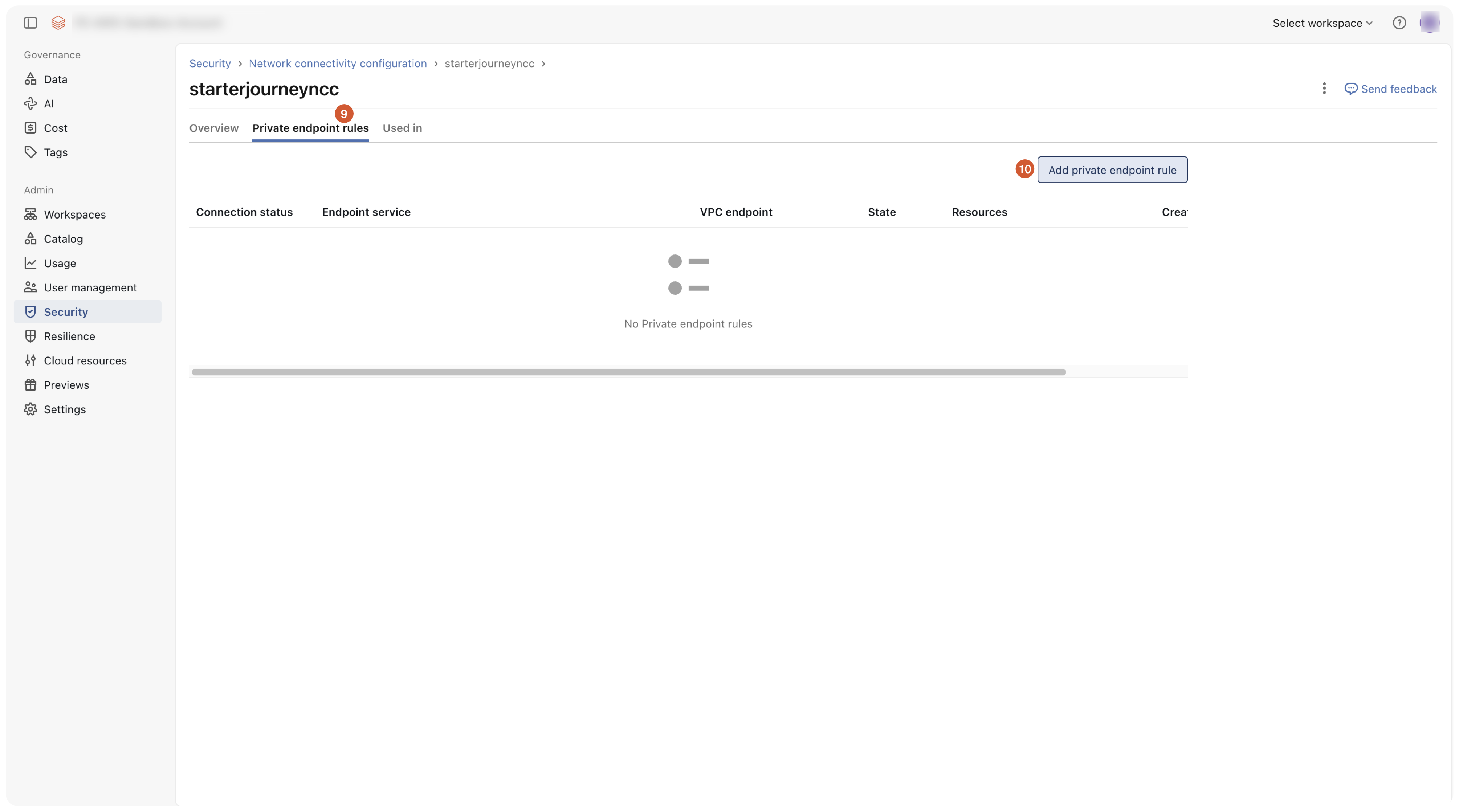
Open the Private endpoint rules tab and click Add private endpoint rule.
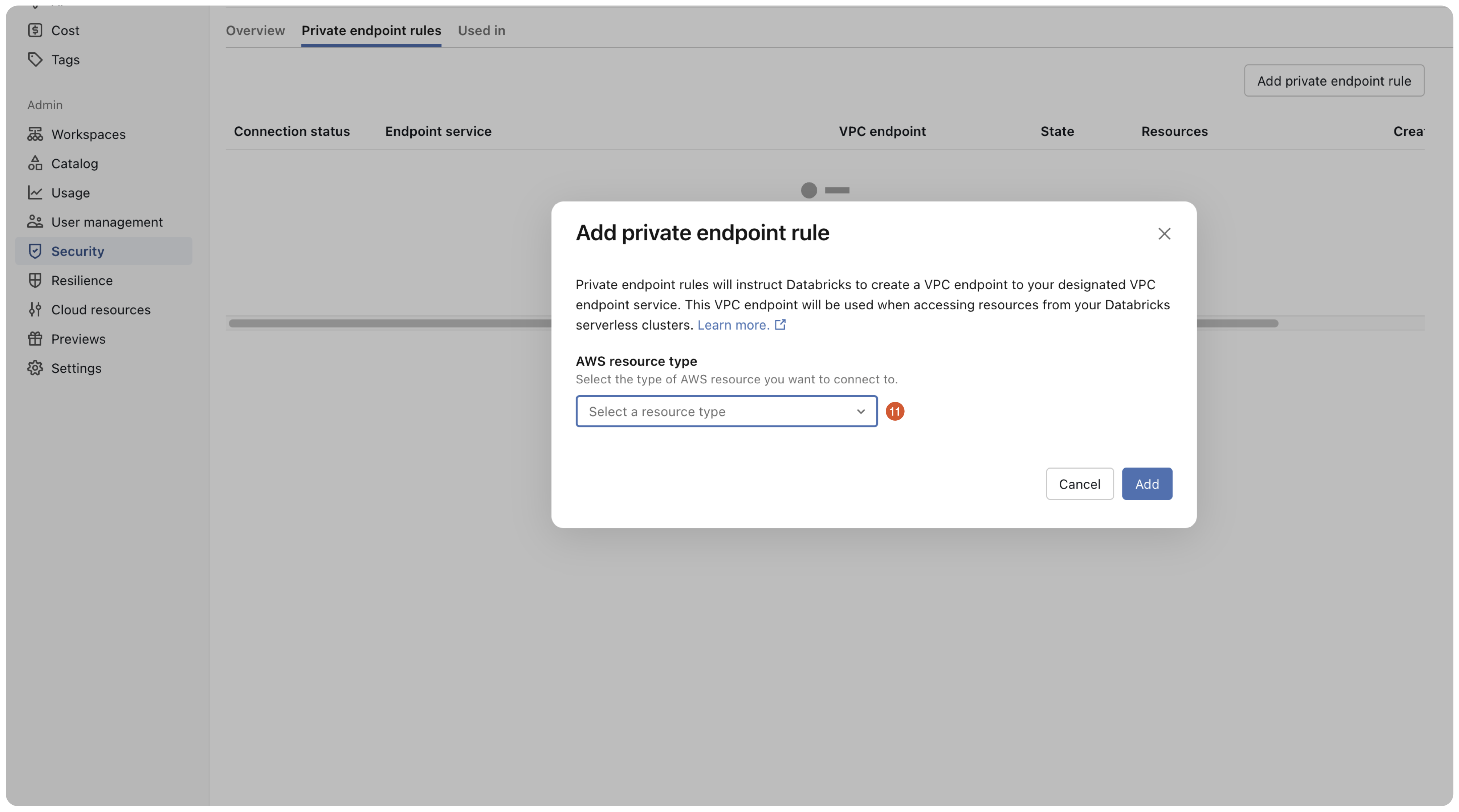
Open the AWS resource type dropdown.
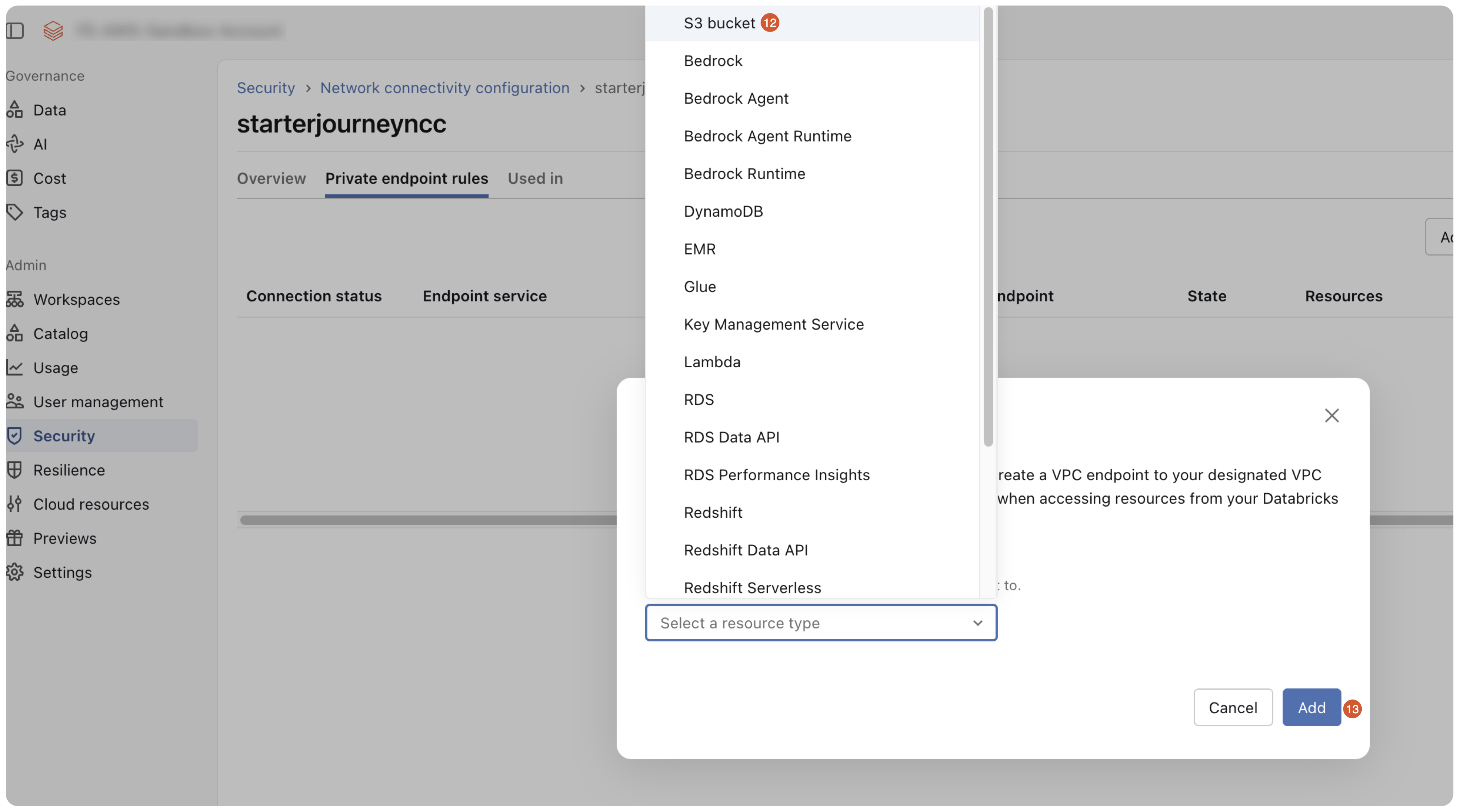
Select S3 bucket and click Add.
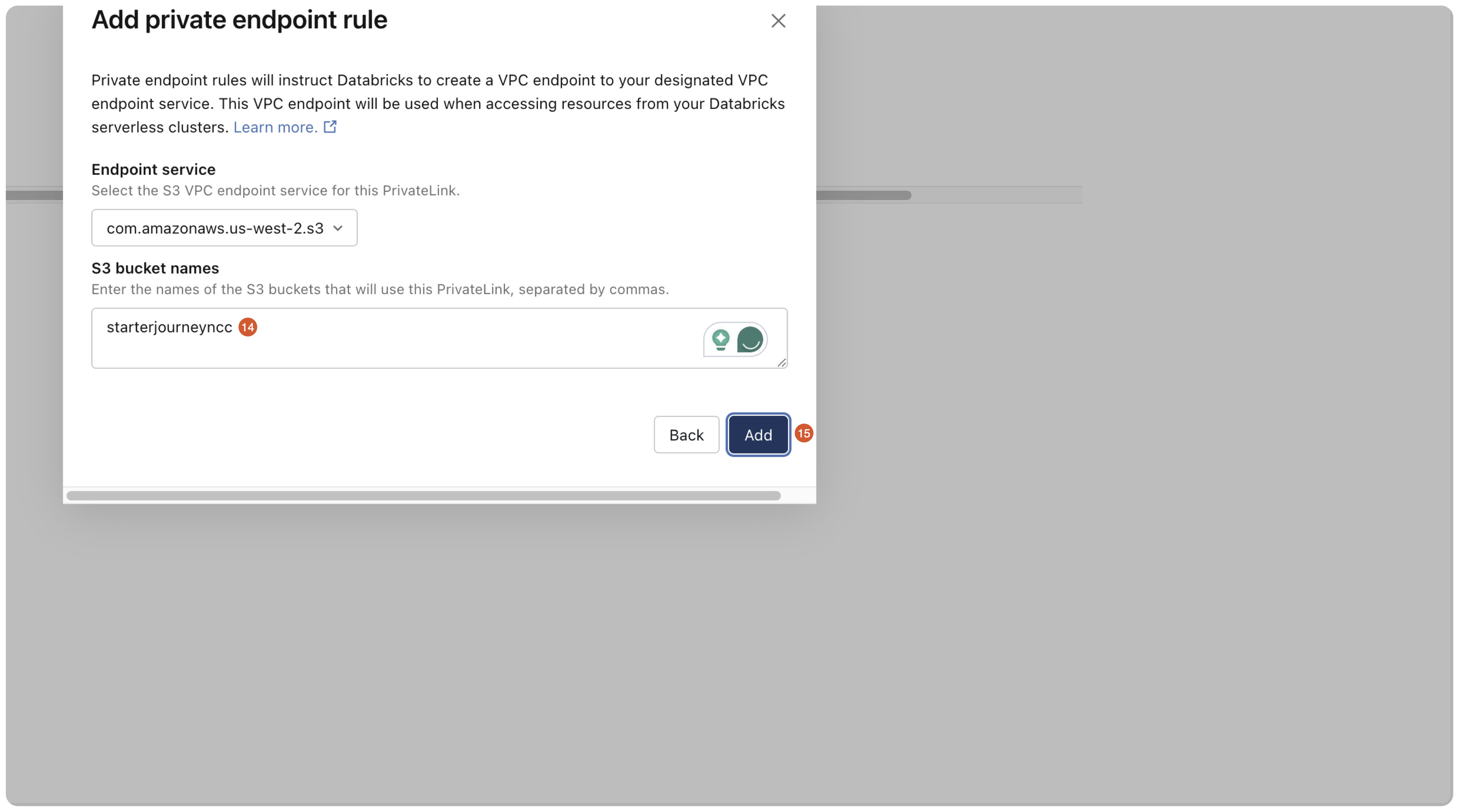
Confirm the Endpoint service for your region's S3 (for example com.amazonaws.us-west-2.s3), enter the S3 bucket names that will use this PrivateLink (comma-separated), then click Add.
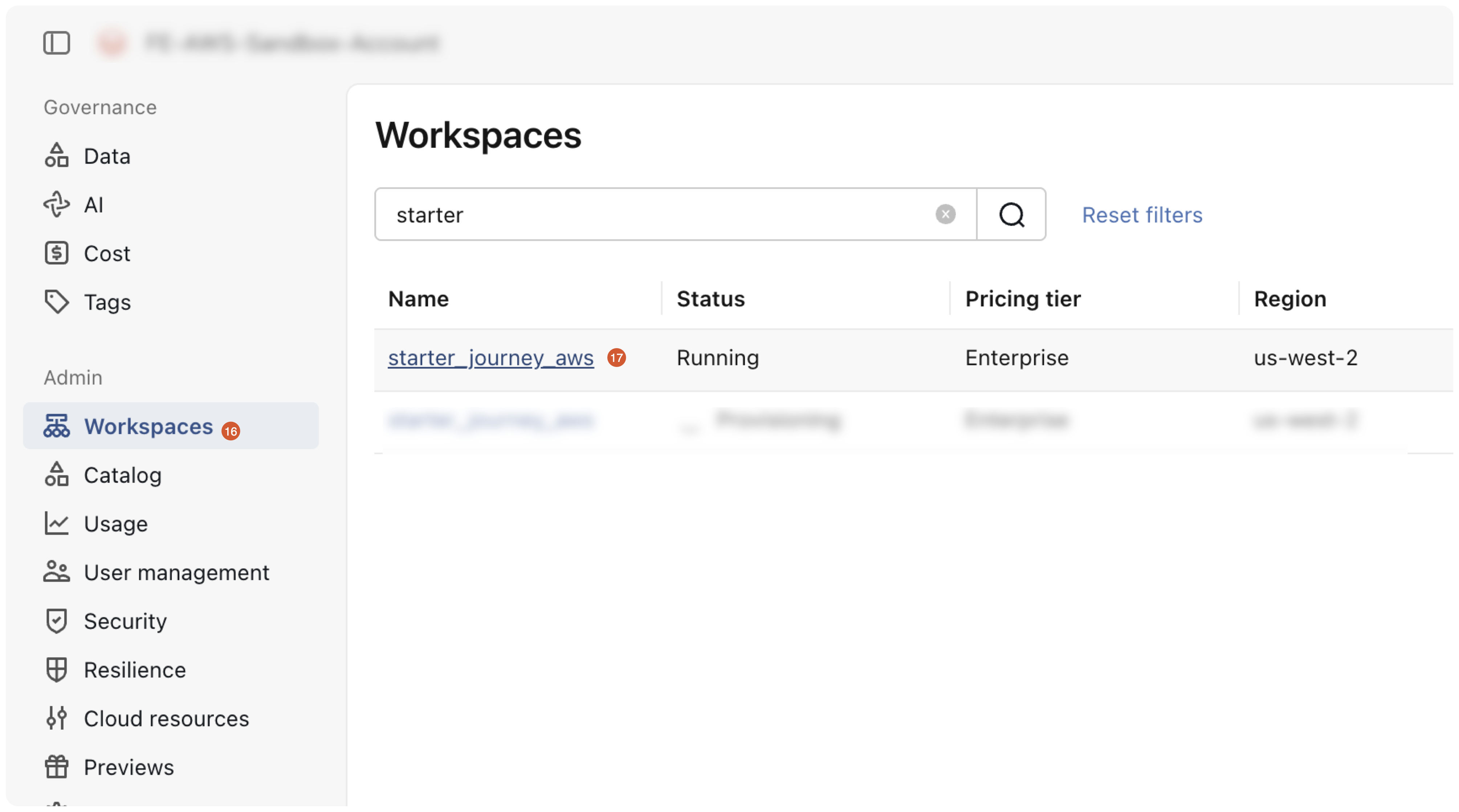
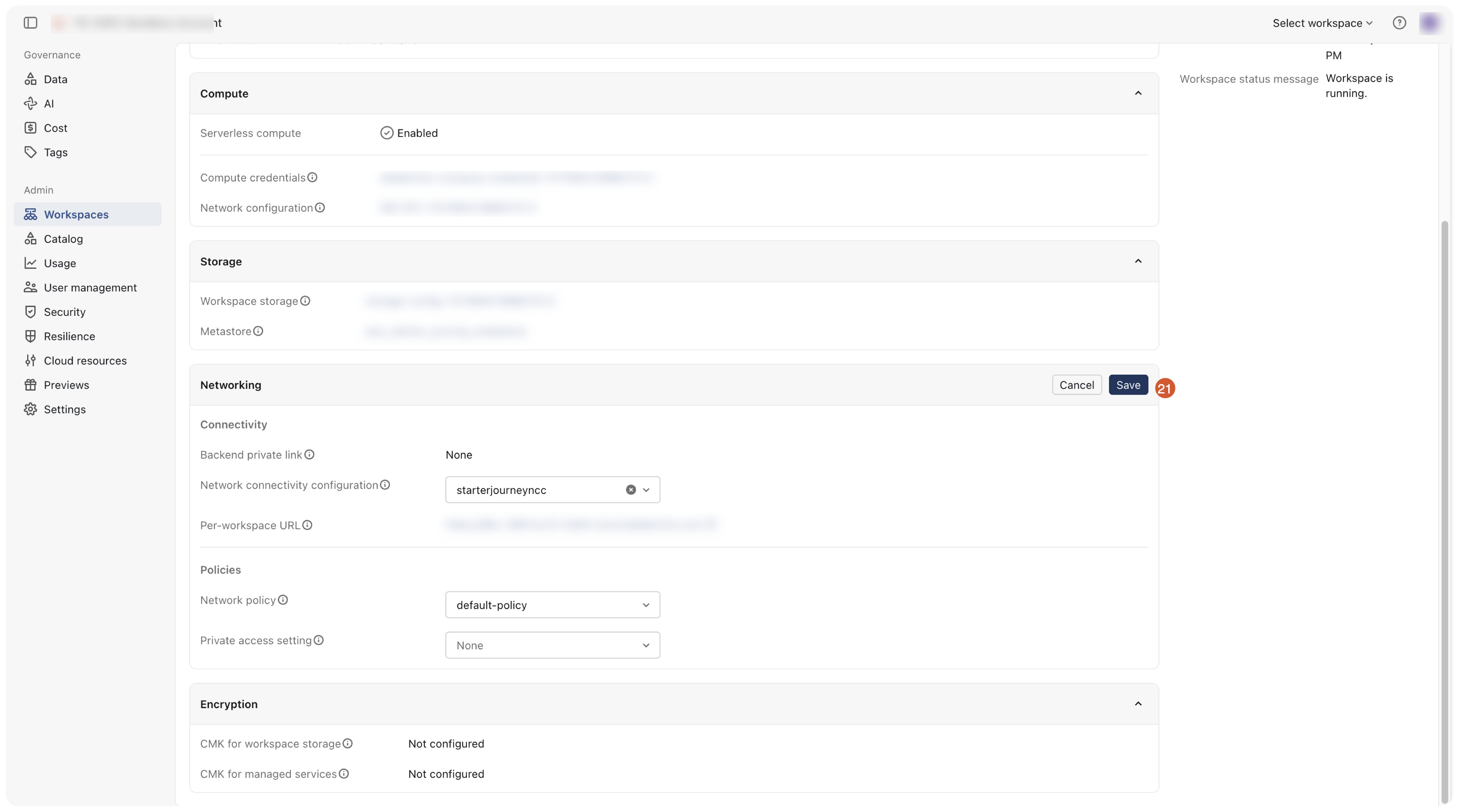
Now attach the NCC to your workspace. In the account console, go to Workspaces, find your workspace, and open it.
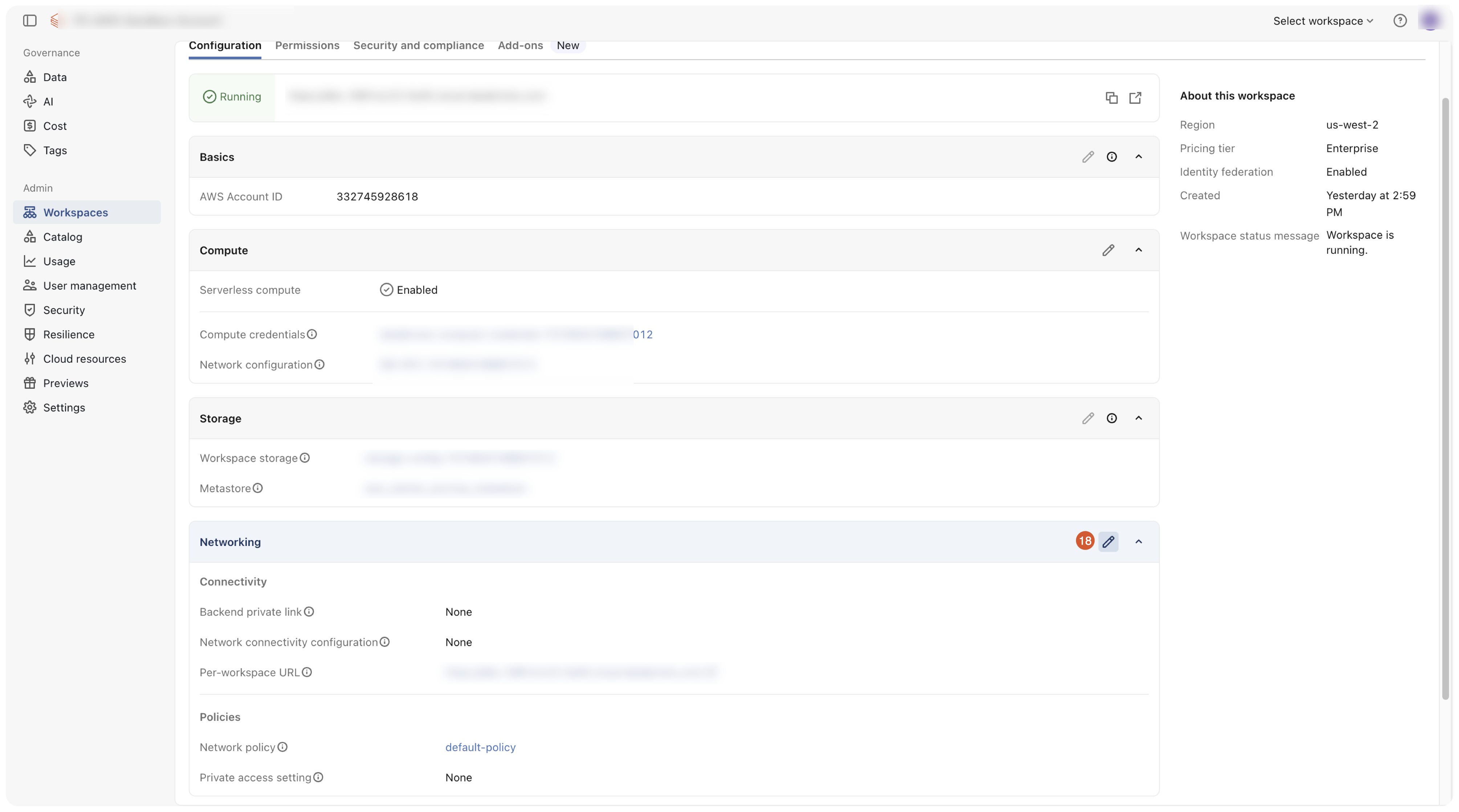
On the workspace's Configuration tab, in the Networking section, click the edit (pencil) icon.
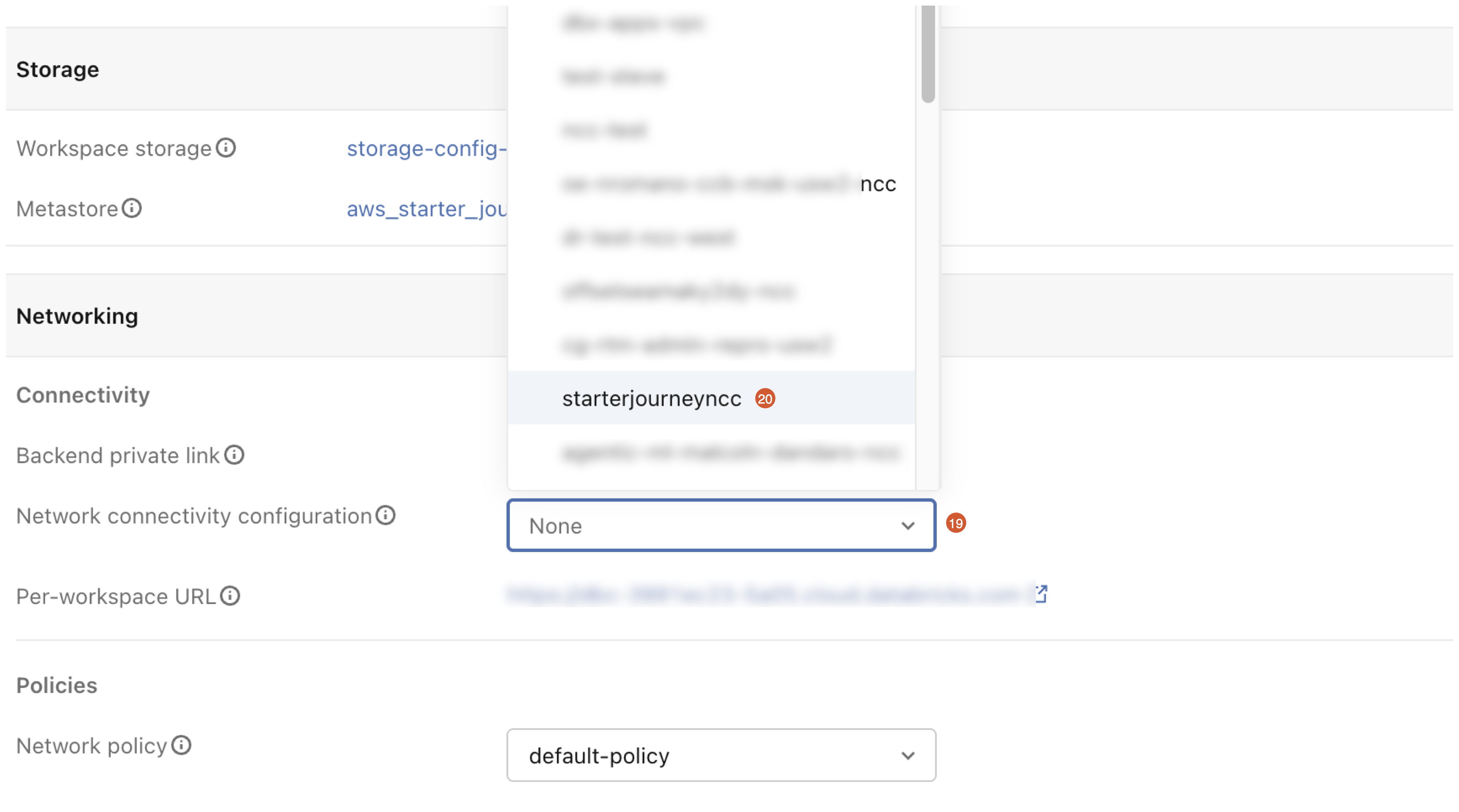
Open the Network connectivity configuration dropdown and select the NCC you created.
Click Save.
Reference: Configure private connectivity from serverless (Databricks docs)
Verify
Test the external location's connection to confirm everything is wired up. A green success status means the IAM role, the storage credential, and the external location all line up.
Test the external location's connection from Unity Catalog and confirm every check passes.
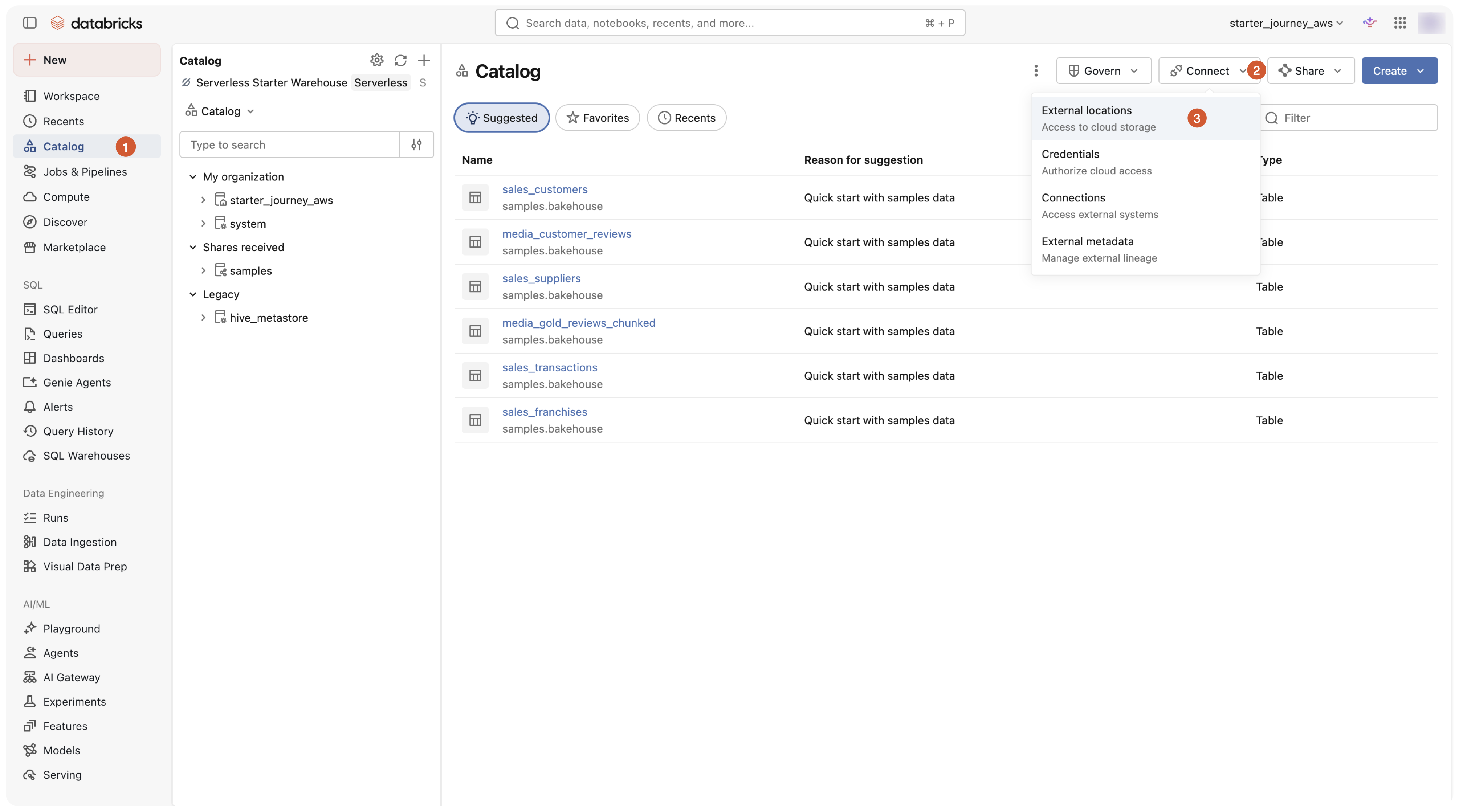
In the Databricks workspace, open Catalog, then click Connect > External locations to open the External Data page.
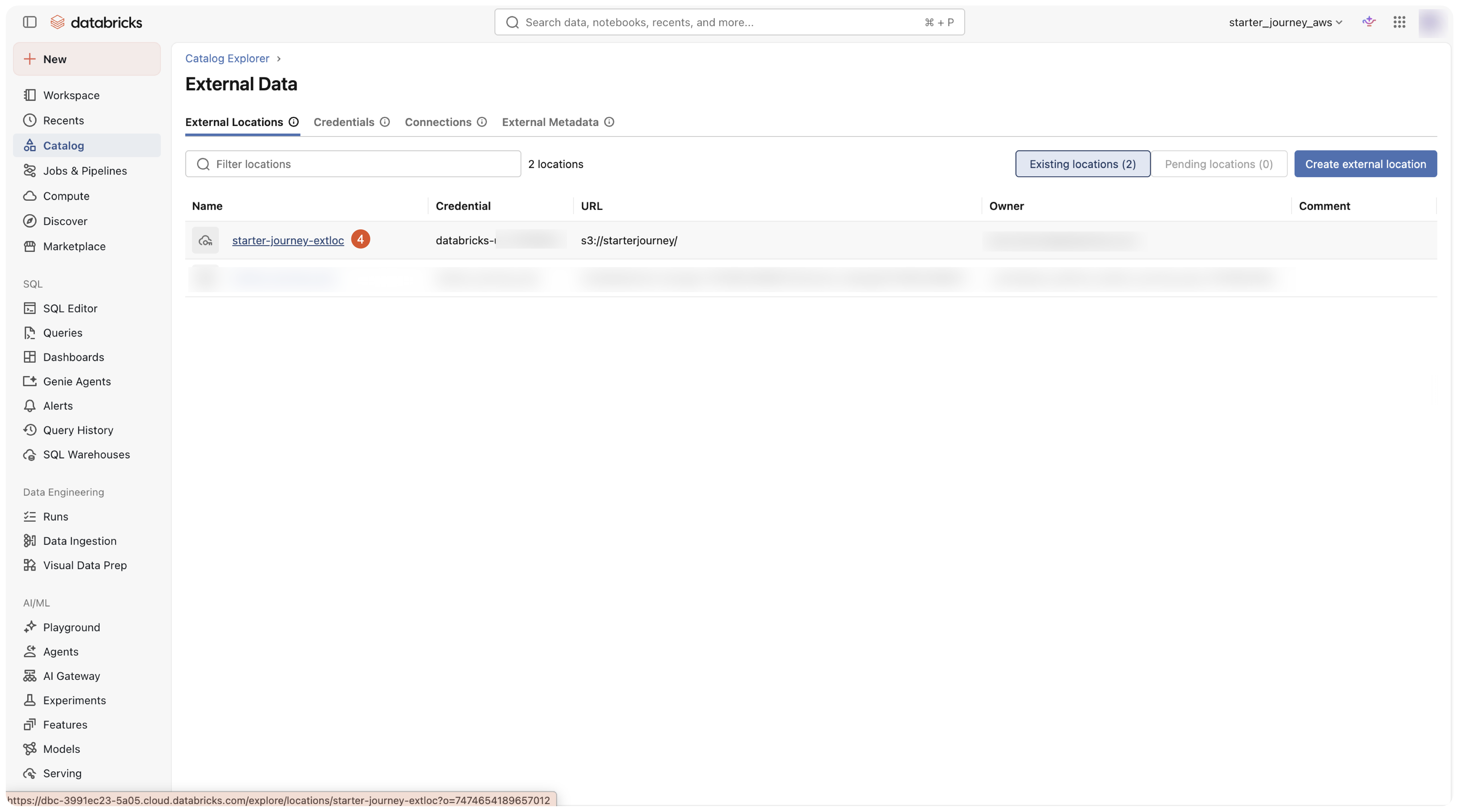
On the External Locations tab, click the external location you created.
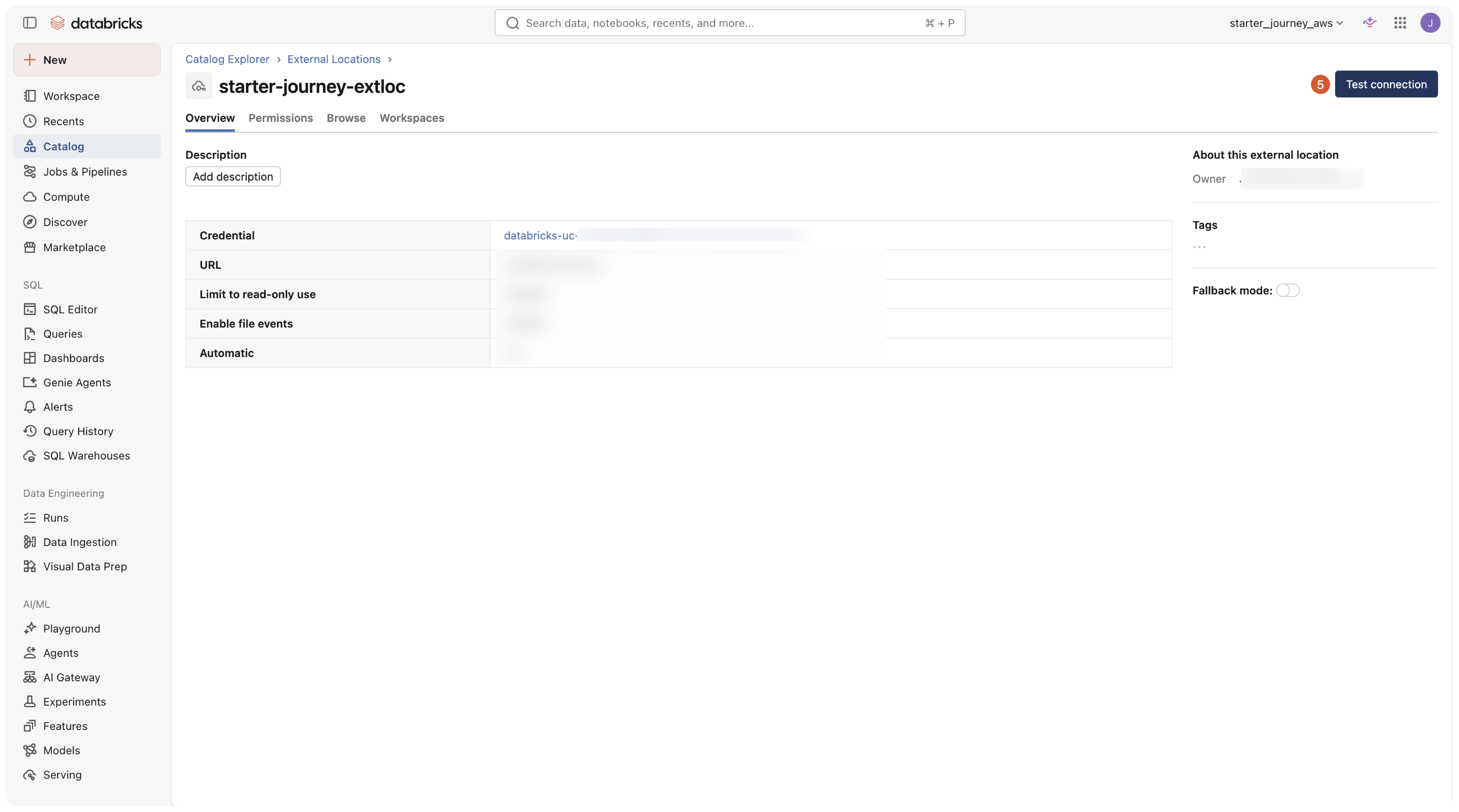
On the location's Overview tab, click Test connection in the top-right corner.
Confirm the dialog reports a success status for every check (read, list, write, delete, path, file events, assume role, self assume role, and external ID condition), then click Done.
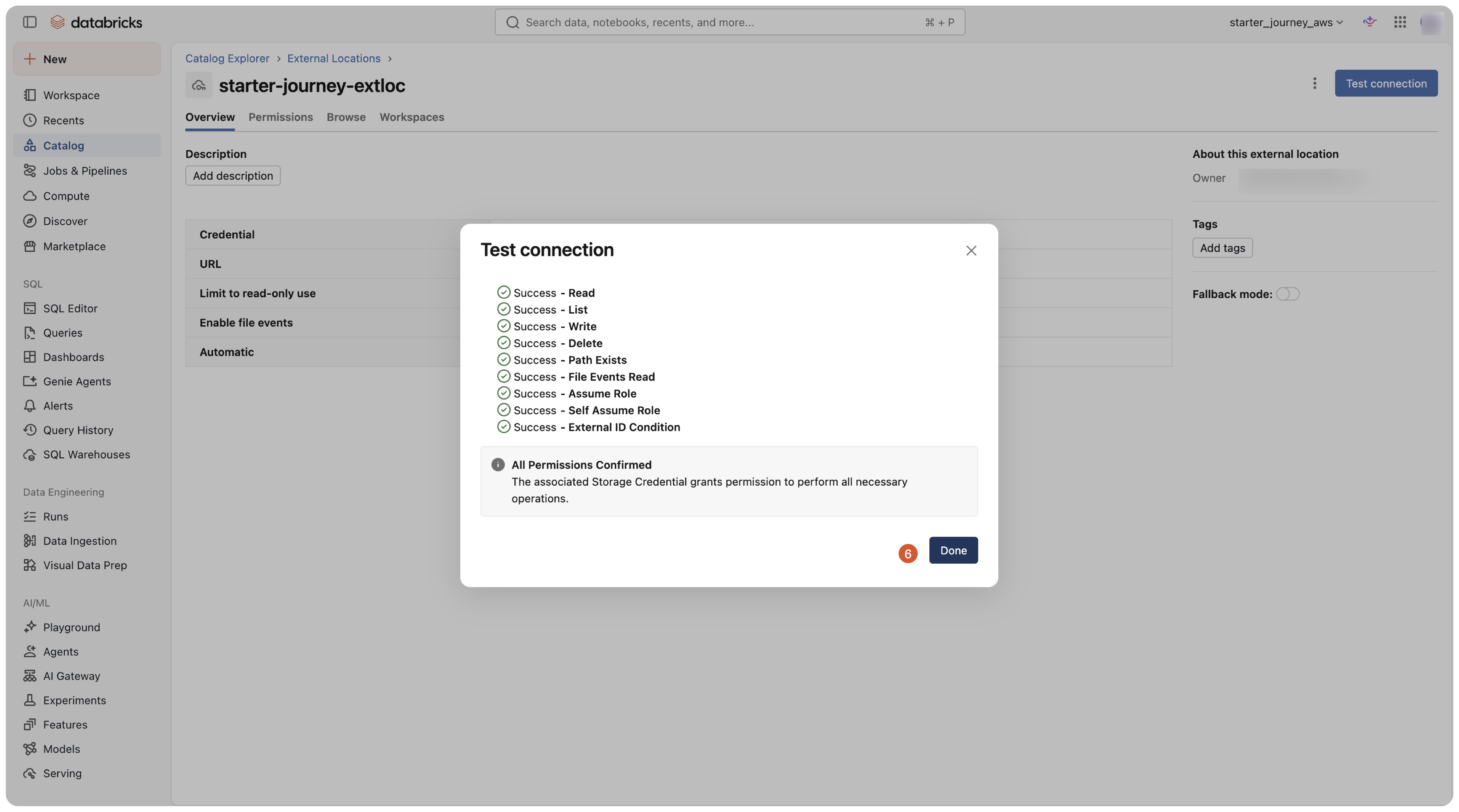
Reference: Manage external locations (Databricks docs)
Where people trip
Set up Automatically fails because you can't create an IAM role
The automatic setup needs permission to create an IAM role in your AWS account. If you don't have it, use Request approval on the AWS sign-in page so your AWS administrator can approve the role creation, then finish the flow.
Test connection fails after creation
The setup creates an IAM role whose trust policy is scoped to the Databricks account. Confirm you clicked Allow access in AWS and that the role finished provisioning. Re-run Test connection from the external location's Overview tab.
External location creation fails with invalid URL
The URL has to be s3://<bucket-name>. Confirm the bucket exists and the name is spelled correctly.
Serverless compute cannot reach a private bucket
A bucket that blocks public access is not reachable from serverless by default. Create a network connectivity configuration with an S3 private endpoint rule and attach it to your workspace.
Bonus: Create an S3 bucket
If you don't already have an S3 bucket, create one here first, then go back to Create an external location and point it at the new bucket.
Create an S3 bucket to use as a landing zone or as Unity Catalog storage.
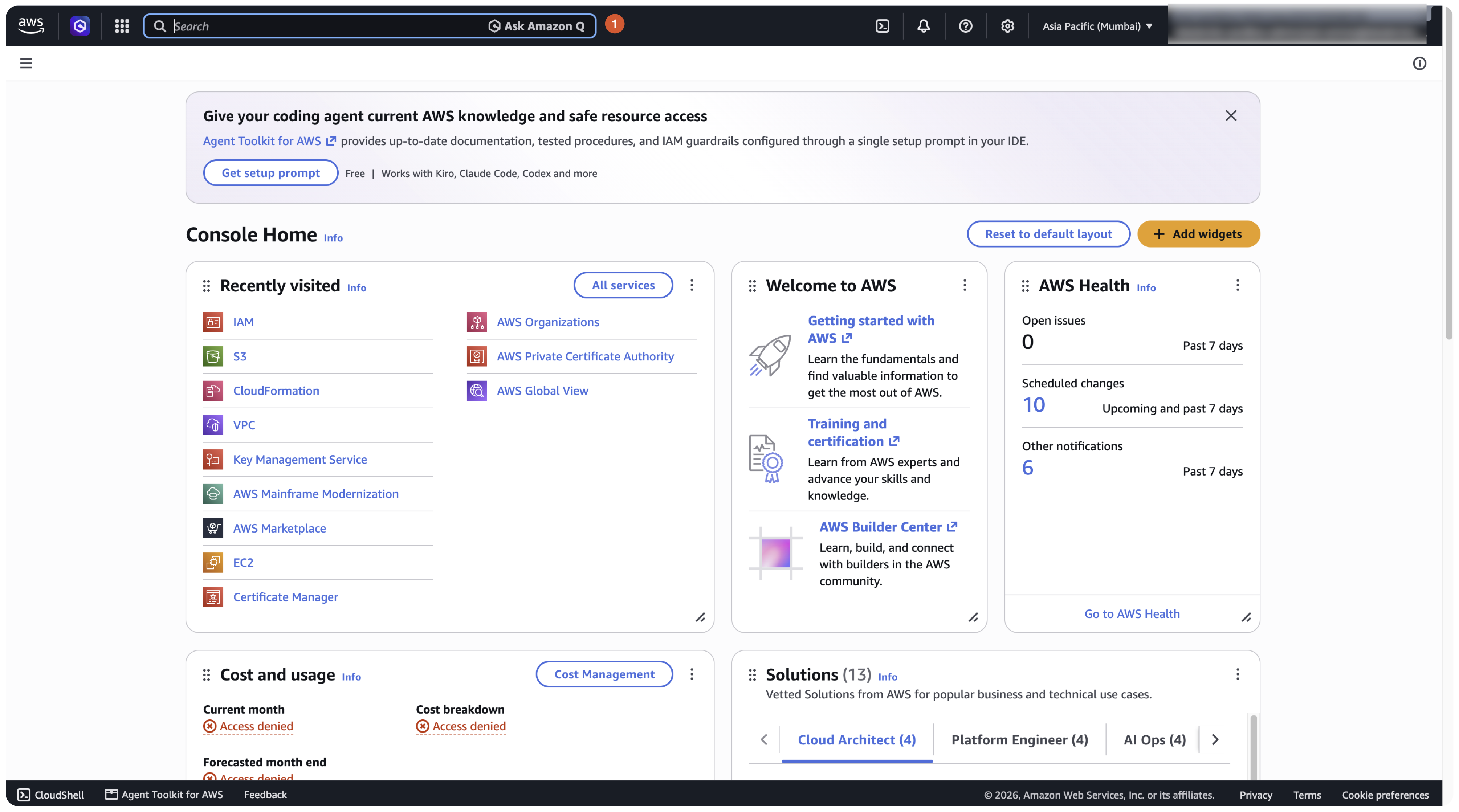
Sign in to the AWS console.
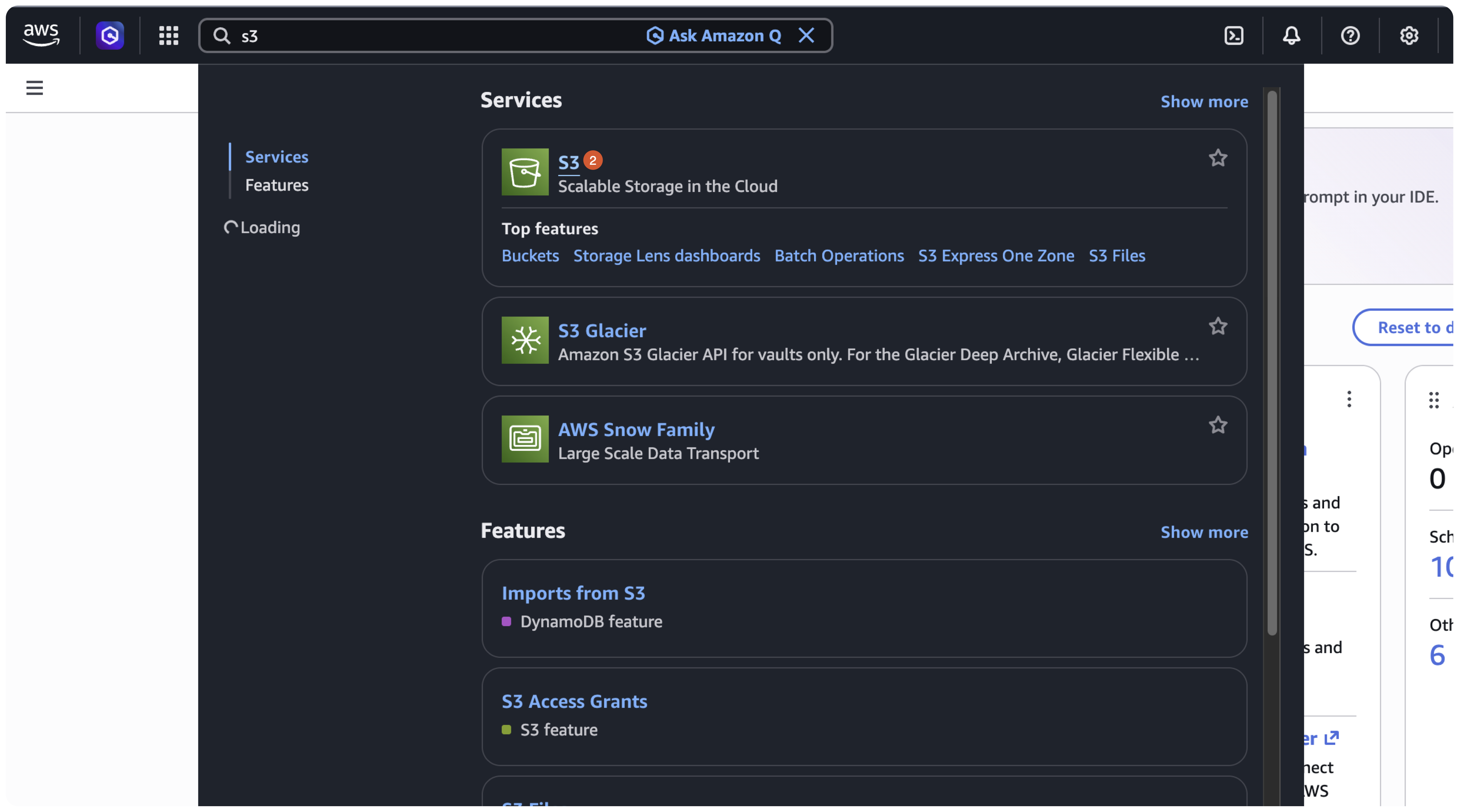
Search for S3 and select it.
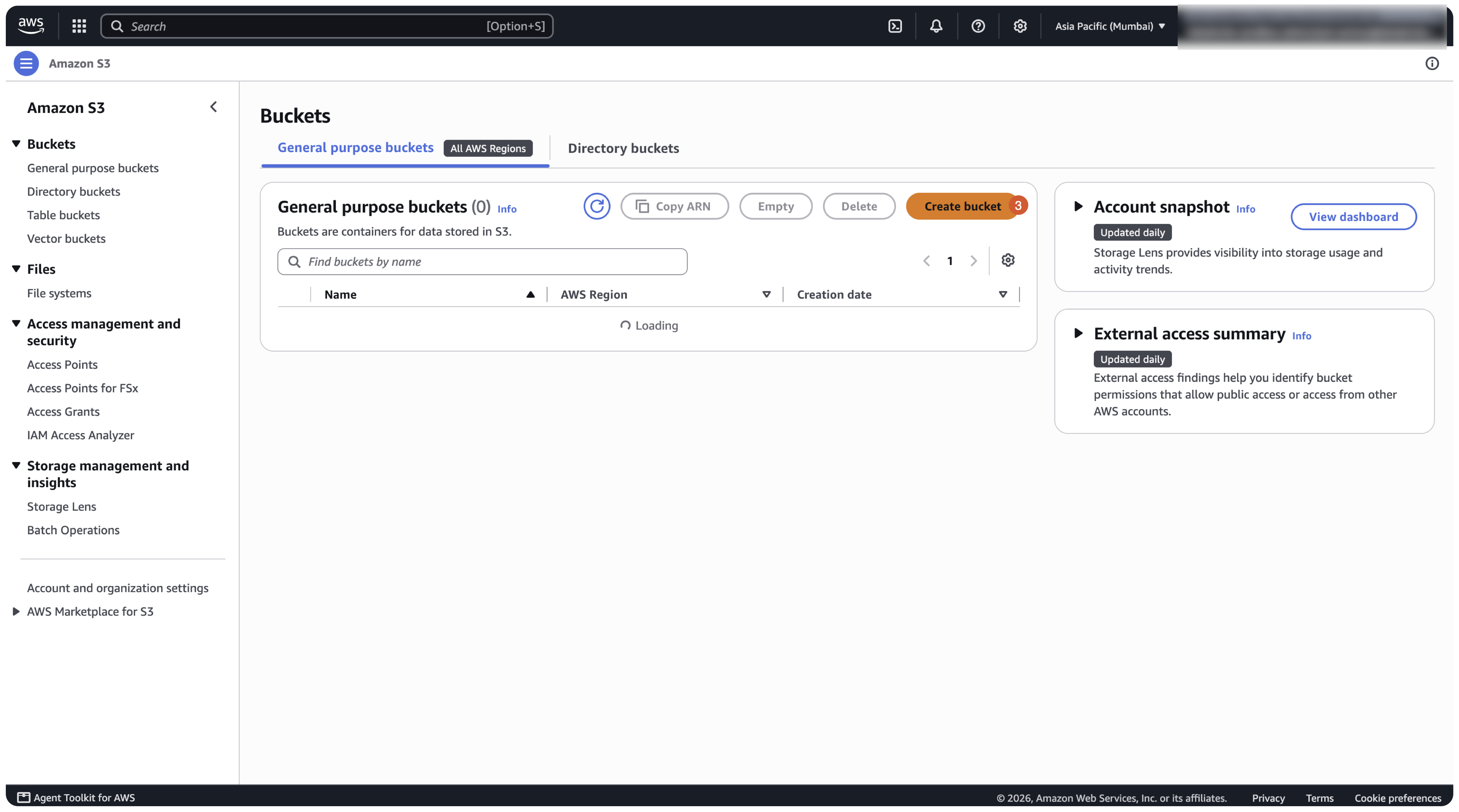
On the Buckets page, click Create bucket.
Under General configuration, keep Bucket type as General purpose and enter a globally unique Bucket name (lowercase letters, numbers, periods, and hyphens).
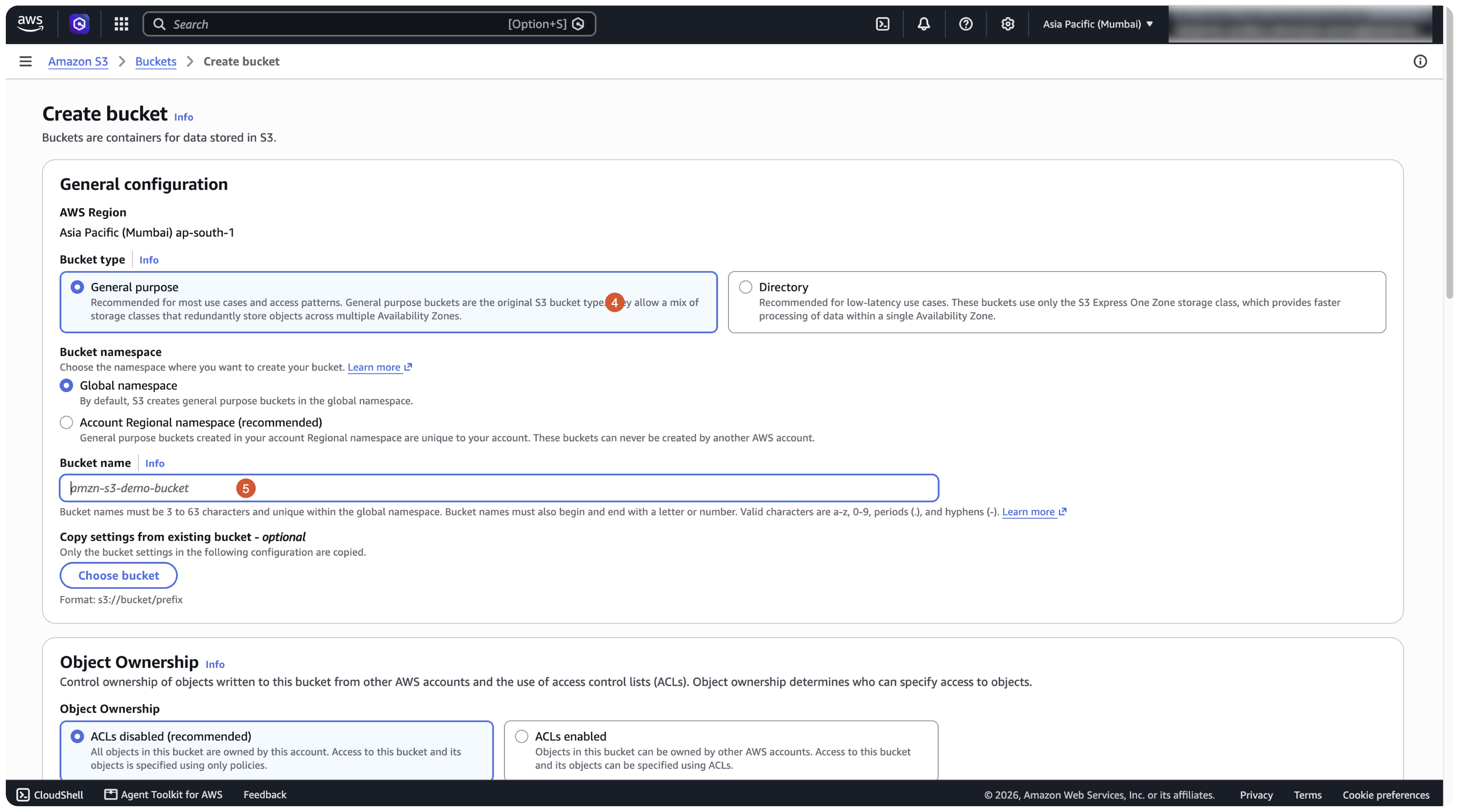
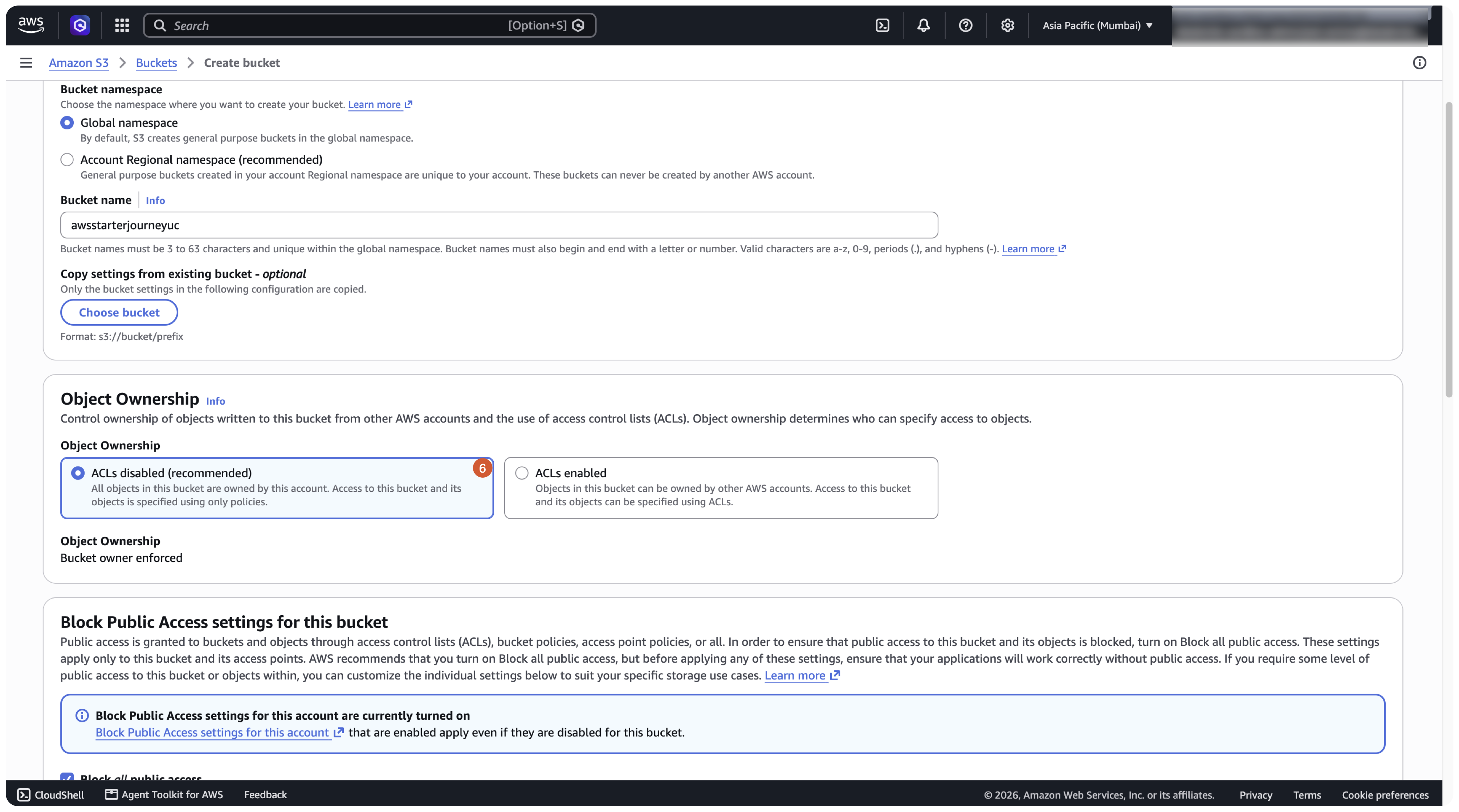
Leave Object Ownership as ACLs disabled (recommended).
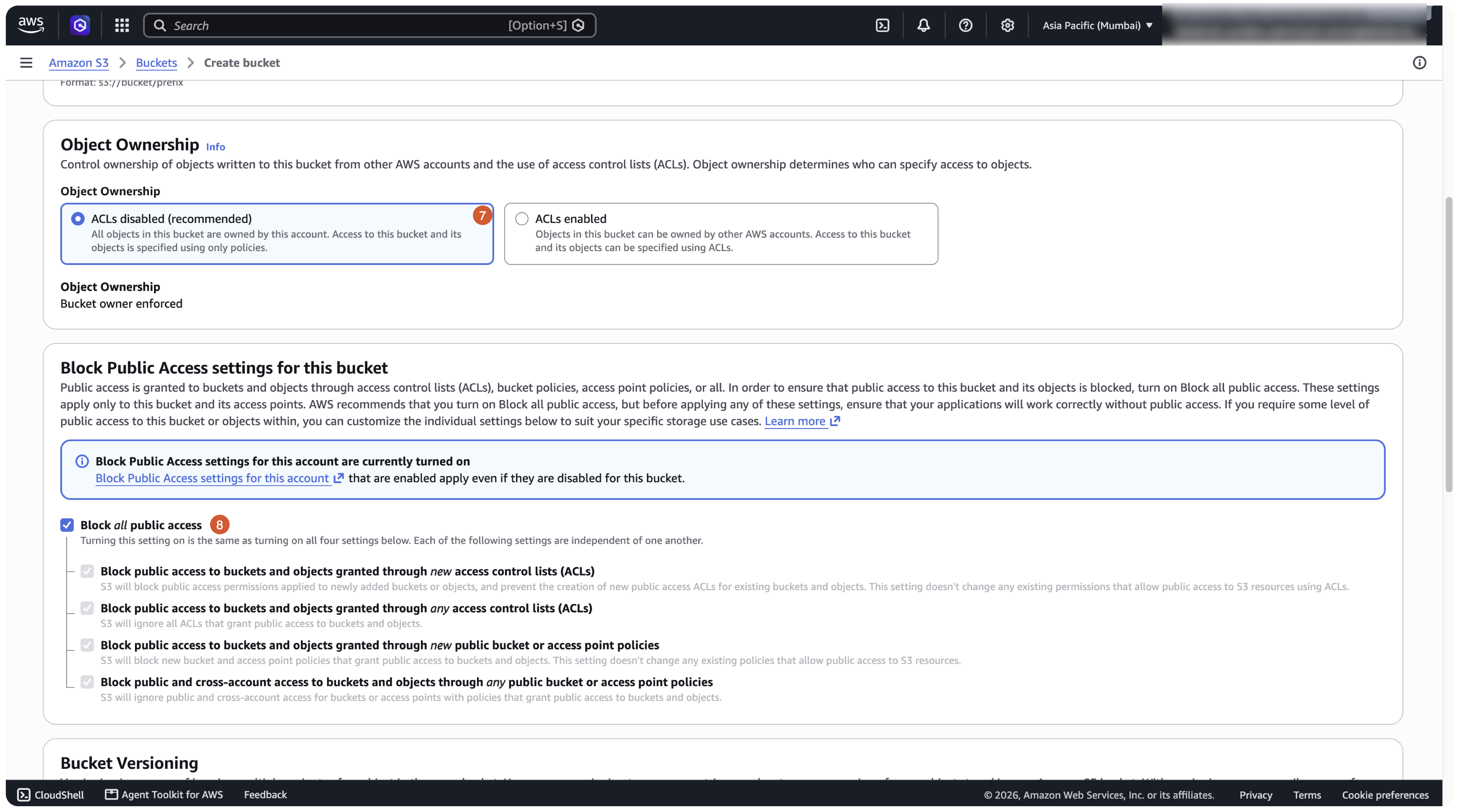
Under Block Public Access settings for this bucket, keep Block all public access checked.
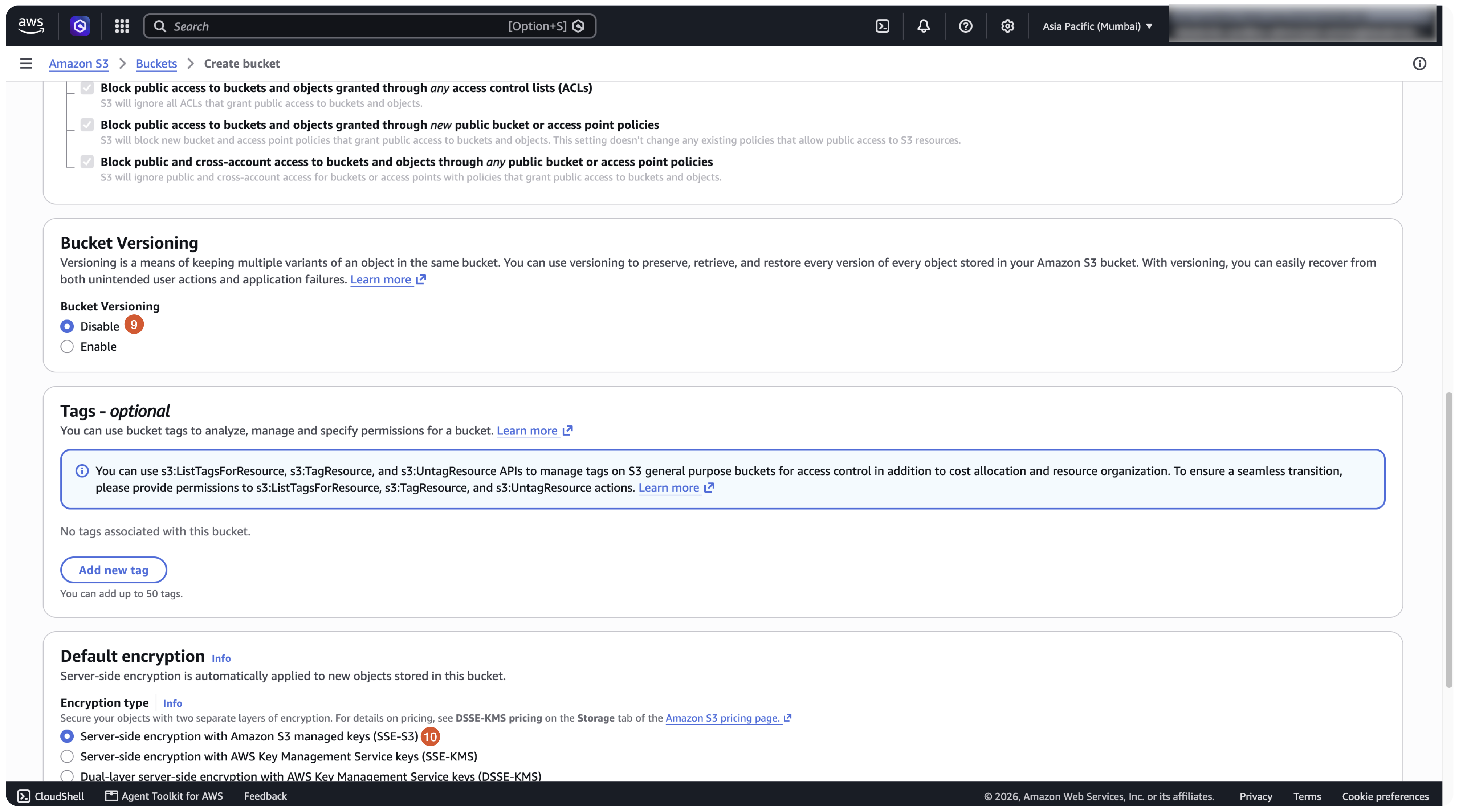
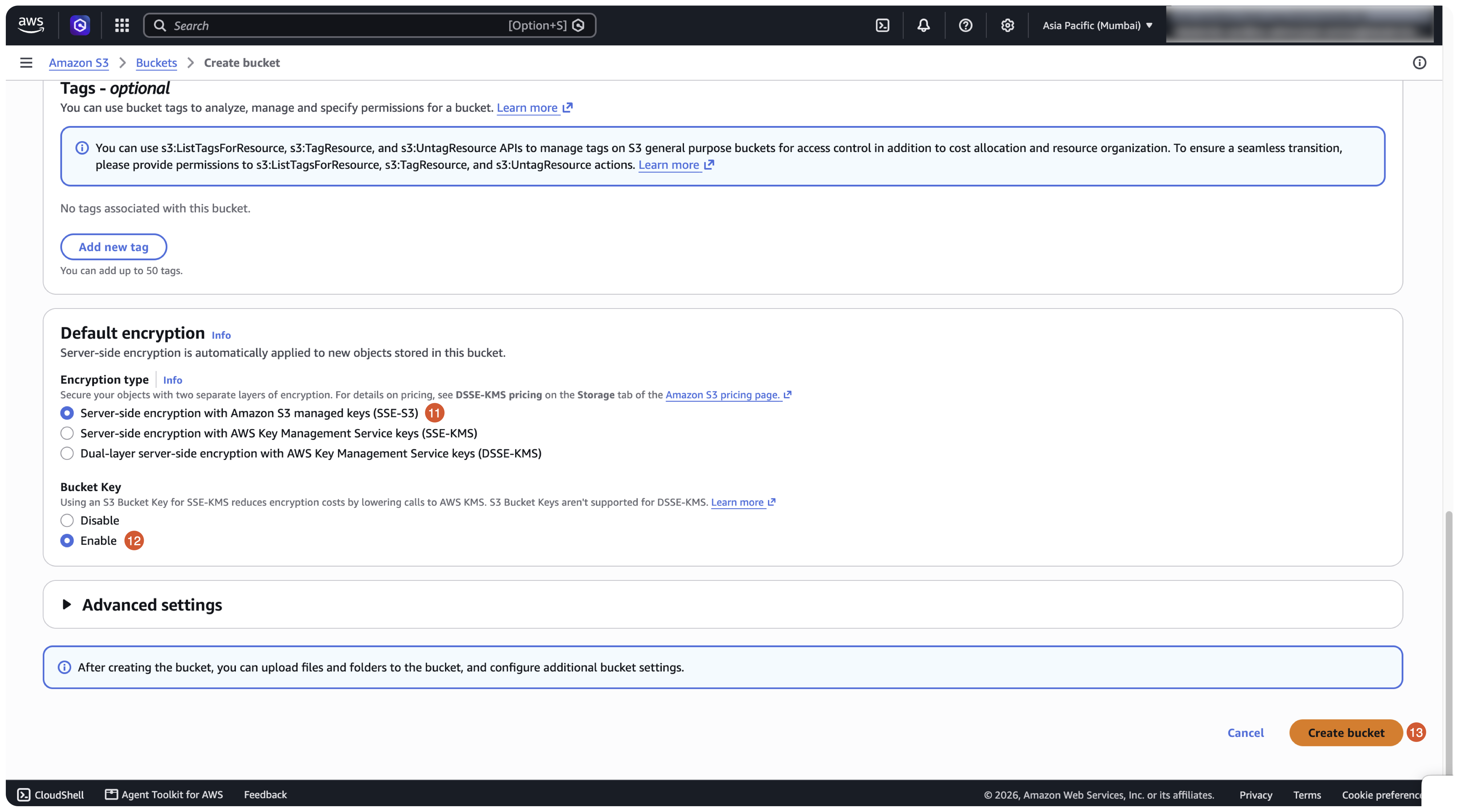
Set Bucket Versioning to Disable (or enable it if you need version history) and leave Default encryption on Server-side encryption with Amazon S3 managed keys (SSE-S3).
Keep SSE-S3 encryption, optionally set Bucket Key to Enable, then click Create bucket.
Reference: Create a bucket (AWS docs)
Next
- Do next: Managed connectors
- Learn why: Unity Catalog foundations
- Reference: Create a storage credential and external location for S3