Cloud Object Storage
You'll understand how Databricks connects to cloud object storage through Unity Catalog in ~5 min.
Prereqs: Access your data
Why this matters
Most organization data lives in cloud object storage — S3 buckets, ADLS containers, or GCS buckets. Databricks needs a governed path to read and write that data. Without it, teams fall back to hardcoded credentials or cluster-level configurations, which bypass Unity Catalog governance entirely.
Mental model
Two Unity Catalog objects work together to connect Databricks to your storage:
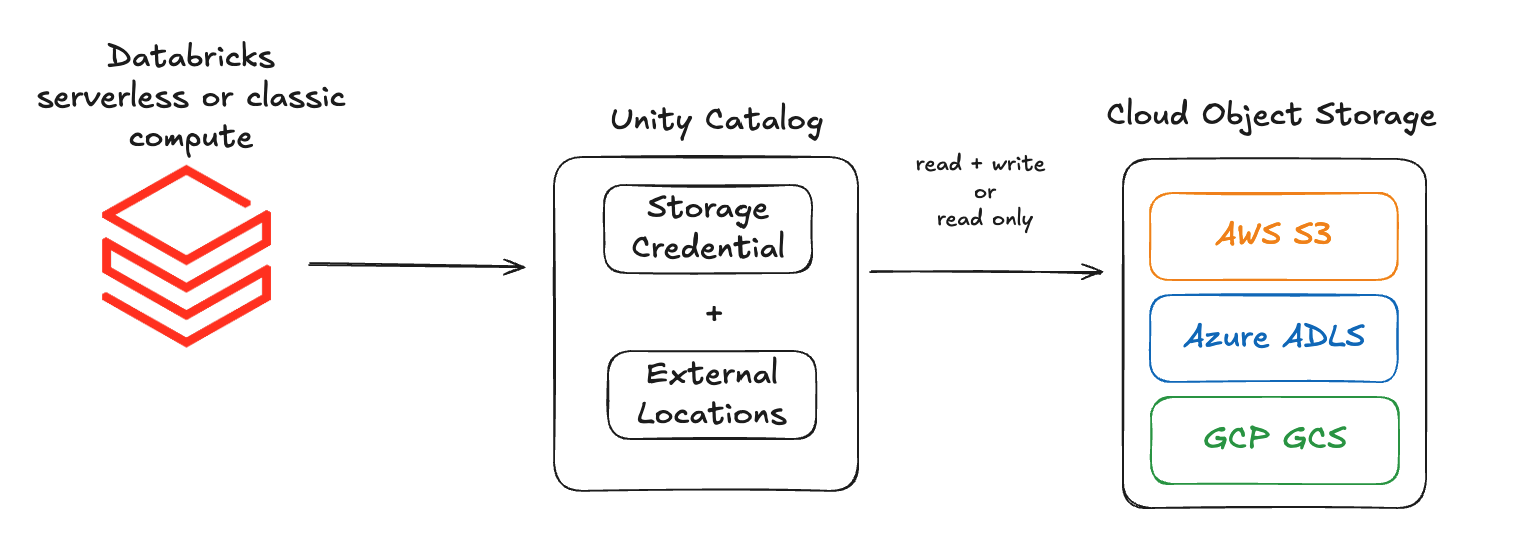
Storage Credential — authenticates Databricks compute to your cloud storage. Depending on the cloud provider, it wraps:
- An IAM role (AWS and GCP).
- A managed identity (Azure).
External Location — defines the path to a specific storage location:
- AWS:
s3://mybucket/mydepartment/mydataset/ - Azure:
abfss://mycontainer@mystorageaccount.dfs.core.windows.net/mydataset/ - GCP:
gs://mybucket/mydepartment/mydataset/
Together, the storage credential handles authentication and the external location handles authorization — who can access which path.
How it works
- A metastore admin creates a storage credential that references a cloud IAM identity.
- The admin creates one or more external locations that point to specific paths and are bound to that credential.
- Unity Catalog grants on the external location control which users and groups can read or write data at that path.
- Any notebook, job, or SQL query that references the path goes through UC permission checks automatically.
Create storage credentials and external locations
Pick your cloud provider to follow the step-by-step guide:
- AWS — Create a storage credential and external location for Amazon S3.
- Azure — Create an access connector, storage credential, and external location for ADLS Gen2.
- GCP — Create a storage credential and external location for Google Cloud Storage.
Next
- Do next: AWS — S3 storage setup
- Learn why: Unity Catalog foundations
- Reference: Connect to cloud object storage using Unity Catalog