Assign ownership of Unity Catalog assets
You'll transfer ownership of your Unity Catalog assets (credentials, external locations, connections, catalogs, and schemas) to the admin group and grant working permissions, in ~15 min.
Prereqs: Plan your groups and set the metastore admin group
The big picture
Every Unity Catalog asset has an owner. The owner can manage the asset and grant others access to it. You change ownership in two places: first-level securables (storage credentials, external locations, connections) and catalog children (catalogs and their schemas). Both are done from Catalog Explorer inside a workspace.
Prerequisites
- Access to a workspace attached to the metastore.
- Owner, metastore admin, or account admin rights on the assets you are changing.
- The target admin group already exists (see Set admin group).
An empty External locations or Credentials tab almost always means you are not a member of the metastore admin group. Check your group membership before going further.
Transfer first-level securables
Storage credentials, external locations, and connections all follow the same flow. These steps use a storage credential. Repeat them for each external location and connection.
Follow the ownership and permissions flow for a storage credential, then repeat it for external locations and connections.
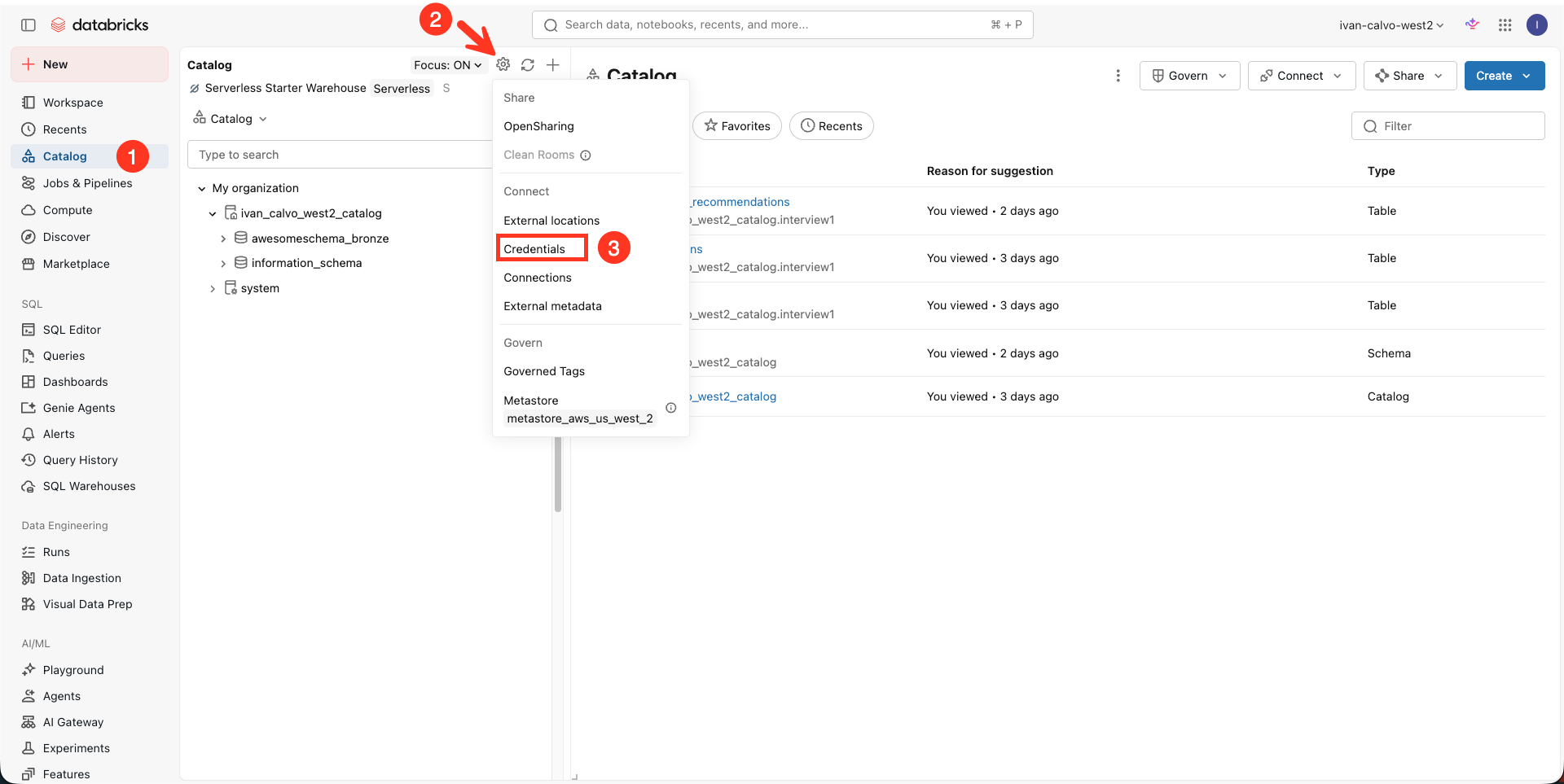
In the workspace left sidebar, click Catalog. Click the gear icon, then choose Credentials. The same menu holds External locations and Connections.
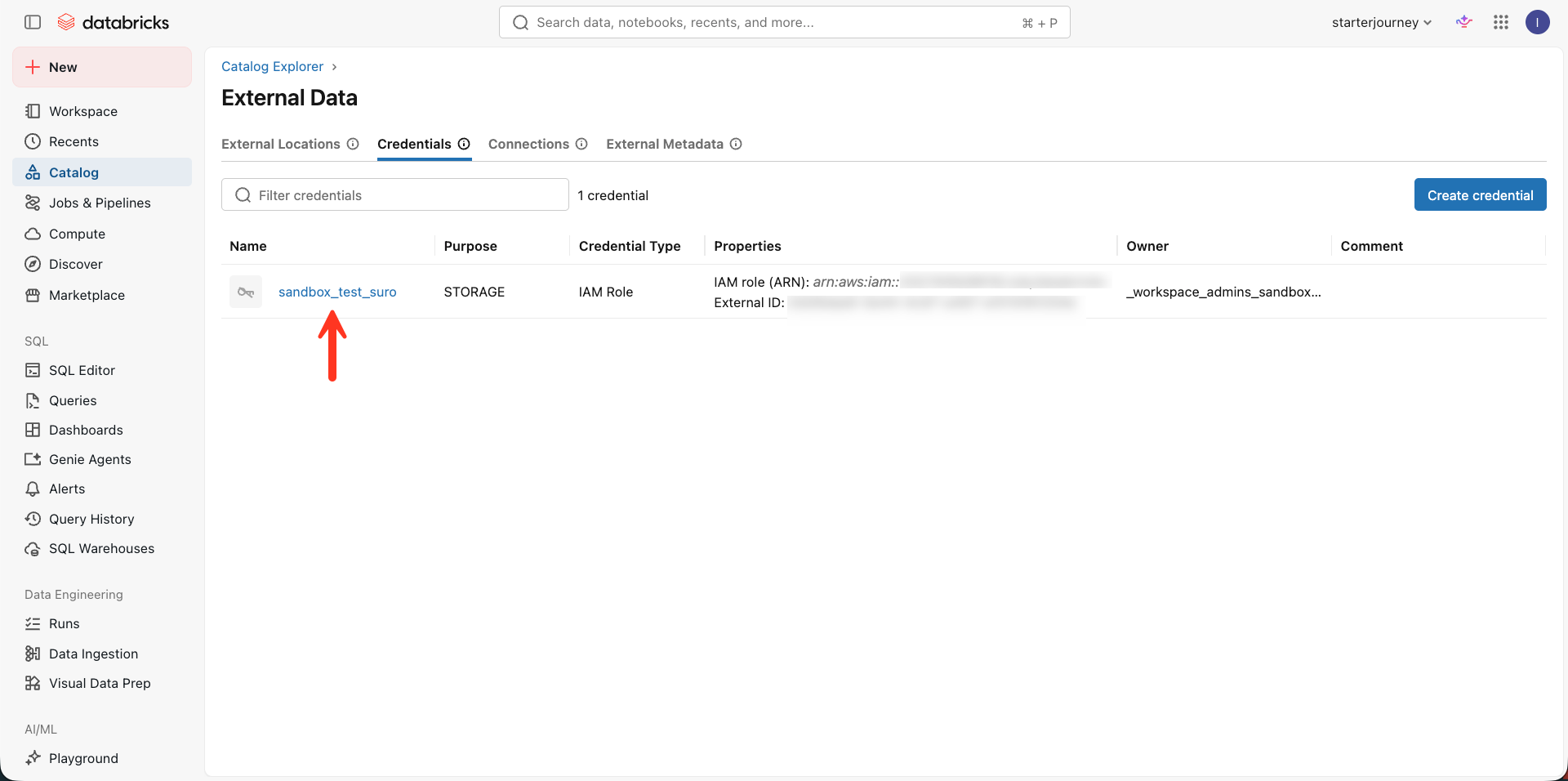
On the Credentials tab, click the credential whose owner you want to change.
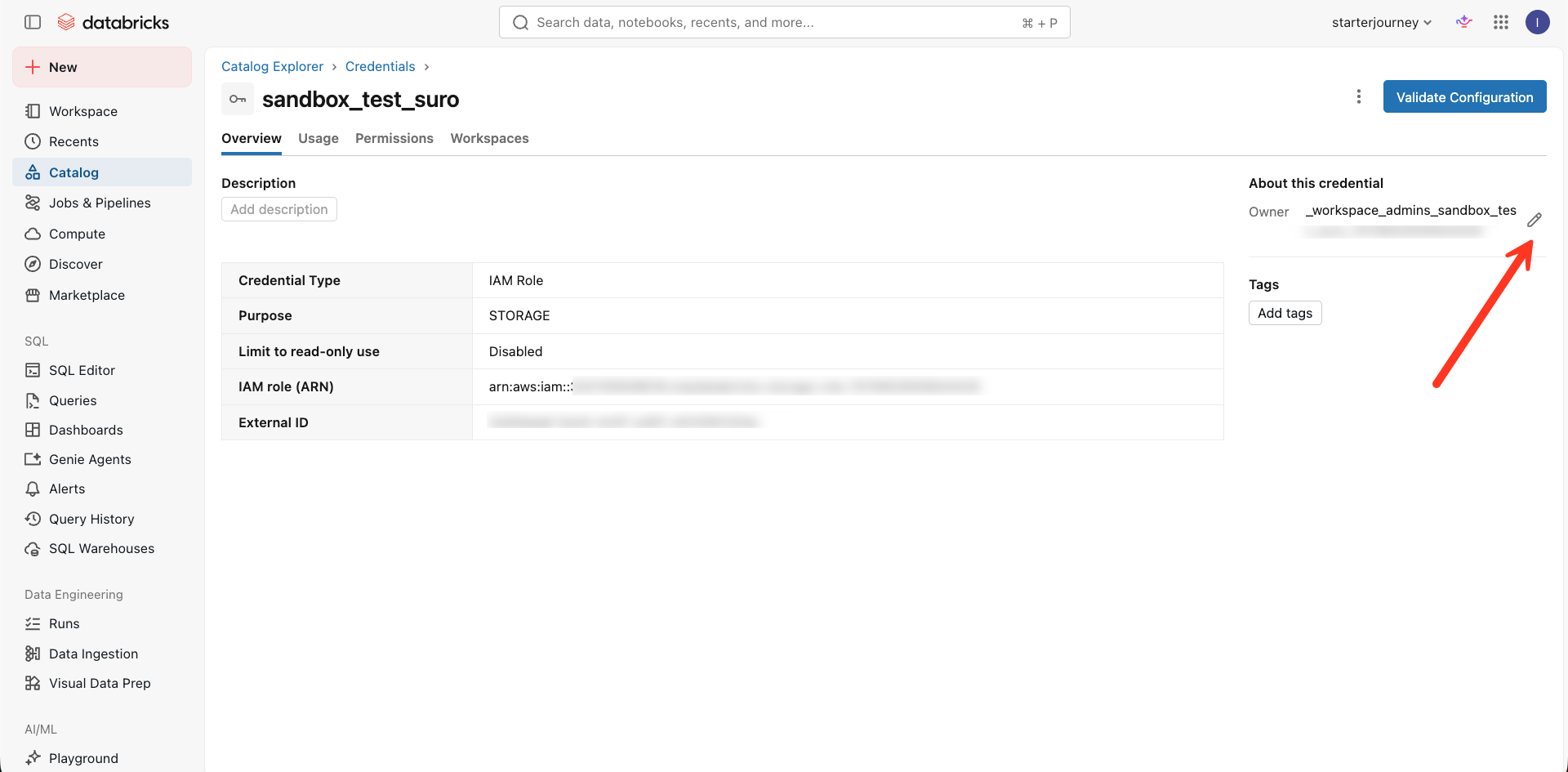
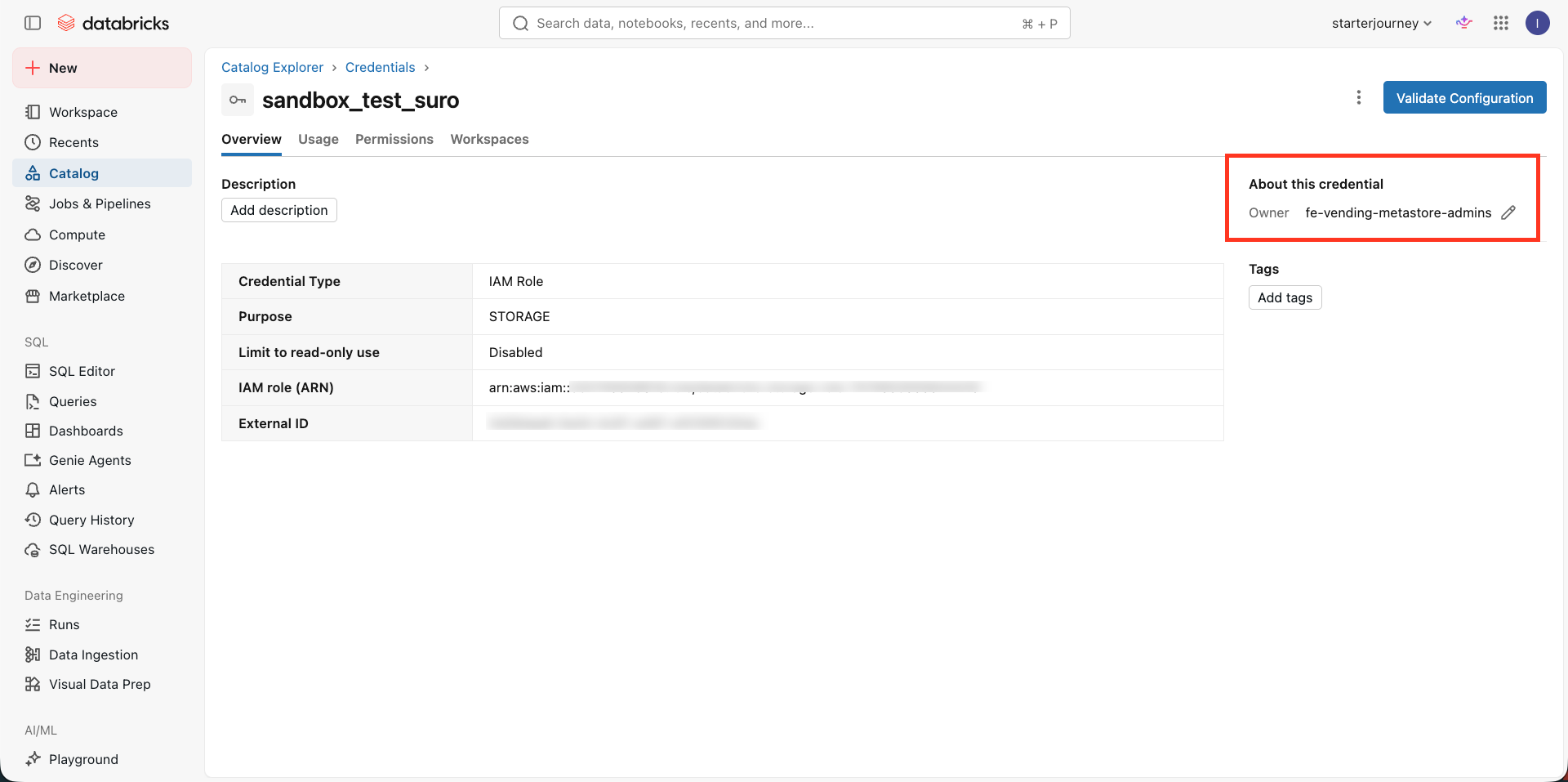
On the Overview tab, find the Owner field under About this credential and click the edit icon (pencil).
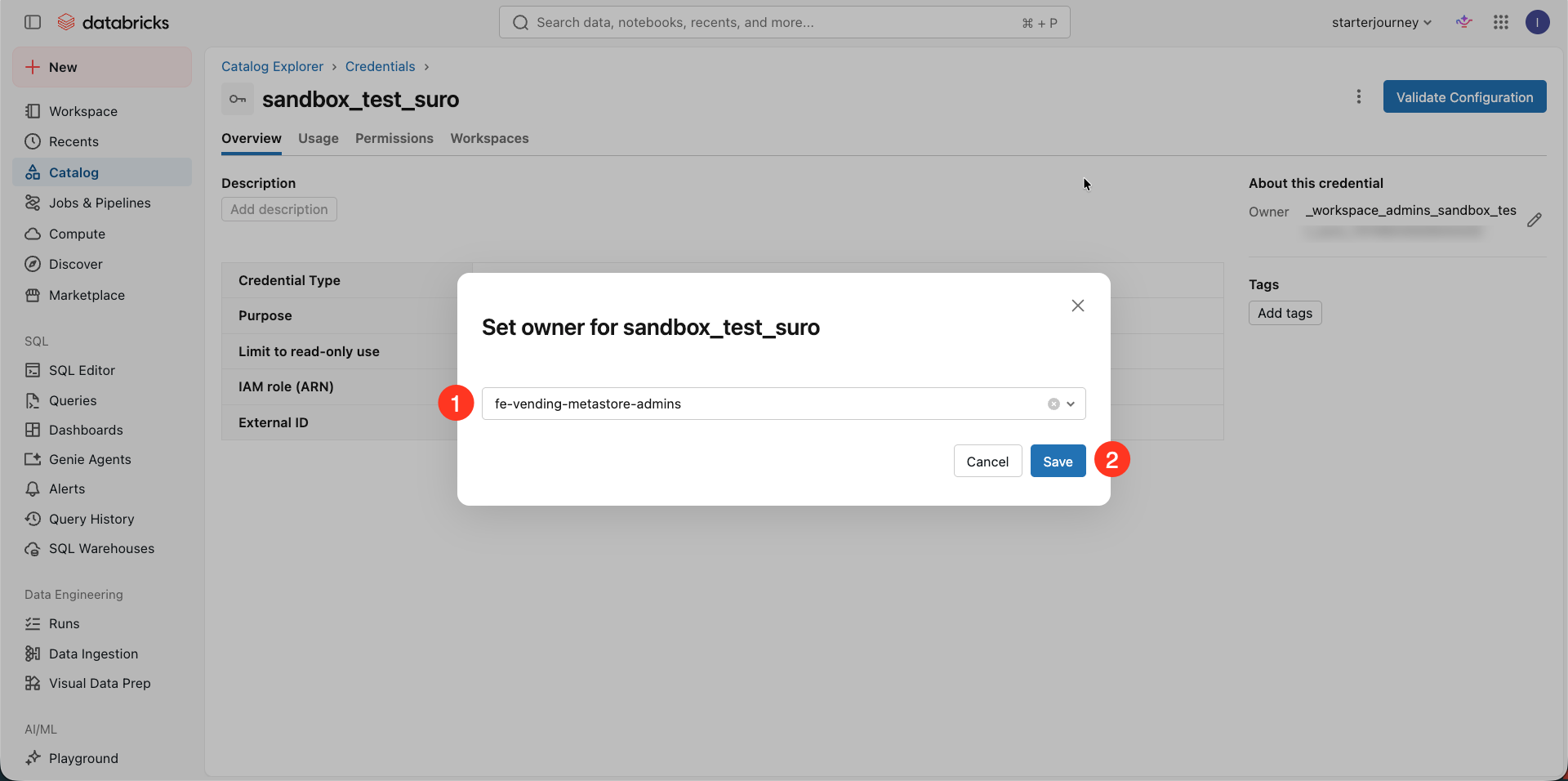
Enter your admin group (for example fe-vending-metastore-admins) as the owner.
Click Save.
The Owner field now shows the admin group.
Ownership lets the group manage the asset. Grant the privileges the people who use it need.
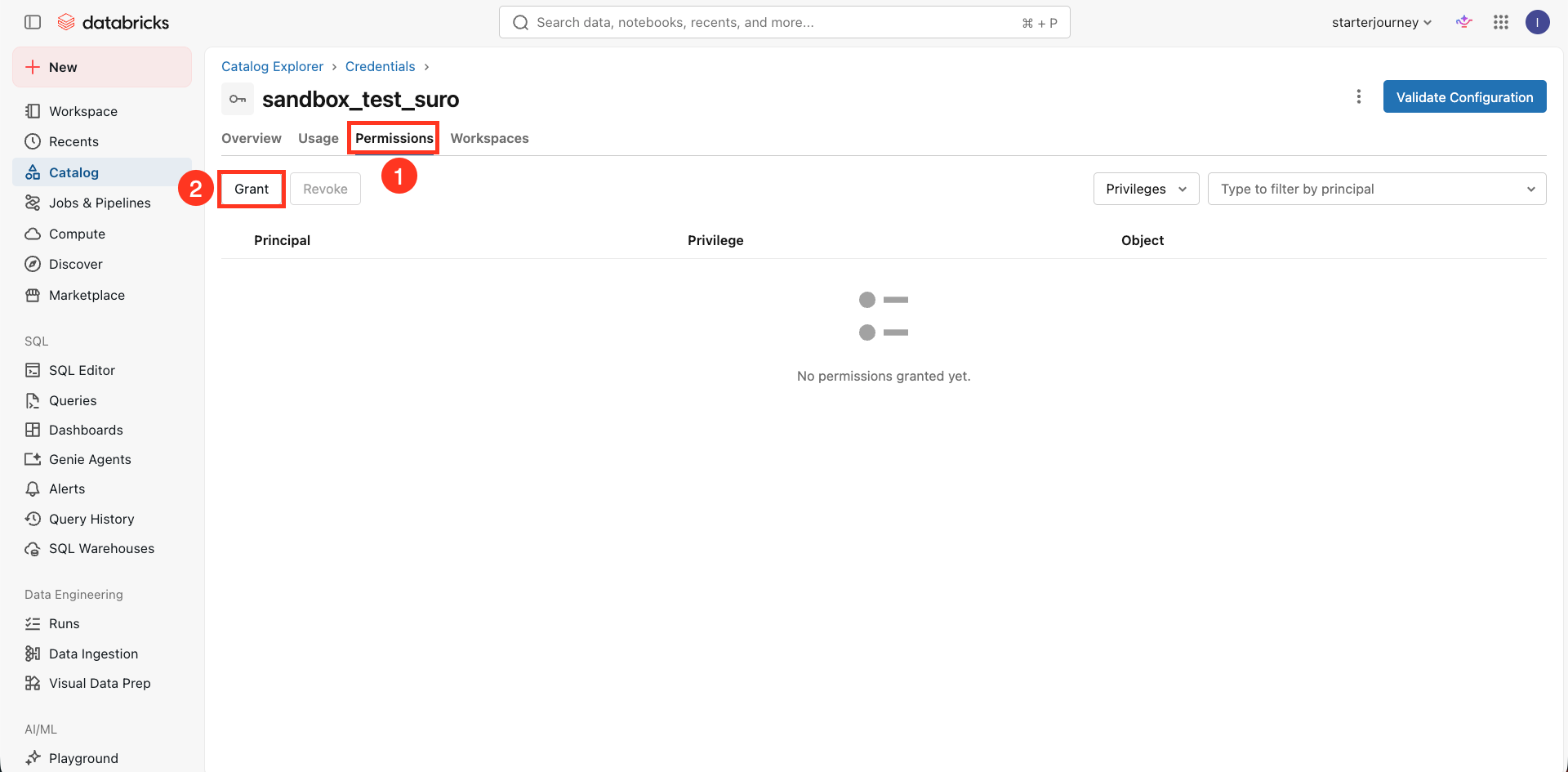
Open the Permissions tab and click Grant.
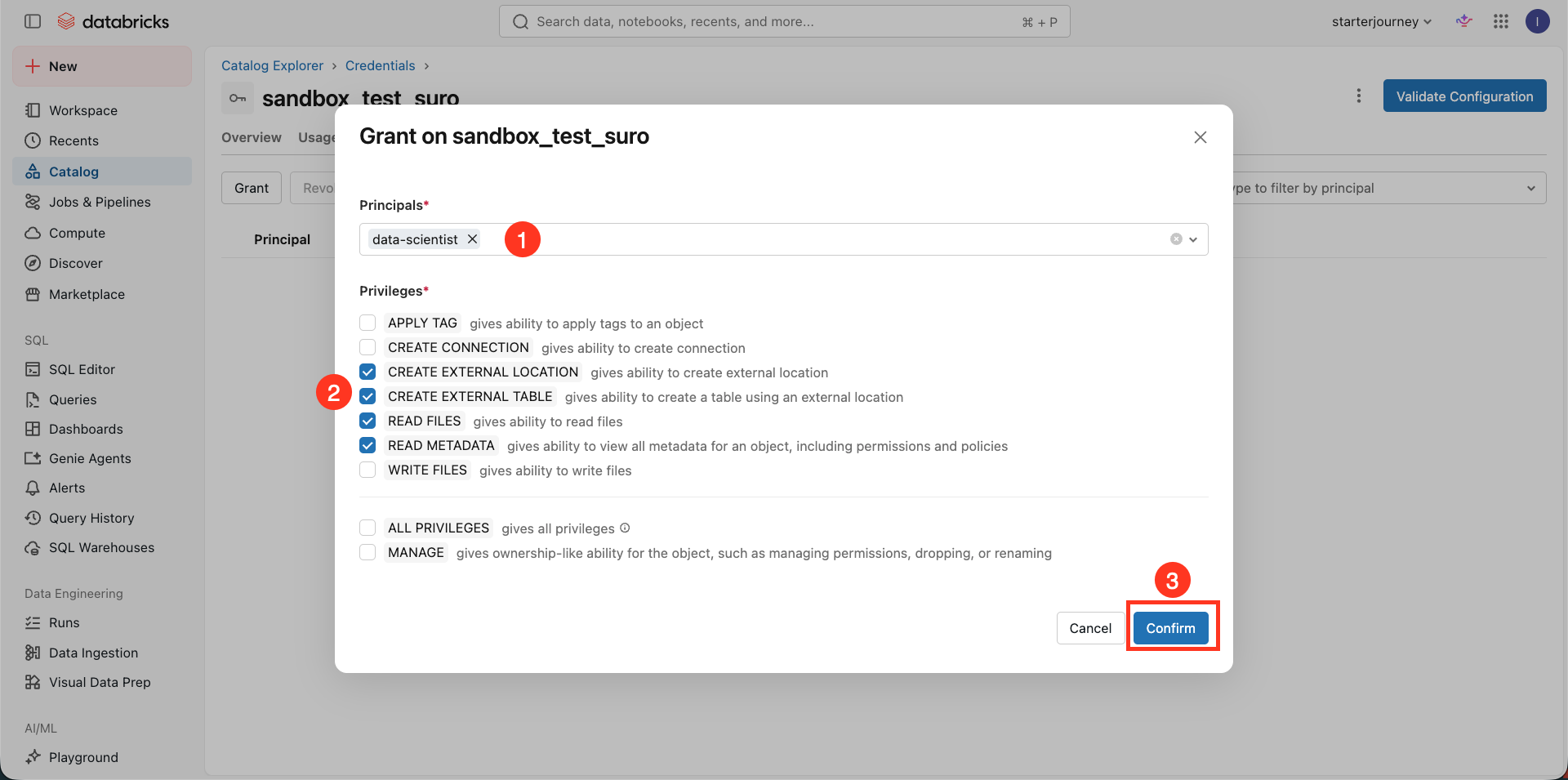
Select the principal (for example data-scientist).
Select the privileges to grant, then click Confirm.
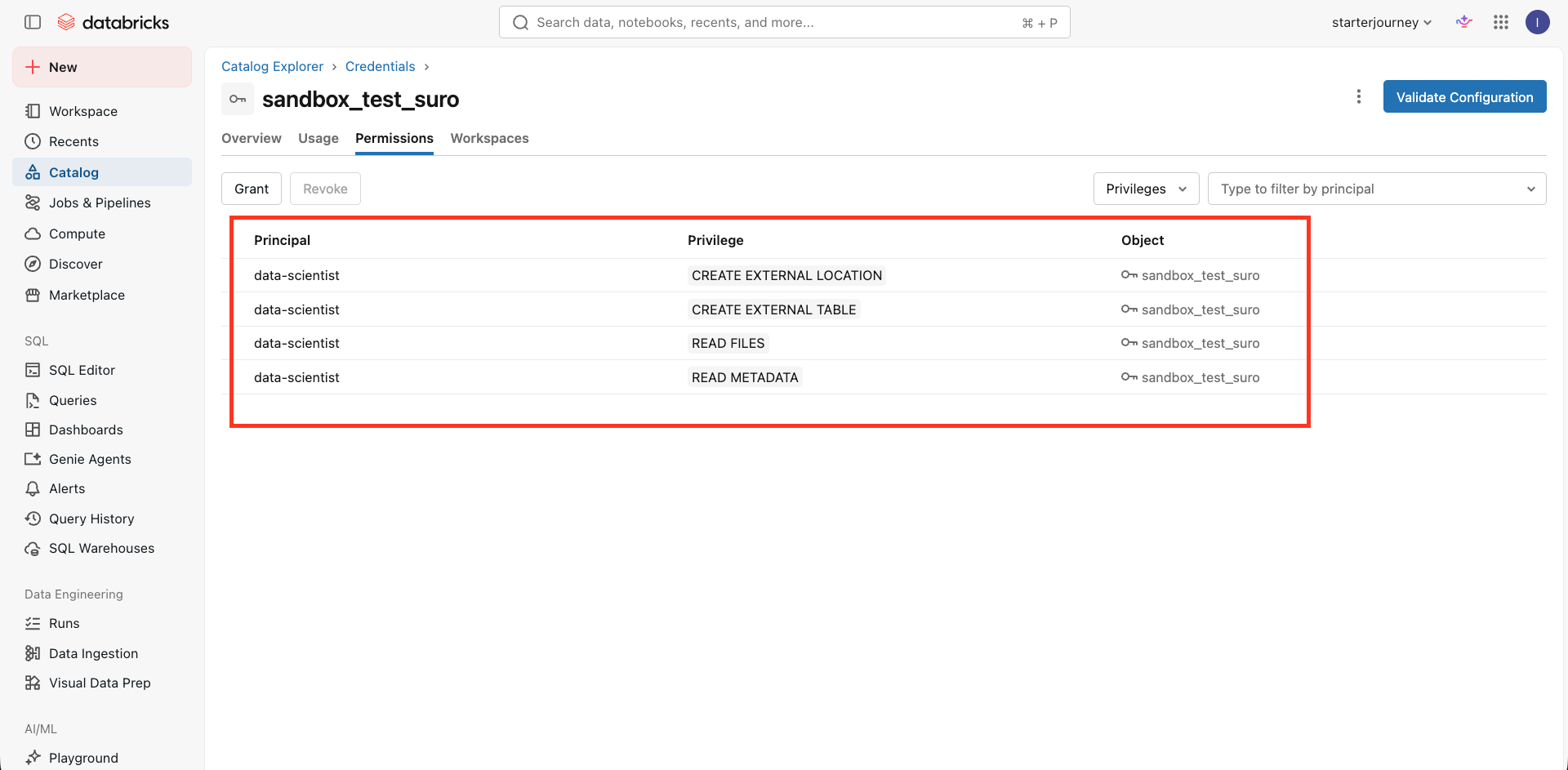
The Permissions tab lists the privileges you granted.
Reference: Manage Unity Catalog privileges (Databricks docs)
Repeat steps 1 to 8 for each external location and connection.
Transfer catalogs and schemas
Catalogs and their schemas follow the same owner-then-permissions flow. These steps use a catalog. Repeat them for each schema.
Transfer a catalog to the admin group, grant working permissions, then repeat the flow for its schemas.
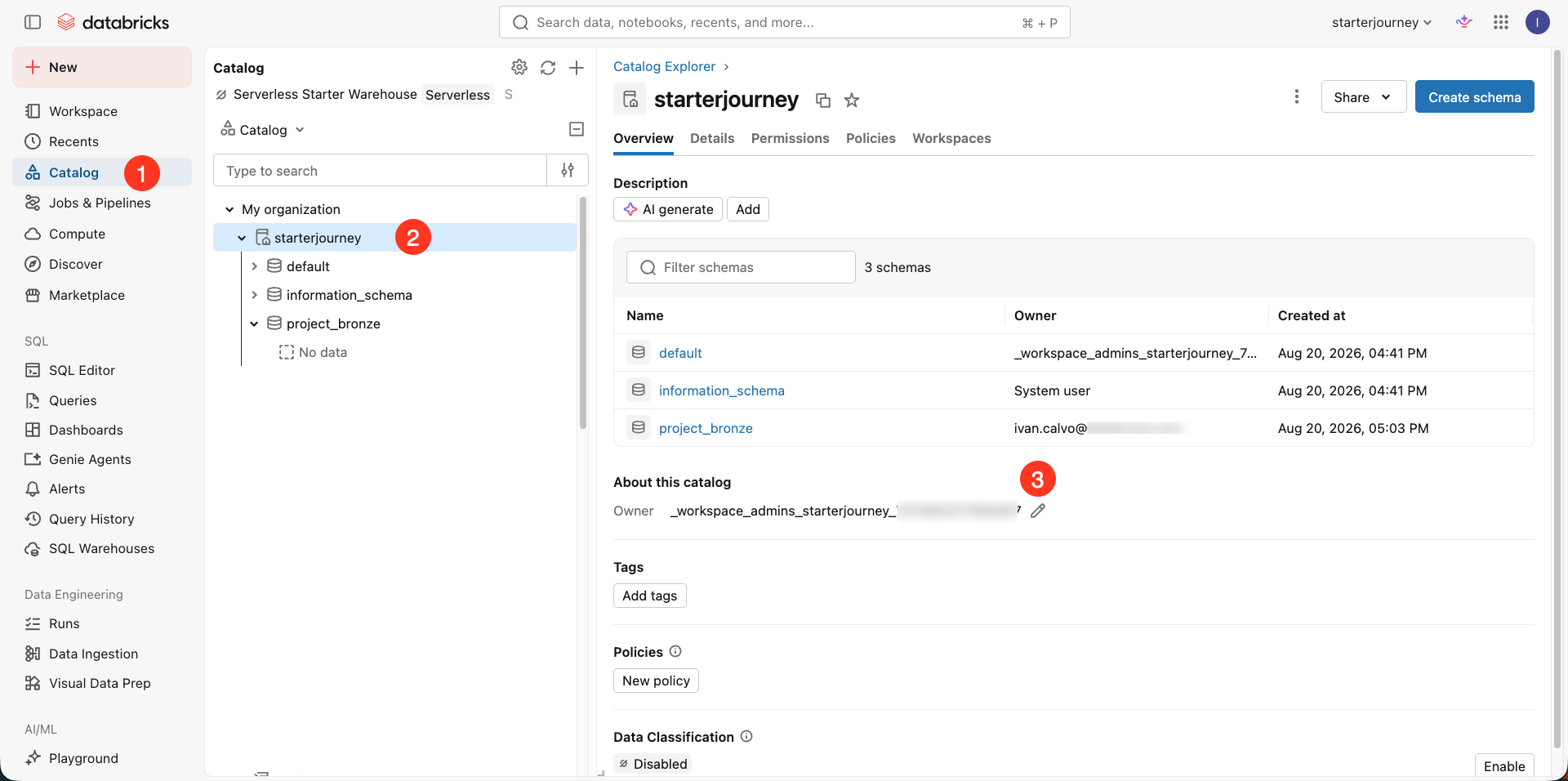
In the left sidebar, click Catalog, then click the catalog in the tree. On the Overview tab, find the Owner field under About this catalog and click the edit icon (pencil).
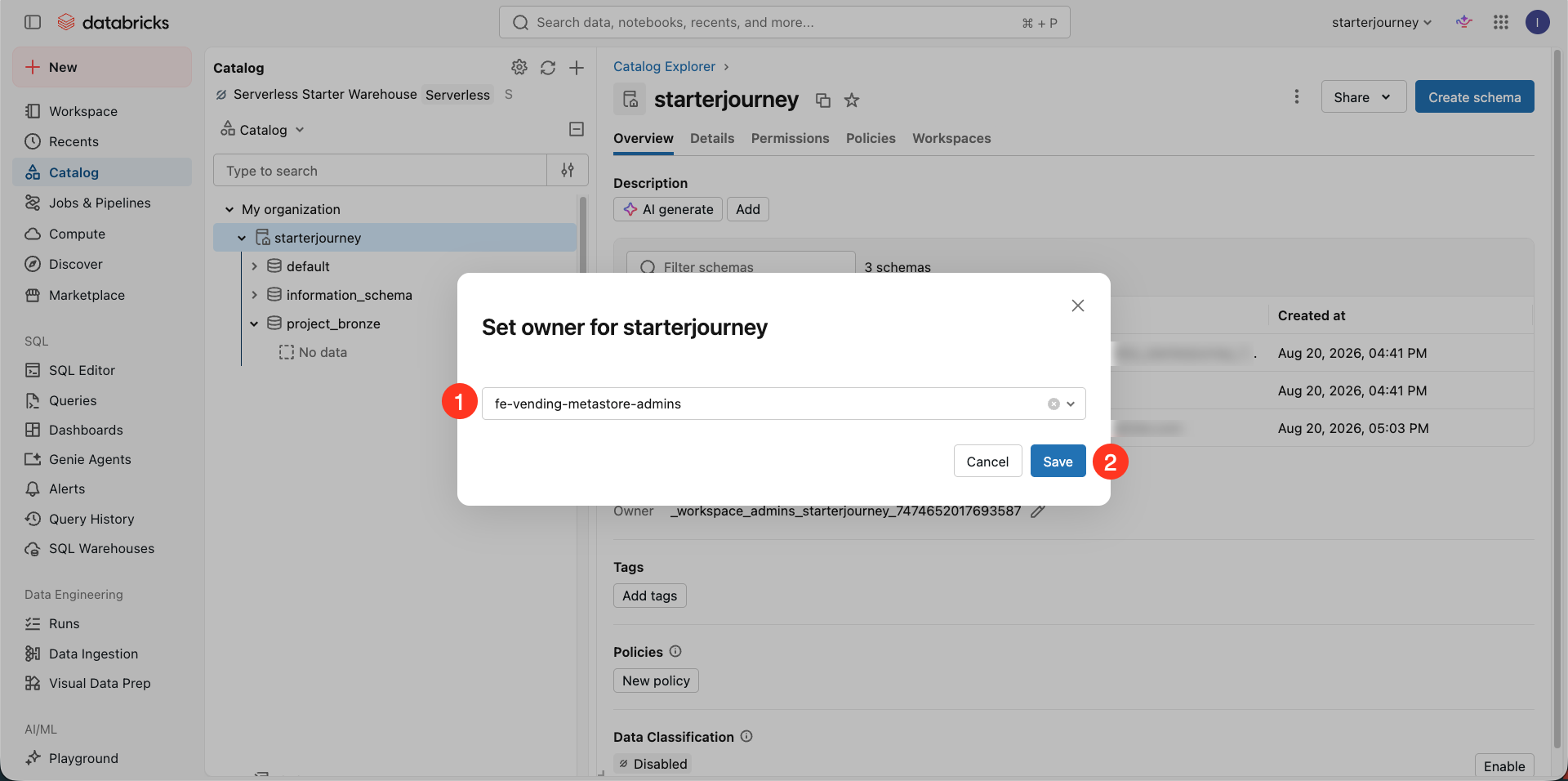
Enter your admin group as the owner. Click Save.
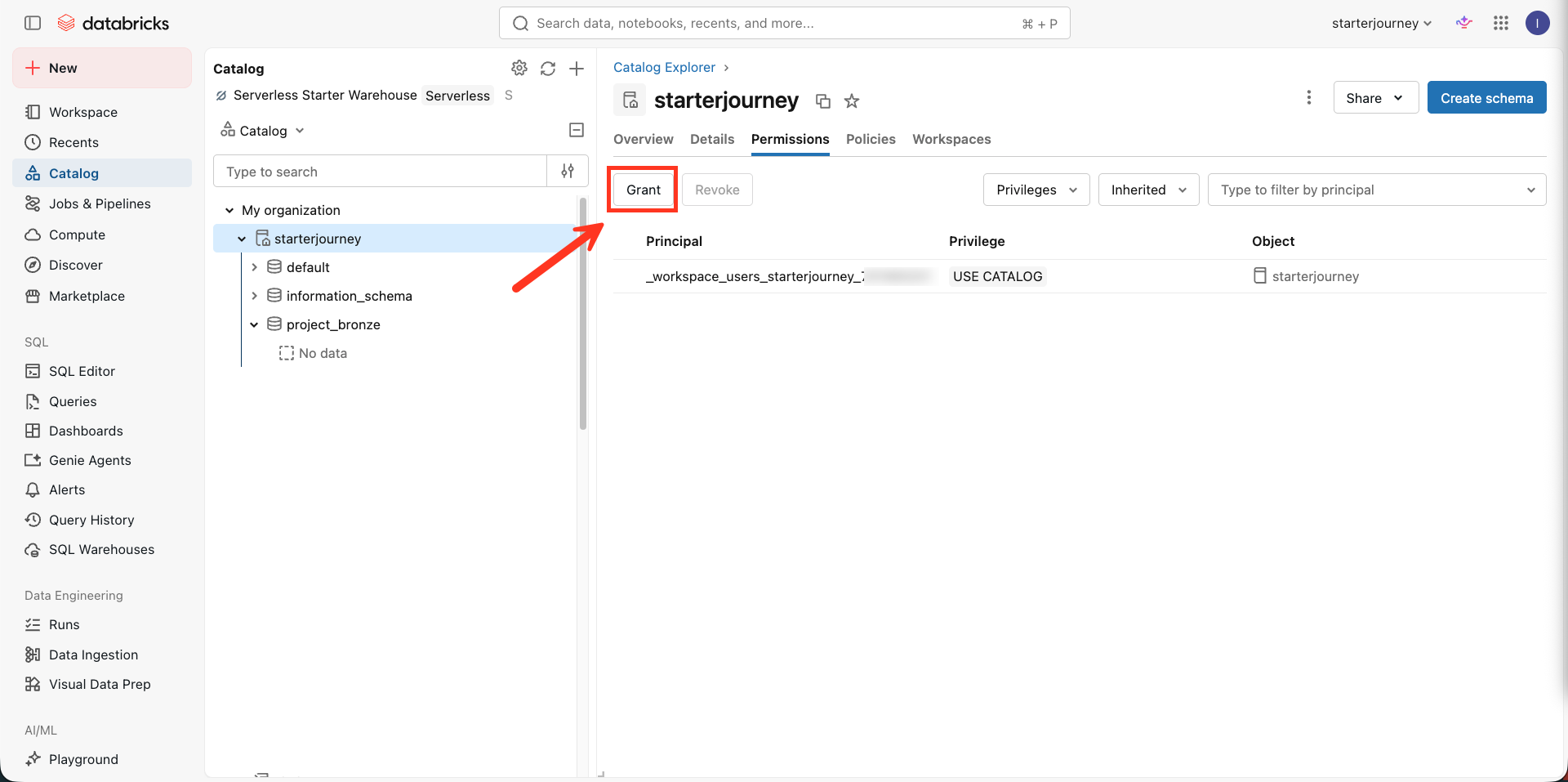
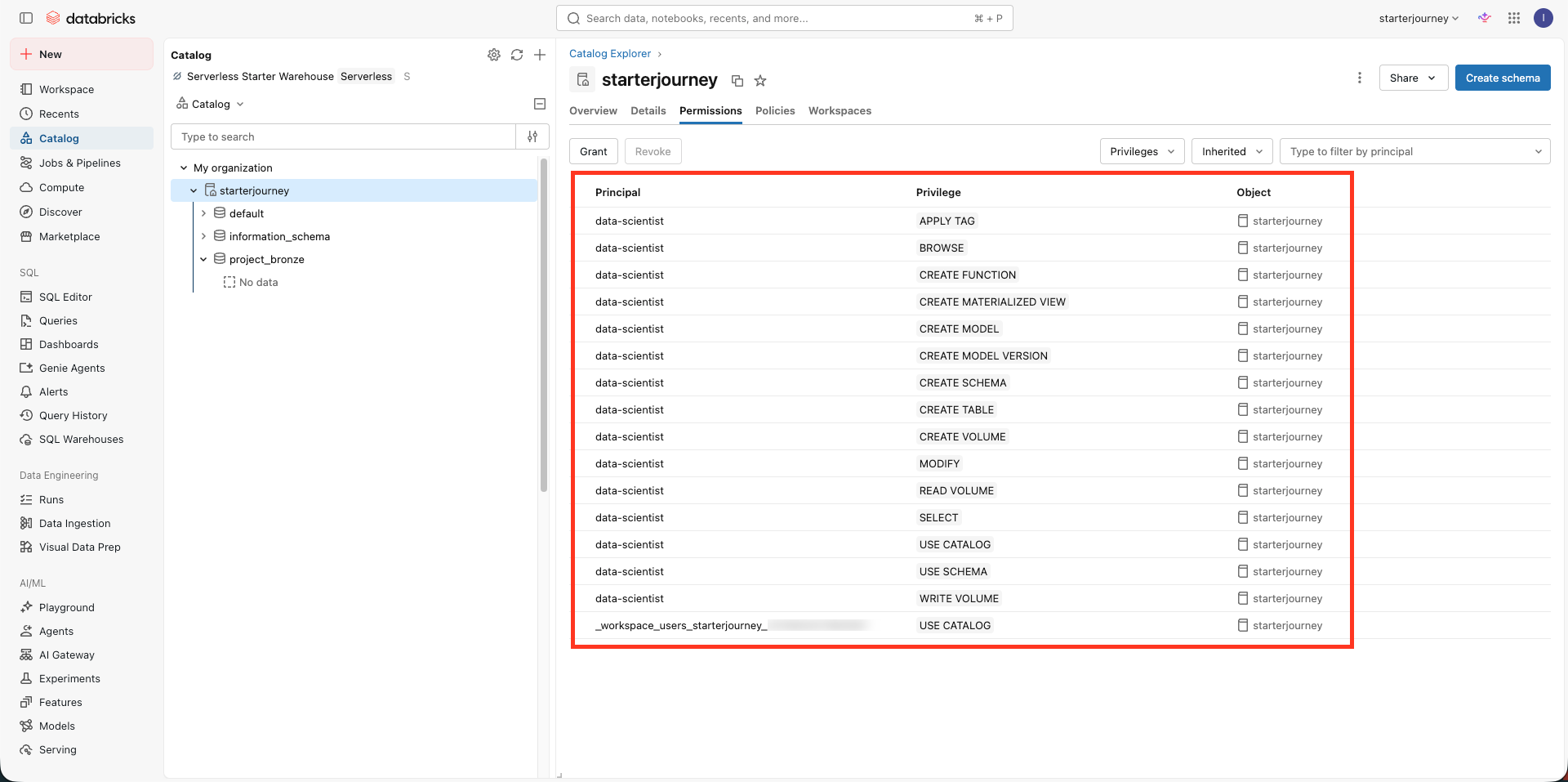
Open the Permissions tab and click Grant.
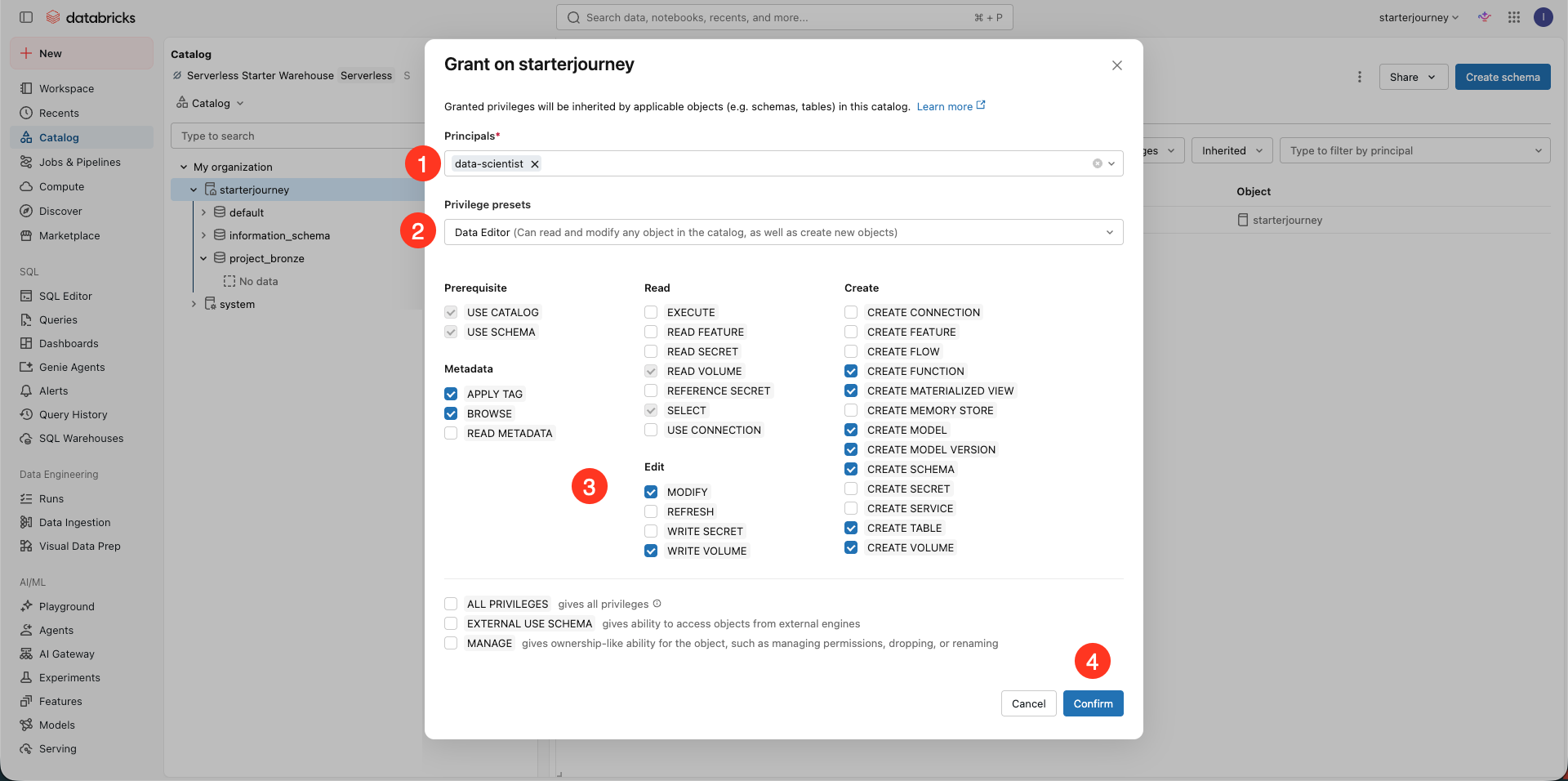
Select the principal. Pick a privilege preset (for example Data Editor) or select privileges by hand, then click Confirm.
The Permissions tab lists the privileges you granted. Schemas and tables in the catalog inherit them.
Reference: Manage Unity Catalog privileges (Databricks docs)
Repeat these steps for each schema whose owner you want to change.
Verify
For each asset, confirm the Owner field shows the admin group and the Permissions tab lists the grants you added.
Where people trip
Cannot see external locations or credentials
You have to be a member of the metastore admin group to see these assets. Ask a current metastore admin to add you, or check your membership in the account console.
Cannot change ownership of an asset
Only the current owner or a metastore admin can transfer ownership. If the current owner no longer has access, a metastore admin can reassign it.
Next
- Do next: Small organizations
- Learn why: Unity Catalog foundations
- Reference: Manage privileges in Unity Catalog