Add Users — Manual
You'll add users to the Databricks account through the console in ~2 min per user.
Prereqs: Account Console, account-admin privileges
What you'll build
Users registered at the Databricks account level, available for assignment to any workspace.
Prerequisites
- Account-admin access to the Databricks account console.
Steps
1. Open the account console
Go to the account console for your cloud provider:
2. Add a user
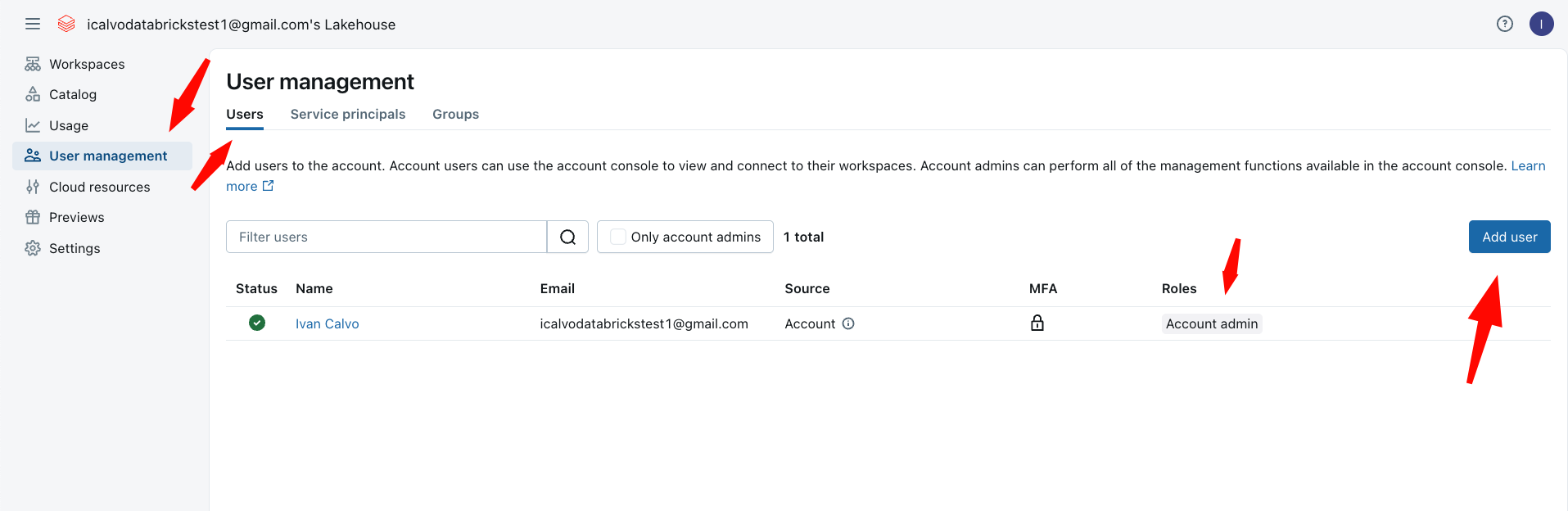
- On the left panel, click User management.
- On the Users tab, click Add user.
- Enter the user's email and full name.
- Click Add.
3. Repeat for additional users
Add each team member that needs access. You will assign them to workspaces and groups in the next steps.
Verify
- In the account console, navigate to User management > Users.
- Confirm each new user appears in the list with the correct email.
Troubleshoot
User already exists error
The email is already registered in the account. Search for the user in the Users tab — they may have been added by a previous admin or via SCIM sync.
Next
- Do next: Add Users — SCIM
- Learn why: Account Console foundations
- Reference: Add users to your account