Add Groups
You'll understand how to structure Databricks groups by data persona and create them in ~10 min.
Prereqs: Add Users
Why this matters
Individual user permissions do not scale. Groups let you assign access once to a role (Data Engineer, Data Analyst, etc.) and then add or remove people without touching every permission. Without groups, permission management becomes a per-user, per-asset chore that drifts fast.
Journey checklist
-
Get started. -
Before you start. - Infra setup
-
Create workspaces. -
Add users. - Add groups.
- Change ownership to metastore admins.
- Activate SSO.
-
- Cost monitoring.
- Data Governance Strategy.
- Access your data.
- Build the first pipeline.
- Automation and orchestration.
- Query and explore.
- Databricks AI/BI.
- Business semantics.
How it works
Standard data personas
The groups below reflect the standard roles involved in Databricks projects. Customize the names to match your organization's conventions, but keep the role boundaries.
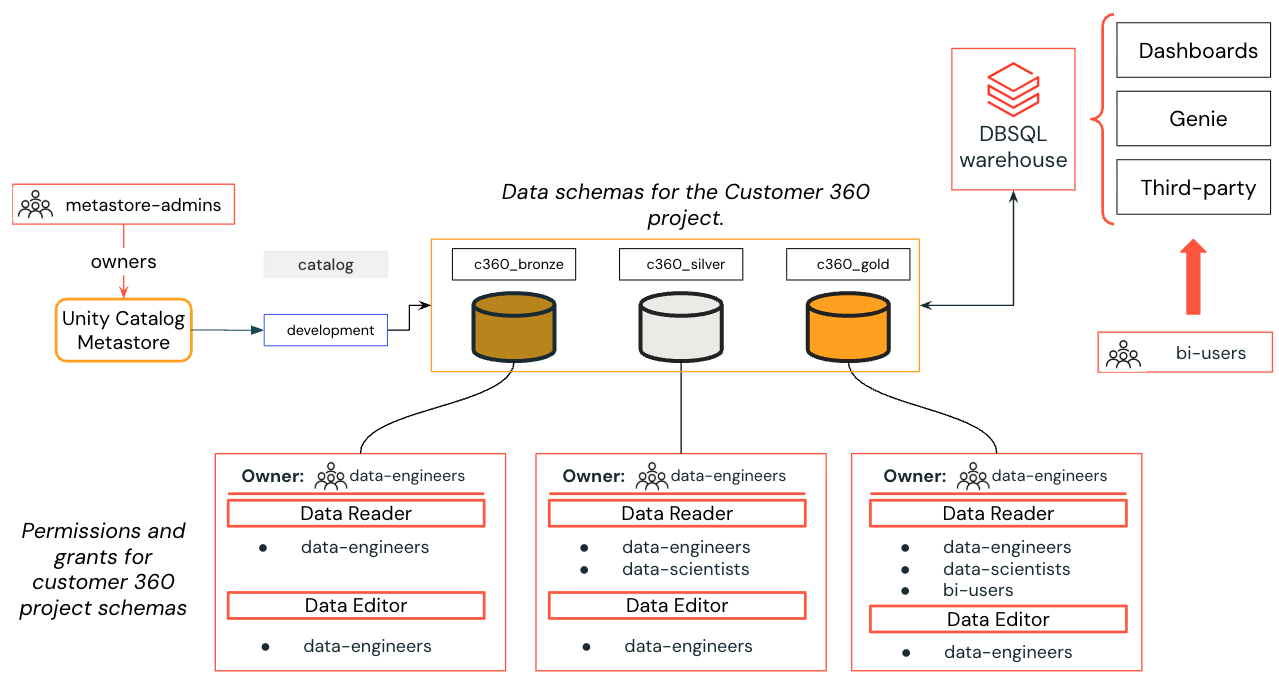
Example: Customer 360 project for the marketing business unit with multiple permission levels on data and AI/BI assets.
| Group | Role | Typical toolstack |
|---|---|---|
| Metastore Admins / Unity Admins | Administer the Unity Catalog metastore. Approve new catalogs, external locations, and connections. | Governance framework, SCIM, SSO |
| Workspace Admins | Manage access, settings, and permissions within a single workspace. | Cloud administration |
| Data Engineers | Build and maintain transformation pipelines. Read and write access on project schemas and tables. | Python, Spark, SQL, Dashboards, CI/CD |
| Data Scientists | Train and deploy ML models and GenAI agents. Read-only access on specific schemas and tables. | Python, Pandas, MLflow, ML/GenAI frameworks |
| Data Analysts | Build business metrics, analytics, and dashboards. Read-only data access. | SQL, Dashboards, Visualizations |
| Business Users | View dashboards and Genie spaces. View-only access — typically do not log in to workspaces directly. | Excel, embedded dashboards |
Workspace admin groups
Create a separate admin group per workspace:
dev-ws-admins— Development workspace admins.stg-ws-admins— Staging workspace admins.prod-ws-admins— Production workspace admins.
This prevents a single admin group from having blanket access to every environment.
When you need more granularity
For medium-to-large organizations where a single Data Engineers group does not provide enough isolation, prefix groups with the business unit or project name:
[bu-or-project]-data-engineers[bu-or-project]-data-scientists[bu-or-project]-data-analysts[bu-or-project]-bi-users
This lets you grant different data access per project through Unity Catalog while keeping group membership clean.
Common pitfalls
One flat group for all engineers
A single Data Engineers group works at small scale but breaks when different teams need different data access. Plan for project-level groups early to avoid a painful migration later.
Creating groups inside workspaces
Groups created at the workspace level do not propagate to other workspaces or to Unity Catalog. Always create groups at the account level (or via SCIM) so they are available everywhere.
Create the groups
- Manual — Add groups through the account console UI.
- SCIM — Automate group provisioning from your identity provider.
Next
- Do next: Add Groups — Manual
- Learn why: Unity Catalog foundations
- Reference: Manage groups